
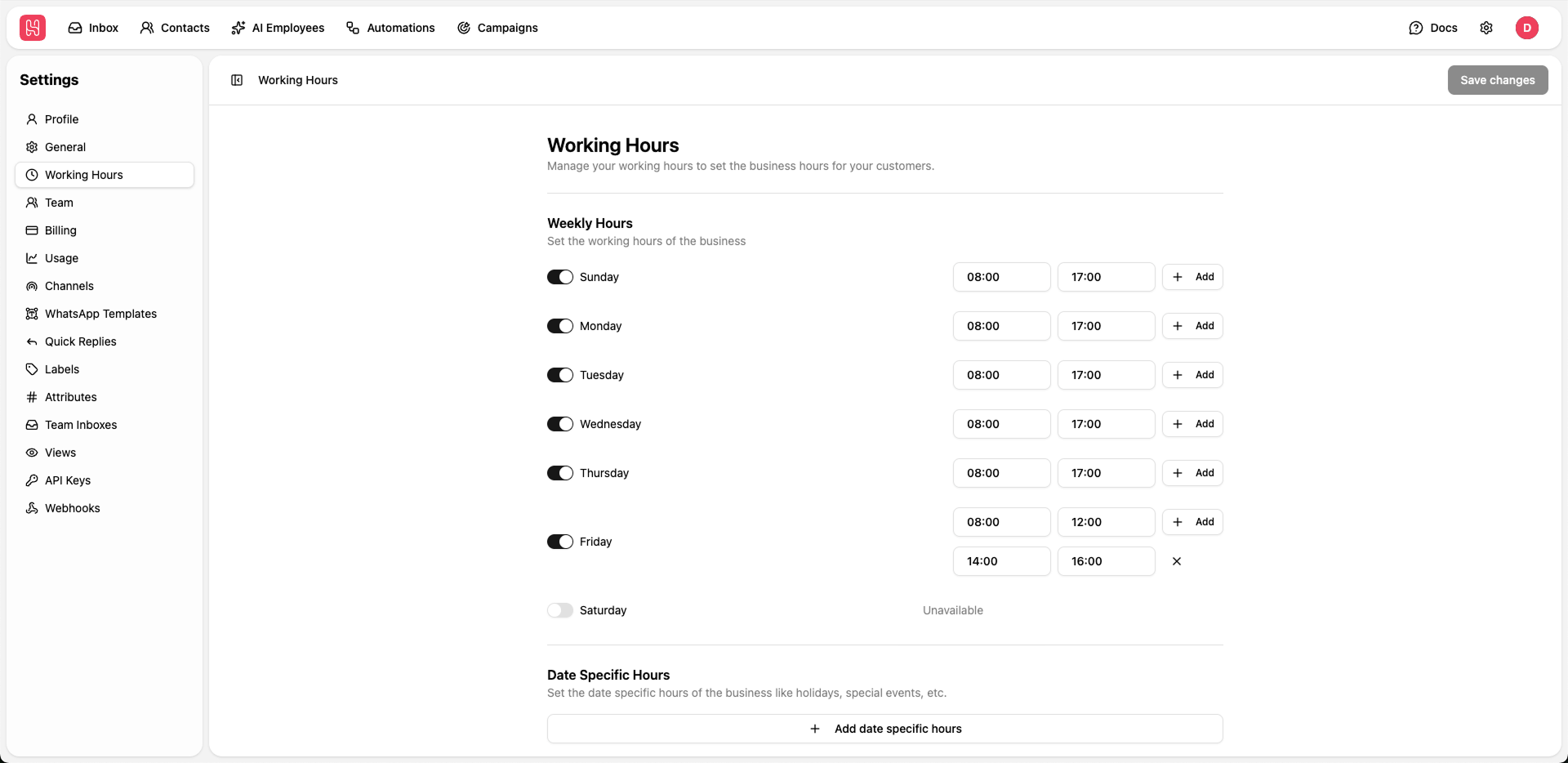
Go to Settings > Working Hours to manage you working hours.
Weekly Hours
Set up your regular business hours for each day of the week.1
Enable/Disable Days
Toggle the switch next to each day to mark it as available or unavailable
2
Set Hours
For enabled days, set the start and end times using the time pickers
3
Add Multiple Shifts
Click + Add to add multiple time ranges for a single day (e.g., split shifts)
4
Save Configuration
Click Save changes to apply your working hours
Date Specific Hours
Set special hours for holidays, events, or any specific dates that differ from your regular schedule.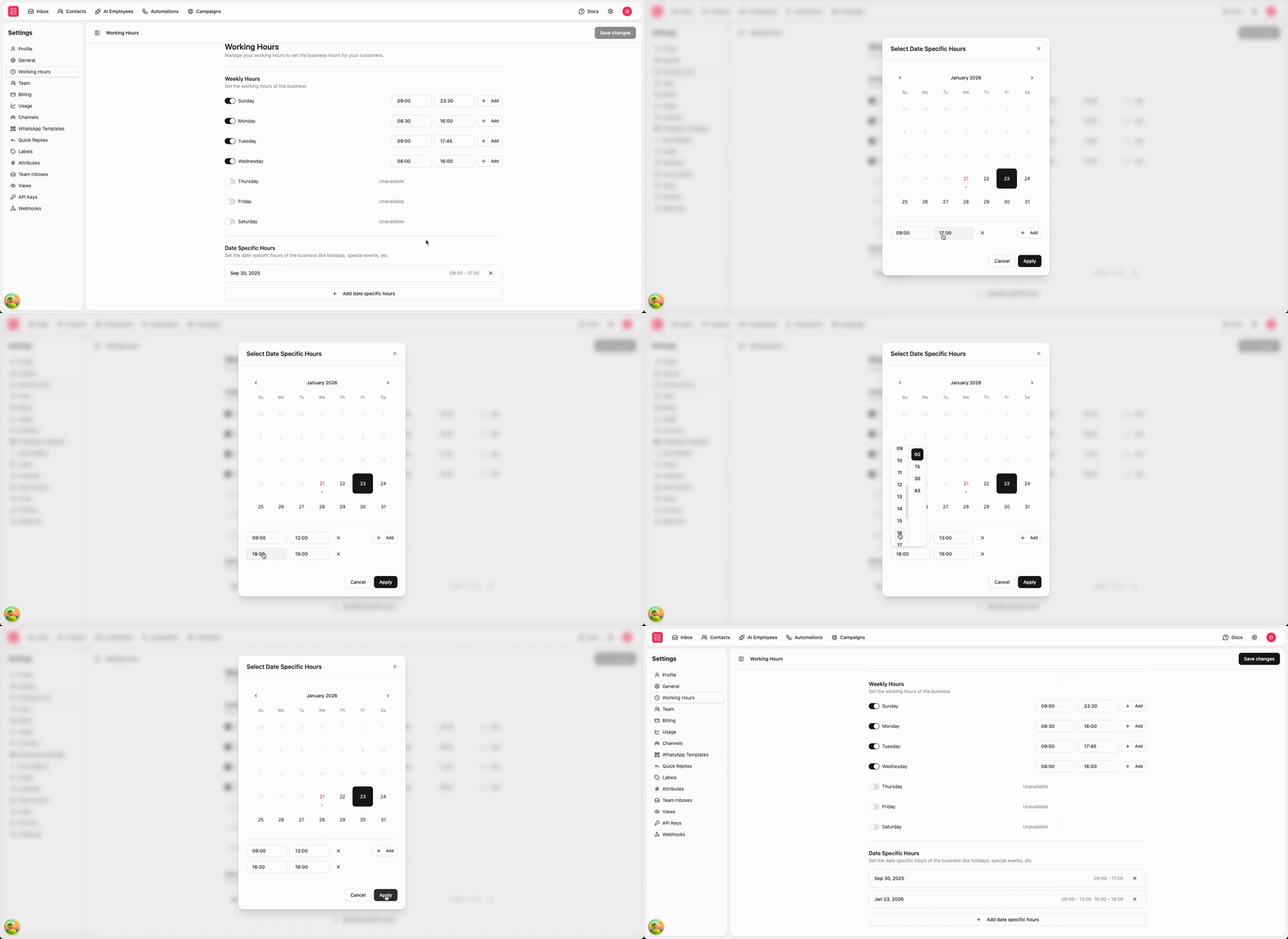
1
Add Special Date
Click + Add date specific hours
2
Select Date
Choose the specific date from the calendar
3
Configure Hours
Set the working hours for that date, or don’t select hours to make this day unavailable
4
Apply
Click Apply
Date-specific hours override weekly hours for the specified dates. Use this for holidays, special events, or temporary schedule changes.