
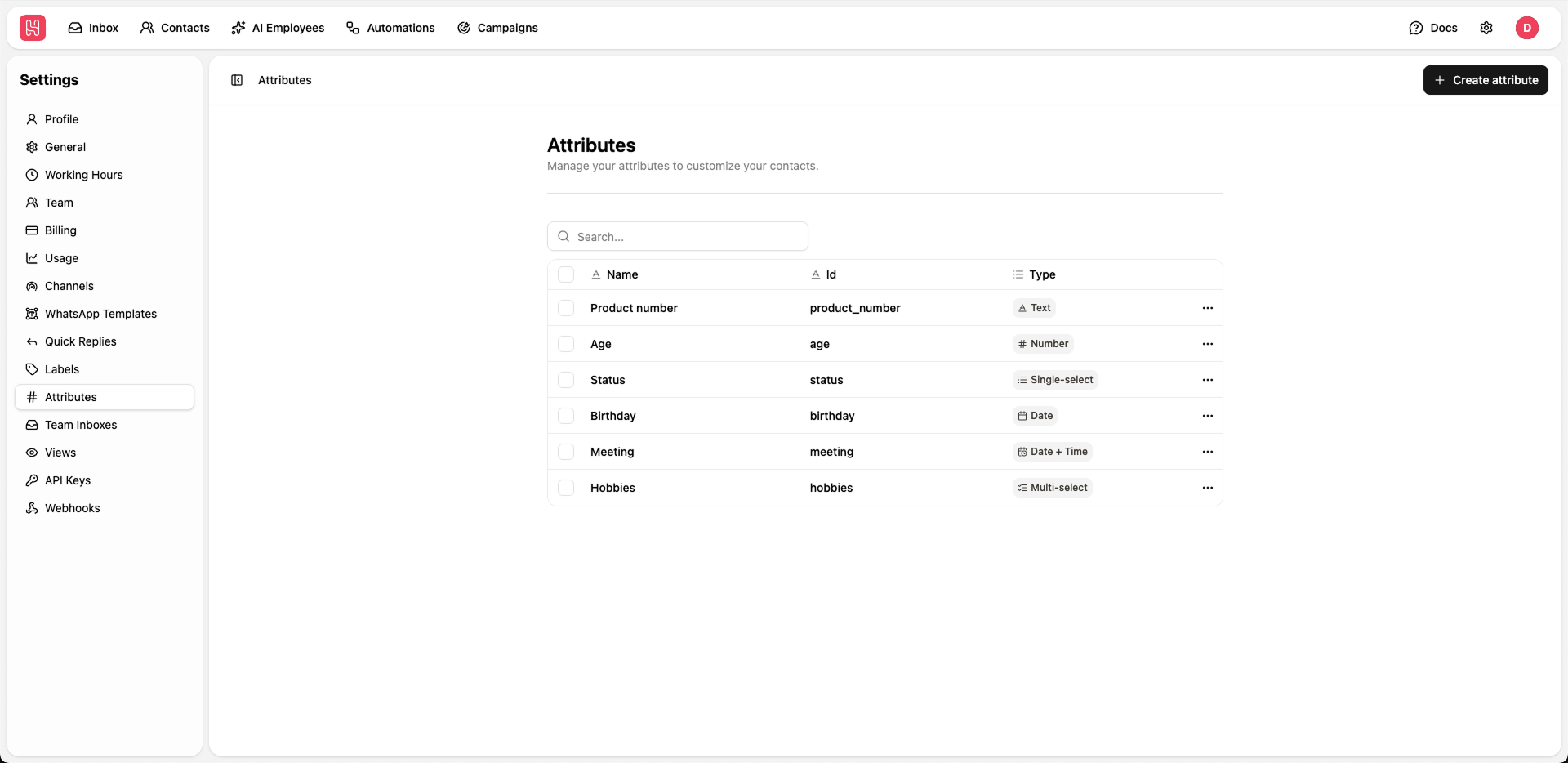
Go to Settings > Attributes to manage your attributes.
Attribute Properties
Each attribute has the following properties:- Name - The display name shown in the interface. This should be descriptive and easy to understand.
- ID - An identifier used in integrations and message templates. This field cannot be changed after creation and must contain only letters, numbers, and underscores.
- Description - An optional field that adds extra information about the attribute.
- Type - The data type that determines what kind of values the attribute can store. Available types include: Text, Number, Single-select, Date, and Date + Time.
Text
Text
Stores any text of any length. Ideal for descriptions, notes, addresses, and other text that doesn’t need specific formatting.
Number
Number
Only accepts numbers. Good for quantities, scores, amounts, ratings, and any data that needs calculations or number checks.
Single-select
Single-select
A dropdown field with predefined options. Each option can be assigned a color for easy identification. Ideal for lead status, deal stage, account type, industry, priority levels, and other categories that need consistent values across your contacts.
Date
Date
Stores dates without time information. Perfect for birthdays, signup dates, deadlines, and other events that don’t need a specific time.
Date + Time
Date + Time
Stores both date and time information. Use this type for appointments, event schedules, timestamps, and any situation where you need both the date and time.
Creating Attributes
1
Click Create Attribute
Click the Create attribute button to open the popup dialog.
2
Configure Attribute
Fill in the attribute details:
- Enter a descriptive name that will be shown to users
- Set an attribute ID following the rules (letters, numbers, and underscores only)
- Select the data type based on what information you want to store
- Optionally add a description to help other team members understand the attribute
3
Save
Review your settings and click Save to create the attribute. The attribute will be immediately available for use across your account.
Use Cases
Attributes let you add more information to your contacts beyond standard fields. Common use cases include:- Organizing Customers - Store custom tags, categories, or preferences to organize your audience
- Business Information - Track industry-specific details such as company size, revenue, or contract terms
- Tracking Behavior - Record customer interactions, preferences, or engagement
- Integration Data - Store values synced from external systems or other tools
- Workflow Status - Track status flags, stages, or workflow-specific information
Contact attributes can be added to message templates. This lets you personalize messages by using custom contact data. Attribute values are also accessible through the API and can be used in automations and integrations.