
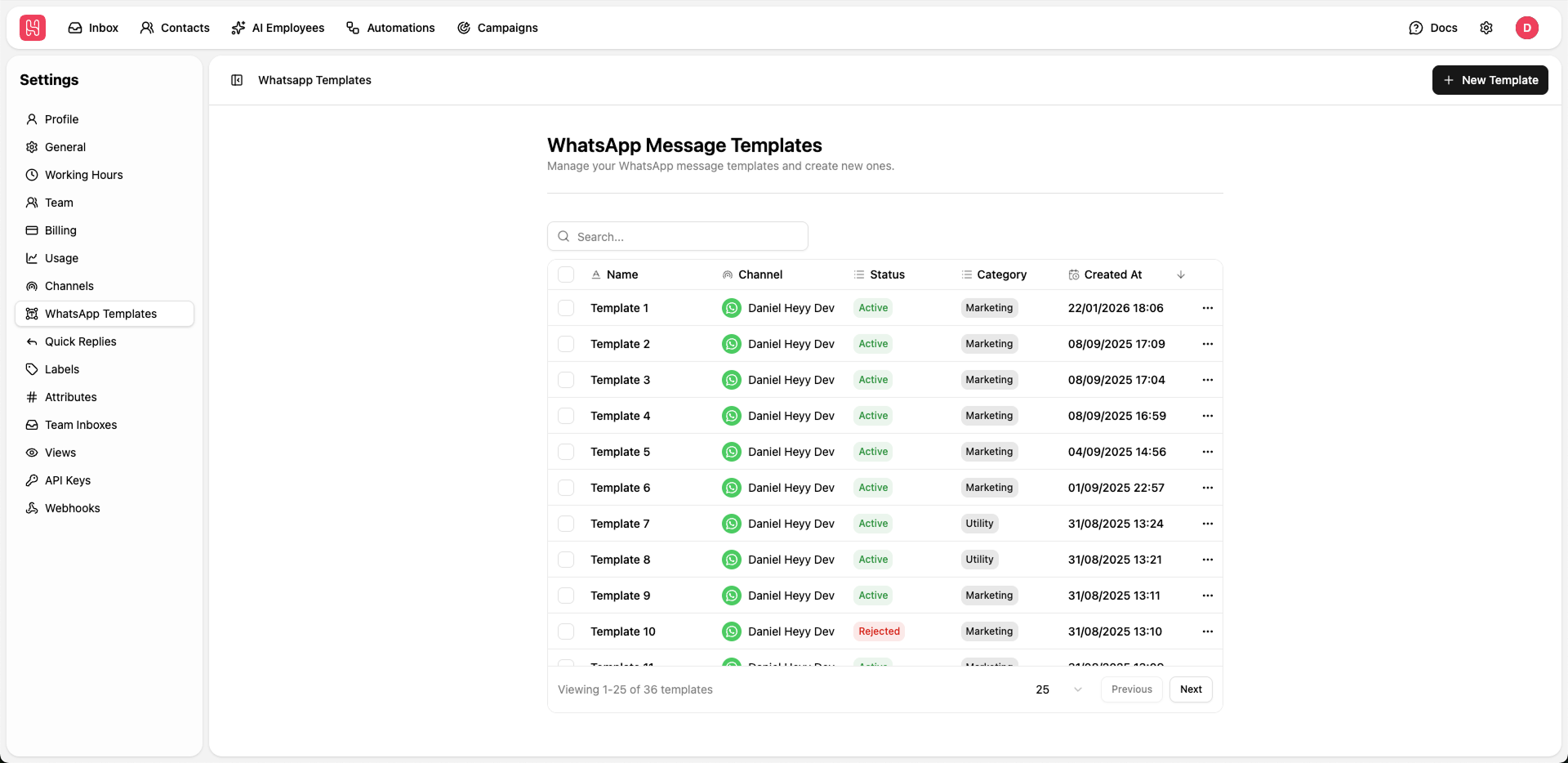
Go to Settings > WhatsApp Templates to manage your templates.
Creating Templates
To initiate a new approval request, click the “New template” button in the top right corner of the dashboard. Use the following sections to define your message structure:Approval Process: By default, all templates are submitted under the Utility category. Review typically takes up to 24 hours, though newly connected WhatsApp channels may experience longer wait times.
Basic Information
- Name: Enter a descriptive, internal name for your template to help your team identify it quickly.
- WhatsApp Channel: Select the specific WhatsApp channel for this template. Note that a template can only be associated with one WhatsApp channel at a time.
Header (Optional)
Headers appear at the very top of your message. You can choose one of the following formats:Text Header
Text headers allow for a short title at the top of your message.Meta header rules: Text headers support a maximum of one parameter/variable. WhatsApp formatting characters (like bold or italics) are not supported.
Media Header (Image, Video, Document)
Include a visual or document-based element.- Image: Supported formats: JPG, JPEG, PNG. Max size: 5MB.
- Video: Supported formats: MP4, 3GP. Max size: 16MB.
- Document: Supported formats: PDF, JPG, JPEG, PNG, MP4. Max size: 100MB.
Message Body
The body is the primary content and the only required component. You can enhance your message using WhatsApp formatting and parameters (contact attributes and variables):- Contact Attributes: Click the ”<>” icon to insert dynamic data like First Name or Address. These are automatically replaced with the recipient’s specific information.
- Variables: Click the ”<>” icon and select “Add new variable” to include custom data like Order IDs or Pricing that can be passed via API or Automations.
Meta body rules:
- The body text cannot start or end with a parameter (variable or contact attribute).
- The number of parameters should remain relatively low compared to the overall text length (as a guideline, keep total parameters to roughly one-third or less of the total word count).
- Line breaks are limited – you cannot have more than two consecutive line breaks. A single empty line (one gap line) is allowed, but three or more in a row will be rejected.
Footer (Optional)
A short line of grey text at the bottom of your message. This is commonly used for signatures or “Reply STOP to unsubscribe” notices.Buttons
Interactive buttons drive higher engagement. You can add up to 10 buttons in total across these types:Meta button rules:
- Emojis are not allowed in button text.
- Parameters are not allowed in button labels. The only exception is URL buttons, where parameters may appear inside the URL itself, not in the visible button text.
Quick Reply
A preset response button. When clicked, it sends the button text as a reply message.Visit Website
A CTA button that opens a specific URL. You can use parameters (contact attributes and variables) to create personalized links.Only two “Visit Website” buttons are allowed per template.
Call Phone Number
A CTA button that triggers the user’s phone app to pre-dial a specific number when clicked.Only one “Call Phone Number” button is allowed per template.
Updating Templates
At this time, only the name of an existing template can be edited. To change the content, header, or buttons, you must create a new template.Why can’t I edit template content? Modifying a template triggers a new Meta approval process which often results in technical errors or indefinite downtime. To ensure your active automations and business flows remain stable, we require the creation of a new template for any content changes.