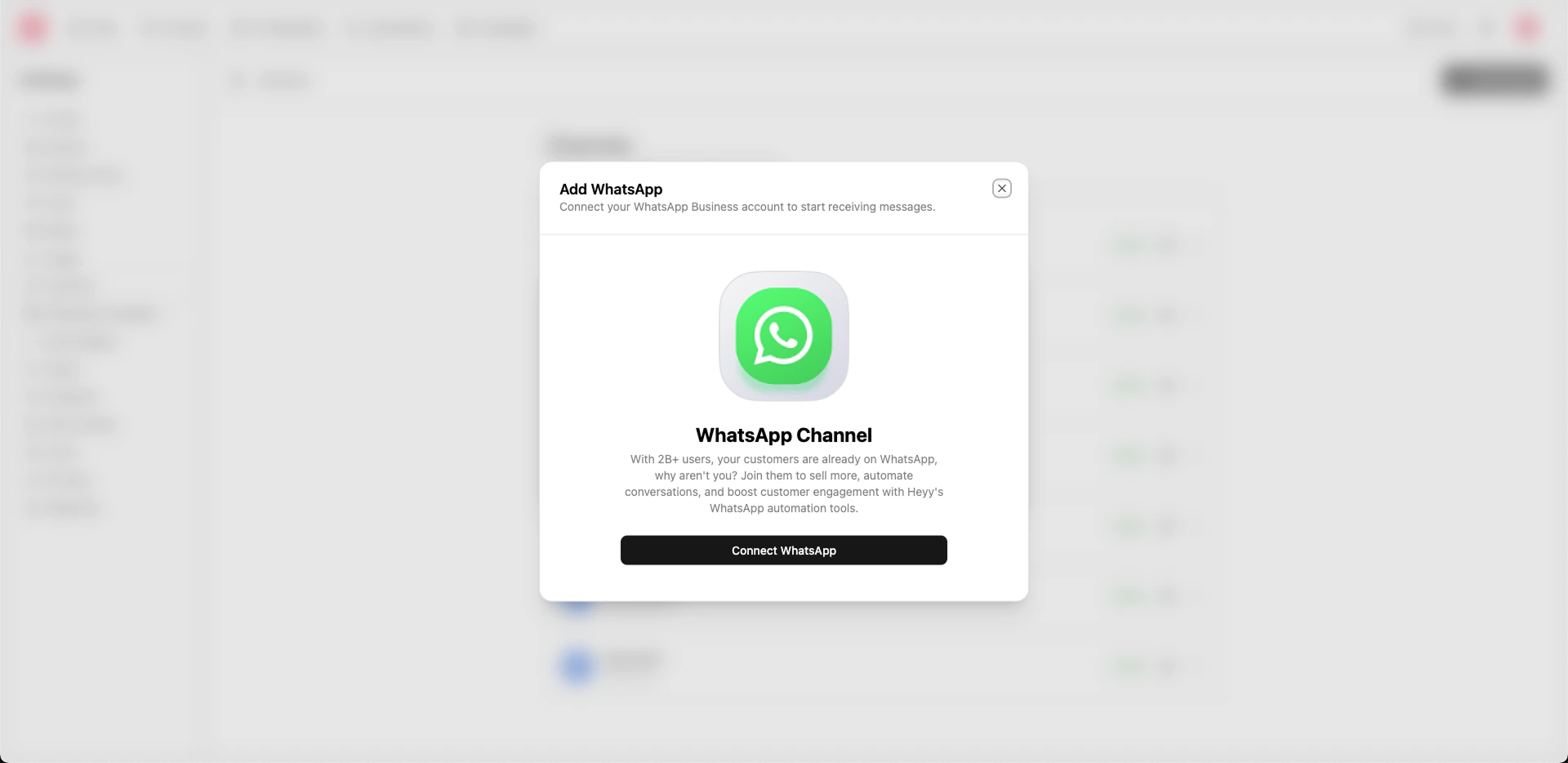
WhatsApp lets you handle conversations from WhatsApp directly in your Heyy Inbox. Your customers can message you on WhatsApp while you use the same automations, AI Employees, contacts, and campaigns as with Messenger, Instagram, and Live Chat. You can also send WhatsApp campaigns to multiple contacts, or offer WhatsApp as a follow-up channel in Live Chat so customers can take the conversation with them.
You can connect WhatsApp in two ways: Cloud API (number hosted by Meta, manage only in Heyy) or Coexistence (use the WhatsApp Business App on your phone and the Heyy Inbox at the same time). Each option has different requirements and a different Meta onboarding flow.
Cloud API
Cloud API is the standard integration. Your number is hosted by Meta and you manage all conversations through Heyy. The number cannot be used on the WhatsApp mobile app once connected. This option is recommended for most users and offers the most stable connection.
Requirements
Before you connect with Cloud API, ensure:
- New or clean number: A valid phone number that can receive an SMS or voice call for verification. Important: This number cannot be active on the WhatsApp mobile app (Standard or Business) once the connection is complete.
- Meta Business Portfolio: Your Meta Business Portfolio must be ready with Business Info fully completed. Incomplete info may cause connection restrictions—complete your Business Info before starting the onboarding. If you already started and the number didn’t connect fully, complete Business Info and then contact Heyy support.
Connecting
- Go to Settings → Channels in your Heyy dashboard.
- Click Add Channel.
- Select WhatsApp.
- Click Connect Number in the dialog.
- In the Meta flow, choose “Create a WhatsApp Business account” and follow the steps below (pick Portfolio, fill business details, add or get a number, verify, then continue to the end).
Clicking Connect Number opens Meta’s WhatsApp onboarding flow. You’ll create or link a WhatsApp Business account, add or get a phone number, and verify it. When the flow completes, Heyy creates the channel and your WhatsApp channel appears in Settings → Channels. You’ll manage all conversations through Heyy; the number is hosted by Meta and is not used on the mobile app.
For Cloud API, Meta’s flow creates a new WhatsApp Business account (hosted by Meta). Follow these steps:
- Pick Business Portfolio: Select your Meta Business Portfolio (or create one and complete Business Info).
- Create a WhatsApp Business account: In the WhatsApp Business account setup, select the “Create a WhatsApp Business account” option.
- Fill in business details: Enter your business details. The display name should match or contain the name of your Business Portfolio.
- Choose how to add a number:
- Use a display name only: Get a free +1 555 Meta phone number. Note: You cannot send templates or initiate conversations with these numbers; they are mainly for testing.
- Add a new number: Select “Add a new number” and enter a phone number that can receive an SMS or phone call for verification. This number must not be active on the WhatsApp mobile app once connected.
- Verify the phone number: Enter the OTP you received (SMS or voice call) to verify the number.
- Finish the flow: Continue with Next, Continue, and any remaining steps until the flow is complete.
For more on WhatsApp Business Platform (Cloud API), see Meta’s WhatsApp Cloud API and Embedded Signup documentation.
If the connection fails or your number doesn’t connect fully, check that your Business Info is complete and that the number isn’t active on the WhatsApp mobile app. For help, contact Heyy support.
Coexistence
Coexistence lets you use the WhatsApp Business App on your smartphone while managing conversations through the Heyy Inbox at the same time. Useful if you rely on the mobile app for voice calls or other app-only features. Stability is generally lower than Cloud API.
Requirements
Before you connect with Coexistence, ensure:
- WhatsApp Business App not linked elsewhere: Your existing WhatsApp Business App must not be connected to any other Business Platform. Check and disconnect if needed:
- Android: In the WhatsApp Business App, open the 3 dots (top right) → Settings → Account → Business Platform. If an app is listed, tap it and Disconnect. You’re ready if you see “Connect to the Business Platform”.
- iPhone: In the WhatsApp Business App, go to Settings → Account → Business Platform. If an app is listed, tap it and Disconnect. You’re ready if you see “Connect to the Business Platform”.
- App version: WhatsApp Business app version 2.24.17 or higher.
- Meta Business Portfolio: Your Meta Business Portfolio must be fully completed with Business Info. Your display name should match your business Portfolio name or contain it.
Connecting
- Go to Settings → Channels in your Heyy dashboard.
- Click Add Channel.
- Select WhatsApp.
- Click Connect Number in the dialog.
- In the Meta flow, follow the Coexistence steps below (Connect a WhatsApp Business App, enter number, scan QR or enter code, then select “Don’t share chats”).
Clicking Connect Number opens Meta’s WhatsApp onboarding flow. When you choose Coexistence, you’ll link your existing WhatsApp Business number (the one on your phone) to Heyy. When the flow completes, Heyy creates the channel. You can keep using the WhatsApp Business App on your phone for voice calls and other features while managing chats in the Heyy Inbox.
For Coexistence, Meta’s flow connects your existing WhatsApp Business App to Heyy. Follow these steps:
- Select your Meta Business Portfolio (or create one and complete Business Info).
- In the WhatsApp Business account field, select the “Connect a WhatsApp Business App” option.
- Enter the phone number that is connected to your WhatsApp Business App.
- On your phone, open the WhatsApp Business App and either scan the QR code shown on screen or copy and enter the code. You may also receive a WhatsApp message from Facebook with a quick link to open the camera for the QR scan.
- After scanning or entering the code, when prompted, select “Don’t share chats”. Important: Heyy does not support sharing chats with the app; choosing to share chats may lead to connection errors.
- Continue with Next, Continue, and any remaining steps until the flow is complete.
If the connection fails or you don’t see Coexistence as an option, ensure your WhatsApp Business App is disconnected from any other Business Platform and that your Business Info is complete. For help or to switch between Cloud API and Coexistence, contact Heyy support.
Editing
Open the channel from Settings → Channels and use the Profile tab. Changes are reflected in a live preview of your WhatsApp Business profile.
Profile
- Internal name: A label for this channel inside Heyy (e.g. “Support WhatsApp”). You can edit this at any time.
- Display name: The business name shown to customers on WhatsApp. This is read-only and comes from your Meta Business profile; to change it, use the link button to open WhatsApp Manager in Meta Business Suite and edit the number’s display name there.
- Profile photo: The profile picture for your WhatsApp Business account. You can upload or remove an image.
- Category: Your business vertical (e.g. Retail, Health, Finance). Choose the option that best matches your business.
- Description: A short business description. Supports WhatsApp-style formatting (e.g. bold, italics).
- Address: Your business address (optional).
- Email: Your business email (optional).
- Websites: Up to two website URLs (optional).
- About: Short “about” text shown on your profile (max 140 characters).
Saving the form updates your WhatsApp Business profile; the preview on the right shows how it will look to customers.
Removing
Disconnecting or deleting a WhatsApp channel is irreversible. Heyy will no longer send or receive messages for that number. Existing conversations and history for that channel may be lost or no longer accessible. If you might need the data later, export or back up before disconnecting.
Use cases
- Customer support: Answer questions and resolve issues on WhatsApp. All chats appear in your Inbox.
- Marketing and follow-up: Use campaigns to reach contacts on WhatsApp, or offer WhatsApp as a follow-up channel (e.g. from Live Chat) so customers can continue the conversation where they prefer.
- Automations: Use WhatsApp triggers and WhatsApp actions (e.g. send message, wait for reply) for welcome flows, qualification, or routing.
- AI Employees: Assign an AI Employee to handle first-line replies on WhatsApp 24/7.
Cloud API: Complete your Business Info before starting the onboarding and use a number that is not (and will not be) used on the WhatsApp mobile app once connected. Coexistence: Ensure your WhatsApp Business App is not connected to any other Business Platform and that your Business Info is complete.