Facebook Messenger lets you handle conversations from your Facebook Page directly in your Heyy Inbox. Your customers can message you on Messenger while you use the same automations, AI Employees, contacts, and campaigns as with WhatsApp, Instagram, and Live Chat.
Requirements
Before you connect, ensure:
- Admin role: The user who clicks Connect must be an admin with access to the Facebook Page you want to connect.
- Page in Business Portfolio: The Page must be connected to your Meta Business Portfolio. Go to Pages in Business settings and confirm the Page is listed there. If the Page is not in your Business Portfolio, add it before starting the onboarding flow.
Connecting
- Go to Settings → Channels in your Heyy dashboard.
- Click Add Channel.
- Select Facebook (Messenger).
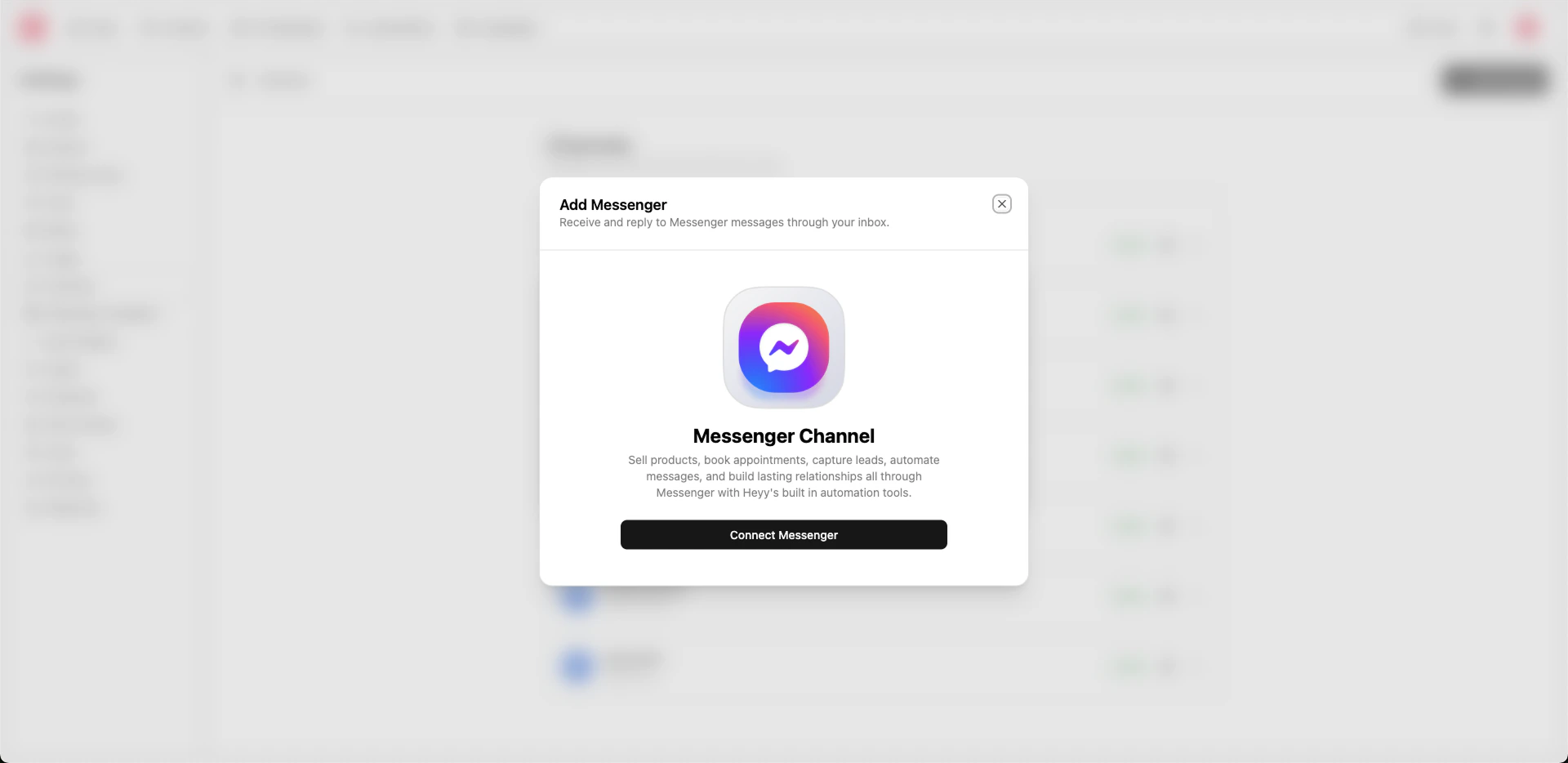
- Click Connect in the dialog.
Clicking Connect opens Meta’s Facebook Messenger onboarding flow. You’ll be asked to sign in with Facebook (if needed) and to authorize Heyy to manage messaging for your Facebook Page. Complete the flow in the window that opens. When authorization succeeds, Heyy creates the channel and the dialog closes. Your Messenger channel then appears in Settings → Channels.
Heyy uses Login Connect with Messenger so you can connect your Facebook Page to Heyy in one step. During the flow, Meta may ask you to:
- Sign in to Facebook or confirm your account.
- Choose the Facebook Page you want to connect (you must have admin or appropriate access to that Page).
- Grant Heyy permission to send and receive messages on behalf of that Page.
For more on the Messenger Platform and requirements (e.g. Page, app, permissions), see Meta’s documentation:
If the connection fails or you don’t see your Page, check that your Meta Business Portfolio and Business Info are complete, and that you have the right role on the Page. For help, contact Heyy support.
Editing
Open the channel from Settings → Channels and use the Profile tab.
Profile
- Internal name: A label for this channel inside Heyy (e.g. “Support Messenger”). You can edit this at any time.
- Display name: The name of your Facebook Page as shown to customers. This is read-only and comes from your Page; to change it, update the Page on Facebook.
- Edit profile on Facebook: Use the button to open your Facebook Page in a new tab so you can edit the Page profile, profile picture, and other settings on Facebook.
Removing
Disconnecting or deleting a Messenger channel is irreversible. Heyy will no longer send or receive messages for that Page. Existing conversations and history for that channel may be lost or no longer accessible. If you might need the data later, export or back up before disconnecting.
Use cases
- Customer support: Answer questions and resolve issues on Messenger. All chats appear in your Inbox.
- Marketing and follow-up: Use campaigns to reach contacts on Messenger, or offer Messenger as a follow-up channel (e.g. from Live Chat or your website) so customers can continue the conversation where they prefer.
- Automations: Use Messenger triggers and Facebook actions (e.g. send message, wait for reply, quick replies) for welcome flows, qualification, or routing.
- AI Employees: Assign an AI Employee to handle first-line replies on Messenger 24/7.
Ensure your Facebook Page is published and your Business Info is complete before connecting. Keep your Page profile and profile picture up to date so customers recognize your brand.