
Send Message
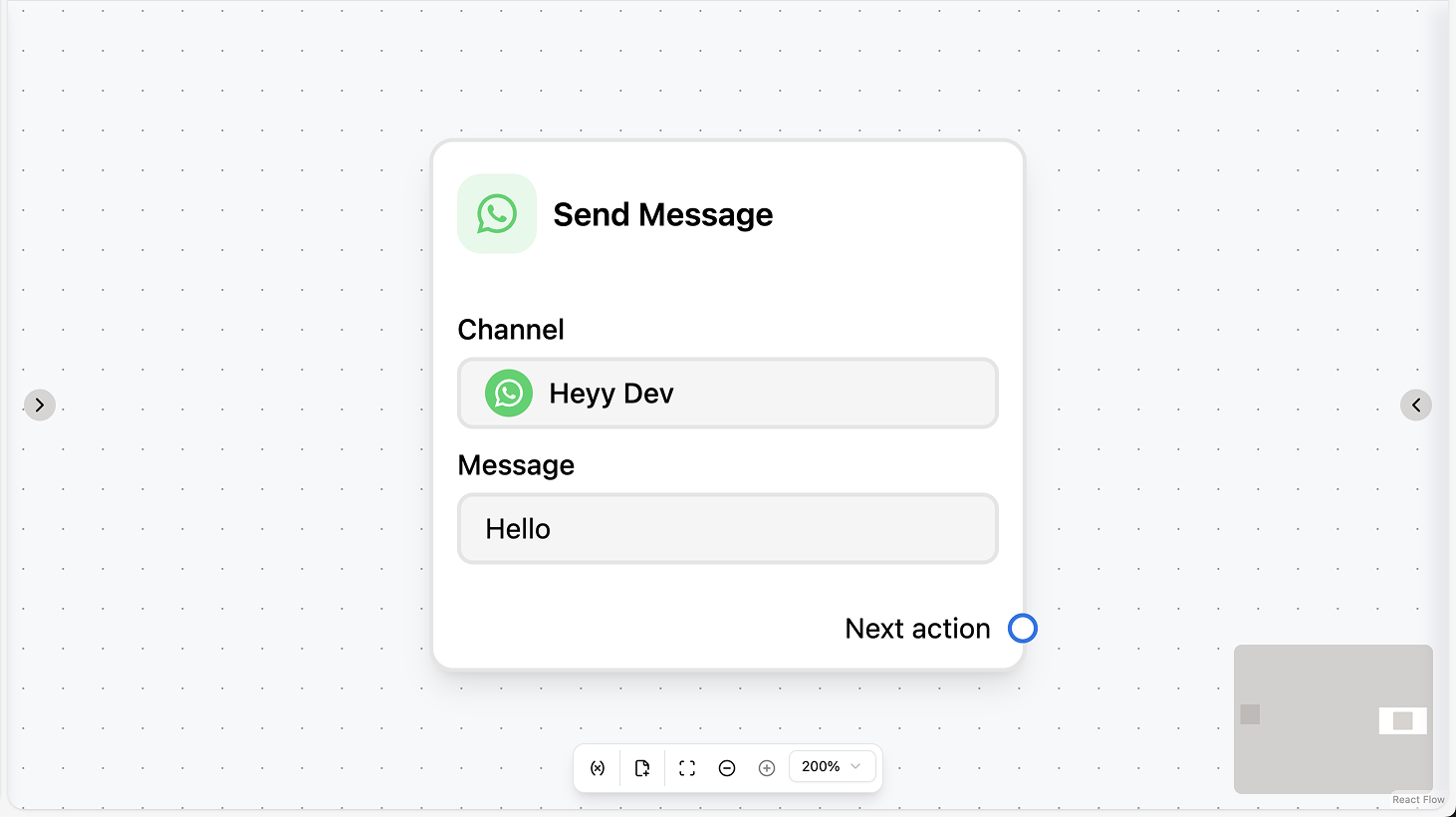
Fields
- Channel (required): Select the WhatsApp channel to send from.
- Header (optional): Choose image, video, or document and upload a file or paste a URL.
- Body (required): The message text. You can use workflow variables and contact attributes.
- Wait for reply (optional): When enabled, the automation pauses until the contact replies.
- Reply timeout (optional): If “Wait for reply” is on, set a duration after which the automation continues without a reply.
- Save text reply to (optional): When waiting for reply, save the contact’s text reply to a variable or attribute.
- Save file reply to (optional): When waiting for reply, save the contact’s file reply to a variable.
Use cases
- Reply in the current chat: Use the action to send a text or media message in the WhatsApp chat (e.g. after a trigger or another action). The body and optional header can use variables and attributes.
- Ask and branch on the reply: Use “Wait for reply” and “Save text reply to”, then add a Condition or AI action to branch the automation (e.g. qualification, routing) based on what the contact replied.
- Send a document or media: Use the optional header to attach an image, video, or document (e.g. brochure, form) in the same message as the body text.
Send Buttons
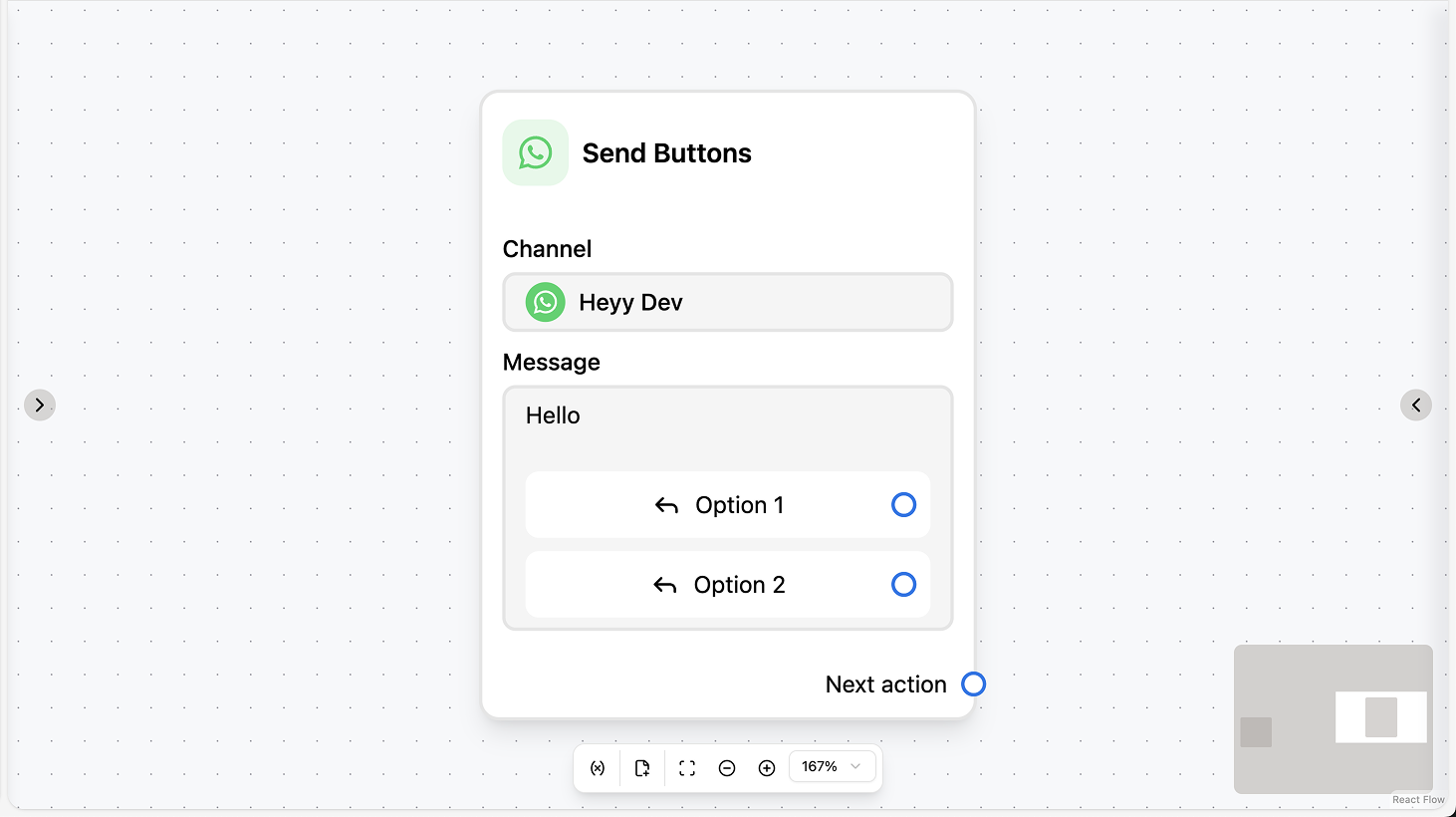
Fields
- Channel (required): Select the WhatsApp channel to send from.
- Header (optional): Text or media (image, video, document). For media, upload a file or paste a URL.
- Body (required): The message text. You can use workflow variables and contact attributes.
- Footer (optional): Short text shown below the body (e.g. disclaimer).
- Buttons (required): Add up to three quick-reply buttons; each has a label.
- Reply timeout (optional): Duration after which the automation continues if the contact doesn’t tap a button.
- Wait for reply (optional): When enabled, the automation waits for the contact to tap a button or send a message.
- Save text reply to (optional): Save the contact’s reply (button label or text) to a variable or attribute.
- Save file reply to (optional): Save the contact’s file reply to a variable.
Use cases
- Present clear choices: Use the action to send a message with up to three quick-reply buttons (e.g. “Yes / No”, “Book / Cancel”) so the contact can tap a choice; use “Save text reply to” to branch the automation on their selection.
- Confirm or collect consent: After another step (e.g. AI or Set attribute), send a message with “Confirm” and “Cancel” (or similar) and branch the flow based on which button the contact taps.
- Store the choice on the contact: Save the button label or reply to a contact attribute so you can use it later in the same automation or in campaigns and views.
Send List
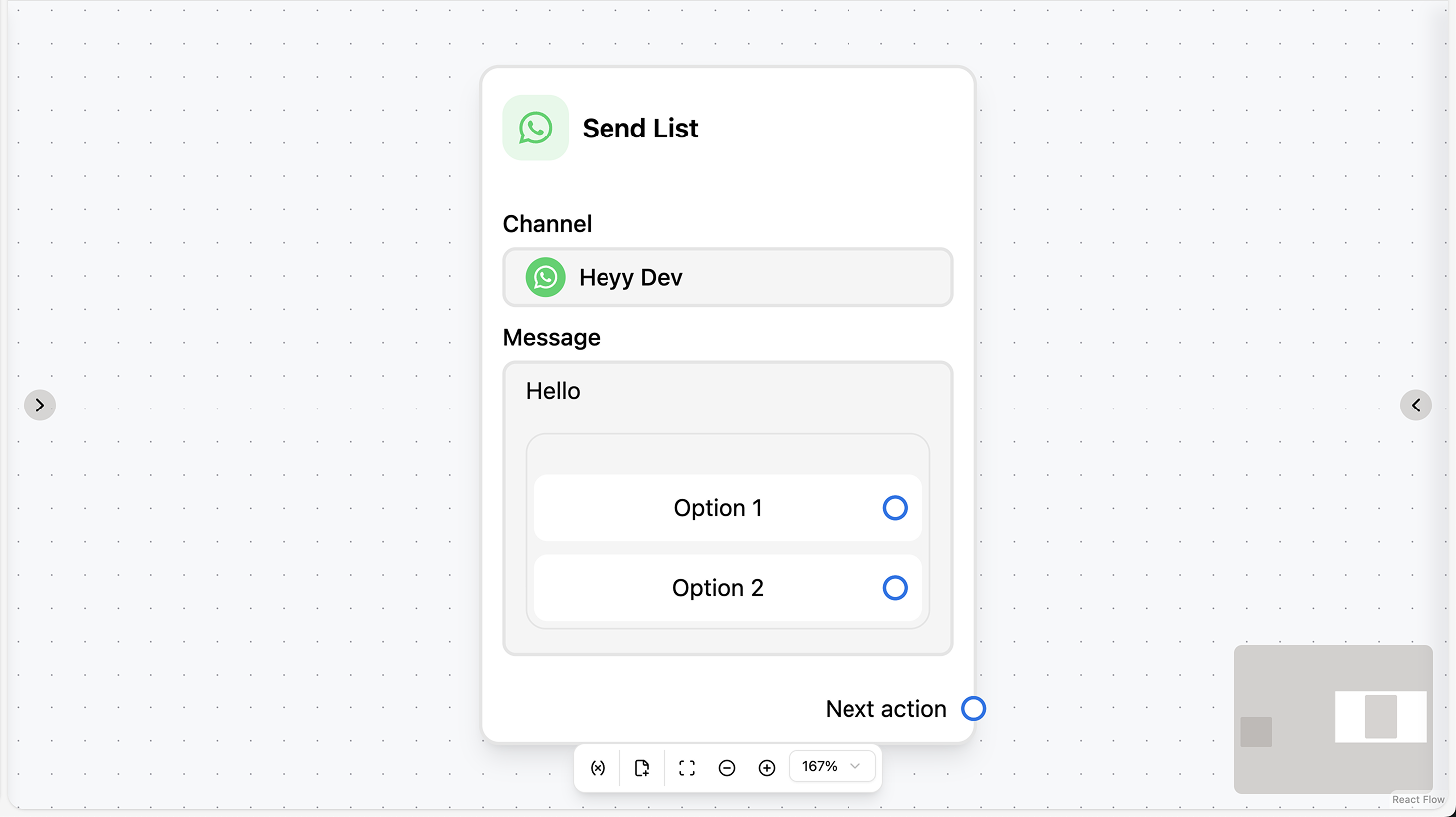
Fields
- Channel (required): Select the WhatsApp channel to send from.
- Header (optional): Short text at the top of the message.
- Body (required): The message text. You can use workflow variables and contact attributes.
- List (required): List button label and sections. Each section has a title and rows (up to 10 rows total); each row has a title and optional description.
- Reply timeout (optional): Duration after which the automation continues if the contact doesn’t select an option.
- Wait for reply (optional): When enabled, the automation waits for the contact to select a row or send a message.
- Save text reply to (optional): Save the contact’s selection (or text reply) to a variable or attribute.
- Save file reply to (optional): Save the contact’s file reply to a variable.
Use cases
- Product or menu selection: Use the action to send a list of options (e.g. products, services, categories) in a compact format; use “Save text reply to” to branch the automation or pass the selected row to the next step.
- Multi-step choice with many options: When you have more than three options and want a structured list (sections and rows), use Send List instead of multiple buttons; then branch or assign based on the saved selection.
- Collect a choice for later use: Save the selected row to a contact attribute so you can use it in follow-up messages, conditions, or campaigns (e.g. “Preferred product”, “Department”).
Send Template
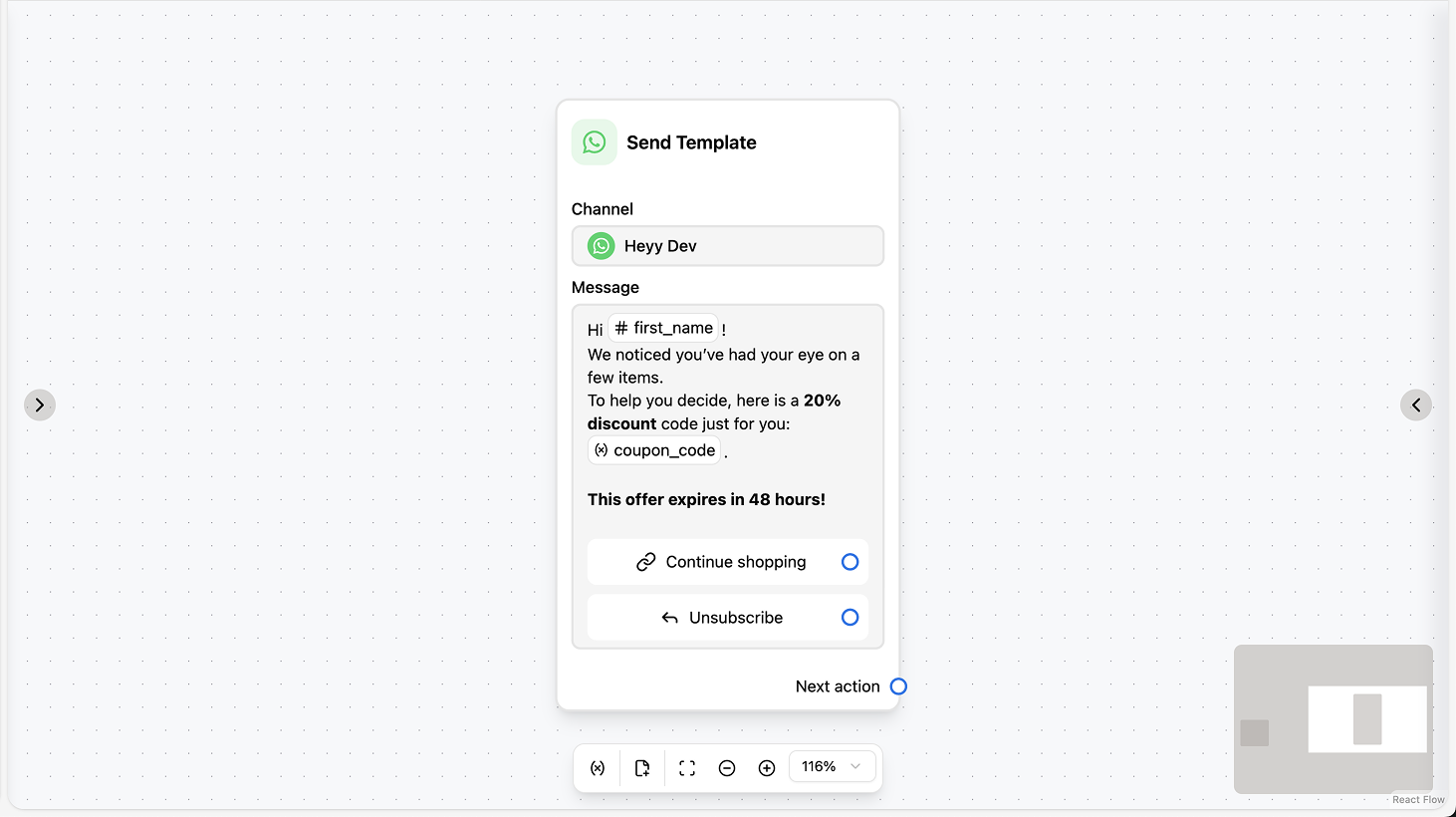
Fields
- Channel (required): Select the WhatsApp channel to send from.
- Message template (required): Choose an active WhatsApp template.
- Variables mapping (required if the template has variables): Map each template variable to a workflow variable, contact field (e.g. first name, phone), or attribute.
- Reply timeout (optional): Duration after which the automation continues if the contact doesn’t reply.
- Wait for reply (optional): When enabled, the automation waits for the contact’s reply.
- Save text reply to (optional): Save the contact’s text reply to a variable or attribute.
- Save file reply to (optional): Save the contact’s file reply to a variable.
Use cases
- Outbound or follow-up within 24h window: Use the action to send a pre-approved template when you need to message the contact outside the 24-hour session (e.g. order confirmation, appointment reminder). Map variables to workflow variables or contact attributes.
- Campaign or bulk flow: In an automation started by a campaign or manual trigger, use Send Template to deliver the approved message and optionally “Wait for reply” to continue the flow based on the contact’s response.
- Personalized template with live data: Use variables mapping to fill the template with the contact’s name, order number, or other attributes so the message is personalized while staying within WhatsApp’s template rules.