
Send Message
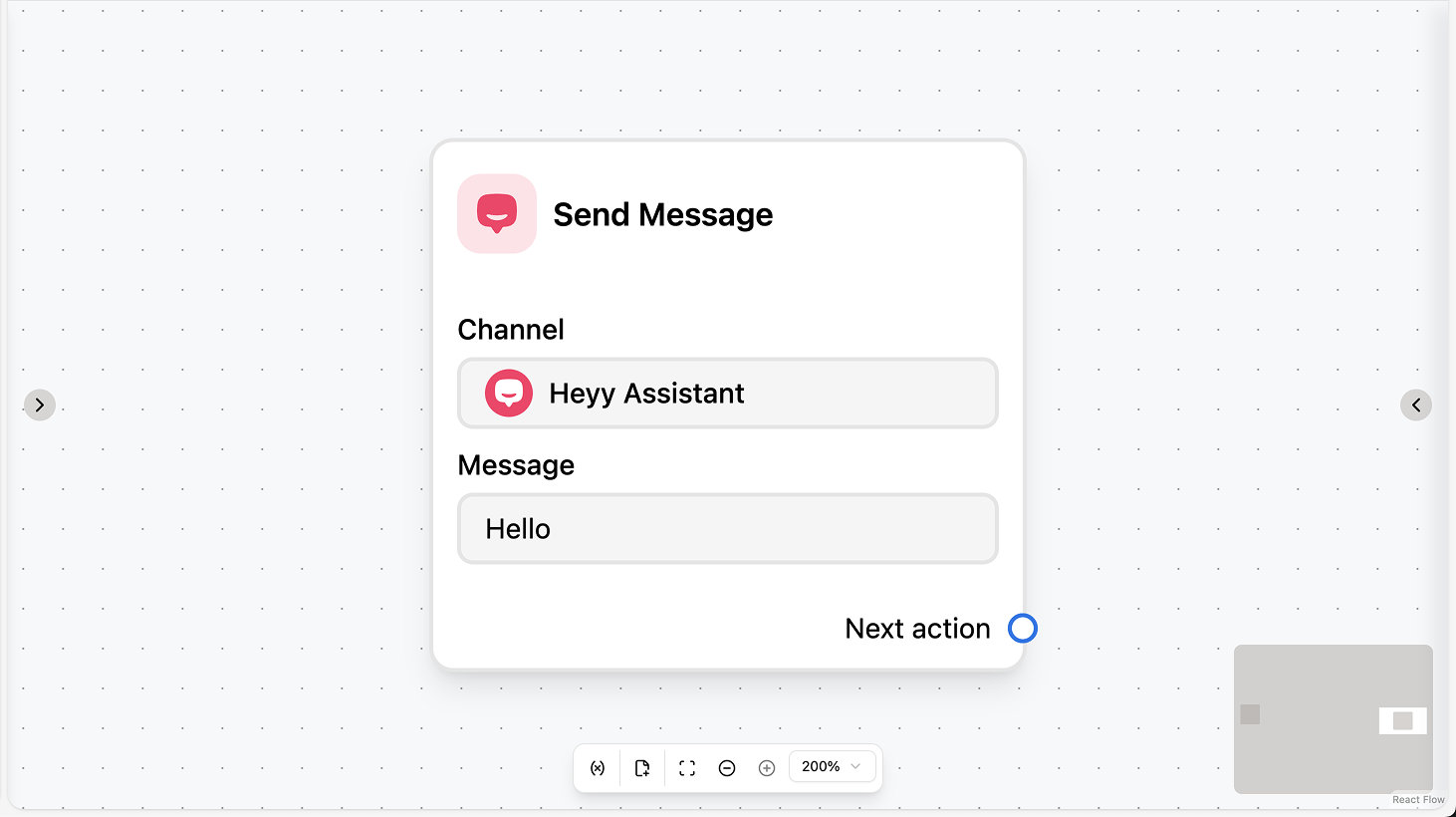
Fields
- Channel (required): Select the Live Chat channel to send from.
- Body (required): The message text. You can use workflow variables and contact attributes.
- Wait for reply (optional): When enabled, the automation pauses until the contact replies.
- Reply timeout (optional): If “Wait for reply” is on, set a duration after which the automation continues without a reply.
- Save text reply to (optional): When waiting for reply, save the contact’s text reply to a variable or attribute.
- Save file reply to (optional): When waiting for reply, save the contact’s file reply to a variable.
Use cases
- Reply in the current chat: Use the action to send a message in the Live Chat (e.g. after a trigger or another action). The body can include variables and attributes so the message is personalized.
- Ask and branch on the reply: Use “Wait for reply” and “Save text reply to”, then add a Condition or AI Intention Recognition to branch the automation (e.g. route to sales vs. support) based on what the contact replied.
- Confirm or follow up after another action: After an Assign Chat, Set Attribute, or other step, use Send Message to tell the contact what happens next (e.g. “We’ve assigned your chat to Sarah” or “Please share your order number”).