
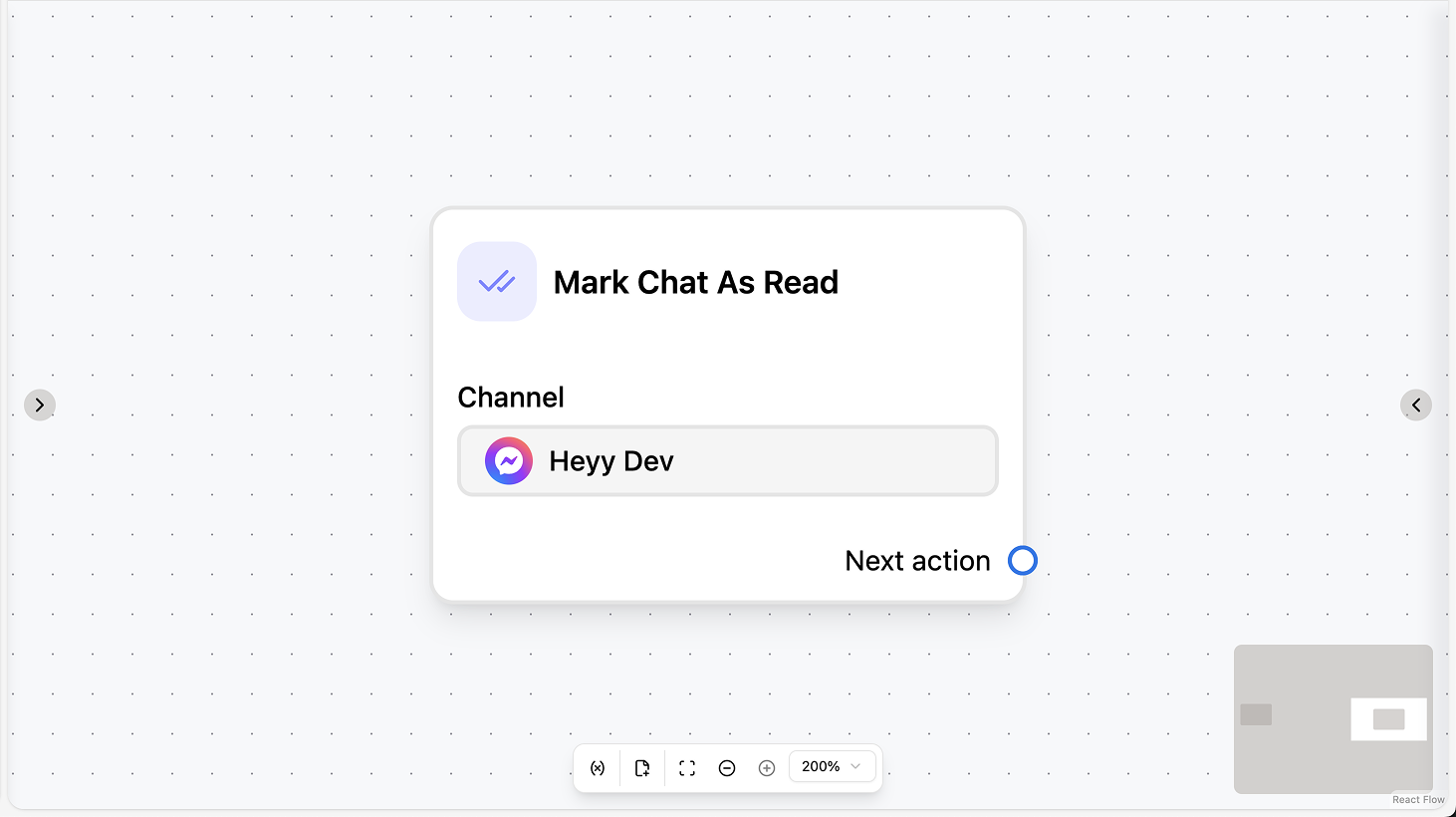
Mark Chat As Read
Fields
- Channel (required): Select the channel where the chat lives.
Use cases
- After sending a reply: Use Mark Chat As Read after a message action so the inbox shows the chat as read and agents know the automation has already responded.
- Before assigning: Use it before Assign Chat so the agent sees the chat as already read and doesn’t treat it as new.
- After handling in automation: Use it when the automation has fully handled the conversation so the unread badge is cleared and the thread is tidy.
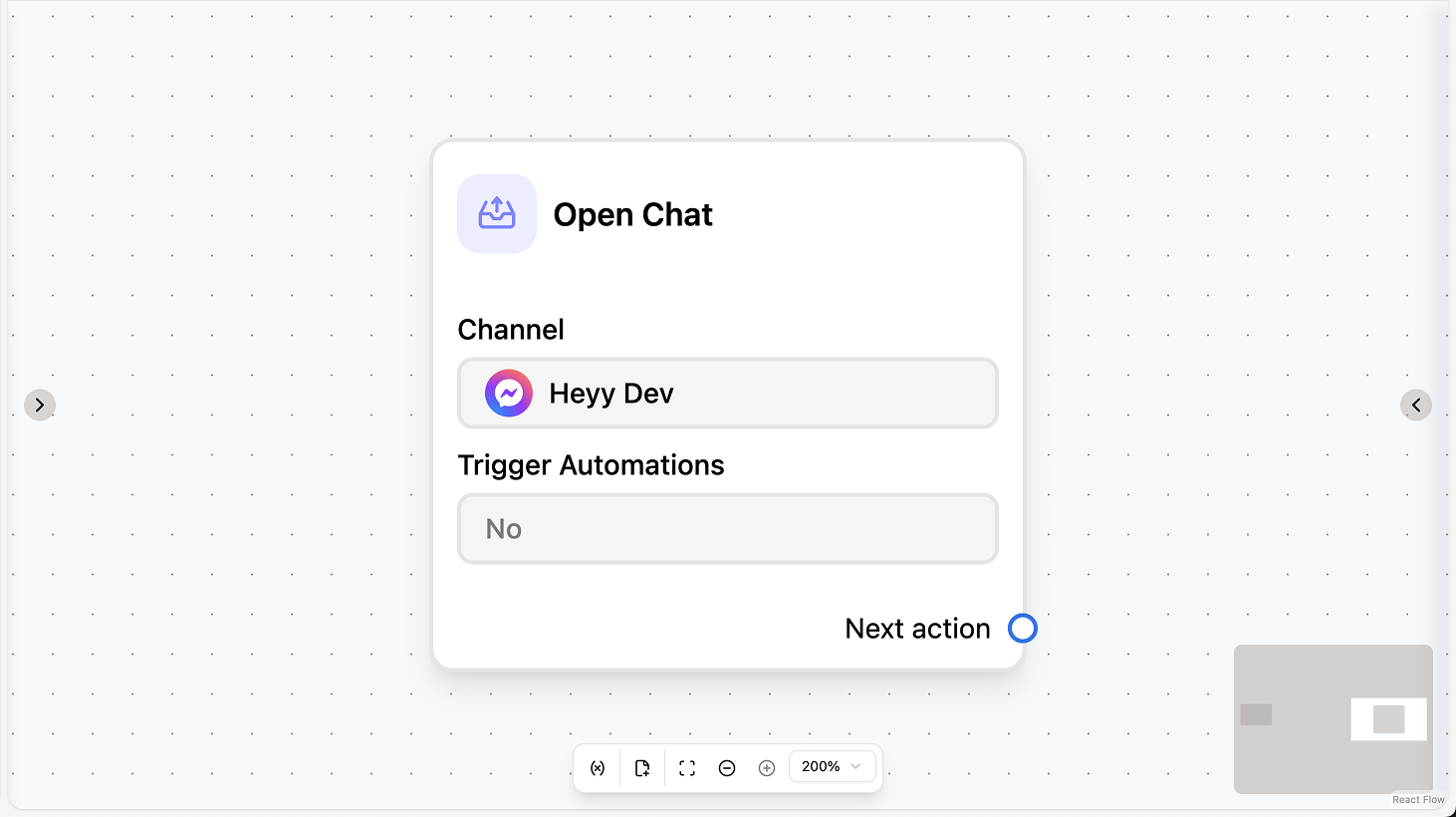
Open Chat
Fields
- Channel (required): Select the channel where the chat lives.
- Trigger workflows (optional): When enabled, workflows that listen for “New & reopened chat” or “Reopened chat” can run when the chat is opened.
Use cases
- Welcome-back flow: Turn on “Trigger workflows” so a “Reopened chat” or “New & reopened chat” automation runs when the chat is opened (e.g. send a welcome-back message or reassign).
- Re-engagement after campaign: Use Open Chat after a campaign or manual trigger to bring the conversation back, then let a trigger automation handle the first message.
- Reopen after resolution: Use Open Chat when you want to bring a previously closed chat back into the inbox without the contact sending a new message (e.g. follow-up from your side).
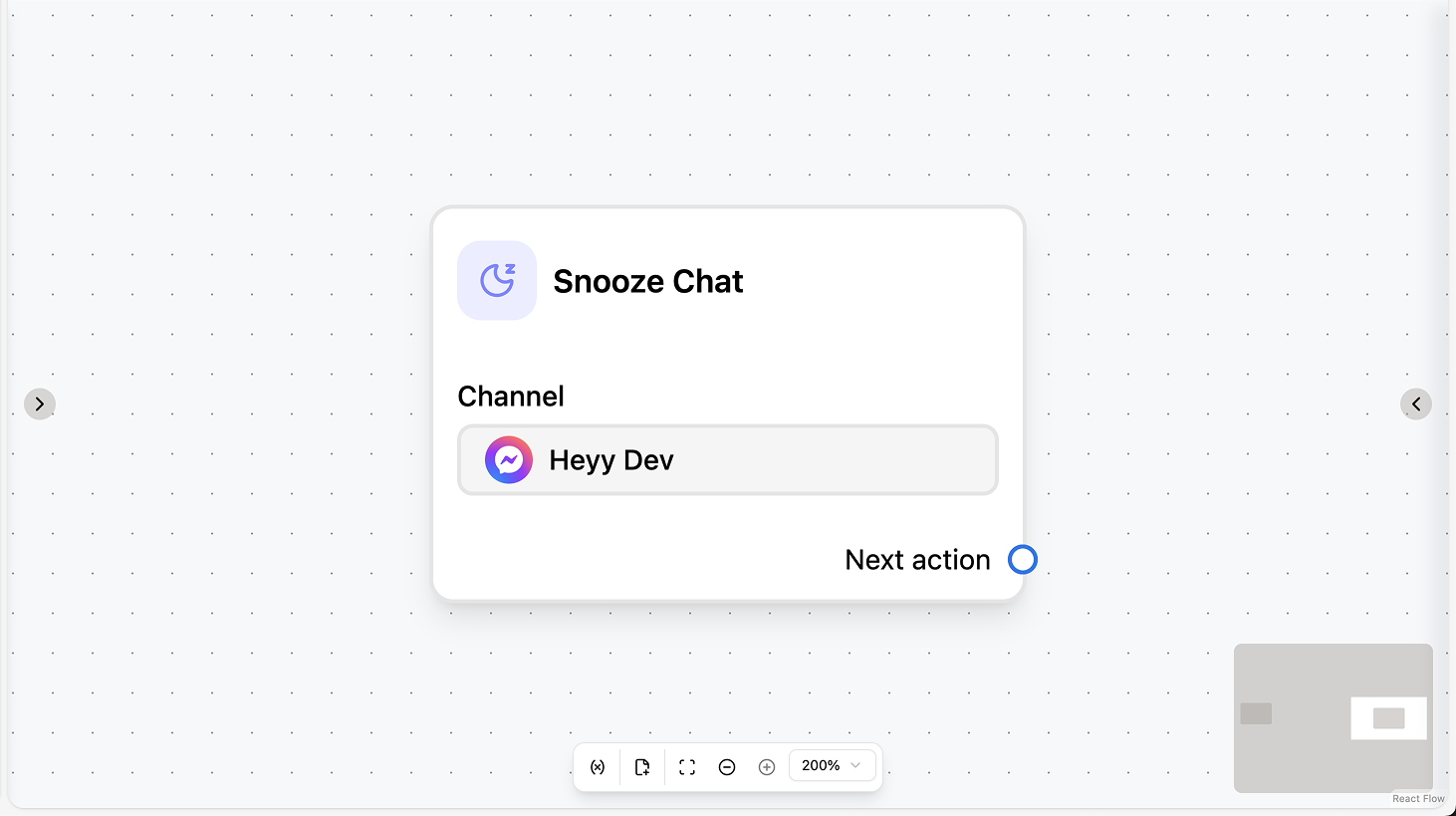
Snooze Chat
Fields
- Channel (required): Select the channel where the chat lives.
Use cases
- Waiting on the contact: Use Snooze when you’ve asked a question or sent a link and are waiting for a reply; the chat reappears when they message again or when it is unsnoozed.
- Waiting on an external step: Use Snooze when the flow depends on an API call, delay, or manual step so the chat is out of the way until the next action runs.
- Temporary set-aside: Use Snooze to hide the chat from the active inbox without closing it, so it doesn’t clutter the queue until it’s ready to be handled again.
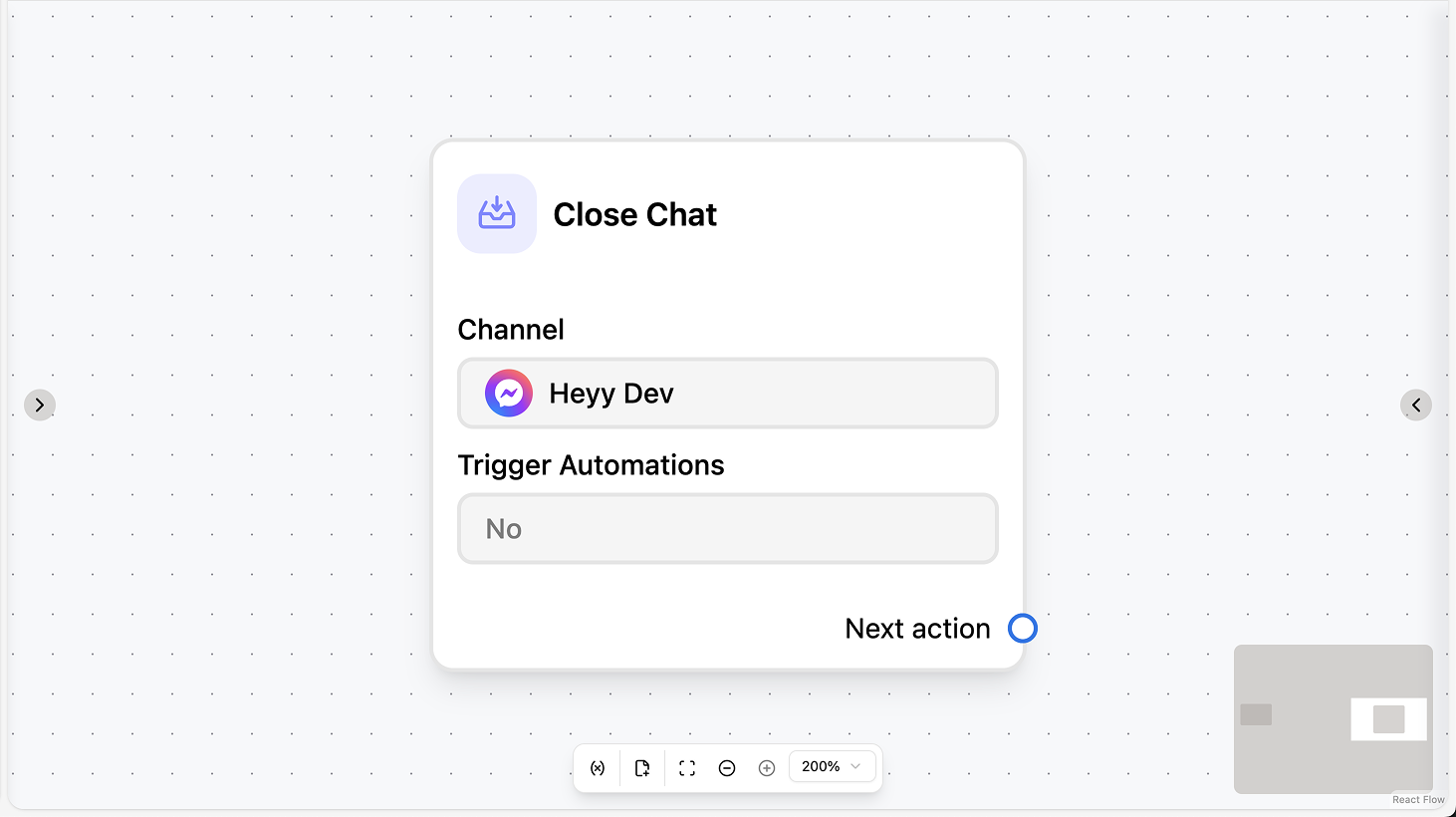
Close Chat
Fields
- Channel (required): Select the channel where the chat lives.
- Trigger workflows (optional): When enabled, workflows that listen for “Chat closed” will run when this chat is closed.
Use cases
- Run a “Chat closed” automation: Enable “Trigger workflows” so a workflow listening for “Chat closed” runs when this action closes the chat (e.g. send a survey or start a follow-up campaign).
- After resolution: Use Close Chat when the conversation is resolved so the chat leaves the active inbox and the contact can reopen by sending a new message.
- Before delayed follow-up: Close the chat after resolution and use a “Chat closed” trigger with a Delay to start a follow-up flow (e.g. NPS or re-engagement) later.
Assign Chat
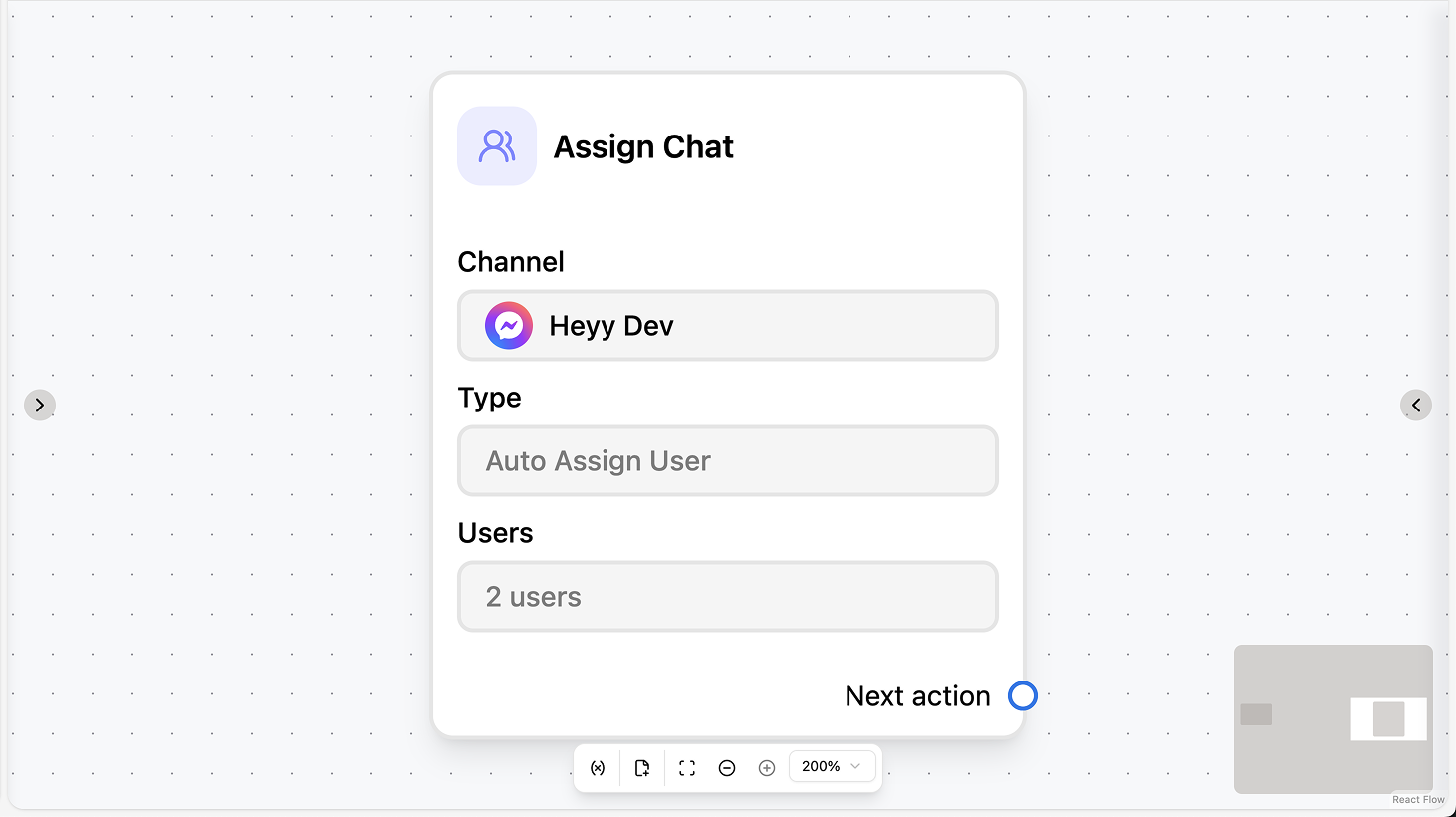
Fields
- Channel (required): Select the channel where the chat lives.
- Type (required): Choose how to assign: assign to a specific user, auto-assign to one of several users (e.g. least open chats), or reset assignment.
- User (required if type is “Specific user”): Select the user to assign the chat to.
- Users (required if type is “Auto assign”): Select the users in the pool; the system assigns to one of them (e.g. by least open chats).
- Trigger workflows (optional): When enabled, workflows that listen for “Chat assigned” will run when this assignment is applied.
Use cases
- Load balancing: Use “Auto assign” with a pool of users so the system assigns the chat to one of them (e.g. by least open chats) for even distribution.
- Route by qualification: Use “Specific user” when a Condition or AI Intention has already determined who should handle the chat (e.g. assign to a specialist).
- Run “Chat assigned” automations: Enable “Trigger workflows” so workflows listening for “Chat assigned” run when this assignment is applied (e.g. notify the agent or log the assignment).
Move Chat
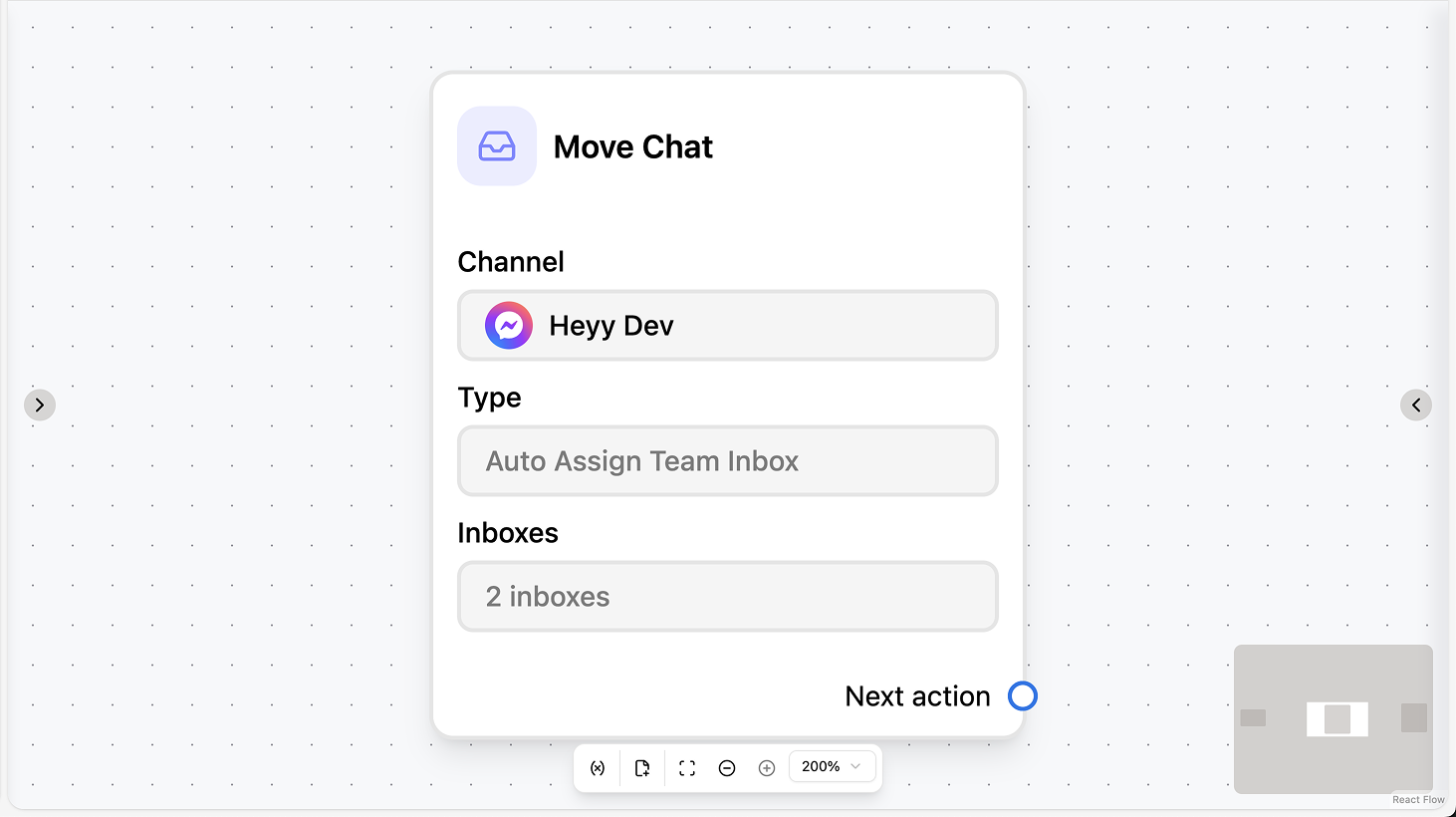
Fields
- Channel (required): Select the channel where the chat lives.
- Type (required): Choose how to move: to a specific inbox, auto-assign to one of several inboxes, or reset inbox assignment.
- Inbox (required if type is “Specific inbox”): Select the inbox to move the chat to.
- Inboxes (required if type is “Auto assign”): Select the inboxes in the pool; the system moves to one of them (e.g. by least open chats).
- Trigger workflows (optional): When enabled, workflows that listen for “Chat moved” will run when this move is applied.
Use cases
- Route by team or queue: Use Move Chat to send the conversation to the right inbox (e.g. Support, Sales) so the right team sees it; use Assign Chat when routing by person.
- Load balance across inboxes: Use “Auto assign” with a pool of inboxes so the system moves the chat to one of them (e.g. by least open chats) for even distribution.
- Move then assign: Use Move Chat and Assign Chat in sequence (e.g. move to Support inbox, then assign to a specific agent) when you need both queue and person routing.