
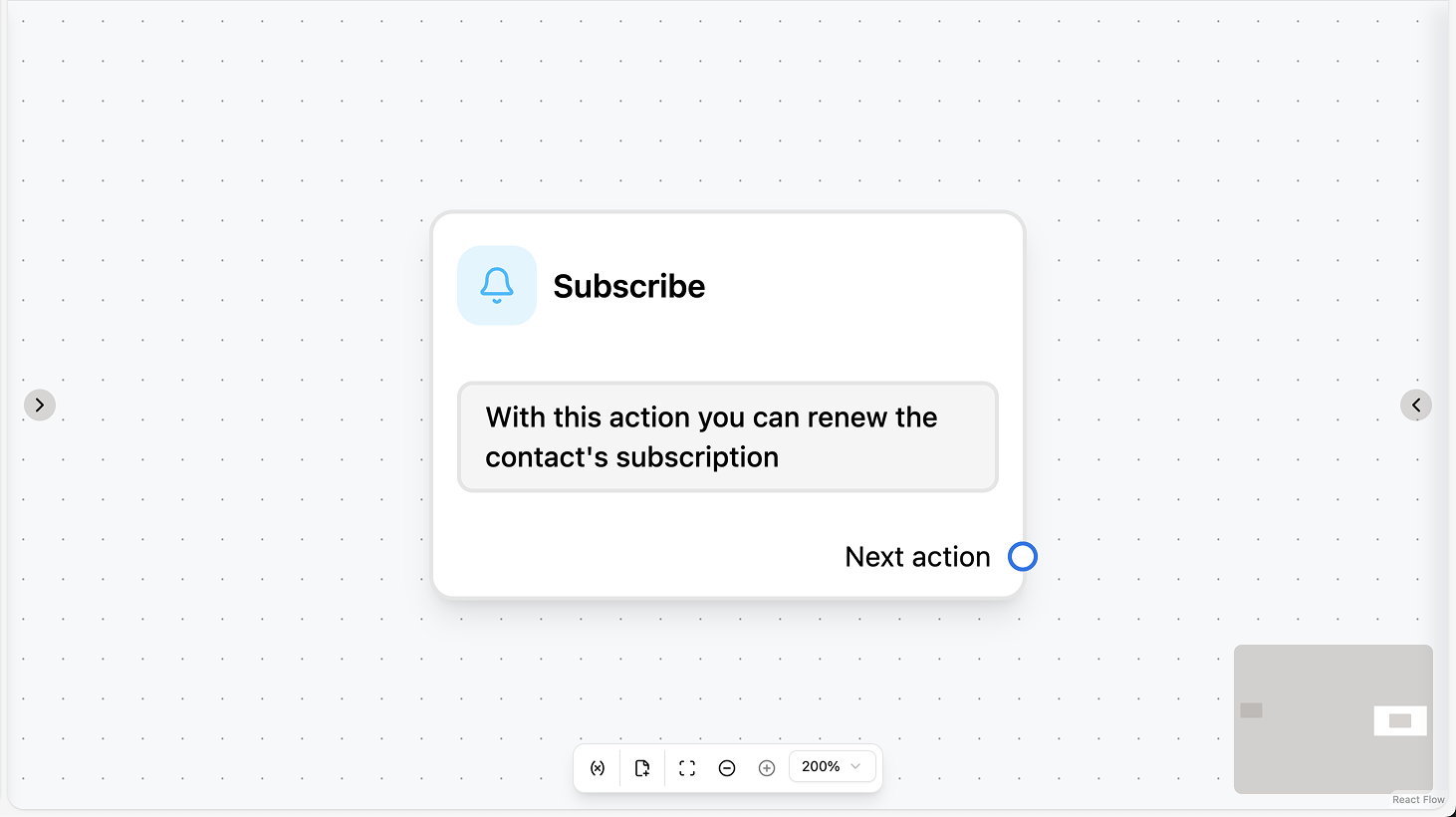
Subscribe
Fields
This action has no configurable fields. Adding it to your automation is enough to subscribe the contact.Use cases
- After explicit opt-in: Use the action after the contact replies “Yes” to a consent question or taps a subscribe button; add a Condition before Subscribe so it runs only when the reply matches your consent criteria.
- Post-qualification subscribe: After AI Intention Recognition or a Condition (e.g. “intention = sales”), use Subscribe so the contact is eligible for sales campaigns or follow-up messages.
- Form or campaign completion: In an automation triggered by a campaign or manual trigger, use Subscribe after the contact has completed a form or confirmed interest so they receive future messages.
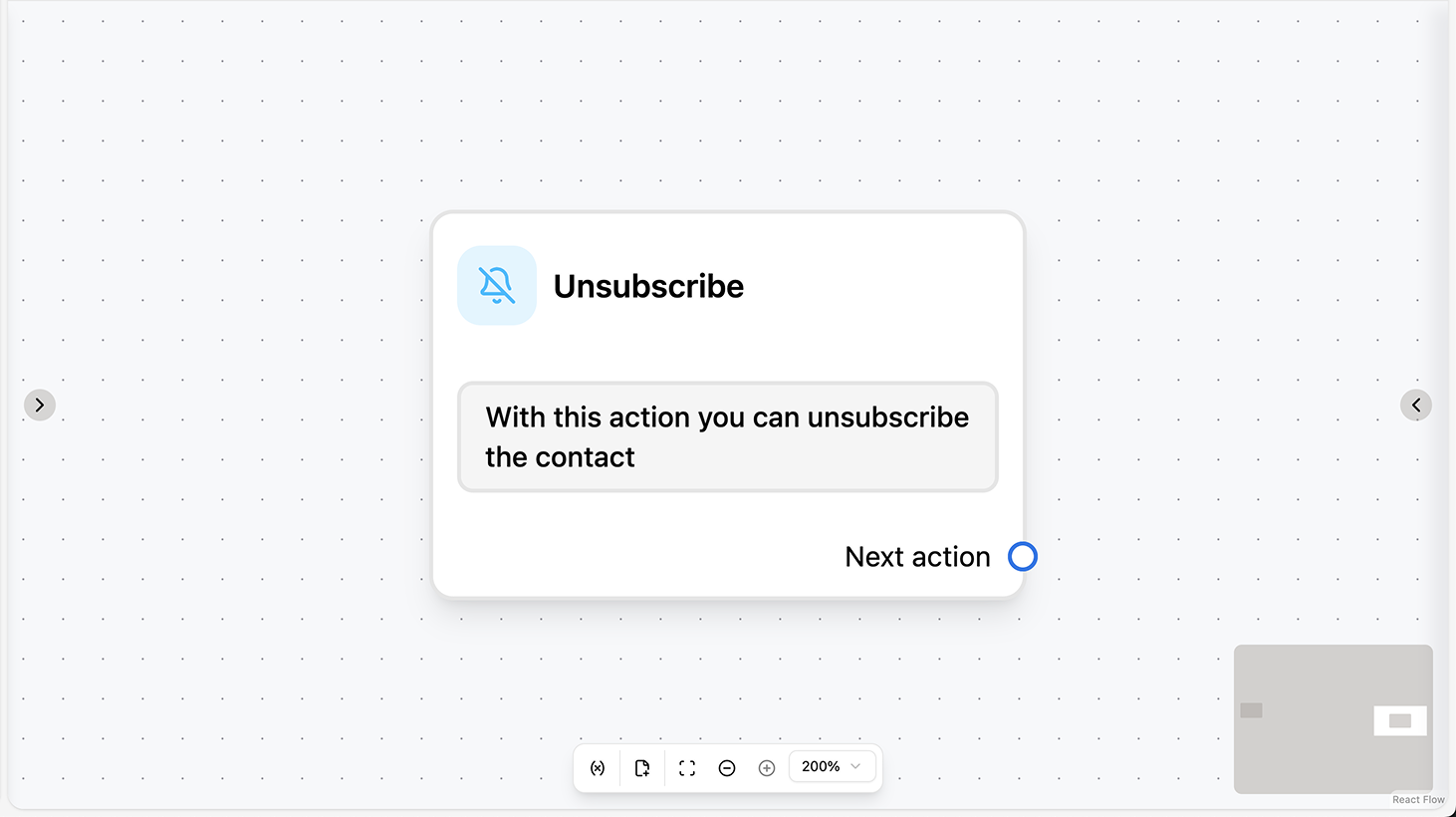
Unsubscribe
Fields
This action has no configurable fields. Adding it to your automation is enough to unsubscribe the contact.Use cases
- Opt-out keywords in chat: In a “New incoming message” automation, add a Condition that checks for opt-out keywords (e.g. “stop”, “unsubscribe”, “remove me”), then use Unsubscribe so the contact no longer receives campaigns.
- After contact requests removal: When the contact explicitly asks to be removed from a list or to stop messages, use Unsubscribe in the branch that handles that request (e.g. after AI employee or a Condition).
- Campaign or flow opt-out: In a campaign or follow-up flow, when the contact taps “Unsubscribe” or replies with an opt-out, use the Unsubscribe action so they are excluded from future outbound messaging.
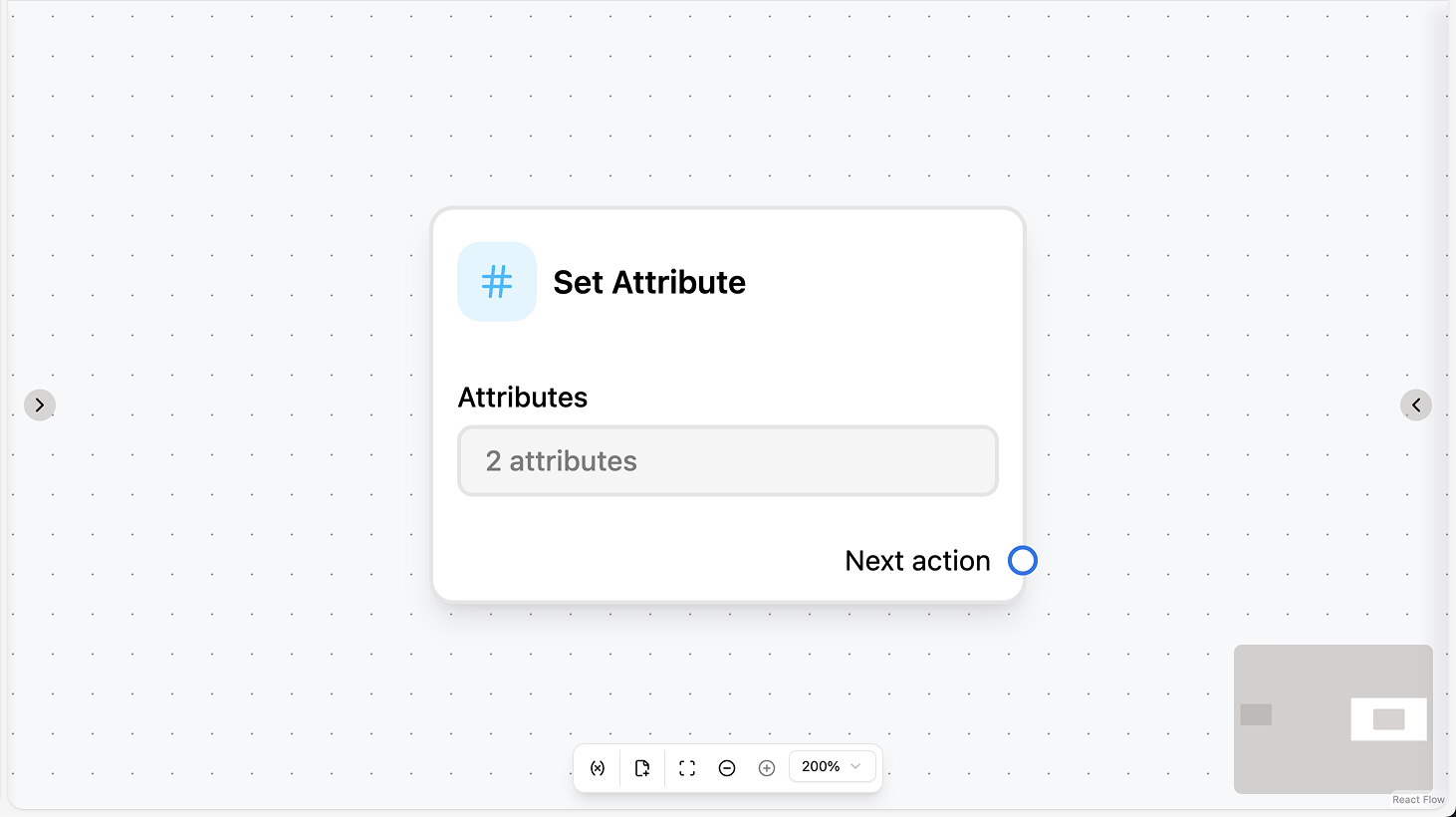
Set Attribute
Fields
- Attributes (required): Add one or more attribute–value pairs. For each pair, pick the attribute (or built-in field) to set and the value. You can use workflow variables, contact fields, and attributes via the dropdown or by typing placeholders.
Use cases
- Store the contact’s reply on their profile: After a trigger or message action that has “Save text reply to” or “Save file reply to”, use Set Attribute to write that value (or a transformed value) to a contact attribute so it appears on their profile and in campaigns/views.
- Save qualification or preference: After AI Intention Recognition or a Condition, use Set Attribute to store the result (e.g. “intention”, “preference”, “language”) on the contact so later automations, conditions, or campaigns can use it.
- Persist data from an API or step: After an API action or AI Transform, use Set Attribute to save the result to a contact attribute (e.g. order ID, ticket number) so agents or other flows can see it.
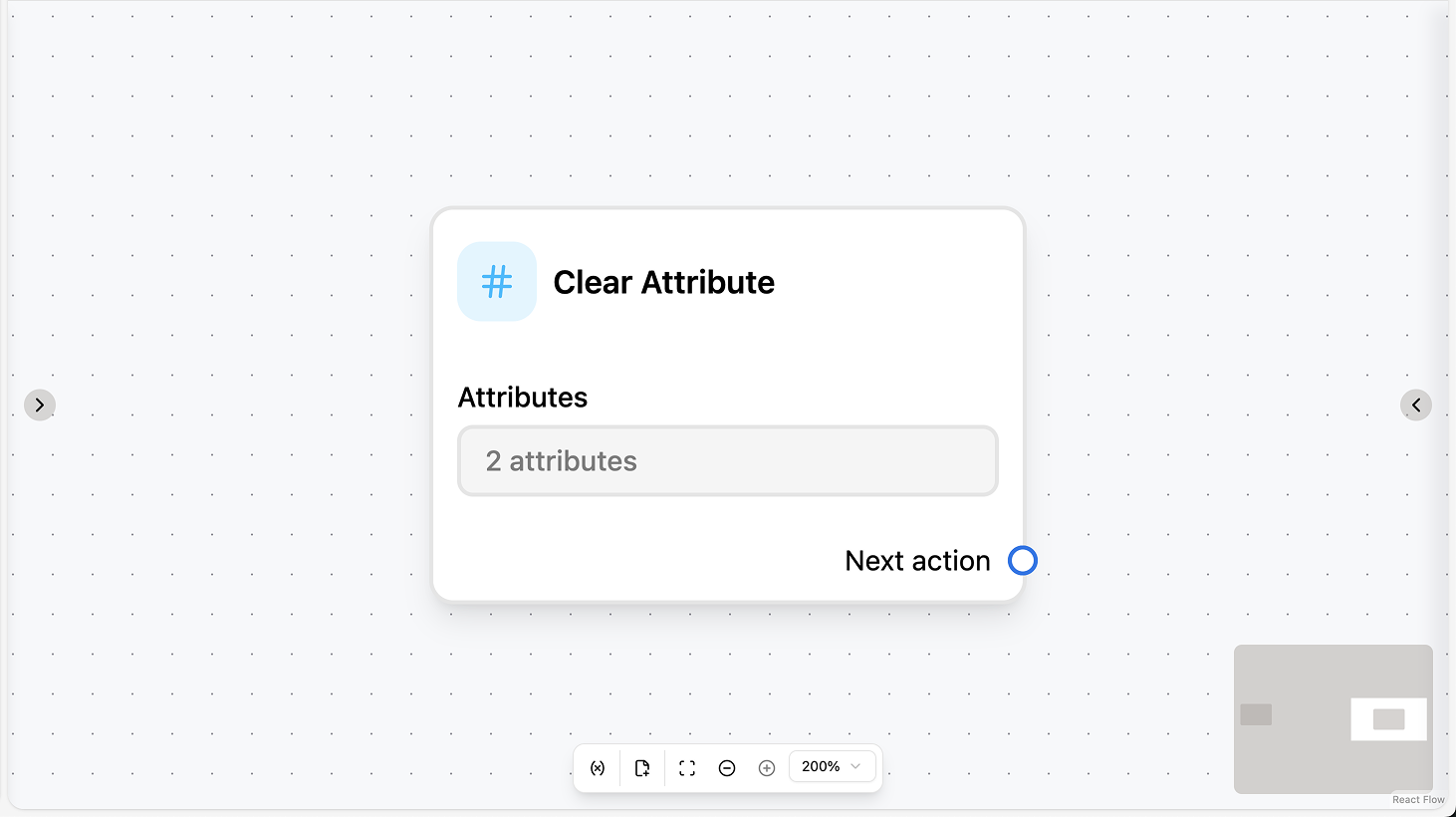
Clear Attribute
Fields
- Attributes (required): Select the attributes (or built-in fields) to clear. You can select multiple.
Use cases
- Re-ask for information: Before a message action that asks a question and saves the reply to an attribute, use Clear Attribute on that attribute so you don’t reuse an old value (e.g. clear “preference” before asking again).
- Contact requests data removal: When the contact opts out of having certain data stored (e.g. GDPR or preference), use Clear Attribute in the branch that handles the request so the selected attributes are cleared.
- Reset built-in or custom fields: Clear built-in fields (e.g. first name, last name) or custom attributes when your process requires a clean slate (e.g. re-onboarding, data correction flow).
Add Label
Fields
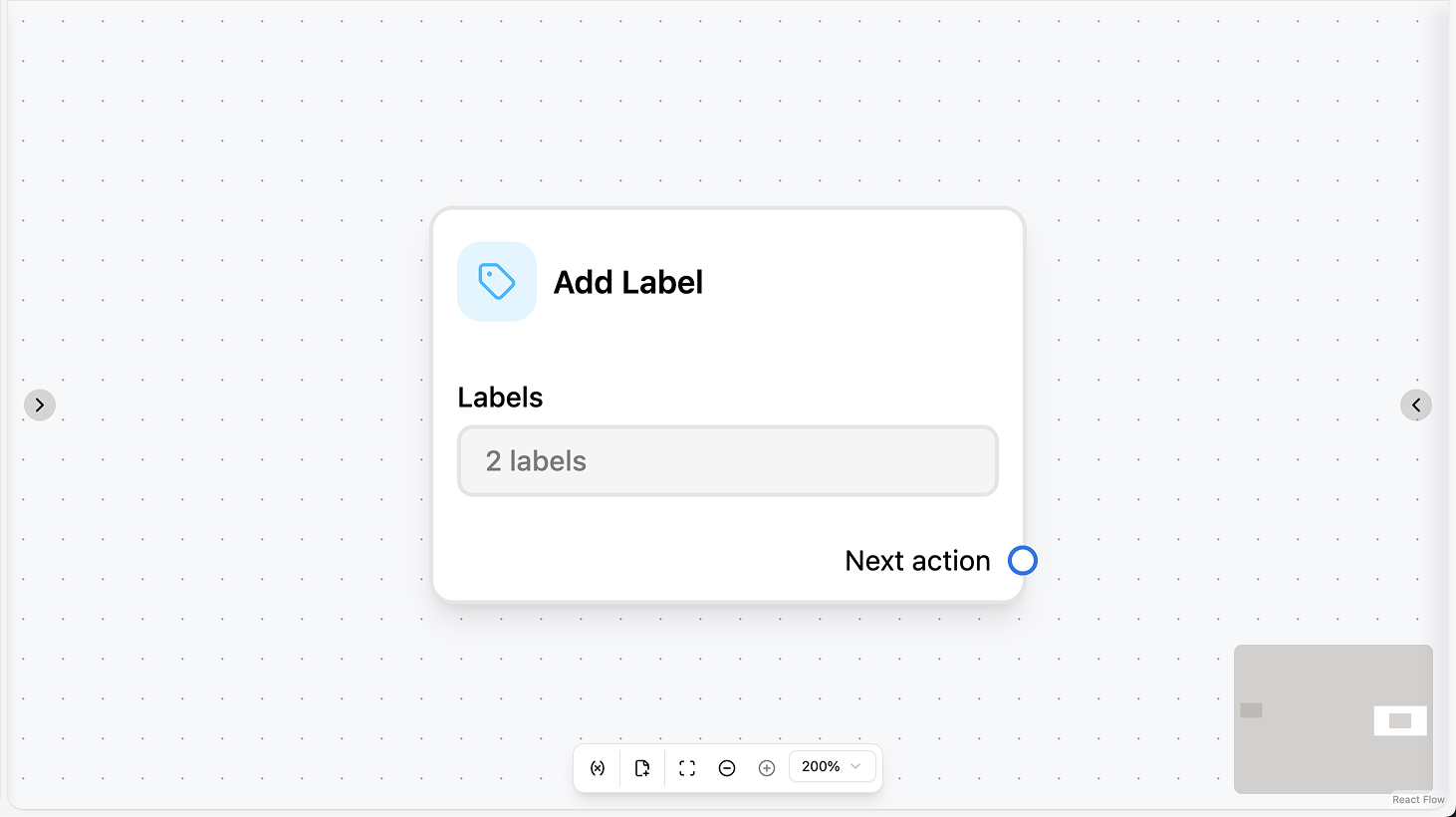
- Labels (required): Select the labels to add to the contact. You can select multiple.
Use cases
- Tag after qualification: After AI Intention Recognition or a Condition (e.g. “intention = support”), use Add Label to tag the contact (e.g. “Support”, “VIP”) so they appear in the right views or receive the right campaigns.
- Segment by behavior or source: Use Add Label after another action (e.g. campaign entry, form submit, or Set attribute) to tag the contact (e.g. “Campaign X”, “Lead”) for segmentation and targeting.
- Multiple labels in one step: Add several labels in one action (e.g. “Support” + “Urgent”) so the contact is categorized for routing, reporting, or campaign filters.
Remove Label
Fields
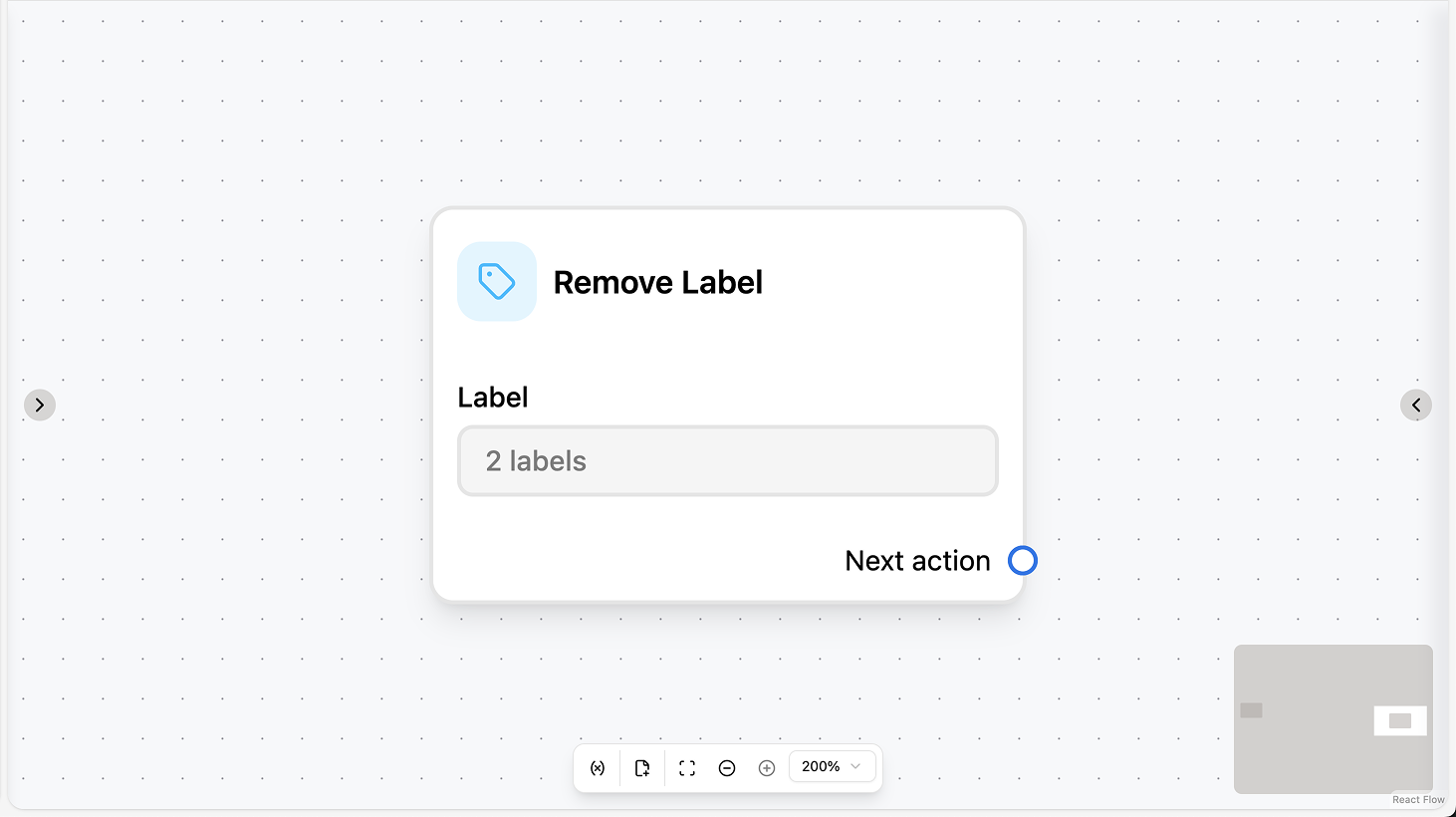
- Labels (required): Select the labels to remove from the contact. You can select multiple.
Use cases
- After unsubscribe or topic opt-out: When the contact unsubscribes or opts out of a topic, use Remove Label so they are no longer targeted by campaigns or views that filter on that label (e.g. remove “Newsletter”).
- Campaign or flow completion: After a contact completes a campaign or a specific flow, use Remove Label to remove the campaign or segment label so they don’t receive duplicate or irrelevant messaging.
- Status or segment change: When the contact’s status changes (e.g. churned, upgraded), use Remove Label to update how they are categorized; the contact remains, only the label is removed.