
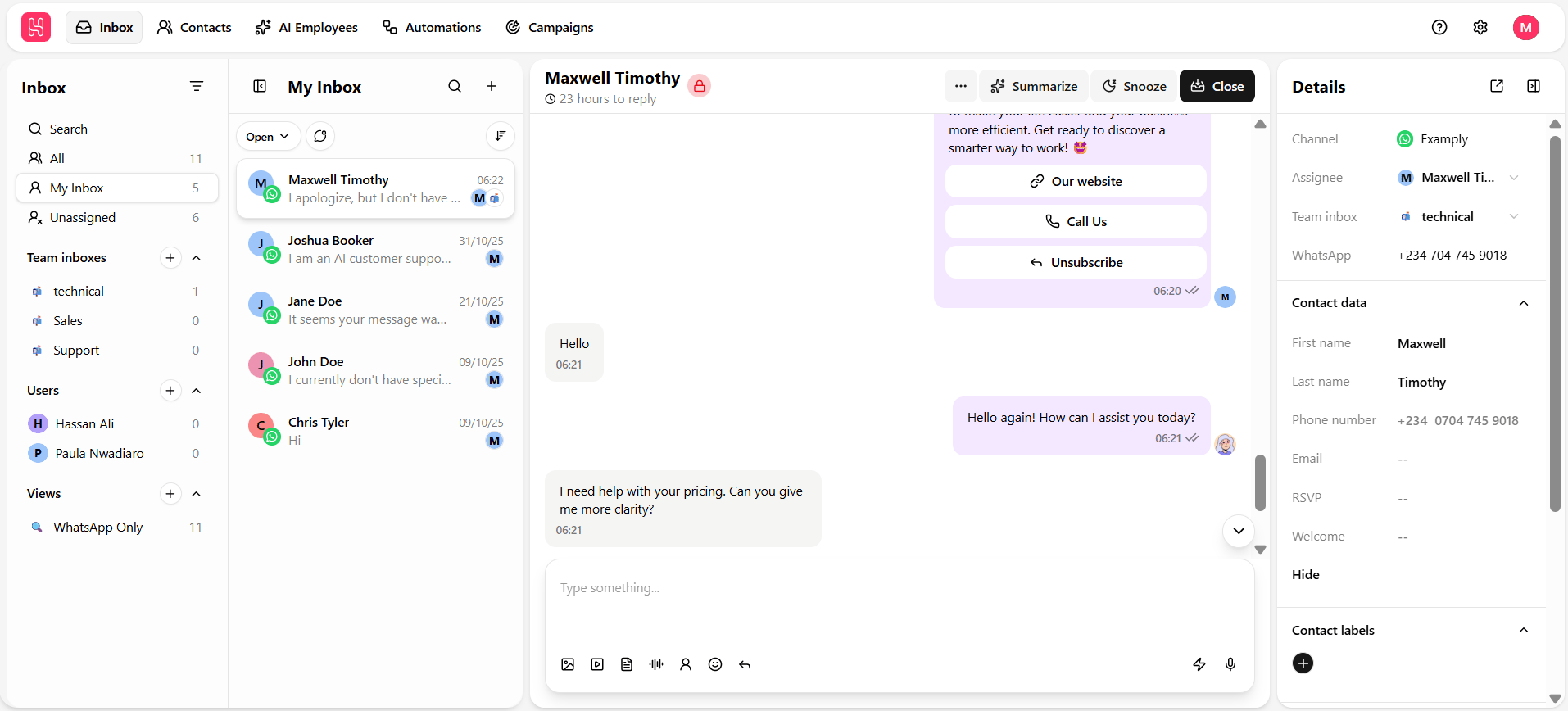
The sidebar
The sidebar stacks a set of filters top to bottom. Each one shows the same underlying conversations from a different angle — a chat you’re not assigned to still exists in All, even while it’s invisible in My Inbox.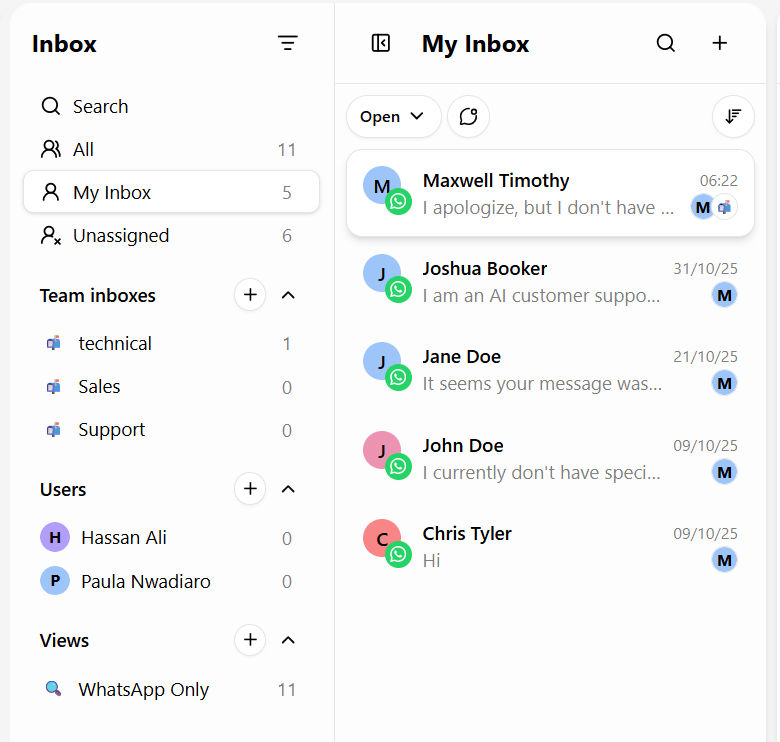
Check Unassigned regularly — a growing queue there is usually the clearest sign that conversations are falling through the cracks before anyone claims them.
The conversation list
Clicking a sidebar filter populates the middle panel with matching conversations. From here you can:- Click the search icon to open global search across contacts, messages, and chats.
- Click + to start a new chat.
- Filter by status — Open, Closed, or Snoozed — and sort by newest or oldest activity. See Search & filter chats.
- Click the Filter (funnel) icon for field-level conditions on contact data, subscription status, labels, and custom attributes. See Advanced filters.
- Select multiple conversations for bulk actions — assign, move, close, snooze, or mark read/unread all at once.
The chat panel
Selecting a conversation opens its full history in the center panel — every message, threaded chronologically with date headers (Today, Yesterday, or the weekday), regardless of which channel each message came in on. The header shows the contact’s name (or phone number), a reply-window countdown when one applies — see Conversation window — plus Refresh, Close, and a More (⋯) menu for chat-level actions. See Chat actions and Send a message for the composer below it.The details panel
The right-hand panel is the case file for whoever you’re talking to — everything you need without leaving the conversation. See Contact card for the full breakdown of channel, assignee, team inbox, contact fields, labels, notes, journeys, and other chats with the same contact.Getting started
If you’re new to the Inbox, a sensible order to learn it in:- Start from All or My Inbox to get oriented, then check Unassigned to understand ownership.
- Filter by Team or User in the sidebar once you know how conversations are routed in your workspace.
- Combine the Status and Filter dropdowns with Sort when you need to prioritize a specific slice of conversations.
- Review the contact card — especially Notes and Other chats — before replying to someone you haven’t spoken with before.