
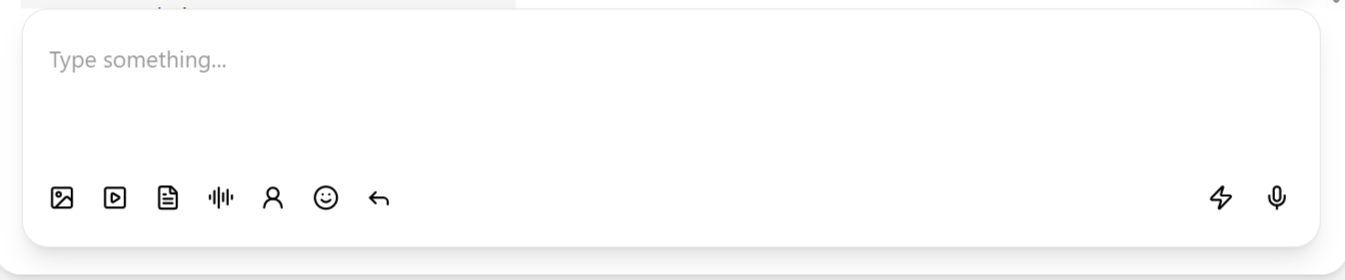
Free-form text
Type into the text field and send, the same as any messaging app. This is only available while the conversation window is open — once it expires on WhatsApp, Messenger, or Instagram, the field is replaced with a prompt to send an approved template instead.Media attachments
Four dedicated icons sit beside the text field, each opening a file picker for its format:
You can also drag a file directly from your desktop onto the composer instead of using the file picker.
Emoji
The emoji icon opens a picker to insert emoji into your message, the same as any modern chat app.Voice notes
Click the microphone icon to start recording, then click the send icon when you’re done to deliver it as a voice message — supported on channels that accept voice, such as WhatsApp.If sending fails
If a message will not send, work through these in order:- Check the conversation window. On WhatsApp, Messenger, and Instagram, free-form messaging blocks once the customer’s reply window has expired — see Conversation window. The composer itself will tell you if this is the case, replacing the text field with a template prompt.
- Send an approved template instead. Use Choose a template in the composer, or Actions → Send a WhatsApp template — see Chat actions. Sending a template and getting a reply reopens the window for normal messaging.
- Check the channel connection. If templates also fail to send, the channel itself may be disconnected — see the relevant messaging channel troubleshooting page.