
Tag the asset in a guideline
Type@ in the guideline editor and select Assets to reference a configured file directly in a sentence:
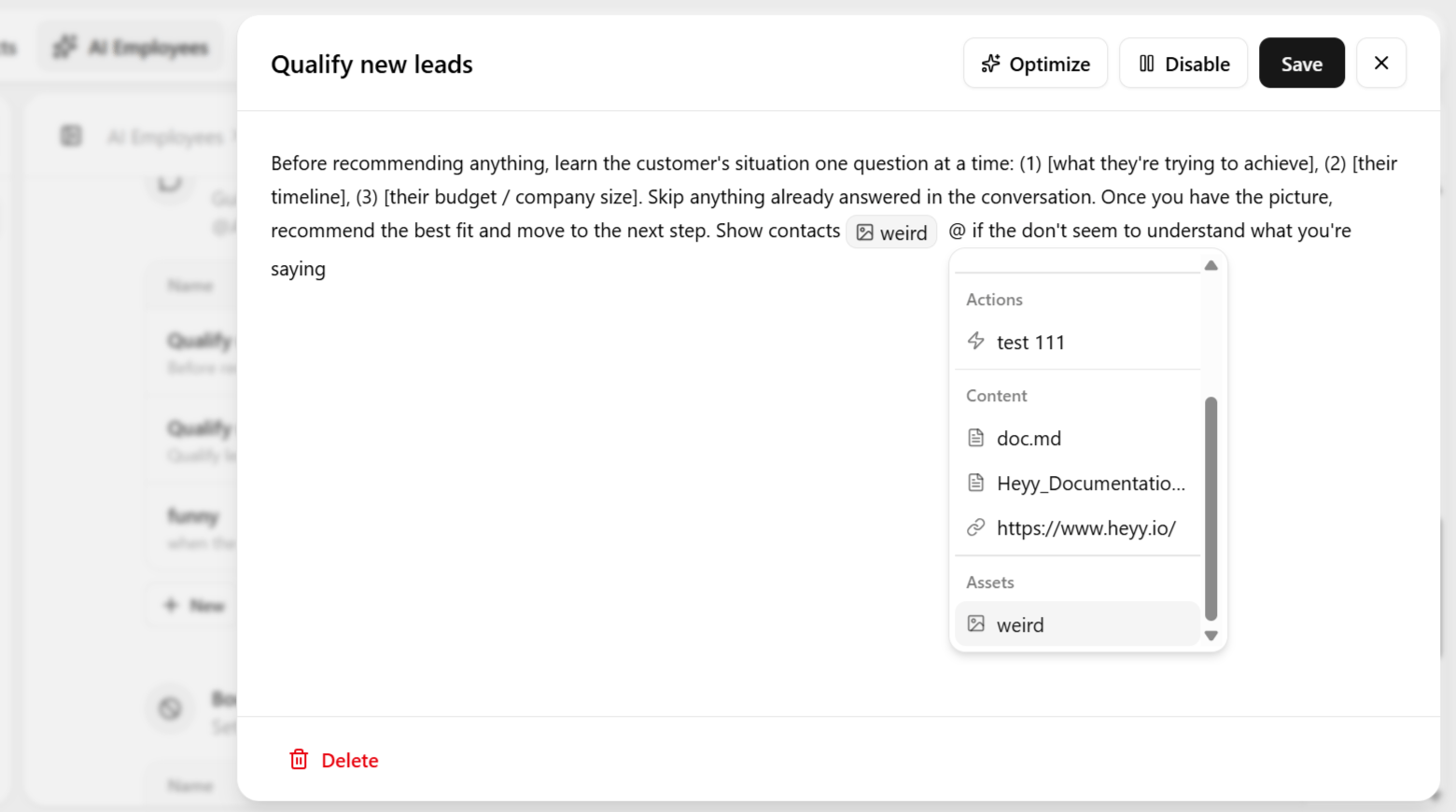
Use this asset when the contact asks about sizing.No extra automation is needed — the employee sends the file automatically when it judges the moment fits, the same way it decides when to answer from Content.
Examples in practice
In each case, the pattern is the same: the file itself lives in Assets, while the judgment call — when is the right moment to use it — is defined here, in the guideline. The two work as a pair: Assets supplies the material, the guideline supplies the timing and reasoning.
Be specific about when
A vague instruction to send assets “when helpful” leaves the employee guessing about which file and when. Reference each asset exactly where it is relevant to a specific step in the conversation.