
How guidelines work
When a customer message reaches your AI employee, Heyy merges active guidelines with identity setup, content, and capabilities to produce each reply. Each guideline is a short, titled instruction. You group them into one of four categories — each category has its own accordion and a dedicated article with goals and examples.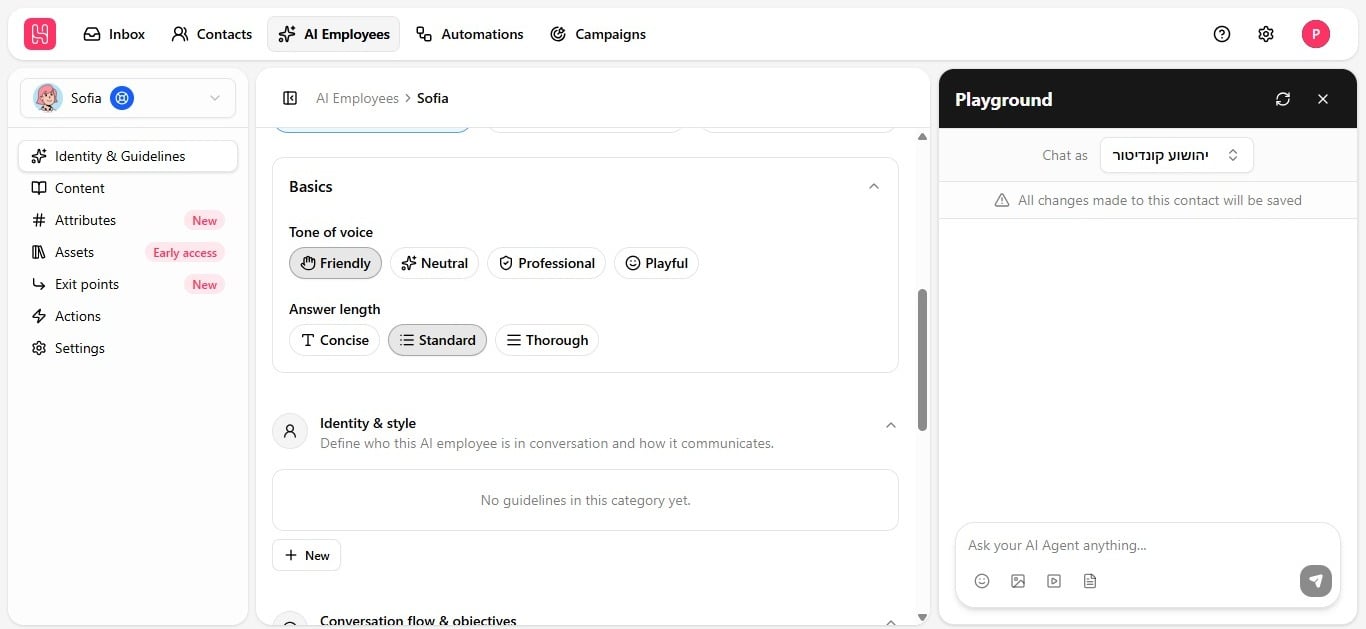
Anatomy of a guideline
Every guideline has the same fields whether you create it from scratch or start from a template.Add a guideline
- Open an employee and go to Identity & guidelines.
- Expand the category accordion you want.
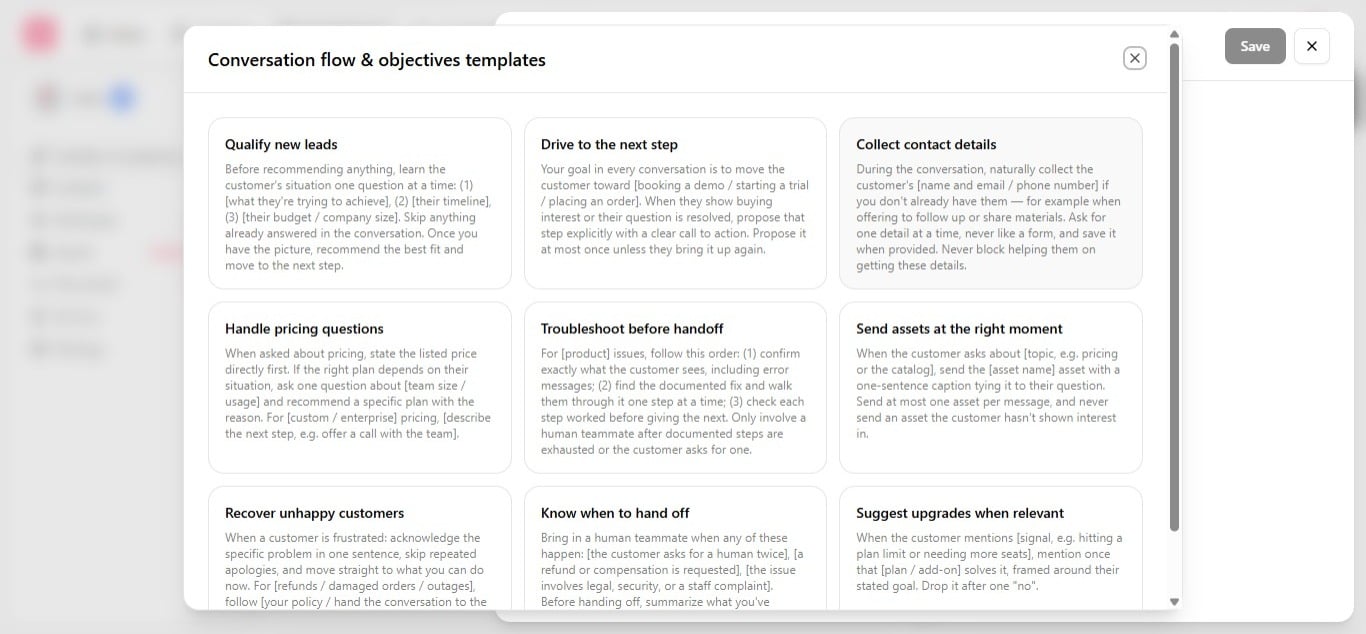
- Click New. A popup opens with the option to start from a template or write your own.
- To use a template, click the three-dot icon to browse templates for that category. Hovering over or clicking a template previews its contents — worth browsing even if you don’t use one as-is, simply for inspiration on structure and phrasing.
- To write your own, type a rough draft directly into the prompt field the way you’d explain the rule out loud, then click Optimize — you do not need to arrive with polished prompt-engineering language.
- Enter a title, set status to Active, and click Save.
Guidelines are prompt engineering, made accessible
Every guideline you write, regardless of category, is converted into a carefully engineered prompt behind the scenes. Small differences in phrasing, structure, and specificity can produce meaningfully different behavior from an AI system — and most people configuring an employee are not prompt engineers, and should not need to be. The template library and the Optimize button exist to close that gap: you supply the business logic and the intent, and the platform translates it into language the model follows reliably.How Optimize works
Every guideline has an Optimize button next to Save. Click it, and a smaller model rewrites the prompt before it goes live, tightening the wording without changing what it tells the employee to do.
For example, this:
Before recommending anything, learn the customer’s situation one question at a time: (1) what they’re trying to achieve, (2) their timeline, (3) their budget or company size. Skip anything already answered in the conversation. Once you have the picture, recommend the best fit and move to the next step.becomes:
Qualify leads by asking about their goals, timeline, and budget or company size. Ask one question at a time, skipping any details already provided. Once you have a clear picture, recommend the best solution.Same instruction, same order of operations, tighter sentences — and any bracketed template placeholders are folded into plain language once you have filled in your specifics.
@mentions in prompts
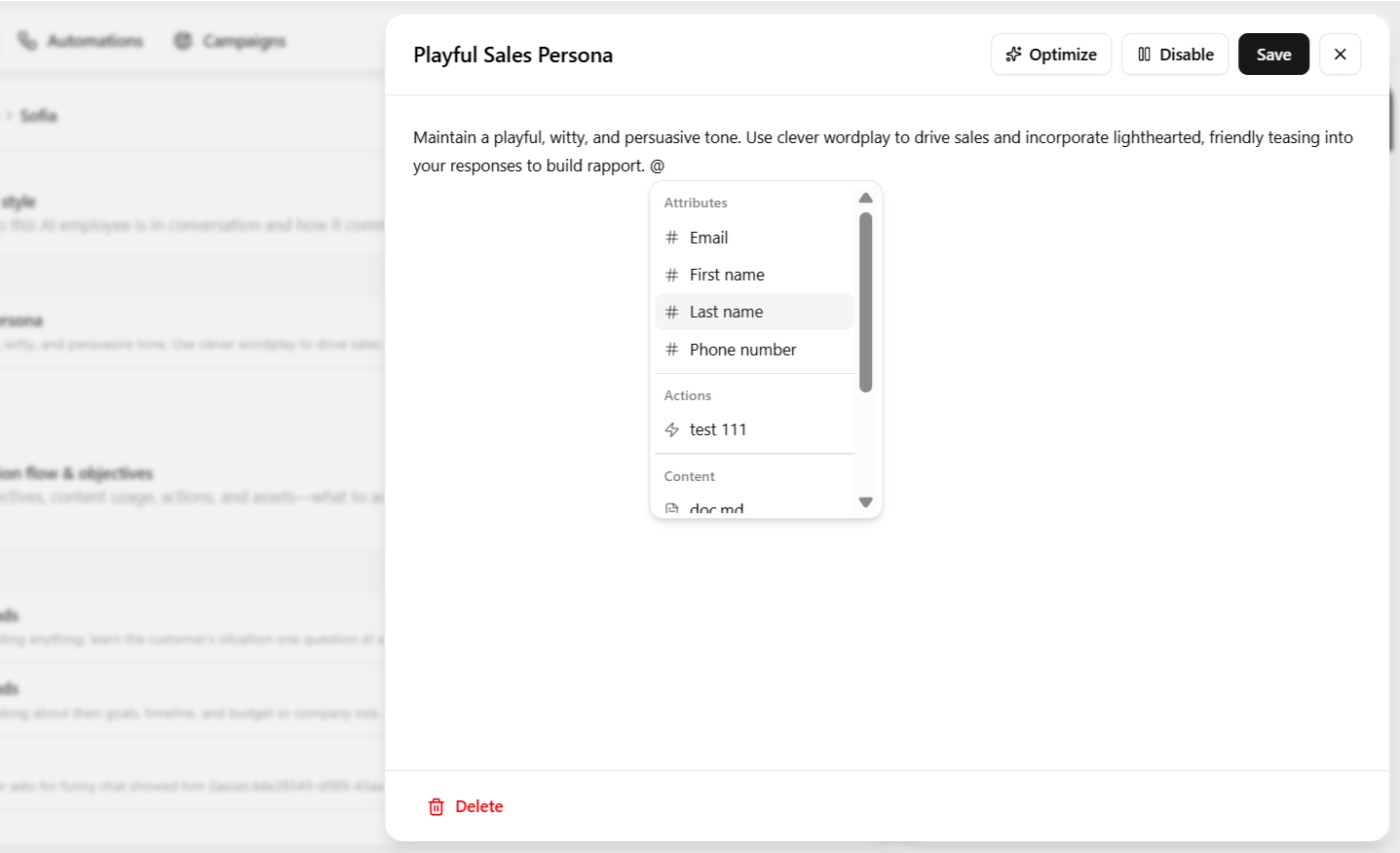
Type@ in the prompt editor to reference capabilities you have already configured. Mentions tell the employee which attributes, knowledge, tools, or files you mean — without pasting long IDs or URLs.
If nothing appears when you type
@, configure attributes, content, actions, or assets first, then return to the prompt.
Writing tips
How the four categories work together
Although each category is configured separately, they combine into a single, coherent instruction set that governs every conversation. It helps to think of each as answering a different question:
A well-configured employee has thoughtful input across all four, not just one or two. It is common to over-invest in Identity & style, since tone feels like the most visible, most “creative” part of setup, while under-investing in Boundaries, since it feels like a formality — in practice the opposite emphasis is usually more valuable: an imperfect tone rarely causes real harm, but a missing boundary around pricing, competitors, or off-limits topics can.