
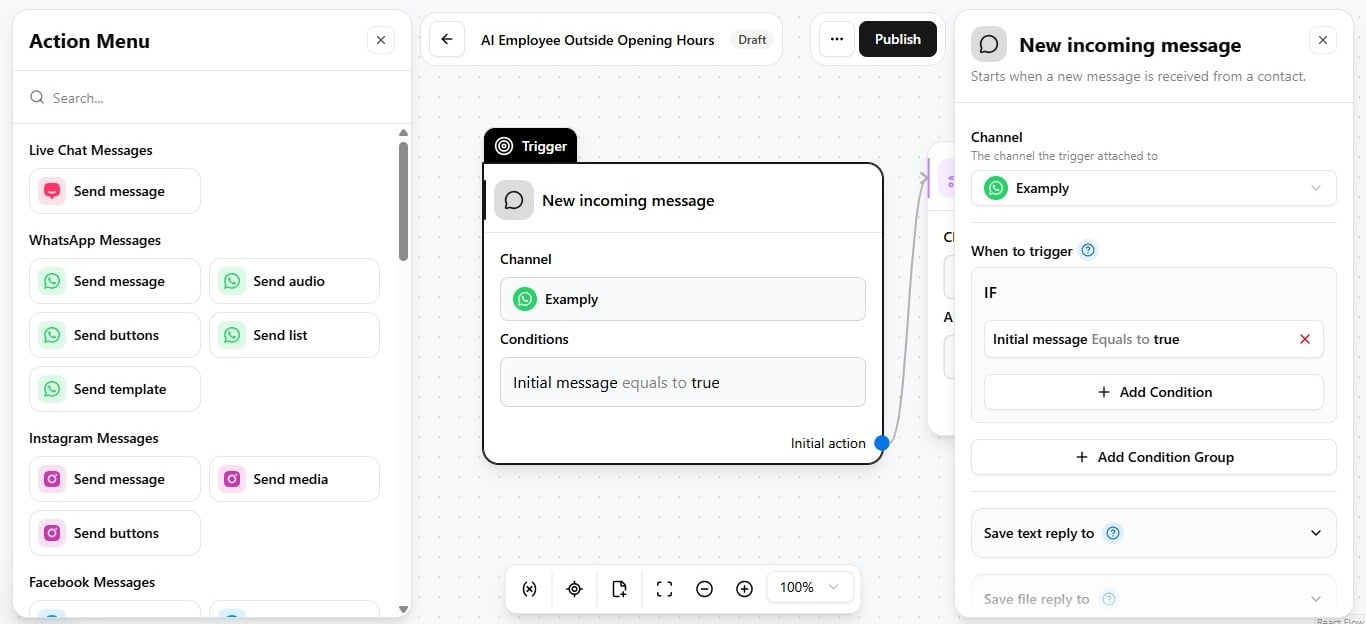
Channel must match the trigger
The channel selected on the AI Employee action must match where the automation’s trigger fires. A mismatched channel is the most common reason an employee never runs — the trigger fires, the automation executes, but the AI Employee step is configured for a different channel and silently does nothing. Only a live employee appears in the picker — see employee status if the one you expect is missing.With channel and employee both set, the step already works. Extra guidelines, exit points, reply timeout, and response delay — covered below — are all optional.
Extra guidelines
Below AI Employee, you’ll find Extra guidelines. This is where you hand the employee instructions that apply only inside this one automation, on top of everything it already knows from its own base guidelines. Use it when this specific automation needs something the employee’s default setup doesn’t cover — a narrower boundary, a one-off instruction, a rule that only makes sense in this particular flow. Click New to add one. If nothing here needs to differ from how the employee normally behaves, skip it — its base guidelines still apply in full either way. See Automation guideline overrides for the full walkthrough.Exit points
Right below Extra guidelines sits Exit points. This controls which of the employee’s exit points are allowed to move this automation forward. See Use exit points in automations for how to map exit points to the next step in the flow.If contact has not replied
Scroll down and you’ll find two more toggles that shape how this step behaves over time. If contact has not replied lets you set a timeout, in hours, for the customer’s response. If they go quiet past that window, the automation moves on — closing the ticket, reassigning it, or handing off to another employee, whatever you’ve built downstream. See Set reply timeouts for the full configuration options.Response delay
Right beneath it is Response delay. Turn this on, and the AI Employee waits a short, randomized pause before replying instead of answering the instant a message lands. It does double duty:- The pacing feels more natural.
- If a customer fires off a few quick messages in a row — “Hi,” “hello,” “I wanted to ask about…” — the delay lets the employee gather all of them and reply once, instead of jumping in after the first message alone.