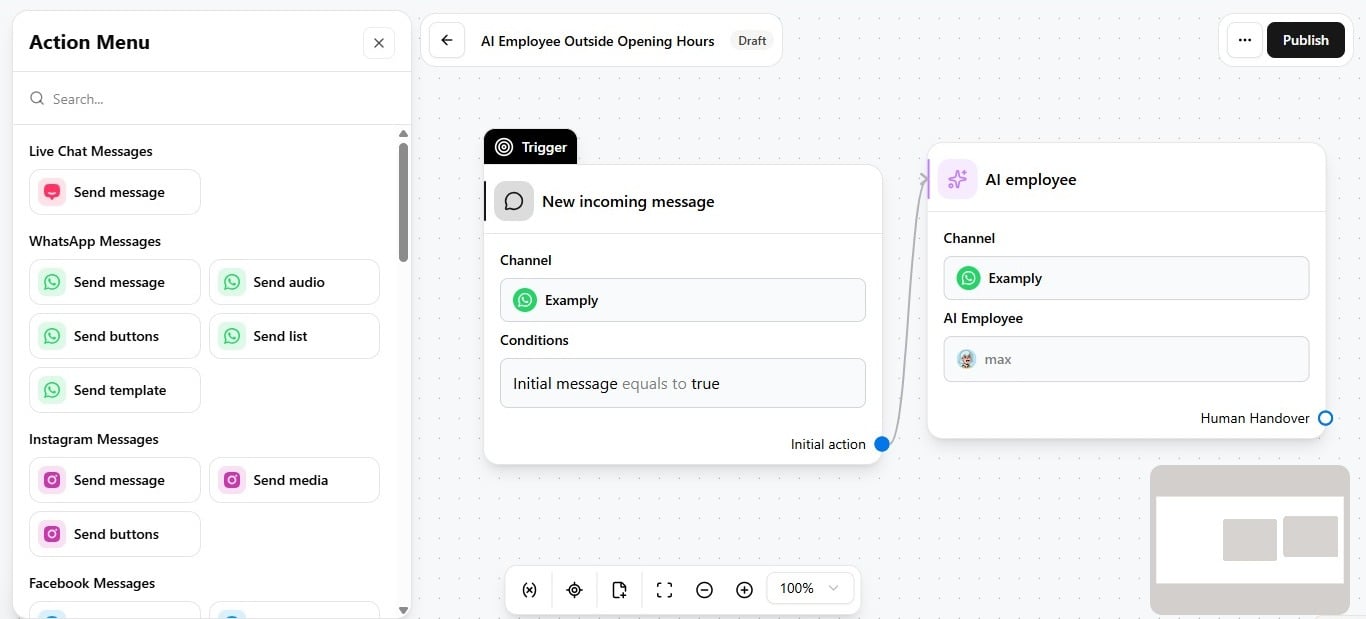
Add the action
- Open Automations. If this is your first one, click Create new automation to open the editor.
- Set the trigger’s channel. The editor opens with a Trigger block already in place, set to New incoming message. Click into it and choose the channel this automation runs on.
- Add your AI Employee. Open the Channel Menu on the right, search for the AI Employee option, and select which employee handles this automation. See Channel and context.
- Optionally add extra guidelines. These apply only inside this automation, not everywhere the employee is used — see Automation guideline overrides.
- Select which exit points are active here. An exit point configured on the employee does not apply automatically — see Use exit points in automations.
- Configure a reply timeout if the automation should act when the contact goes silent.
- Publish the automation.