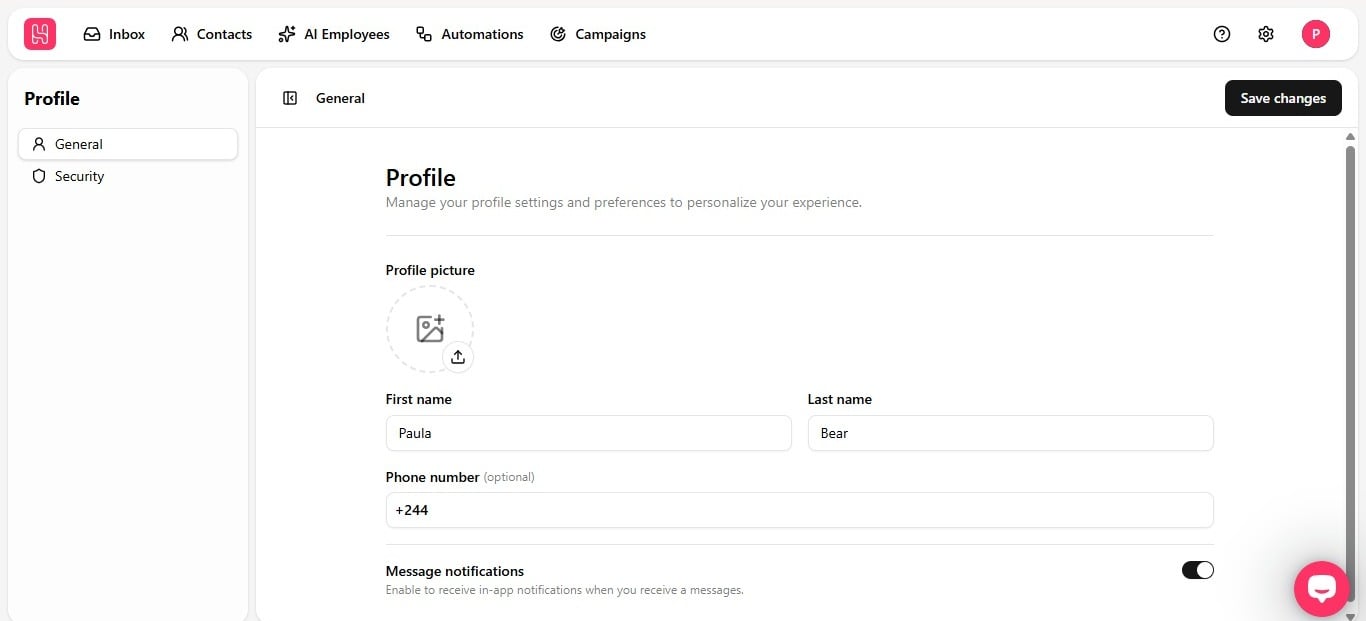
Setting up your profile takes a little less than five minutes. This is the page you land on when you click your profile icon in the top right corner and select Profile. From here you can update how you appear to teammates, add a way for them to reach you directly, and decide how Heyy notifies you when new messages come in.
Profile page showing profile picture, name fields, phone number, and message notifications toggle

Set your name

Fill in your First name and Last name. This is what shows up across your workspace, so use whatever you’d want your team to see in chats, mentions, and notifications.

Add a profile picture

Click the upload icon under Profile picture and pick a photo from your device. No need for a formal headshot, just something that helps you and your teammates in the same workspace recognize your account at a glance.

Add your phone number (optional)

Add your number in the Phone number field. This is optional, and it’s only visible to your workspace, never to your contacts.

Turn on message notifications

Flip the Message notifications toggle on to get notified in-app the moment a new message comes in. Leave it off if you’d rather check messages on your own manually.
Once your profile is set up, head to Security to update your email and turn on two-factor authentication.