> ## Documentation Index
> Fetch the complete documentation index at: https://docs.heyy.io/llms.txt
> Use this file to discover all available pages before exploring further.
# Working Hours
> Configure your business working hours to let customers know when you're available and to manage automated responses.
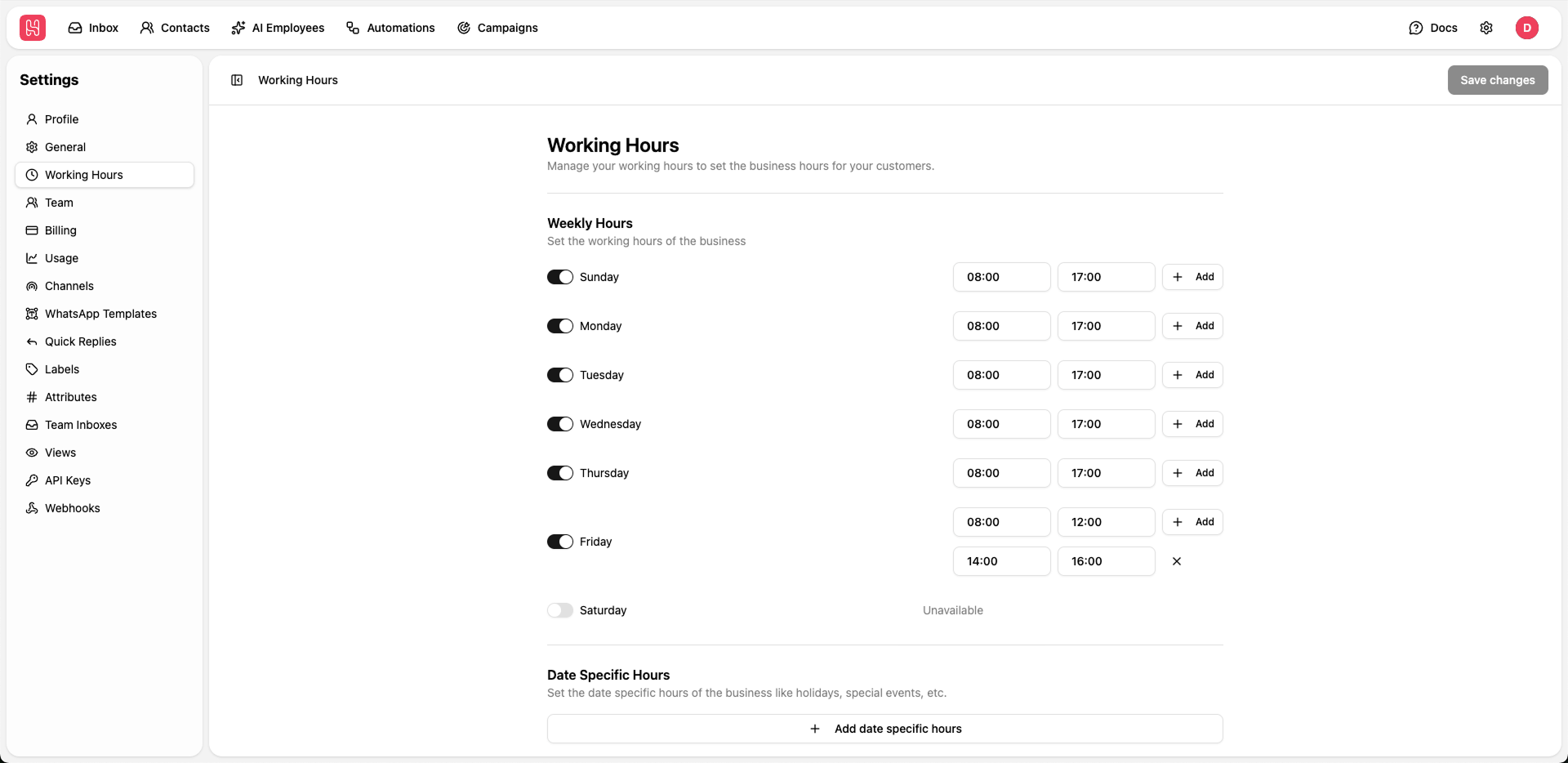 Go to [**Settings > Working Hours**](https://app.heyy.io/settings/working-hours) to manage you working hours.
## Weekly Hours
Set up your regular business hours for each day of the week.
Toggle the switch next to each day to mark it as available or unavailable
For enabled days, set the start and end times using the time pickers
Click **+ Add** to add multiple time ranges for a single day (e.g., split shifts)
Click **Save changes** to apply your working hours
## Date Specific Hours
Set special hours for holidays, events, or any specific dates that differ from your regular schedule.
Go to [**Settings > Working Hours**](https://app.heyy.io/settings/working-hours) to manage you working hours.
## Weekly Hours
Set up your regular business hours for each day of the week.
Toggle the switch next to each day to mark it as available or unavailable
For enabled days, set the start and end times using the time pickers
Click **+ Add** to add multiple time ranges for a single day (e.g., split shifts)
Click **Save changes** to apply your working hours
## Date Specific Hours
Set special hours for holidays, events, or any specific dates that differ from your regular schedule.
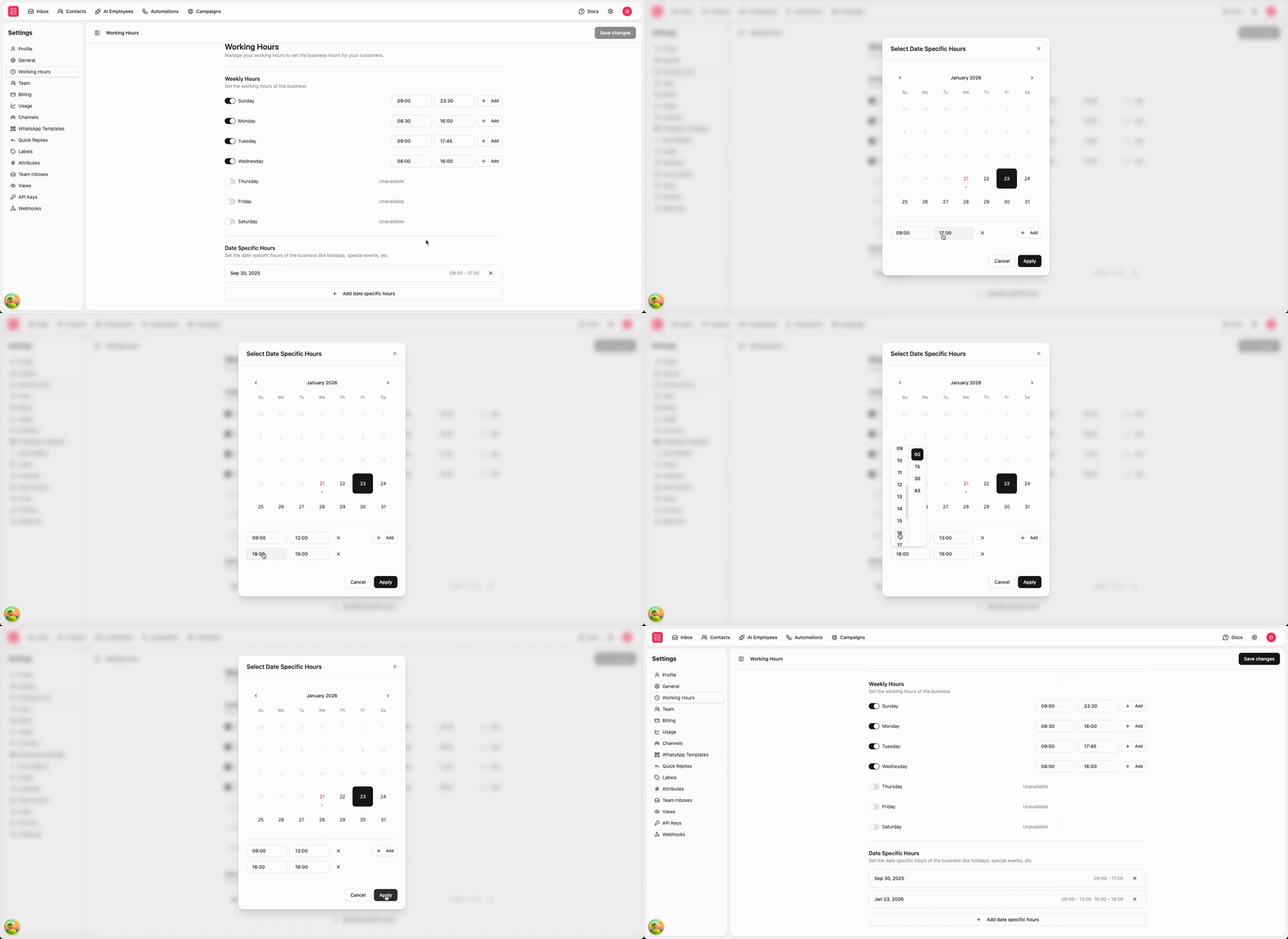 Click **+ Add date specific hours**
Choose the specific date from the calendar
Set the working hours for that date, or don't select hours to make this day unavailable
Click Apply
Date-specific hours override weekly hours for the specified dates. Use this for holidays, special events, or temporary schedule changes.
Click **+ Add date specific hours**
Choose the specific date from the calendar
Set the working hours for that date, or don't select hours to make this day unavailable
Click Apply
Date-specific hours override weekly hours for the specified dates. Use this for holidays, special events, or temporary schedule changes.