> ## Documentation Index
> Fetch the complete documentation index at: https://docs.heyy.io/llms.txt
> Use this file to discover all available pages before exploring further.
# WhatsApp Templates
> Meta requires pre-approved templates to initiate conversations with users. WhatsApp templates are the only message type allowed outside of the 24-hour customer service window. They are essential for sending bulk broadcasts or reaching out to users when no active session exists.
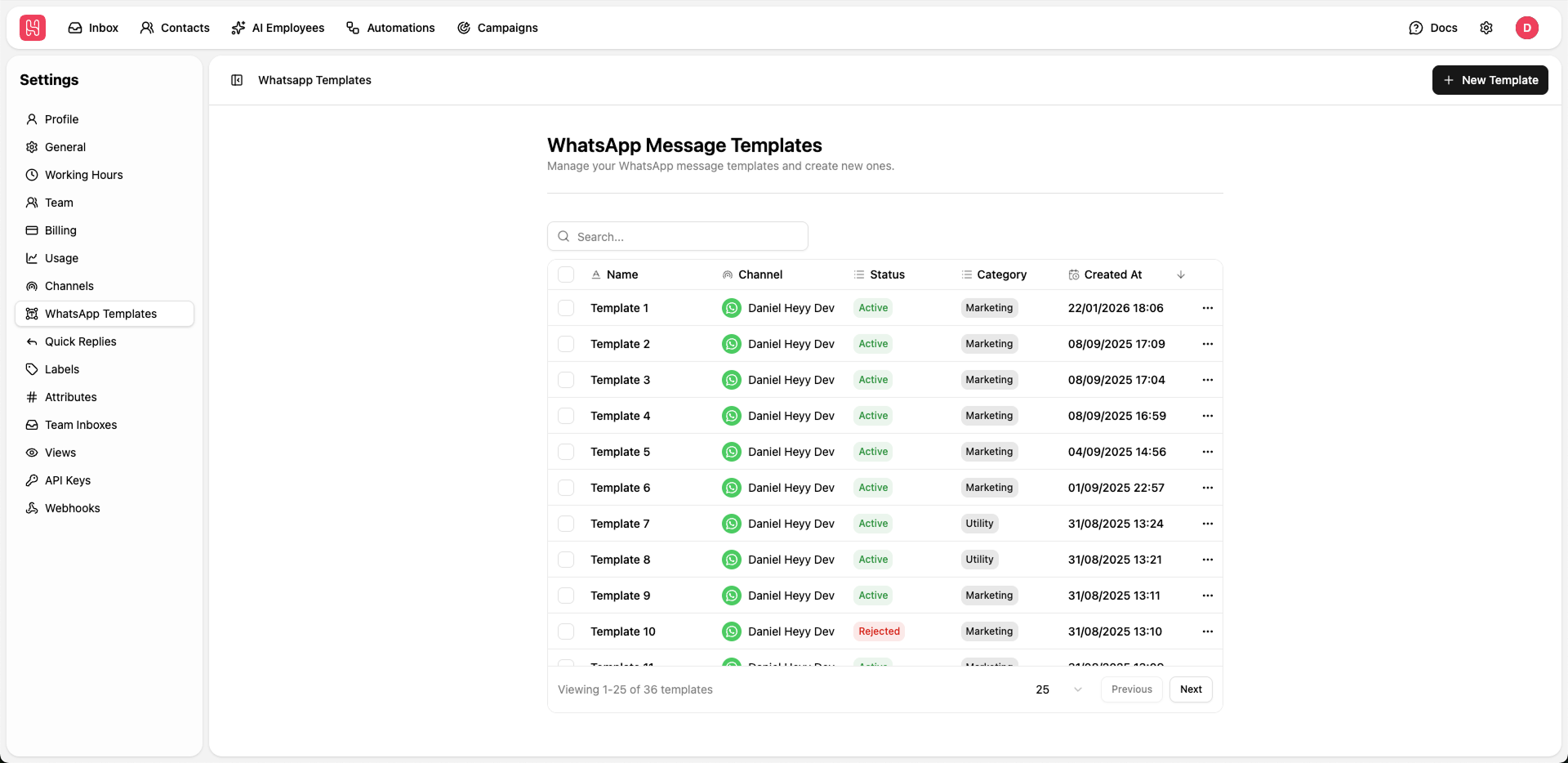 Go to [**Settings > WhatsApp Templates**](https://app.heyy.io/settings/whatsapp-templates) to manage your templates.
## Creating Templates
To initiate a new approval request, click the **"New template"** button in the top right corner of the dashboard. Use the following sections to define your message structure:
**Approval Process:** By default, all templates are submitted under the **Utility** category. Review typically takes up to **24 hours**, though newly connected WhatsApp channels may experience longer wait times.
### Basic Information
* **Name**: Enter a descriptive, internal name for your template to help your team identify it quickly.
* **WhatsApp Channel**: Select the specific WhatsApp channel for this template. Note that a template can only be associated with one WhatsApp channel at a time.
### Header (Optional)
Headers appear at the very top of your message. You can choose one of the following formats:
#### Text Header
Text headers allow for a short title at the top of your message.
**Meta header rules:** Text headers support a maximum of **one** parameter/variable. WhatsApp formatting characters (like bold or italics) are not supported.
#### Media Header (Image, Video, Document)
Include a visual or document-based element.
* **Image**: Supported formats: **JPG, JPEG, PNG**. Max size: **5MB**.
* **Video**: Supported formats: **MP4, 3GP**. Max size: **16MB**.
* **Document**: Supported formats: **PDF, JPG, JPEG, PNG, MP4**. Max size: **100MB**.
### Message Body
The body is the primary content and the only required component. You can enhance your message using [WhatsApp formatting](https://faq.whatsapp.com/539178204879377) and parameters (contact attributes and variables):
* **Contact Attributes**: Click the **"\<>"** icon to insert dynamic data like First Name or Address. These are automatically replaced with the recipient's specific information.
* **Variables**: Click the **"\<>"** icon and select **"Add new variable"** to include custom data like Order IDs or Pricing that can be passed via API or Automations.
**Meta body rules:**
1. The body text **cannot start or end** with a parameter (variable or contact attribute).
2. The **number of parameters** should remain relatively low compared to the overall text length (as a guideline, keep total parameters to roughly one-third or less of the total word count).
3. Line breaks are limited – you **cannot have more than two consecutive line breaks**. A single empty line (one gap line) is allowed, but three or more in a row will be rejected.
### Footer (Optional)
A short line of grey text at the bottom of your message. This is commonly used for signatures or "Reply STOP to unsubscribe" notices.
### Buttons
Interactive buttons drive higher engagement. You can add up to **10 buttons** in total across these types:
If you add more than 3 buttons, WhatsApp displays the first 2 and collapses the rest into a **"See all options"** menu.
**Meta button rules:**
1. **Emojis are not allowed** in button text.
2. **Parameters are not allowed** in button labels. The only exception is URL buttons, where parameters may appear **inside the URL itself**, not in the visible button text.
#### Quick Reply
A preset response button. When clicked, it sends the button text as a reply message.
Highly effective in [Automations](/quick-start/automations/getting-started) to trigger specific flows.
#### Visit Website
A CTA button that opens a specific URL. You can use parameters (contact attributes and variables) to create personalized links.
Only **two** "Visit Website" buttons are allowed per template.
#### Call Phone Number
A CTA button that triggers the user's phone app to pre-dial a specific number when clicked.
Only **one** "Call Phone Number" button is allowed per template.
***
## Updating Templates
At this time, only the **name** of an existing template can be edited. To change the content, header, or buttons, you must create a new template.
**Why can't I edit template content?** Modifying a template triggers a new Meta approval process which often results in technical errors or indefinite downtime. To ensure your active automations and business flows remain stable, we require the creation of a new template for any content changes.
Go to [**Settings > WhatsApp Templates**](https://app.heyy.io/settings/whatsapp-templates) to manage your templates.
## Creating Templates
To initiate a new approval request, click the **"New template"** button in the top right corner of the dashboard. Use the following sections to define your message structure:
**Approval Process:** By default, all templates are submitted under the **Utility** category. Review typically takes up to **24 hours**, though newly connected WhatsApp channels may experience longer wait times.
### Basic Information
* **Name**: Enter a descriptive, internal name for your template to help your team identify it quickly.
* **WhatsApp Channel**: Select the specific WhatsApp channel for this template. Note that a template can only be associated with one WhatsApp channel at a time.
### Header (Optional)
Headers appear at the very top of your message. You can choose one of the following formats:
#### Text Header
Text headers allow for a short title at the top of your message.
**Meta header rules:** Text headers support a maximum of **one** parameter/variable. WhatsApp formatting characters (like bold or italics) are not supported.
#### Media Header (Image, Video, Document)
Include a visual or document-based element.
* **Image**: Supported formats: **JPG, JPEG, PNG**. Max size: **5MB**.
* **Video**: Supported formats: **MP4, 3GP**. Max size: **16MB**.
* **Document**: Supported formats: **PDF, JPG, JPEG, PNG, MP4**. Max size: **100MB**.
### Message Body
The body is the primary content and the only required component. You can enhance your message using [WhatsApp formatting](https://faq.whatsapp.com/539178204879377) and parameters (contact attributes and variables):
* **Contact Attributes**: Click the **"\<>"** icon to insert dynamic data like First Name or Address. These are automatically replaced with the recipient's specific information.
* **Variables**: Click the **"\<>"** icon and select **"Add new variable"** to include custom data like Order IDs or Pricing that can be passed via API or Automations.
**Meta body rules:**
1. The body text **cannot start or end** with a parameter (variable or contact attribute).
2. The **number of parameters** should remain relatively low compared to the overall text length (as a guideline, keep total parameters to roughly one-third or less of the total word count).
3. Line breaks are limited – you **cannot have more than two consecutive line breaks**. A single empty line (one gap line) is allowed, but three or more in a row will be rejected.
### Footer (Optional)
A short line of grey text at the bottom of your message. This is commonly used for signatures or "Reply STOP to unsubscribe" notices.
### Buttons
Interactive buttons drive higher engagement. You can add up to **10 buttons** in total across these types:
If you add more than 3 buttons, WhatsApp displays the first 2 and collapses the rest into a **"See all options"** menu.
**Meta button rules:**
1. **Emojis are not allowed** in button text.
2. **Parameters are not allowed** in button labels. The only exception is URL buttons, where parameters may appear **inside the URL itself**, not in the visible button text.
#### Quick Reply
A preset response button. When clicked, it sends the button text as a reply message.
Highly effective in [Automations](/quick-start/automations/getting-started) to trigger specific flows.
#### Visit Website
A CTA button that opens a specific URL. You can use parameters (contact attributes and variables) to create personalized links.
Only **two** "Visit Website" buttons are allowed per template.
#### Call Phone Number
A CTA button that triggers the user's phone app to pre-dial a specific number when clicked.
Only **one** "Call Phone Number" button is allowed per template.
***
## Updating Templates
At this time, only the **name** of an existing template can be edited. To change the content, header, or buttons, you must create a new template.
**Why can't I edit template content?** Modifying a template triggers a new Meta approval process which often results in technical errors or indefinite downtime. To ensure your active automations and business flows remain stable, we require the creation of a new template for any content changes.