> ## Documentation Index
> Fetch the complete documentation index at: https://docs.heyy.io/llms.txt
> Use this file to discover all available pages before exploring further.
# Team Inboxes
> Create shared inboxes to organize conversations by team or department.
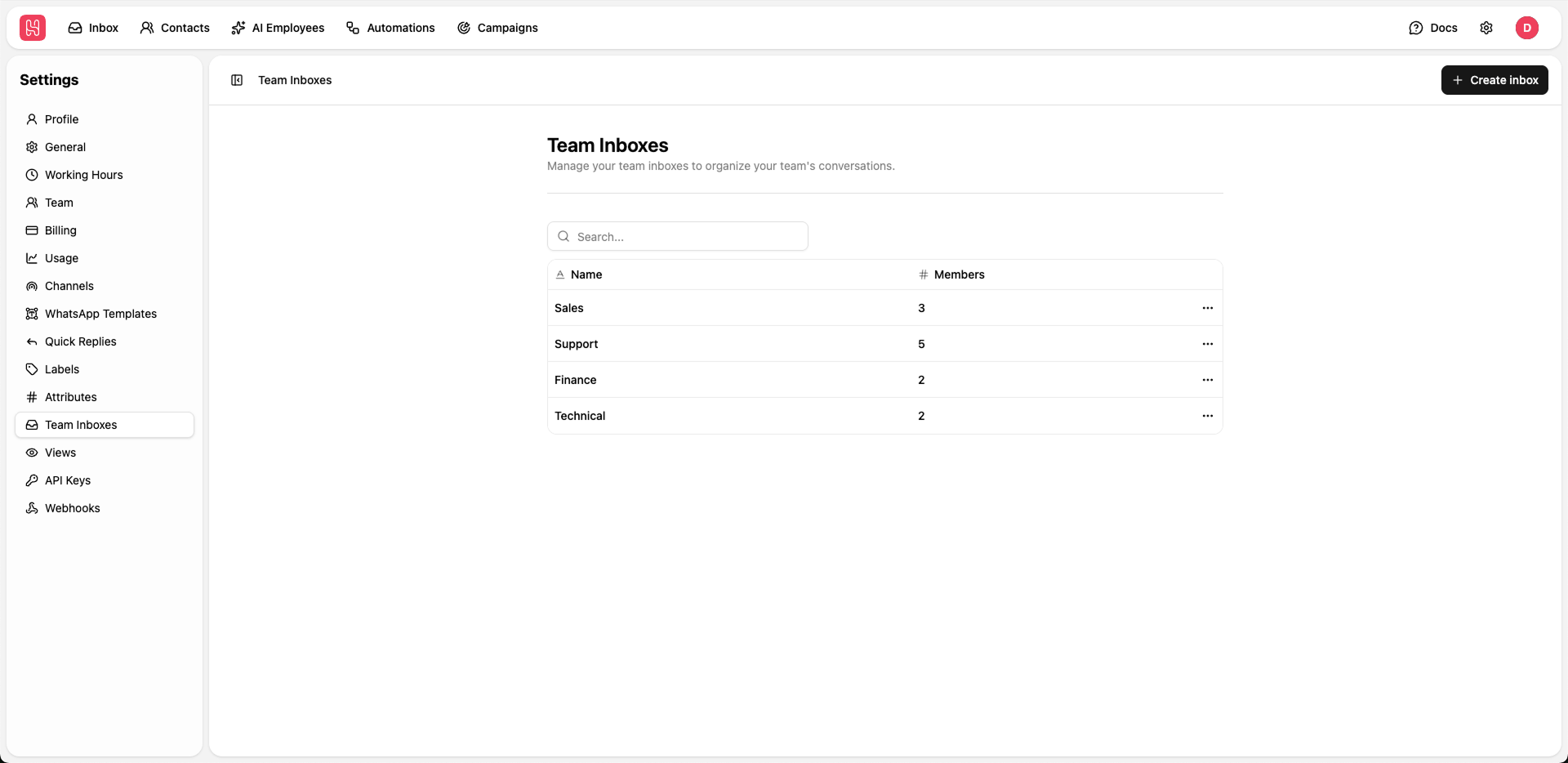 Go to [**Settings > Team Inboxes**](https://app.heyy.io/settings/team-inboxes) to manage your team inboxes.
## Inbox Overview
Each team inbox shows:
* **Name** - Inbox identifier (e.g., "Sales", "Support")
* **Members** - Number of team members assigned
## Creating Team Inboxes
Click **+ Create inbox** button
Enter a descriptive name for the team inbox
Select team members who should have access
Save the inbox configuration
## Use Cases
Route sales inquiries to your sales team
Handle customer support tickets
Prioritize high-value customer communications
Manage escalated issues requiring attention
Go to [**Settings > Team Inboxes**](https://app.heyy.io/settings/team-inboxes) to manage your team inboxes.
## Inbox Overview
Each team inbox shows:
* **Name** - Inbox identifier (e.g., "Sales", "Support")
* **Members** - Number of team members assigned
## Creating Team Inboxes
Click **+ Create inbox** button
Enter a descriptive name for the team inbox
Select team members who should have access
Save the inbox configuration
## Use Cases
Route sales inquiries to your sales team
Handle customer support tickets
Prioritize high-value customer communications
Manage escalated issues requiring attention