> ## Documentation Index
> Fetch the complete documentation index at: https://docs.heyy.io/llms.txt
> Use this file to discover all available pages before exploring further.
# Labels
> Organize and categorize your contacts using custom labels.
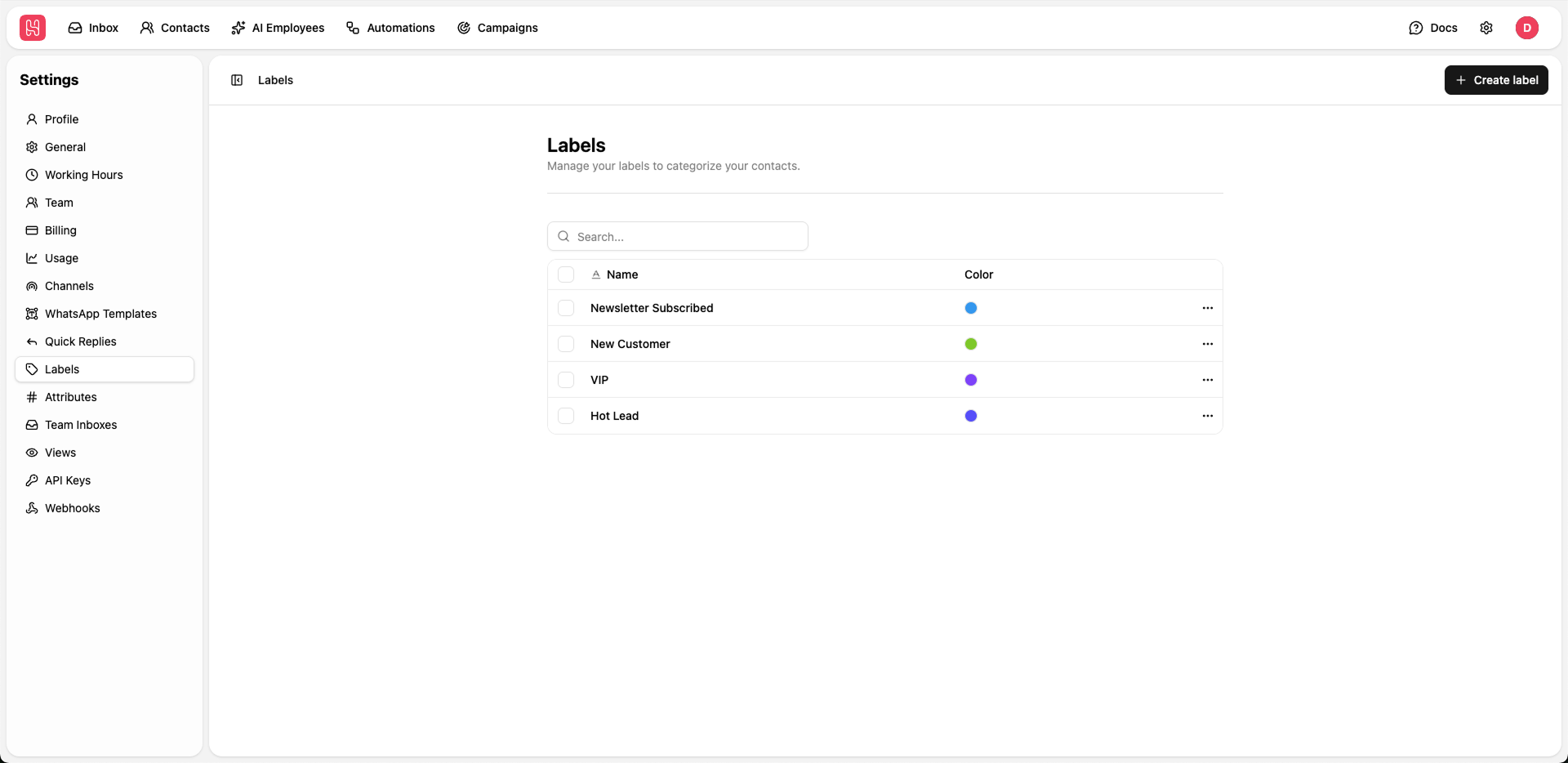 Go to [**Settings > Labels**](https://app.heyy.io/settings/labels) to manage your labels.
## Managing Labels
Labels help your team organize contacts into clear, actionable segments.
To manage labels, go to the **Labels** page in Settings and:
### Create a Label
* Click **"+ Create label"**.
* Enter a clear, descriptive name (for example, `New Lead`, `VIP`, or `Churn Risk`).
### Search Existing Labels
* Use the search bar at the top of the list to quickly find existing labels.
* This is especially useful when you maintain a large number of labels across teams or use cases.
### Edit or Delete Labels
* Use the action menu next to each label to rename or remove it.
* Be cautious when deleting labels, as they will be removed from any contacts they were previously applied to.
***
## Using Labels
Apply labels to contacts and conversations to:
* Segment your audience by lifecycle stage, interest, or geography.
* Filter contact lists and chat views to focus on specific groups of customers.
* Create targeted campaigns and automations for high-intent or high-value segments.
* Organize leads by status (for example: `New lead`, `Qualified`, `Customer`).
Define a simple, shared labeling convention (for example, sales pipeline stages or customer tiers) so your whole team applies labels consistently and reports remain accurate.
Go to [**Settings > Labels**](https://app.heyy.io/settings/labels) to manage your labels.
## Managing Labels
Labels help your team organize contacts into clear, actionable segments.
To manage labels, go to the **Labels** page in Settings and:
### Create a Label
* Click **"+ Create label"**.
* Enter a clear, descriptive name (for example, `New Lead`, `VIP`, or `Churn Risk`).
### Search Existing Labels
* Use the search bar at the top of the list to quickly find existing labels.
* This is especially useful when you maintain a large number of labels across teams or use cases.
### Edit or Delete Labels
* Use the action menu next to each label to rename or remove it.
* Be cautious when deleting labels, as they will be removed from any contacts they were previously applied to.
***
## Using Labels
Apply labels to contacts and conversations to:
* Segment your audience by lifecycle stage, interest, or geography.
* Filter contact lists and chat views to focus on specific groups of customers.
* Create targeted campaigns and automations for high-intent or high-value segments.
* Organize leads by status (for example: `New lead`, `Qualified`, `Customer`).
Define a simple, shared labeling convention (for example, sales pipeline stages or customer tiers) so your whole team applies labels consistently and reports remain accurate.