> ## Documentation Index
> Fetch the complete documentation index at: https://docs.heyy.io/llms.txt
> Use this file to discover all available pages before exploring further.
# Billing
> View and manage your subscription, credits, and wallet for paid features.
Go to [**Settings > Billing**](https://app.heyy.io/settings/billing) to manage your subscription.
Your current plan and plan actions are displayed at the top:
* **Plan Name** & **Monthly Cost**
* **Manage Subscription** - Access your subscription portal to update billing details and manage payment methods.
* **Upgrade Plan** - View available plan upgrades.
## Credits
Each plan includes monthly credits that reset every month. Credits are consumed by AI Employee and automations [see pricing](https://assets.heyy.io/website/credit-pricing.pdf). In the Credits section, you can:
* **View balance** - See your current credit balance and usage
* **Manage Auto Recharge** - Configure automatic credit purchases when your balance falls below a threshold. See [Auto Recharge Credits](#auto-recharge-credits) for more details
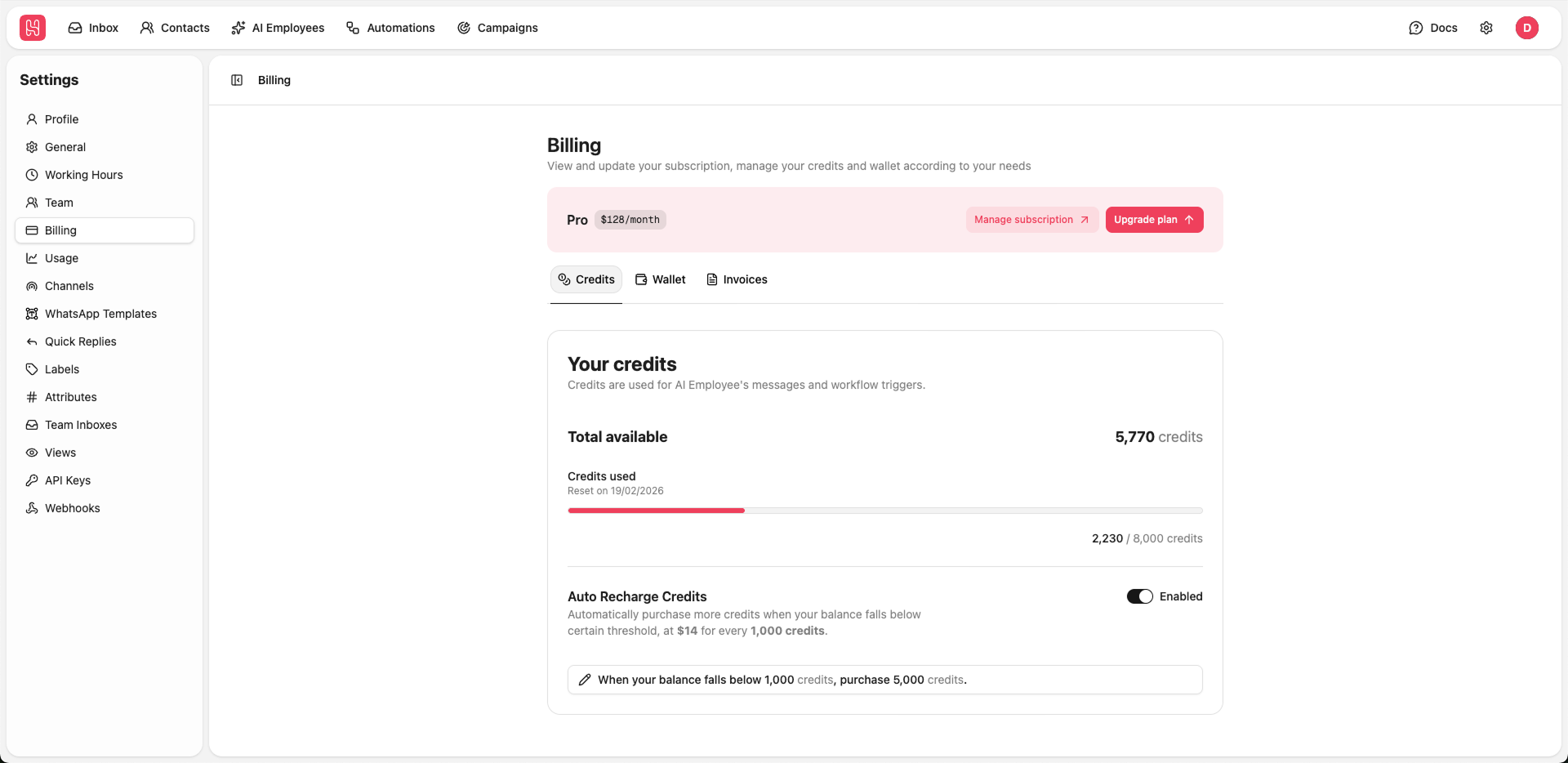 Go to [**Settings > Billing > Credits**](https://app.heyy.io/settings/billing/credits) to manage your credits.
### Auto Recharge Credits
Enable automatic credit purchases when your balance falls below a threshold.
Enable Auto Recharge to ensure your AI Employees and automations never stop due to insufficient credits.
***
## Wallet
Your wallet balance is used for paid channel costs (e.g., WhatsApp template message).
For full WhatsApp pricing details, see the [WhatsApp pricing table](https://assets.heyy.io/website/whatsapp-pricing.pdf).
In the Wallet section, you can:
* **Add funds** - Click **Add to wallet** to immediately add funds to your wallet for use
* **View balance** - See your current wallet balance displayed in USD
* **Manage Auto Recharge** - Configure automatic wallet top-ups when your balance falls below a threshold. See [Auto Recharge Wallet](#auto-recharge-wallet) for more details
Go to [**Settings > Billing > Credits**](https://app.heyy.io/settings/billing/credits) to manage your credits.
### Auto Recharge Credits
Enable automatic credit purchases when your balance falls below a threshold.
Enable Auto Recharge to ensure your AI Employees and automations never stop due to insufficient credits.
***
## Wallet
Your wallet balance is used for paid channel costs (e.g., WhatsApp template message).
For full WhatsApp pricing details, see the [WhatsApp pricing table](https://assets.heyy.io/website/whatsapp-pricing.pdf).
In the Wallet section, you can:
* **Add funds** - Click **Add to wallet** to immediately add funds to your wallet for use
* **View balance** - See your current wallet balance displayed in USD
* **Manage Auto Recharge** - Configure automatic wallet top-ups when your balance falls below a threshold. See [Auto Recharge Wallet](#auto-recharge-wallet) for more details
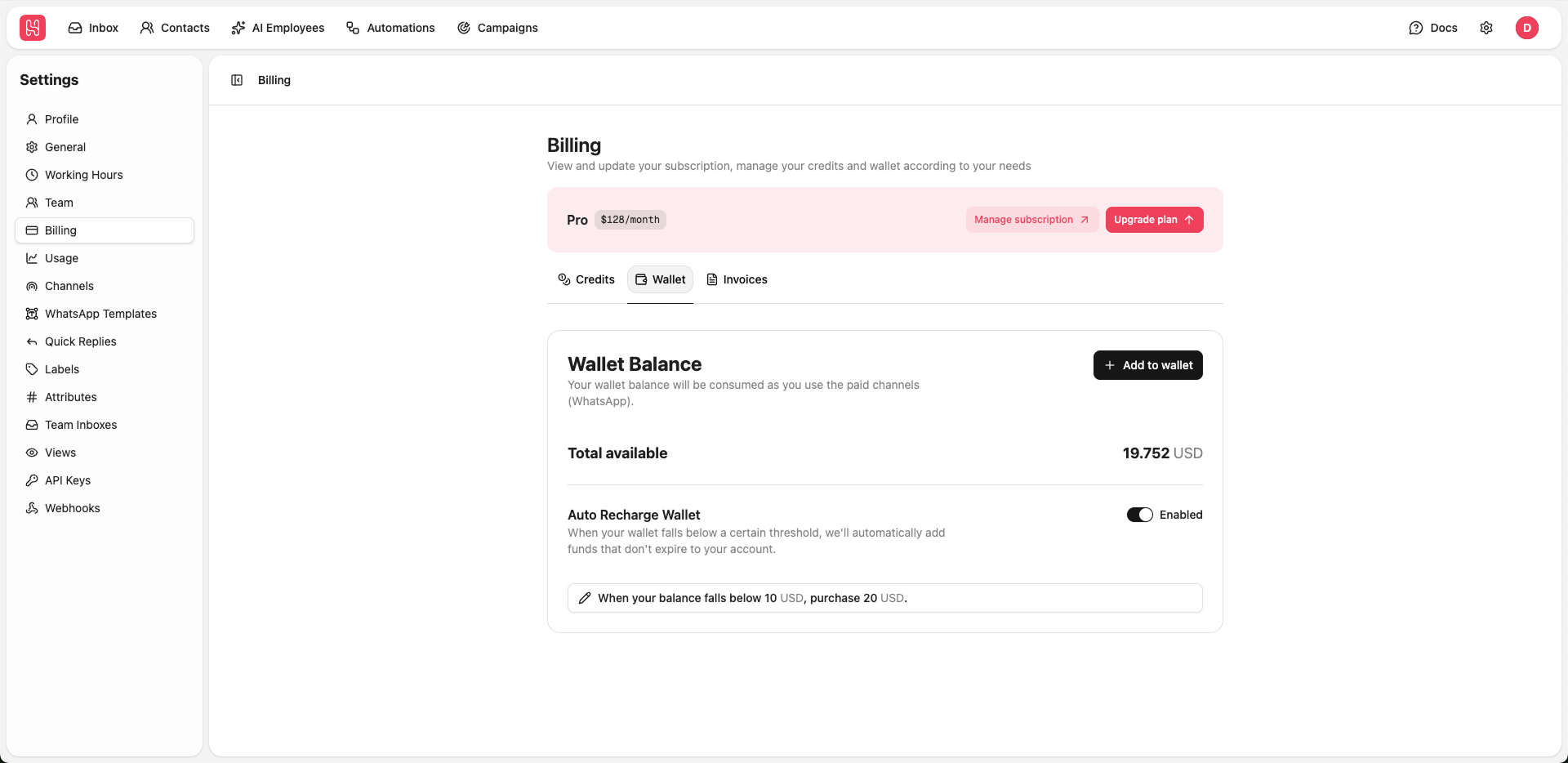 Go to [**Settings > Billing > Wallet**](https://app.heyy.io/settings/billing/wallet) to manage your wallet.
### Auto Recharge Wallet
Enable automatic wallet top-ups when your balance falls below a certain threshold.
Enable Auto Recharge to ensure your WhatsApp message templates won't fail due to insufficient funds.
***
## Invoices
View and download your billing history and invoices.
Go to [**Settings > Billing > Wallet**](https://app.heyy.io/settings/billing/wallet) to manage your wallet.
### Auto Recharge Wallet
Enable automatic wallet top-ups when your balance falls below a certain threshold.
Enable Auto Recharge to ensure your WhatsApp message templates won't fail due to insufficient funds.
***
## Invoices
View and download your billing history and invoices.
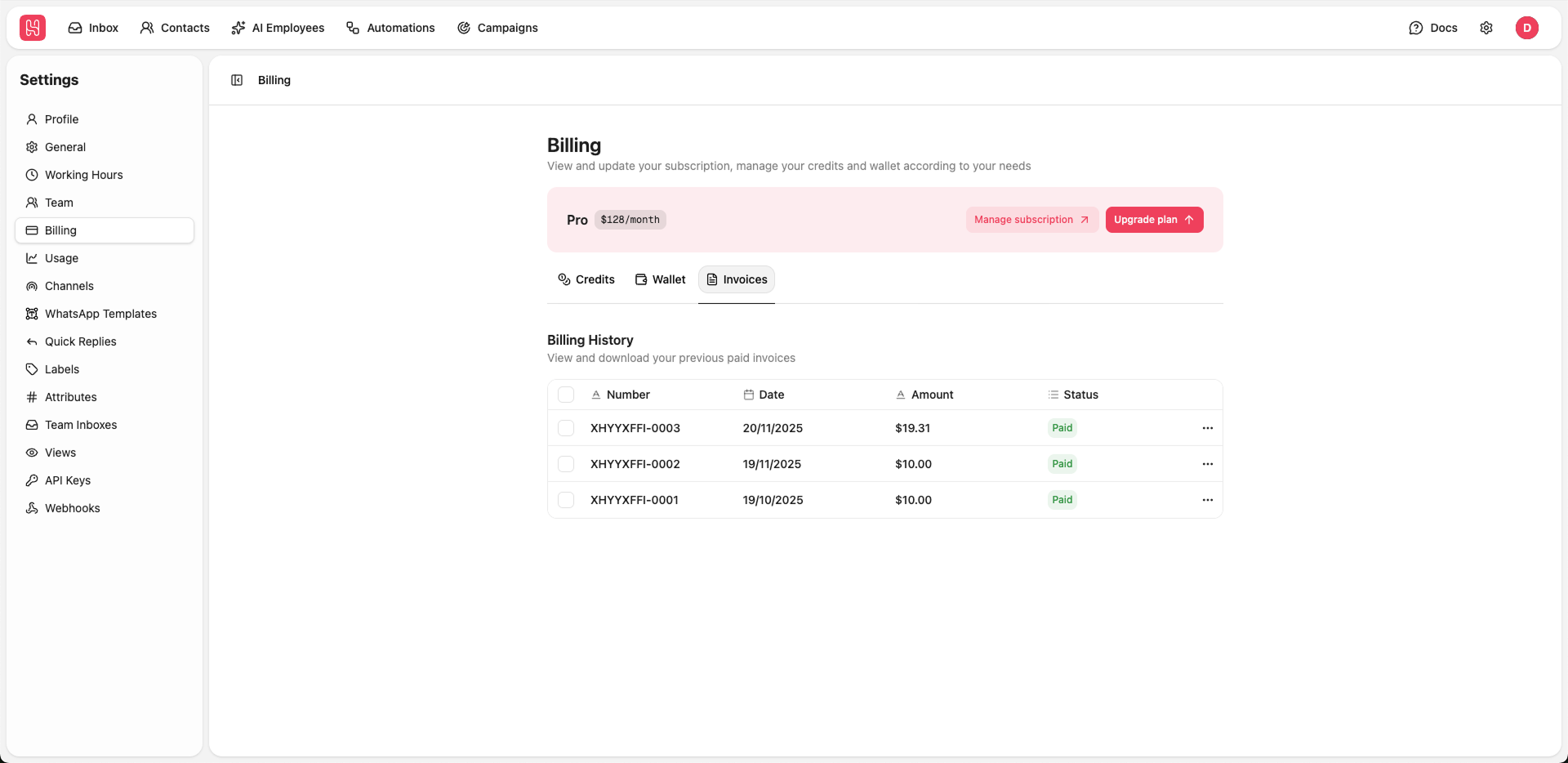 Go to [**Settings > Billing > Invoices**](https://app.heyy.io/settings/billing/invoices) to manage your invoices.
The invoice table displays:
* **Number** - Invoice reference number
* **Date** - Invoice date
* **Amount** - Total amount charged
* **Status** - Payment status (Paid, Pending, etc.)
Click any invoice to download or view its details.
Go to [**Settings > Billing > Invoices**](https://app.heyy.io/settings/billing/invoices) to manage your invoices.
The invoice table displays:
* **Number** - Invoice reference number
* **Date** - Invoice date
* **Amount** - Total amount charged
* **Status** - Payment status (Paid, Pending, etc.)
Click any invoice to download or view its details.