> ## Documentation Index
> Fetch the complete documentation index at: https://docs.heyy.io/llms.txt
> Use this file to discover all available pages before exploring further.
# Inbox
> The **Inbox** page is where you view, triage, and respond to customer conversations across all channels. It works alongside Contacts and Automations, giving you one place to manage chats, assign conversations, and keep your team in sync.
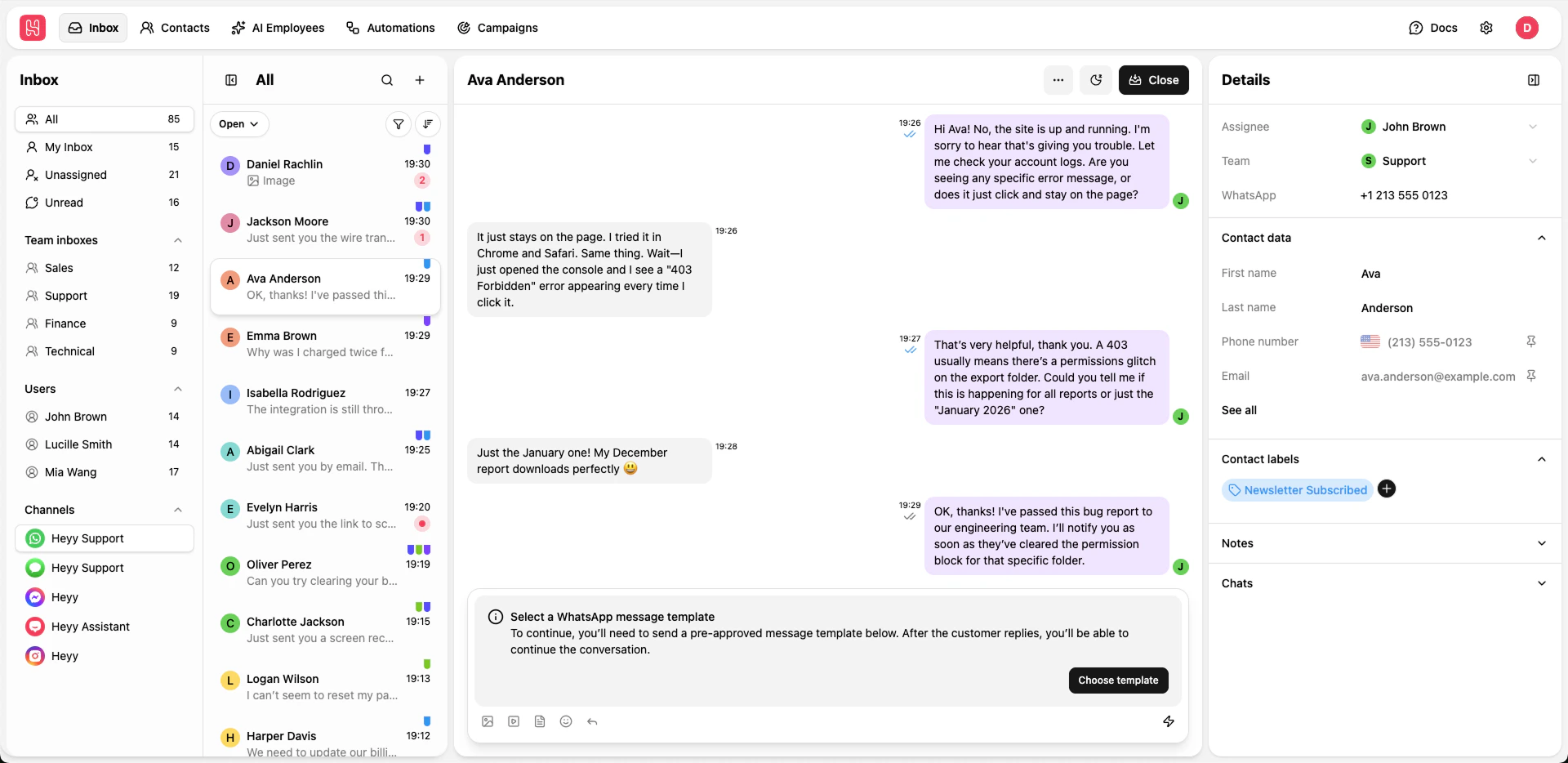 ## Left Sidebar – Inbox Navigation and Filters
On the left sidebar, you'll find **Inbox** with filters and navigation. Each item can show a count of matching conversations.
### Inbox Filters
* **All** – Every conversation you have permission to see (across teams and channels). The badge shows the total count.
* **My Inbox** – Conversations assigned to you. Use this as your daily queue.
* **Unassigned** – Chats with no assignee or inbox yet. Pick from here to take ownership and reduce wait time.
* **Unread** – Conversations you haven’t opened yet. Use this to catch up on new messages.
Click a filter to see it. The conversation list in the middle updates to show only conversations matching that filter.
### Team Inboxes
The **Team inboxes** section lists your workspace teams (e.g. Sales, Support). Each entry shows a count of conversations assigned to or routed to that team. Click a team to filter the list to that team’s conversations. Helpful when triaging by responsibility.
To create or manage team inboxes, go to [**Settings > Team Inboxes**](/quick-start/settings/team-inboxes).
### Users
The **Users** section lists other users in your workspace. Each entry shows how many conversations are assigned to that person. Click a user to see only their assigned chats. Useful for load balancing or covering for someone.
### Channels
The **Channels** section lists every connected channel (e.g. Heyy Support – WhatsApp, Heyy – Instagram, etc'). Click a channel to switch the conversation list to that channel. If you have no channels yet, you’ll see **Add channel**; use it to connect WhatsApp, Instagram, Messenger, or live chat.
To add or manage channels, go to [**Settings > Channels**](/quick-start/settings/channels).
Use the sidebar toggle (panel icon) to collapse or expand the left sidebar and get more space for the chat view.
***
## Conversation List (Middle Panel)
The middle panel shows the list of conversations for the selected sidebar filter and channel. You can search, filter by status, sort, open a new chat, and perform bulk actions.
### Search and New Chat
* **Search** – Click the search icon to open global search. Find conversations by contact name, phone, email, or keyword.
* **New chat** – Click the **+** button to start a new conversation. Choose a channel, pick an existing contact or create one, then send your first message. The new chat appears in the list and in **My Inbox** if you’re the assignee.
### Status Filter
At the top of the conversation list, a dropdown lets you filter by conversation status:
* **Open** – Chats with status "Open" (default).
* **Closed** – Resolved chats with status "Closed".
* **Snoozed** – Temporarily paused/snoozed chats with status "Snoozed".
You can select one or more statuses. The badge on the button shows how many status filters are active. Your choice is remembered.
### Advanced Filtering
Click the **Filter** (funnel) button to apply advanced filters. You can filter by:
* **First name**, **Last name**, **Phone number**, **Email** – Contact fields (text).
* **Subscription** – Whether the contact is subscribed (boolean).
* **Labels** – One or more contact labels.
* **Custom attributes** – Any attribute you’ve added in [**Settings > Attributes**](/quick-start/settings/attributes).
Add multiple conditions and choose **AND** or **OR** between them. Click **Filter** to apply. The conversation list updates to show only chats matching the filter. Click **Reset** to clear filters.
### Sorting
Click the **Sort** button next to the filter to change sort order:
* **Newest** – Most recent activity first (default for real-time work).
* **Oldest** – Longest-waiting conversations first (useful for SLAs).
Sorting applies to the currently filtered list. Your choice is remembered.
### Selecting and Bulk Actions
Select one or more conversations using the checkboxes (or the selection control on each row). A contextual action bar appears with:
* **Open** – Mark selected chats as open.
* **Close** – Mark selected chats as closed.
* **Snooze** – Snooze selected chats.
* **Assign to** – Assign selected chats to a user.
* **Move to** – Move selected chats to a team inbox.
* **⋮** (more) – **Unsubscribe** / **Subscribe** (contact), **Mark as unread** / **Mark as read**.
* **Cancel** – Clear selection.
Bulk actions apply only to the selected conversations. After an action, selection is cleared.
### Single-Chat Actions
From a conversation row you can open context actions (e.g. via a menu or icons) to **Open**, **Close**, **Assign to**, or **Move to** that single chat without selecting multiple.
***
## Chat View (Center Panel)
When you select a conversation, the center panel shows the **chat view**.
### Header
* **Contact name** (or phone number) and, when available, a reminder such as **X hours to reply** (SLA).
* **More** (⋯) – Additional options for the conversation.
* **Refresh** – Reload the thread.
* **Close** – Close the chat (status becomes Closed).
### Conversation Thread
Messages are shown in chronological order with date headers (e.g. Today, Yesterday, or the weekday). Incoming messages appear on one side, your replies on the other. Unread or new messages are visually distinct.
### Composer
At the bottom, use the **Type something...** field to reply. You can:
* Attach files by clicking the image/video or document icons or dragging the file to the Composer.
* Add emoji.
* Use voice input (microphone), if the channel supports it.
* Send the message (send button).
Replies are sent on the current channel. The thread updates in real time when new messages arrive
***
## Details Panel (Right)
When a chat is selected, the right panel shows **Details** for that conversation and contact. You can resize or collapse this panel to get more space for the thread.
### Assignee and Team
* **Assignee** – Who owns the conversation. Use the dropdown to assign to yourself or another user. Choose **Unassigned** to leave it without an owner.
* **Team** – Which team inbox the chat belongs to. Use the dropdown to move it to another team (e.g. Sales, Support).
Changing assignee or team can trigger automations (e.g. routing or notifications). See [**Automations**](/quick-start/automations/triggers) for how to configure this.
### Channel and Contact Data
* **Channel** – The source of the conversation (e.g. WhatsApp) and, when relevant, the contact’s handle (e.g. phone number).
* **Contact data** – A collapsible section with **First name**, **Last name**, **Phone number**, **Email**, and any custom attributes. Use **See all** to view or edit more fields. Changes here update the contact record and are visible in [**Contacts**](/quick-start/contacts).
### Contact Labels
Labels help you segment contacts (e.g. VIP, Hot Lead, Billing). Use the **+** icon to add one or more labels to the contact. Labels can be used in filters and automations.
To create or manage labels, go to [**Settings > Labels**](/quick-start/settings/labels).
### Notes
Internal-only notes for your team. Add context, decisions, or next steps. Notes are **not** sent to the contact; they stay visible to your team in this panel and in the contact’s record.
### Chats
This section lists **other chats** with the same contact (possibly on different channels). Each entry shows the channel, a message preview, and the date. Open any chat to review history before replying. Use **Create chat** to start a new conversation with this contact on another channel.
***
## Key Benefits of the Inbox
* **One place for all channels** – WhatsApp, Instagram, Messenger, and live chat in a single inbox; switch channels from the left sidebar.
* **Flexible triage** – Filter by All, My Inbox, Unassigned, Unread; by team; or by user. Use status (Open, Closed, Snoozed) and advanced filters to focus on the right conversations.
* **Bulk actions** – Select multiple chats to Open, Close, Snooze, Assign to, Move to, or Mark as read/unread in one go.
* **Full context in the details panel** – Assignee, Team, contact data, labels, notes, and other chats with the same contact without leaving the Inbox.
* **Search** – Find conversations quickly by contact name, phone, email, or keyword via global search.
***
## Getting Started Tips
* Start with **All** or **My Inbox** in the left sidebar to see the full picture or your own queue.
* Use **Unassigned** to pick up conversations that need an owner, and **Unread** to catch up on new messages.
* Filter by **Team** or **User** when triaging by responsibility or covering for a teammate.
* Use the **Status** dropdown and **Filter** (funnel) to narrow the list; combine with **Sort** (newest/oldest) for SLA or real-time focus.
* Use **Assignee** and **Team** in the details panel to route chats; add **Labels** and **Notes** to keep context for your team.
* Check **Chats** in the details panel to see other conversations with the same contact before replying.
* Use **+** to start a new chat when you need to reach out first; use **Search** when you know the contact or channel.
## Left Sidebar – Inbox Navigation and Filters
On the left sidebar, you'll find **Inbox** with filters and navigation. Each item can show a count of matching conversations.
### Inbox Filters
* **All** – Every conversation you have permission to see (across teams and channels). The badge shows the total count.
* **My Inbox** – Conversations assigned to you. Use this as your daily queue.
* **Unassigned** – Chats with no assignee or inbox yet. Pick from here to take ownership and reduce wait time.
* **Unread** – Conversations you haven’t opened yet. Use this to catch up on new messages.
Click a filter to see it. The conversation list in the middle updates to show only conversations matching that filter.
### Team Inboxes
The **Team inboxes** section lists your workspace teams (e.g. Sales, Support). Each entry shows a count of conversations assigned to or routed to that team. Click a team to filter the list to that team’s conversations. Helpful when triaging by responsibility.
To create or manage team inboxes, go to [**Settings > Team Inboxes**](/quick-start/settings/team-inboxes).
### Users
The **Users** section lists other users in your workspace. Each entry shows how many conversations are assigned to that person. Click a user to see only their assigned chats. Useful for load balancing or covering for someone.
### Channels
The **Channels** section lists every connected channel (e.g. Heyy Support – WhatsApp, Heyy – Instagram, etc'). Click a channel to switch the conversation list to that channel. If you have no channels yet, you’ll see **Add channel**; use it to connect WhatsApp, Instagram, Messenger, or live chat.
To add or manage channels, go to [**Settings > Channels**](/quick-start/settings/channels).
Use the sidebar toggle (panel icon) to collapse or expand the left sidebar and get more space for the chat view.
***
## Conversation List (Middle Panel)
The middle panel shows the list of conversations for the selected sidebar filter and channel. You can search, filter by status, sort, open a new chat, and perform bulk actions.
### Search and New Chat
* **Search** – Click the search icon to open global search. Find conversations by contact name, phone, email, or keyword.
* **New chat** – Click the **+** button to start a new conversation. Choose a channel, pick an existing contact or create one, then send your first message. The new chat appears in the list and in **My Inbox** if you’re the assignee.
### Status Filter
At the top of the conversation list, a dropdown lets you filter by conversation status:
* **Open** – Chats with status "Open" (default).
* **Closed** – Resolved chats with status "Closed".
* **Snoozed** – Temporarily paused/snoozed chats with status "Snoozed".
You can select one or more statuses. The badge on the button shows how many status filters are active. Your choice is remembered.
### Advanced Filtering
Click the **Filter** (funnel) button to apply advanced filters. You can filter by:
* **First name**, **Last name**, **Phone number**, **Email** – Contact fields (text).
* **Subscription** – Whether the contact is subscribed (boolean).
* **Labels** – One or more contact labels.
* **Custom attributes** – Any attribute you’ve added in [**Settings > Attributes**](/quick-start/settings/attributes).
Add multiple conditions and choose **AND** or **OR** between them. Click **Filter** to apply. The conversation list updates to show only chats matching the filter. Click **Reset** to clear filters.
### Sorting
Click the **Sort** button next to the filter to change sort order:
* **Newest** – Most recent activity first (default for real-time work).
* **Oldest** – Longest-waiting conversations first (useful for SLAs).
Sorting applies to the currently filtered list. Your choice is remembered.
### Selecting and Bulk Actions
Select one or more conversations using the checkboxes (or the selection control on each row). A contextual action bar appears with:
* **Open** – Mark selected chats as open.
* **Close** – Mark selected chats as closed.
* **Snooze** – Snooze selected chats.
* **Assign to** – Assign selected chats to a user.
* **Move to** – Move selected chats to a team inbox.
* **⋮** (more) – **Unsubscribe** / **Subscribe** (contact), **Mark as unread** / **Mark as read**.
* **Cancel** – Clear selection.
Bulk actions apply only to the selected conversations. After an action, selection is cleared.
### Single-Chat Actions
From a conversation row you can open context actions (e.g. via a menu or icons) to **Open**, **Close**, **Assign to**, or **Move to** that single chat without selecting multiple.
***
## Chat View (Center Panel)
When you select a conversation, the center panel shows the **chat view**.
### Header
* **Contact name** (or phone number) and, when available, a reminder such as **X hours to reply** (SLA).
* **More** (⋯) – Additional options for the conversation.
* **Refresh** – Reload the thread.
* **Close** – Close the chat (status becomes Closed).
### Conversation Thread
Messages are shown in chronological order with date headers (e.g. Today, Yesterday, or the weekday). Incoming messages appear on one side, your replies on the other. Unread or new messages are visually distinct.
### Composer
At the bottom, use the **Type something...** field to reply. You can:
* Attach files by clicking the image/video or document icons or dragging the file to the Composer.
* Add emoji.
* Use voice input (microphone), if the channel supports it.
* Send the message (send button).
Replies are sent on the current channel. The thread updates in real time when new messages arrive
***
## Details Panel (Right)
When a chat is selected, the right panel shows **Details** for that conversation and contact. You can resize or collapse this panel to get more space for the thread.
### Assignee and Team
* **Assignee** – Who owns the conversation. Use the dropdown to assign to yourself or another user. Choose **Unassigned** to leave it without an owner.
* **Team** – Which team inbox the chat belongs to. Use the dropdown to move it to another team (e.g. Sales, Support).
Changing assignee or team can trigger automations (e.g. routing or notifications). See [**Automations**](/quick-start/automations/triggers) for how to configure this.
### Channel and Contact Data
* **Channel** – The source of the conversation (e.g. WhatsApp) and, when relevant, the contact’s handle (e.g. phone number).
* **Contact data** – A collapsible section with **First name**, **Last name**, **Phone number**, **Email**, and any custom attributes. Use **See all** to view or edit more fields. Changes here update the contact record and are visible in [**Contacts**](/quick-start/contacts).
### Contact Labels
Labels help you segment contacts (e.g. VIP, Hot Lead, Billing). Use the **+** icon to add one or more labels to the contact. Labels can be used in filters and automations.
To create or manage labels, go to [**Settings > Labels**](/quick-start/settings/labels).
### Notes
Internal-only notes for your team. Add context, decisions, or next steps. Notes are **not** sent to the contact; they stay visible to your team in this panel and in the contact’s record.
### Chats
This section lists **other chats** with the same contact (possibly on different channels). Each entry shows the channel, a message preview, and the date. Open any chat to review history before replying. Use **Create chat** to start a new conversation with this contact on another channel.
***
## Key Benefits of the Inbox
* **One place for all channels** – WhatsApp, Instagram, Messenger, and live chat in a single inbox; switch channels from the left sidebar.
* **Flexible triage** – Filter by All, My Inbox, Unassigned, Unread; by team; or by user. Use status (Open, Closed, Snoozed) and advanced filters to focus on the right conversations.
* **Bulk actions** – Select multiple chats to Open, Close, Snooze, Assign to, Move to, or Mark as read/unread in one go.
* **Full context in the details panel** – Assignee, Team, contact data, labels, notes, and other chats with the same contact without leaving the Inbox.
* **Search** – Find conversations quickly by contact name, phone, email, or keyword via global search.
***
## Getting Started Tips
* Start with **All** or **My Inbox** in the left sidebar to see the full picture or your own queue.
* Use **Unassigned** to pick up conversations that need an owner, and **Unread** to catch up on new messages.
* Filter by **Team** or **User** when triaging by responsibility or covering for a teammate.
* Use the **Status** dropdown and **Filter** (funnel) to narrow the list; combine with **Sort** (newest/oldest) for SLA or real-time focus.
* Use **Assignee** and **Team** in the details panel to route chats; add **Labels** and **Notes** to keep context for your team.
* Check **Chats** in the details panel to see other conversations with the same contact before replying.
* Use **+** to start a new chat when you need to reach out first; use **Search** when you know the contact or channel.