> ## Documentation Index
> Fetch the complete documentation index at: https://docs.heyy.io/llms.txt
> Use this file to discover all available pages before exploring further.
# Campaigns
> The **Campaigns** page is where you create, manage, and track your outreach campaigns. It gives you a clear overview of past and ongoing campaigns, their performance, and the audiences they target.
 ## Left Sidebar
The left sidebar helps you filter and organize your campaigns:
* **All Campaigns** – Shows all the campaigns in your workspace.
* **Scheduled** – Shows all the scheduled campaigns.
* **Recurring** - Shows all the recurring campaigns.
## Campaign List
The campaign list displays each campaign along with its key details:
* **Name** – The label you gave the campaign when creating it.
* **Type** – Whether it’s scheduled, recurring, or one time.
* **Latest Execution Status** – The most recent result (e.g., completed, in progress, failed).
* **Total Recipients** – Number of contacts included in the campaign.
* **Created At** – The date the campaign was first created.
Click on any campaign in this list to open the **campaign view**.
## Campaign View
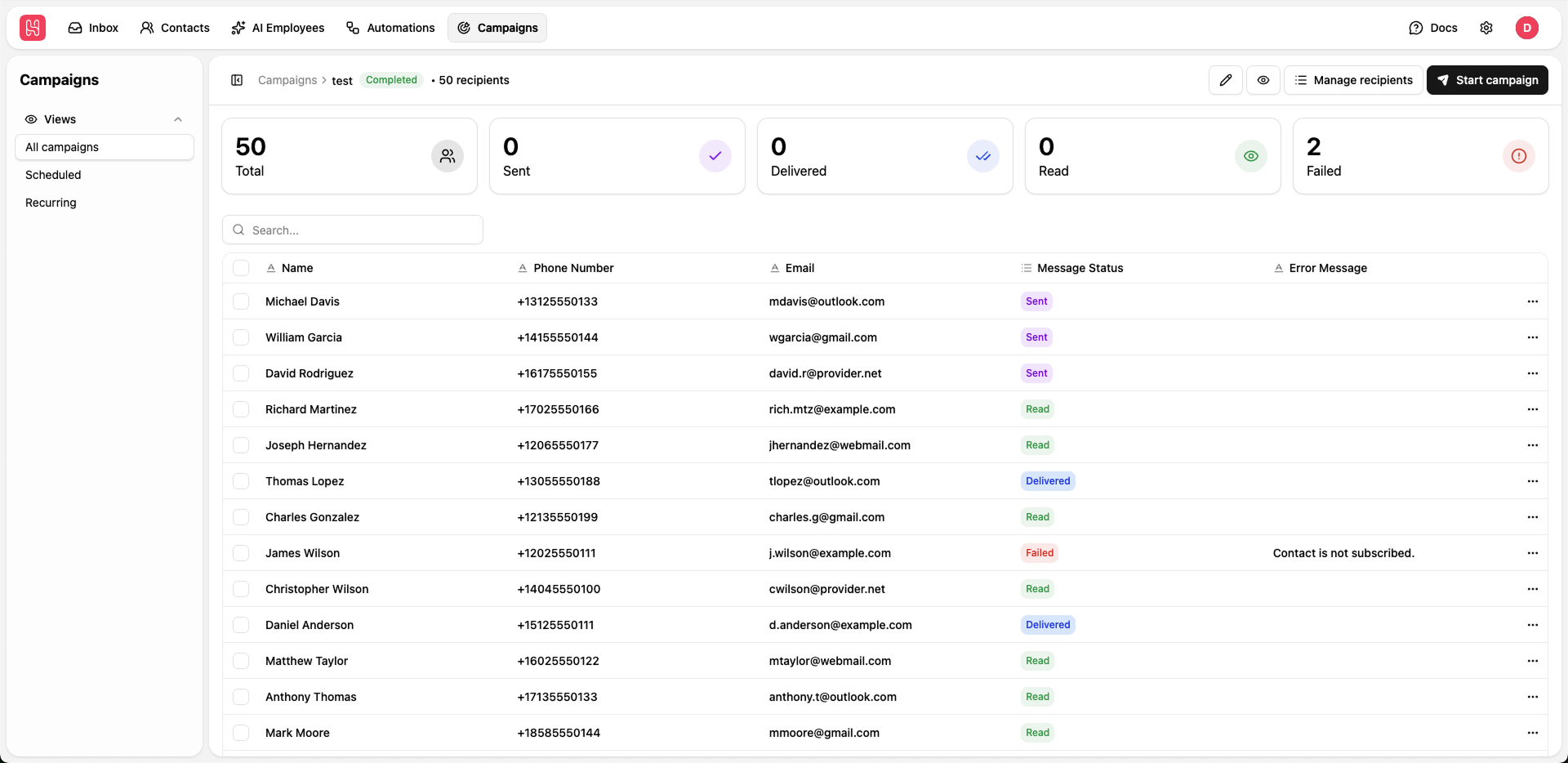
Inside a campaign, you can see performance and delivery details, including:
* **Total** – How many contacts were in the latest campaign execution.
* **Sent** – The number of messages in the "sent" status.
* **Delivered** – The number of messages with successful deliveries.
* **Read** – The number of messages that were read.
* **Failed** – The number of messages that failed to deliver.
You need to run the campaign at least once to see its performance and delivery details.
Click on the status summary to filter the execution results.
### Toolbar actions
At the top of the campaign view, you can access key actions:
* **Edit (pencil icon)** – Update the campaign name, linked automation, scheduling, and recurrence settings.
* **Preview automation (eye icon)** – Open a read-only preview of the connected automation to review the flow before running the campaign.
* **Manage recipients** – Add or remove recipients from the campaign audience without changing the underlying automation.
* **Start campaign** – Open a final preview of the automation and audience before sending the campaign.
If the campaign is configured as **Scheduled** or **Recurring**, the **Start campaign** button is disabled because the campaign will run automatically according to its schedule.
## Creating a New Campaign
Enter a clear, descriptive name so your team can easily identify the campaign later.
Choose a predefined automation from the **Automation** dropdown. This defines what messages and logic will run when the campaign is executed.
To run a campaign on WhatsApp you need to create a [WhatsApp template](/quick-start/settings/whatsapp-templates#creating-templates) and then connect it to an [Automation](/quick-start/automations) with a trigger of type **Manual Trigger**.
Decide how the campaign should run:
* **Scheduled** – Runs once at a specific date and time.
* **Recurring** – Runs automatically on a repeating schedule.
You can only choose one option at a time (either **Scheduled** or **Recurring**). Each option lets you define its own timing and recurrence settings.
Define who should receive the campaign by selecting the appropriate audience.
Use filters to find the desired audience
Click **Create Campaign** to save the configuration. The campaign will be ready to run but will not start automatically unless it's scheduled.
To start a campaign, go to the [Campaigns](https://app.heyy.io/campaigns) page, open the specific campaign, and click **Start Campaign** in the top-right corner. Campaigns are reusable, so you can run them as many times as you need.
## Left Sidebar
The left sidebar helps you filter and organize your campaigns:
* **All Campaigns** – Shows all the campaigns in your workspace.
* **Scheduled** – Shows all the scheduled campaigns.
* **Recurring** - Shows all the recurring campaigns.
## Campaign List
The campaign list displays each campaign along with its key details:
* **Name** – The label you gave the campaign when creating it.
* **Type** – Whether it’s scheduled, recurring, or one time.
* **Latest Execution Status** – The most recent result (e.g., completed, in progress, failed).
* **Total Recipients** – Number of contacts included in the campaign.
* **Created At** – The date the campaign was first created.
Click on any campaign in this list to open the **campaign view**.
## Campaign View
Inside a campaign, you can see performance and delivery details, including:
* **Total** – How many contacts were in the latest campaign execution.
* **Sent** – The number of messages in the "sent" status.
* **Delivered** – The number of messages with successful deliveries.
* **Read** – The number of messages that were read.
* **Failed** – The number of messages that failed to deliver.
You need to run the campaign at least once to see its performance and delivery details.
Click on the status summary to filter the execution results.
### Toolbar actions
At the top of the campaign view, you can access key actions:
* **Edit (pencil icon)** – Update the campaign name, linked automation, scheduling, and recurrence settings.
* **Preview automation (eye icon)** – Open a read-only preview of the connected automation to review the flow before running the campaign.
* **Manage recipients** – Add or remove recipients from the campaign audience without changing the underlying automation.
* **Start campaign** – Open a final preview of the automation and audience before sending the campaign.
If the campaign is configured as **Scheduled** or **Recurring**, the **Start campaign** button is disabled because the campaign will run automatically according to its schedule.
## Creating a New Campaign
Enter a clear, descriptive name so your team can easily identify the campaign later.
Choose a predefined automation from the **Automation** dropdown. This defines what messages and logic will run when the campaign is executed.
To run a campaign on WhatsApp you need to create a [WhatsApp template](/quick-start/settings/whatsapp-templates#creating-templates) and then connect it to an [Automation](/quick-start/automations) with a trigger of type **Manual Trigger**.
Decide how the campaign should run:
* **Scheduled** – Runs once at a specific date and time.
* **Recurring** – Runs automatically on a repeating schedule.
You can only choose one option at a time (either **Scheduled** or **Recurring**). Each option lets you define its own timing and recurrence settings.
Define who should receive the campaign by selecting the appropriate audience.
Use filters to find the desired audience
Click **Create Campaign** to save the configuration. The campaign will be ready to run but will not start automatically unless it's scheduled.
To start a campaign, go to the [Campaigns](https://app.heyy.io/campaigns) page, open the specific campaign, and click **Start Campaign** in the top-right corner. Campaigns are reusable, so you can run them as many times as you need.