> ## Documentation Index
> Fetch the complete documentation index at: https://docs.heyy.io/llms.txt
> Use this file to discover all available pages before exploring further.
# Triggers
> Triggers decide **when** an automation starts. Choose the trigger that matches the moment you want Heyy to respond, then add actions to define what happens next.
## New & reopened chat
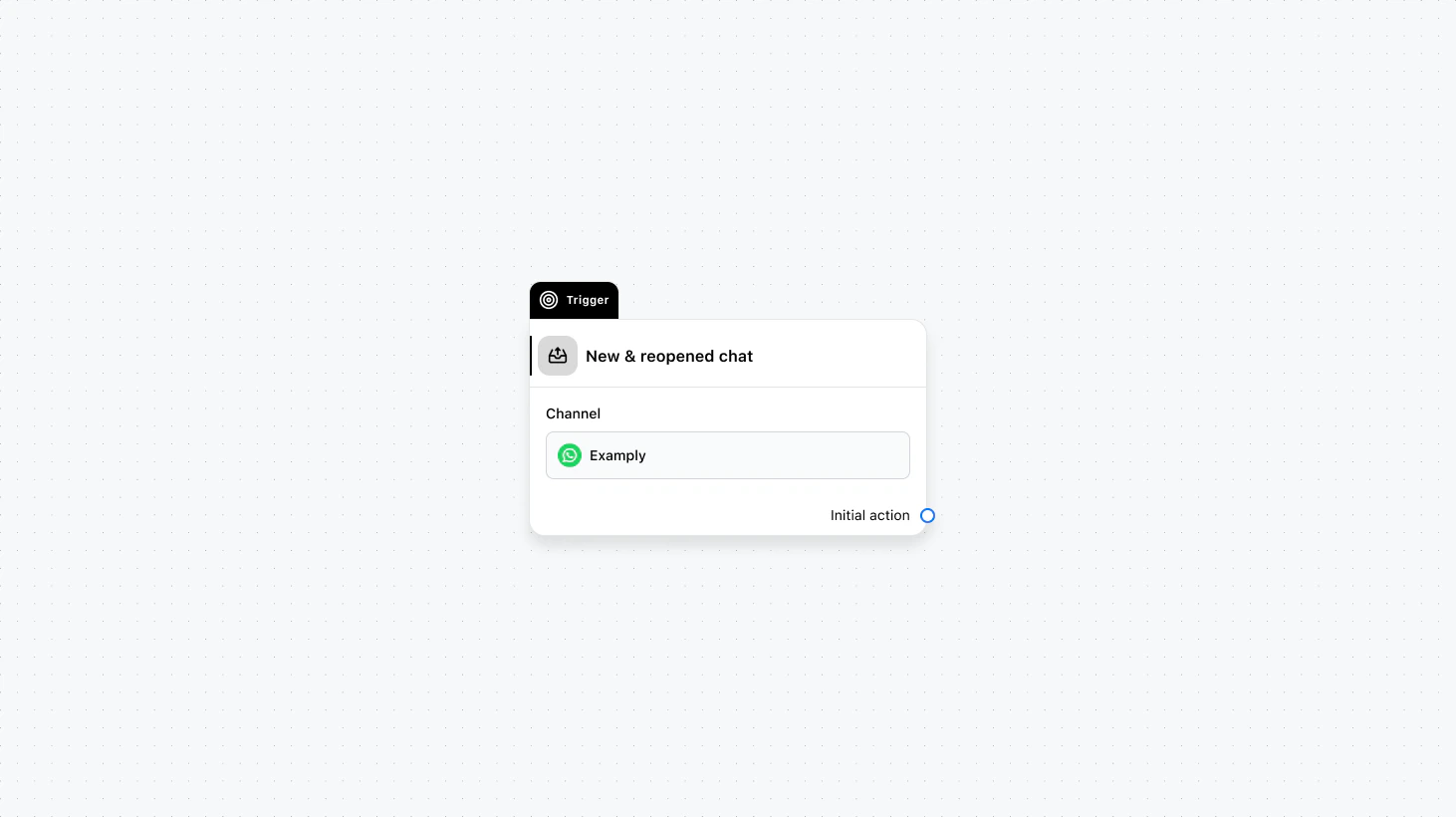 Runs whenever a chat is opened, whether it’s the first time a contact messages you or they’re reopening a previously closed conversation. Use this when you want one automation to handle both new and returning contacts without distinguishing between them.
#### Fields
* **Channel** (required): Select the channel where this trigger will run.
* **When to trigger** (optional): Add a condition to narrow the audience based on specific conditions.
* **Save text reply to** (optional): Save the contact’s text reply to an automation variable.
* **Save file reply to** (optional): Save the contact’s file reply to an automation variable.
### Use cases
* **Single welcome flow for all opens:** Send one greeting and qualification flow whether the contact is new or returning, without maintaining two separate automations.
* **Unified triage:** Route or assign every opened chat the same way (e.g. AI first, then handoff) regardless of first-time vs. reopened.
* **Always capture the first message:** Use “Save text reply to” so you can store what the contact said when they opened the chat and use it in later steps.
***
## New incoming chat
Runs whenever a chat is opened, whether it’s the first time a contact messages you or they’re reopening a previously closed conversation. Use this when you want one automation to handle both new and returning contacts without distinguishing between them.
#### Fields
* **Channel** (required): Select the channel where this trigger will run.
* **When to trigger** (optional): Add a condition to narrow the audience based on specific conditions.
* **Save text reply to** (optional): Save the contact’s text reply to an automation variable.
* **Save file reply to** (optional): Save the contact’s file reply to an automation variable.
### Use cases
* **Single welcome flow for all opens:** Send one greeting and qualification flow whether the contact is new or returning, without maintaining two separate automations.
* **Unified triage:** Route or assign every opened chat the same way (e.g. AI first, then handoff) regardless of first-time vs. reopened.
* **Always capture the first message:** Use “Save text reply to” so you can store what the contact said when they opened the chat and use it in later steps.
***
## New incoming chat
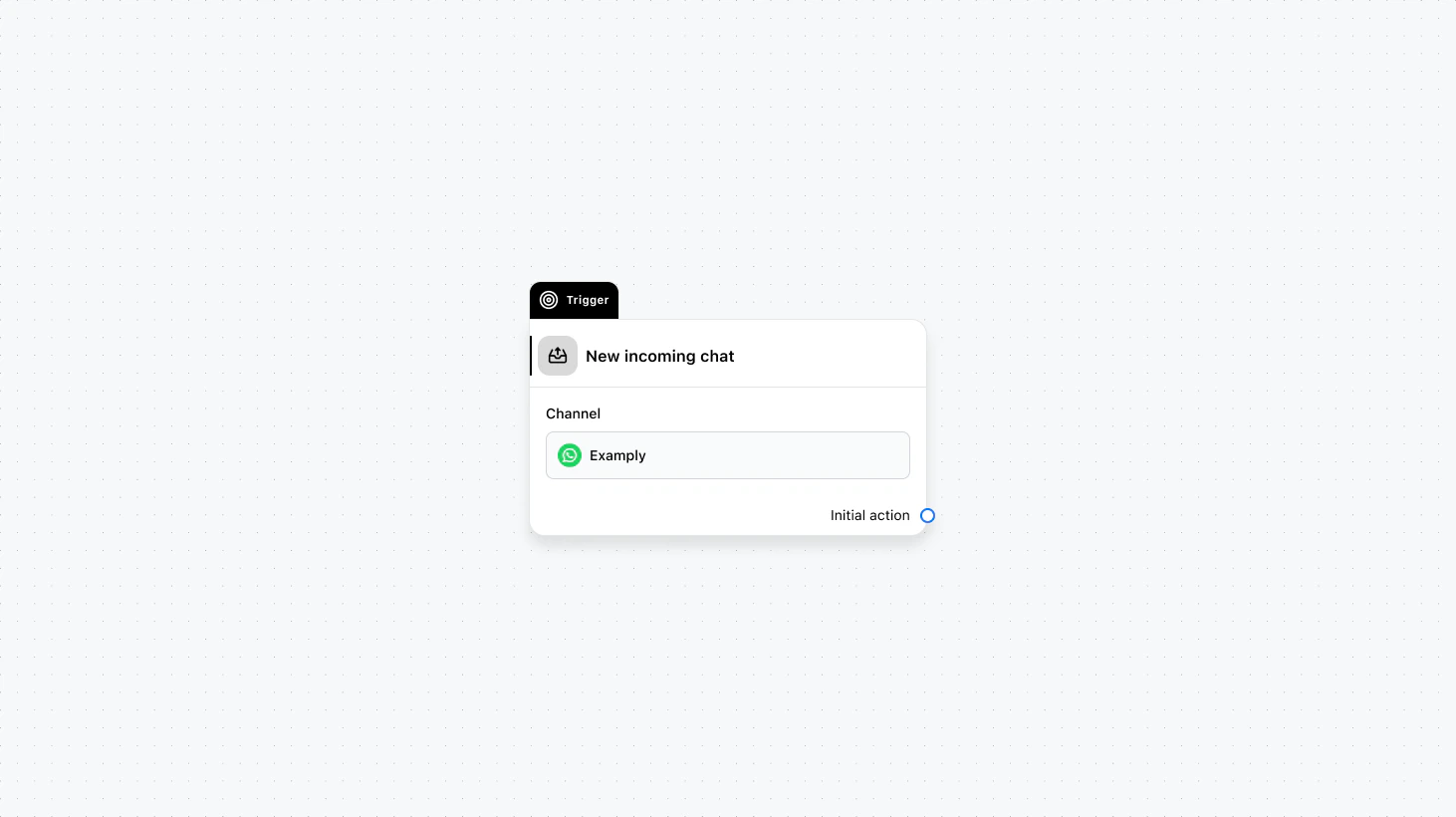 Runs only when a contact messages you for the first time and a new chat is created. It does not run when an existing chat is reopened. Use this for welcome flows, onboarding, or any logic that should run exclusively for first-time conversations.
#### Fields
* **Channel** (required): Select the channel where this trigger will run.
* **When to trigger** (optional): Add a condition group to narrow the audience based on specific conditions.
* **Save text reply to** (optional): Save the contact’s text reply to an automation variable.
* **Save file reply to** (optional): Save the contact’s file reply to an automation variable.
### Use cases
* **First-time welcome and onboarding:** Send a welcome message, collect basic info, or run a qualification flow only when someone messages you for the first time.
* **New-lead handling:** Trigger lead scoring, CRM creation, or assignment rules only for brand-new conversations, not when an existing chat is reopened.
* **Channel-specific first contact:** Use “When to trigger” to run different first-time flows by channel (e.g. WhatsApp vs. Live Chat) or by attribute.
***
## Reopened chat
Runs only when a contact messages you for the first time and a new chat is created. It does not run when an existing chat is reopened. Use this for welcome flows, onboarding, or any logic that should run exclusively for first-time conversations.
#### Fields
* **Channel** (required): Select the channel where this trigger will run.
* **When to trigger** (optional): Add a condition group to narrow the audience based on specific conditions.
* **Save text reply to** (optional): Save the contact’s text reply to an automation variable.
* **Save file reply to** (optional): Save the contact’s file reply to an automation variable.
### Use cases
* **First-time welcome and onboarding:** Send a welcome message, collect basic info, or run a qualification flow only when someone messages you for the first time.
* **New-lead handling:** Trigger lead scoring, CRM creation, or assignment rules only for brand-new conversations, not when an existing chat is reopened.
* **Channel-specific first contact:** Use “When to trigger” to run different first-time flows by channel (e.g. WhatsApp vs. Live Chat) or by attribute.
***
## Reopened chat
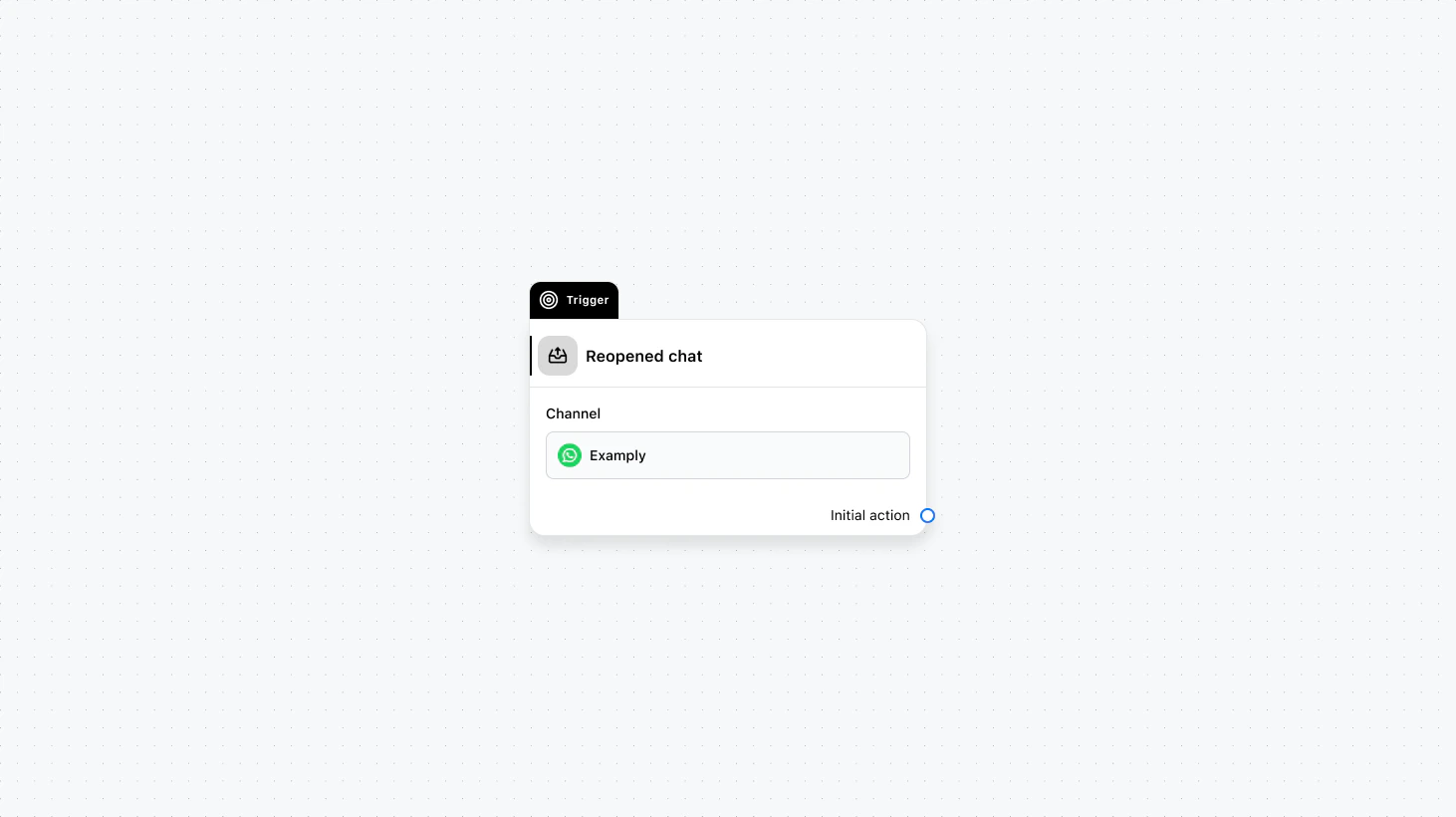 Runs when a contact sends a message in a chat that had been closed. Use this when you want different behavior for returning customers, for example, a “welcome back” message or to reassign the chat without triggering the same flow as brand new chats.
#### Fields
* **Channel** (required): Select the channel where this trigger will run.
* **When to trigger** (optional): Add a condition group to narrow the audience based on specific conditions.
* **Save text reply to** (optional): Save the contact’s text reply to an automation variable.
* **Save file reply to** (optional): Save the contact’s file reply to an automation variable.
### Use cases
* **Welcome-back message:** Send a “We’re here to help again” or “Your case is still open” message when a contact reopens a closed chat.
* **Reassign without full welcome:** Route or assign returning chats to the right team or agent without repeating the first-time welcome flow.
* **Returning-customer logic:** Run different flows (e.g. loyalty, win-back) only when someone comes back after a closed conversation.
***
## Chat closed
Runs when a contact sends a message in a chat that had been closed. Use this when you want different behavior for returning customers, for example, a “welcome back” message or to reassign the chat without triggering the same flow as brand new chats.
#### Fields
* **Channel** (required): Select the channel where this trigger will run.
* **When to trigger** (optional): Add a condition group to narrow the audience based on specific conditions.
* **Save text reply to** (optional): Save the contact’s text reply to an automation variable.
* **Save file reply to** (optional): Save the contact’s file reply to an automation variable.
### Use cases
* **Welcome-back message:** Send a “We’re here to help again” or “Your case is still open” message when a contact reopens a closed chat.
* **Reassign without full welcome:** Route or assign returning chats to the right team or agent without repeating the first-time welcome flow.
* **Returning-customer logic:** Run different flows (e.g. loyalty, win-back) only when someone comes back after a closed conversation.
***
## Chat closed
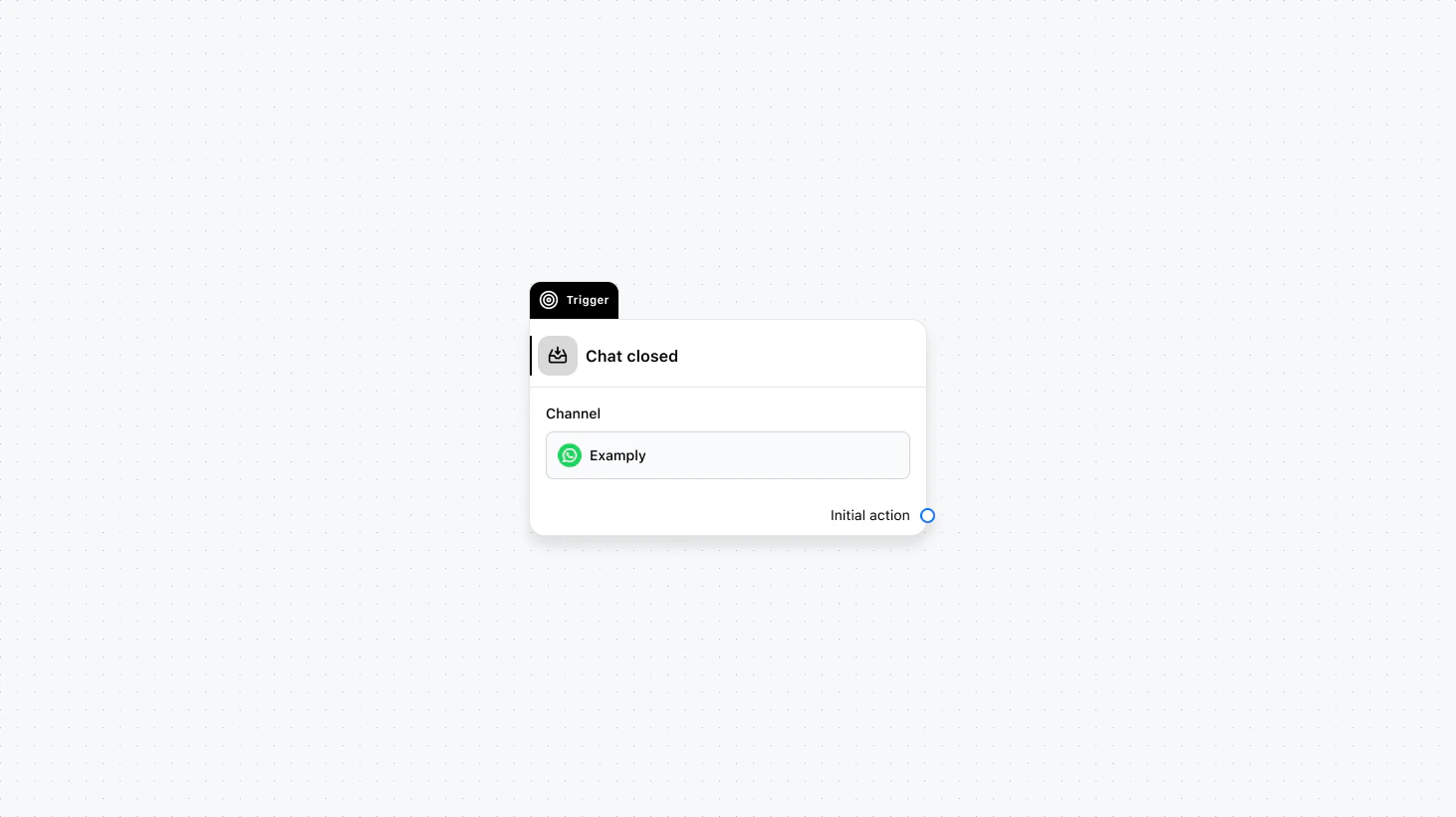 Runs as soon as a conversation is closed by an agent or by the system. Use this for post-conversation steps such as sending a satisfaction survey, logging outcomes, or triggering follow-up campaigns after a defined delay.
#### Fields
* **Channel** (required): Select the channel where this trigger will run.
* **When to trigger** (optional): Add a condition group to narrow the audience based on specific conditions.
### Use cases
* **Post-conversation survey:** Send a satisfaction or NPS survey (e.g. via email or another channel) as soon as the chat is closed.
* **Delayed follow-up campaign:** Start a delay, then add the contact to a campaign or send a follow-up message after the conversation has ended.
* **Logging and reporting:** Trigger an API call or internal notification when a chat is closed to update your CRM or analytics.
***
## Chat assigned
Runs as soon as a conversation is closed by an agent or by the system. Use this for post-conversation steps such as sending a satisfaction survey, logging outcomes, or triggering follow-up campaigns after a defined delay.
#### Fields
* **Channel** (required): Select the channel where this trigger will run.
* **When to trigger** (optional): Add a condition group to narrow the audience based on specific conditions.
### Use cases
* **Post-conversation survey:** Send a satisfaction or NPS survey (e.g. via email or another channel) as soon as the chat is closed.
* **Delayed follow-up campaign:** Start a delay, then add the contact to a campaign or send a follow-up message after the conversation has ended.
* **Logging and reporting:** Trigger an API call or internal notification when a chat is closed to update your CRM or analytics.
***
## Chat assigned
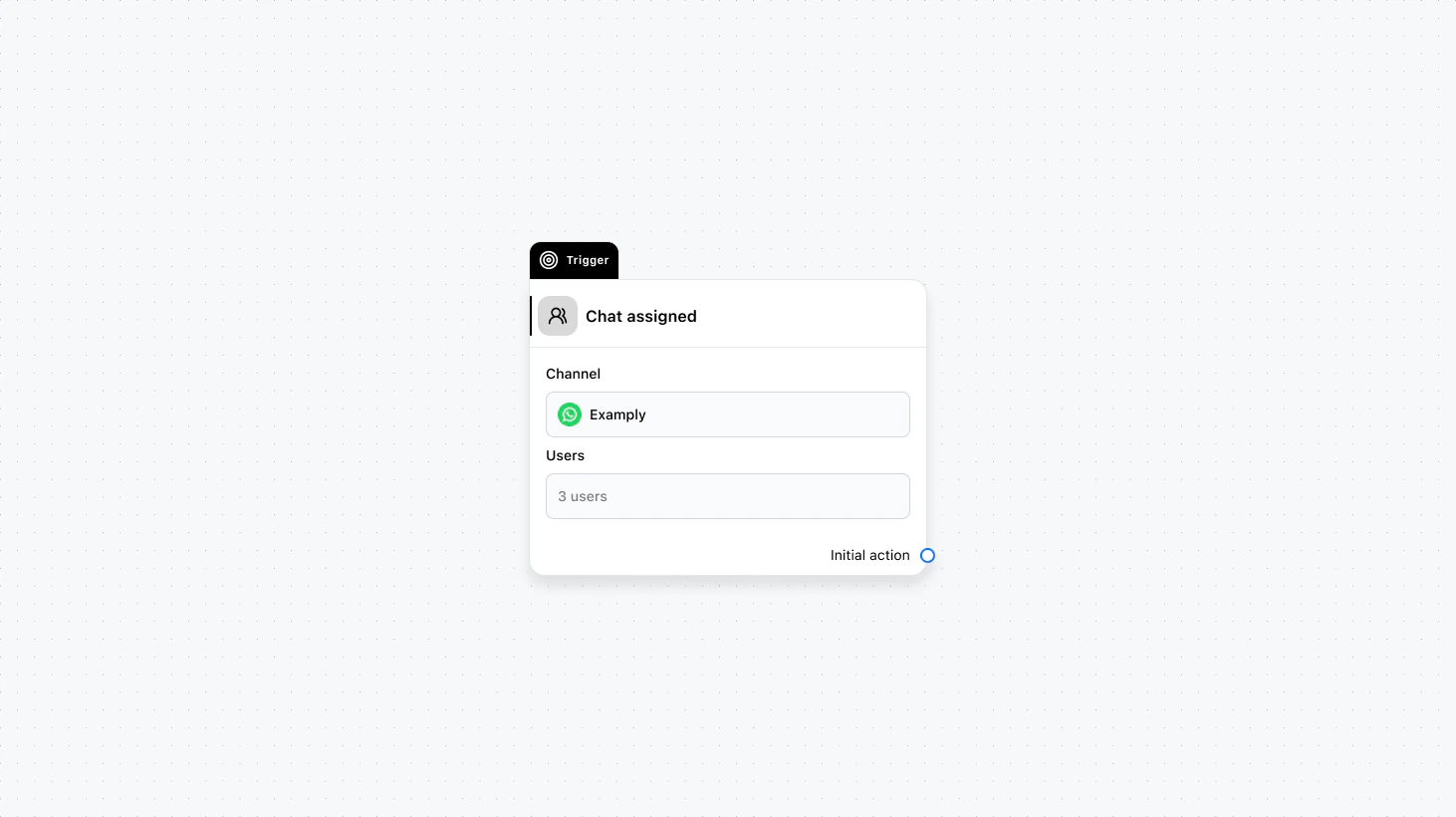 Runs when a chat is assigned to one or more team members you select. Use this to run automations only when certain users receive the chat, for example, notifying a specialist, updating internal tools, or applying role-specific workflows.
#### Fields
* **Channel** (required): Select the channel where this trigger will run.
* **Users** (required): Select the users for whom to fire this trigger.
### Use cases
* **Notify the assigned agent:** Send an email or internal notification to the user who received the chat so they know a new conversation was assigned to them.
* **Role-specific workflows:** Run different automations when a chat is assigned to support vs. sales (e.g. different templates or next steps).
* **Update external systems:** When a specialist is assigned, call an API to update your ticketing system or CRM with the assignee.
***
## Chat moved
Runs when a chat is assigned to one or more team members you select. Use this to run automations only when certain users receive the chat, for example, notifying a specialist, updating internal tools, or applying role-specific workflows.
#### Fields
* **Channel** (required): Select the channel where this trigger will run.
* **Users** (required): Select the users for whom to fire this trigger.
### Use cases
* **Notify the assigned agent:** Send an email or internal notification to the user who received the chat so they know a new conversation was assigned to them.
* **Role-specific workflows:** Run different automations when a chat is assigned to support vs. sales (e.g. different templates or next steps).
* **Update external systems:** When a specialist is assigned, call an API to update your ticketing system or CRM with the assignee.
***
## Chat moved
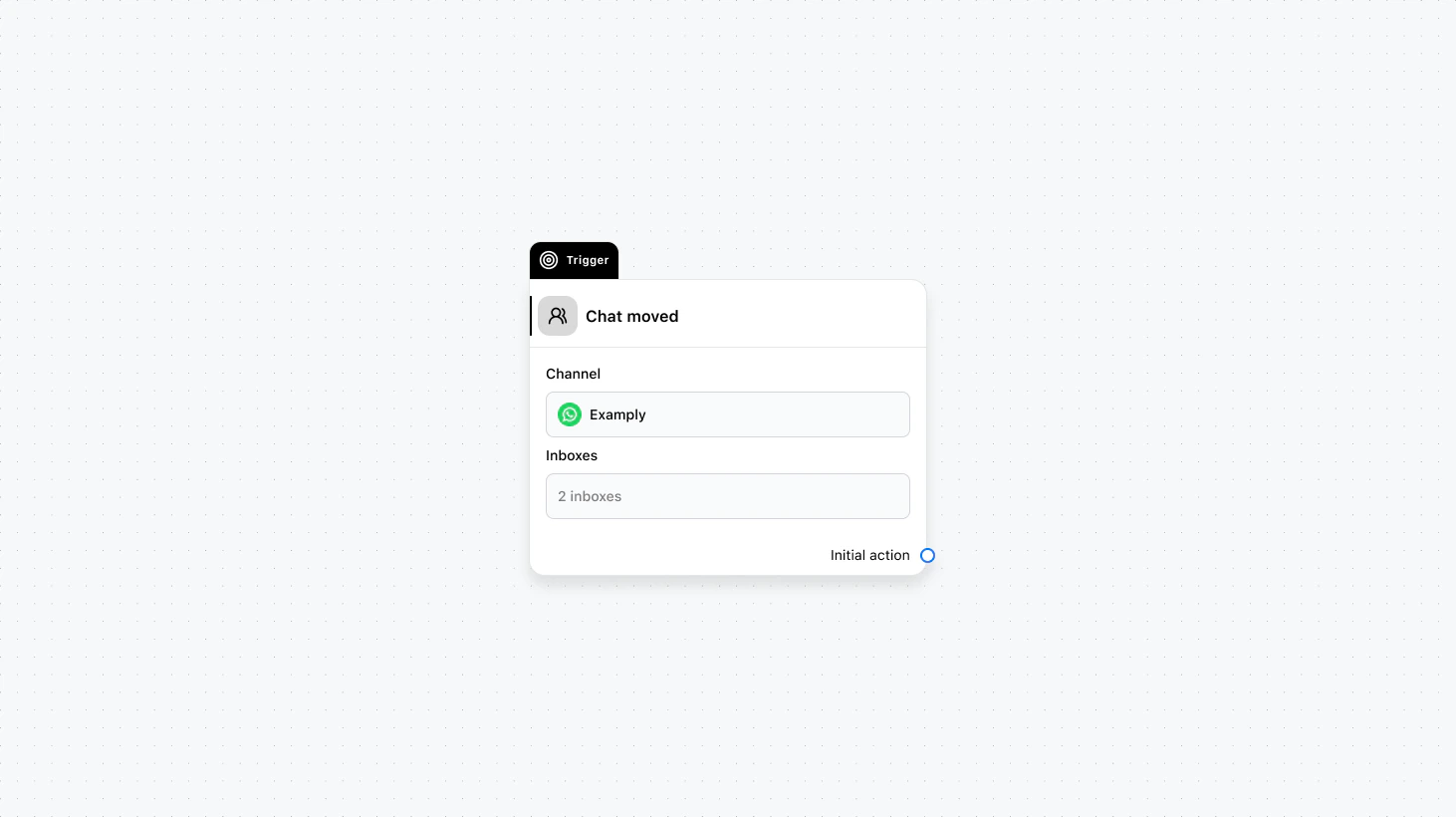 Runs when a chat is moved into one or more of the inboxes you select. Use this to react to routing changes, for example, triggering different handling when a chat lands in a sales vs. support inbox or notifying the right team when a chat is moved to their queue.
#### Fields
* **Channel** (required): Select the channel where this trigger will run.
* **Inboxes** (required): Select the inboxes for whom to fire this trigger.
### Use cases
* **Inbox-specific handling:** When a chat is moved to Sales, send a sales-focused message or assign to a sales rep; when moved to Support, run a support triage flow.
* **Notify the team whose inbox received the chat:** Send an internal alert or assign a default agent when a chat lands in a specific team’s inbox.
* **Sync with routing rules:** Trigger an API or update attributes when a chat is moved so your external routing or reporting stays in sync.
***
## New incoming message
Runs when a chat is moved into one or more of the inboxes you select. Use this to react to routing changes, for example, triggering different handling when a chat lands in a sales vs. support inbox or notifying the right team when a chat is moved to their queue.
#### Fields
* **Channel** (required): Select the channel where this trigger will run.
* **Inboxes** (required): Select the inboxes for whom to fire this trigger.
### Use cases
* **Inbox-specific handling:** When a chat is moved to Sales, send a sales-focused message or assign to a sales rep; when moved to Support, run a support triage flow.
* **Notify the team whose inbox received the chat:** Send an internal alert or assign a default agent when a chat lands in a specific team’s inbox.
* **Sync with routing rules:** Trigger an API or update attributes when a chat is moved so your external routing or reporting stays in sync.
***
## New incoming message
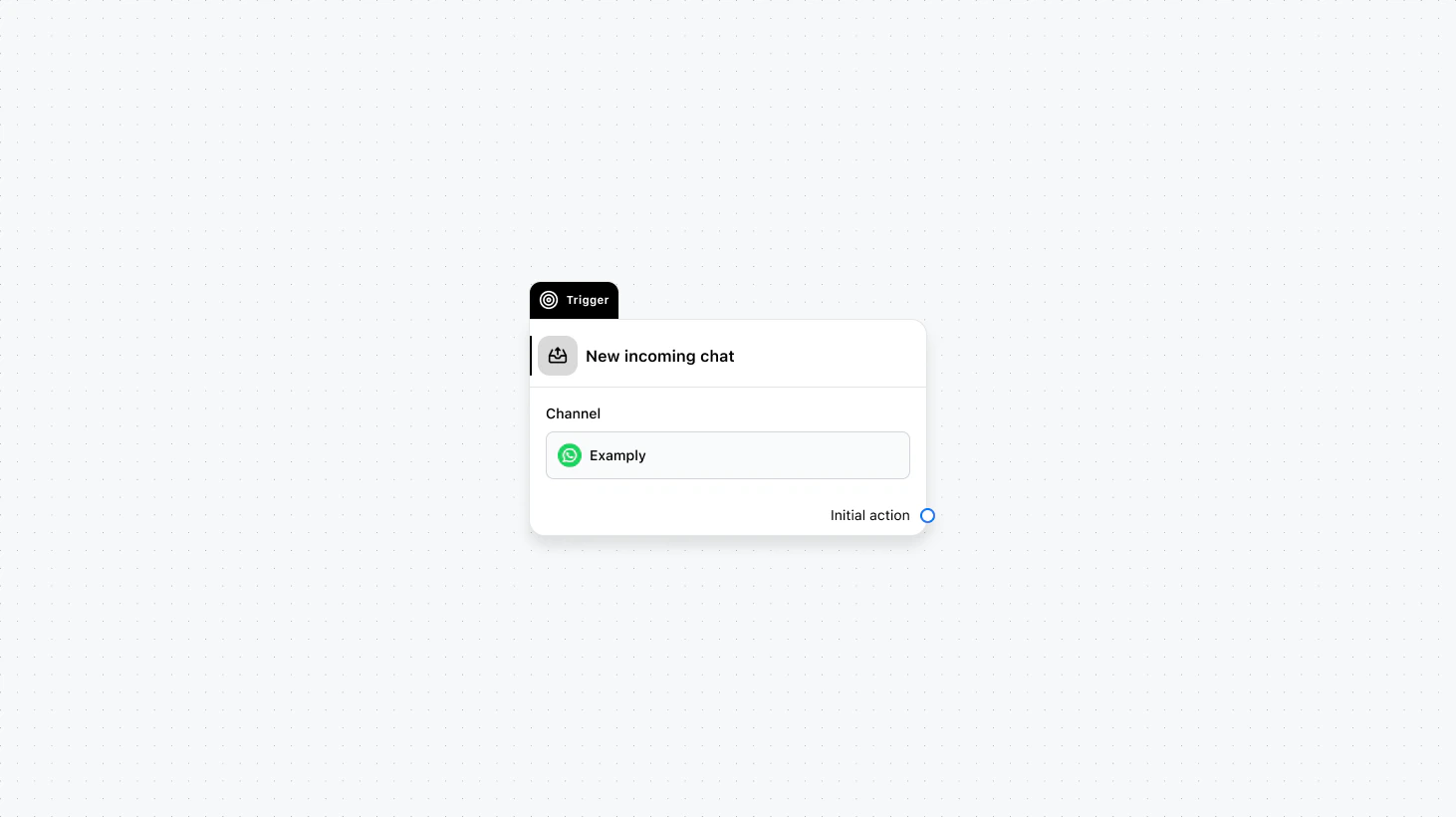 Runs on every new message from a contact in an existing conversation. Use this when you want to react to each message—for example, to run keyword-based logic, save replies to variables, or trigger AI or routing only when new content arrives.
#### Fields
* **Channel** (required): Select the channel where this trigger will run.
* **When to trigger** (optional): Add a condition group to narrow the audience based on specific conditions.
* **Save text reply to** (optional): Save the contact’s text reply to an automation variable.
* **Save file reply to** (optional): Save the contact’s file reply to an automation variable.
### Use cases
* **Keyword-based routing:** Run only when the message contains specific words (e.g. “refund”, “cancel”) and then route, assign, or reply accordingly.
* **Save and reuse the reply:** Use “Save text reply to” or “Save file reply to” so the next steps (e.g. AI Transform, Condition, or a template) can use what the contact just said.
* **Per-message AI or logic:** Trigger an AI employee or intention recognition on every new message so you can respond or branch based on the latest content.
***
## New Instagram comment
Runs on every new message from a contact in an existing conversation. Use this when you want to react to each message—for example, to run keyword-based logic, save replies to variables, or trigger AI or routing only when new content arrives.
#### Fields
* **Channel** (required): Select the channel where this trigger will run.
* **When to trigger** (optional): Add a condition group to narrow the audience based on specific conditions.
* **Save text reply to** (optional): Save the contact’s text reply to an automation variable.
* **Save file reply to** (optional): Save the contact’s file reply to an automation variable.
### Use cases
* **Keyword-based routing:** Run only when the message contains specific words (e.g. “refund”, “cancel”) and then route, assign, or reply accordingly.
* **Save and reuse the reply:** Use “Save text reply to” or “Save file reply to” so the next steps (e.g. AI Transform, Condition, or a template) can use what the contact just said.
* **Per-message AI or logic:** Trigger an AI employee or intention recognition on every new message so you can respond or branch based on the latest content.
***
## New Instagram comment
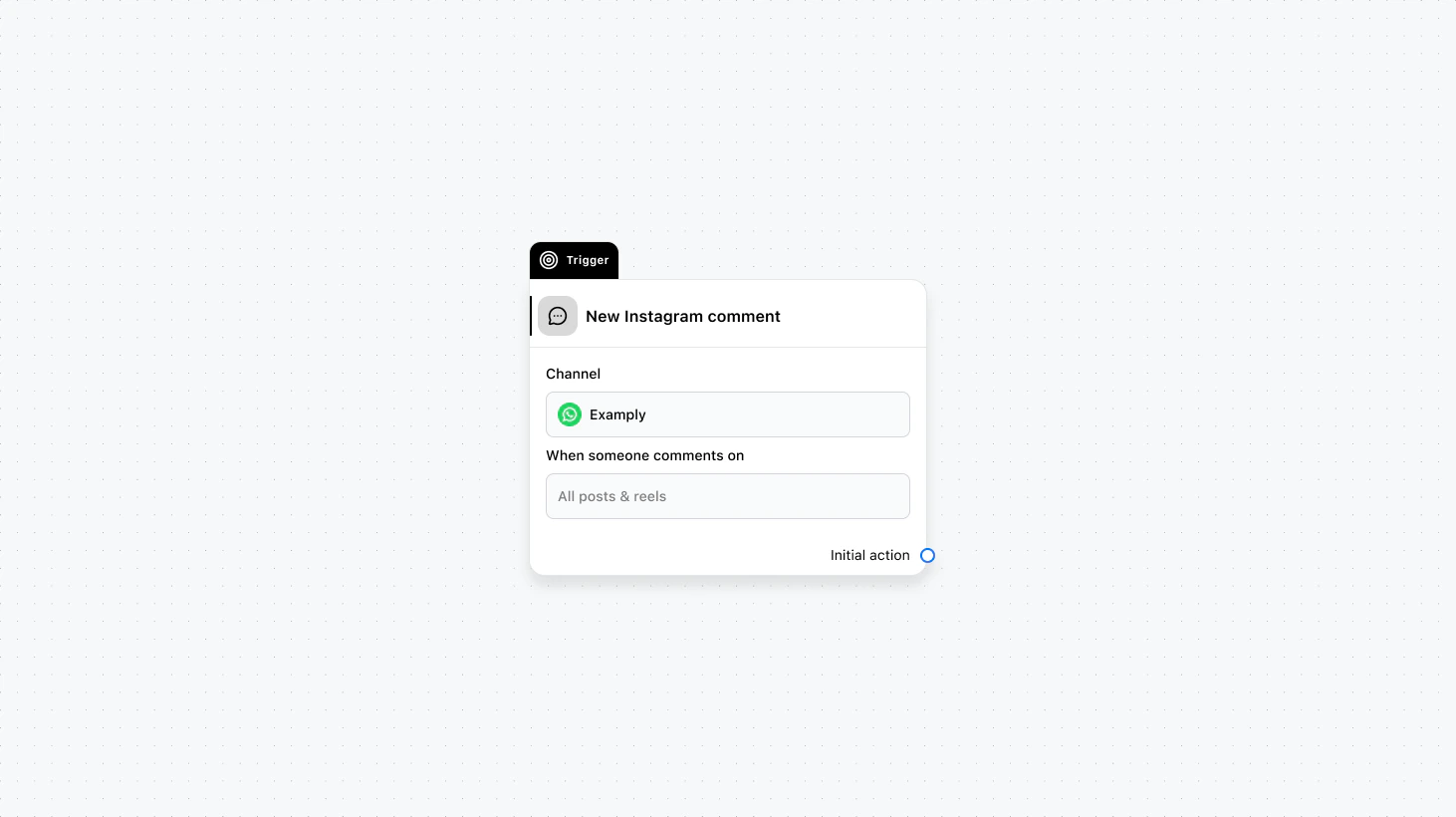 Runs when someone comments on your Instagram content. You can scope it to all posts and reels or to specific media. Use this to auto-reply to comments, route commenters into DMs, or run contests and engagement flows tied to particular posts or reels.
#### Fields
* **Channel** (required): Select the channel where this trigger will run.
* **When someone comments on** (required): Select between "All posts & reels" or "Specific posts/reels" and then select the posts/reels.
* **When to trigger** (optional): Add a condition group to narrow the audience based on specific conditions.
### Use cases
* **Campaign-specific comment reply:** Use “Specific posts/reels” to auto-reply to comments on a single post or reel (e.g. contest, product launch) and optionally invite commenters into DMs.
* **General comment-to-DM flow:** Use “All posts & reels” to reply to comments across your account and invite people into a DM conversation with a consistent message.
* **Conditional handling:** Use “When to trigger” to reply only when the comment contains certain words or to route high-intent commenters differently.
***
## Contact created
Runs when someone comments on your Instagram content. You can scope it to all posts and reels or to specific media. Use this to auto-reply to comments, route commenters into DMs, or run contests and engagement flows tied to particular posts or reels.
#### Fields
* **Channel** (required): Select the channel where this trigger will run.
* **When someone comments on** (required): Select between "All posts & reels" or "Specific posts/reels" and then select the posts/reels.
* **When to trigger** (optional): Add a condition group to narrow the audience based on specific conditions.
### Use cases
* **Campaign-specific comment reply:** Use “Specific posts/reels” to auto-reply to comments on a single post or reel (e.g. contest, product launch) and optionally invite commenters into DMs.
* **General comment-to-DM flow:** Use “All posts & reels” to reply to comments across your account and invite people into a DM conversation with a consistent message.
* **Conditional handling:** Use “When to trigger” to reply only when the comment contains certain words or to route high-intent commenters differently.
***
## Contact created
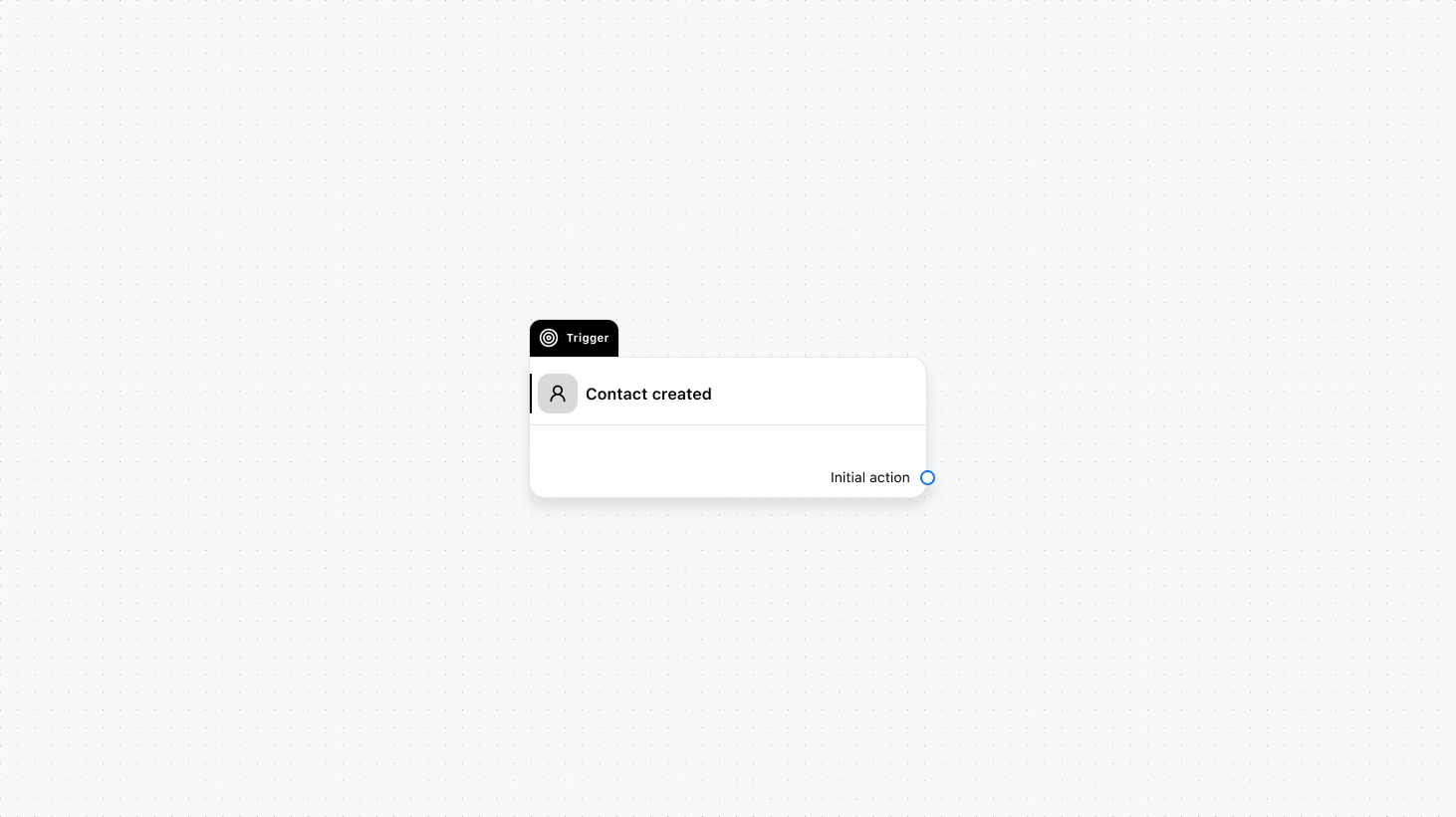 Runs when a new contact is created in Heyy. Use this to enrich or route contacts as soon as they enter your system—before any chat exists.
#### Fields
* **When to trigger** (optional): Add a condition group to narrow which contacts should start this automation (e.g. only contacts from a specific source or with certain attributes).
### Use cases
* **Enrichment on create:** Call an API to enrich the contact (company, location, lead score) and store results in attributes.
* **Auto-label new contacts:** Add labels such as “new”, “lead”, or “needs\_enrichment” immediately after creation.
* **Kick off lifecycle:** Subscribe the contact to a journey or campaign the moment they’re created.
***
## Contact attribute updated
Runs when a new contact is created in Heyy. Use this to enrich or route contacts as soon as they enter your system—before any chat exists.
#### Fields
* **When to trigger** (optional): Add a condition group to narrow which contacts should start this automation (e.g. only contacts from a specific source or with certain attributes).
### Use cases
* **Enrichment on create:** Call an API to enrich the contact (company, location, lead score) and store results in attributes.
* **Auto-label new contacts:** Add labels such as “new”, “lead”, or “needs\_enrichment” immediately after creation.
* **Kick off lifecycle:** Subscribe the contact to a journey or campaign the moment they’re created.
***
## Contact attribute updated
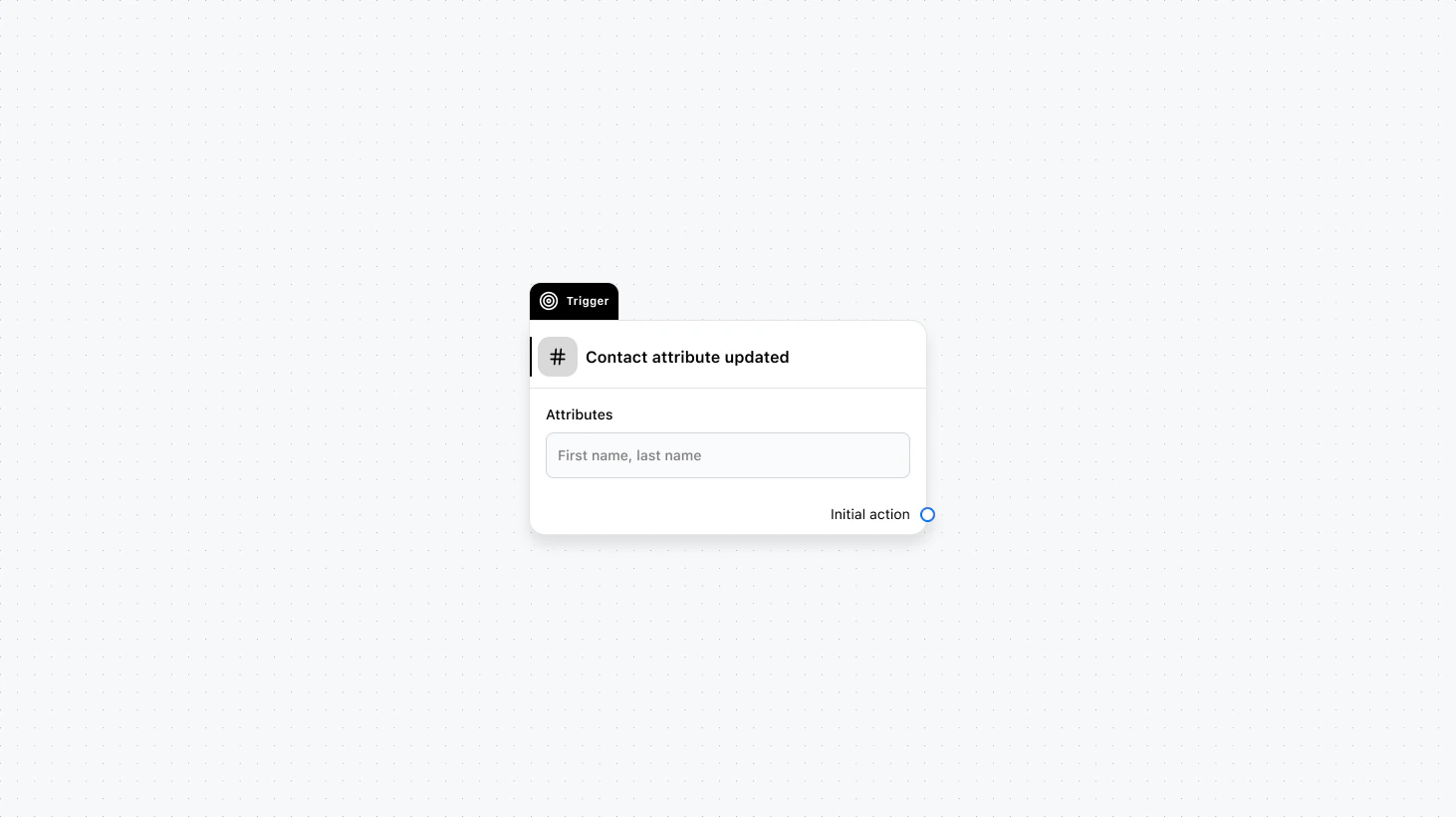 Runs when one or more selected contact attributes change. Use this to react to changes in profile data (e.g. lead status, plan, region) and trigger follow-ups or routing when the data becomes available.
#### Fields
* **Attributes** (required): Select which contact attributes should trigger this automation when they’re updated.
* **When to trigger** (optional): Add a condition group to narrow which updates should start the automation (e.g. only when status becomes “qualified”).
### Use cases
* **React to qualification:** When `lead_status` becomes “qualified”, notify sales or start a sales outreach flow.
* **Keep systems in sync:** When key attributes change, call an API to update your CRM or data warehouse.
* **Progression-based automation:** When `onboarding_step` changes, send the next message or subscribe the contact to the next journey stage.
***
## Label added
Runs when one or more selected contact attributes change. Use this to react to changes in profile data (e.g. lead status, plan, region) and trigger follow-ups or routing when the data becomes available.
#### Fields
* **Attributes** (required): Select which contact attributes should trigger this automation when they’re updated.
* **When to trigger** (optional): Add a condition group to narrow which updates should start the automation (e.g. only when status becomes “qualified”).
### Use cases
* **React to qualification:** When `lead_status` becomes “qualified”, notify sales or start a sales outreach flow.
* **Keep systems in sync:** When key attributes change, call an API to update your CRM or data warehouse.
* **Progression-based automation:** When `onboarding_step` changes, send the next message or subscribe the contact to the next journey stage.
***
## Label added
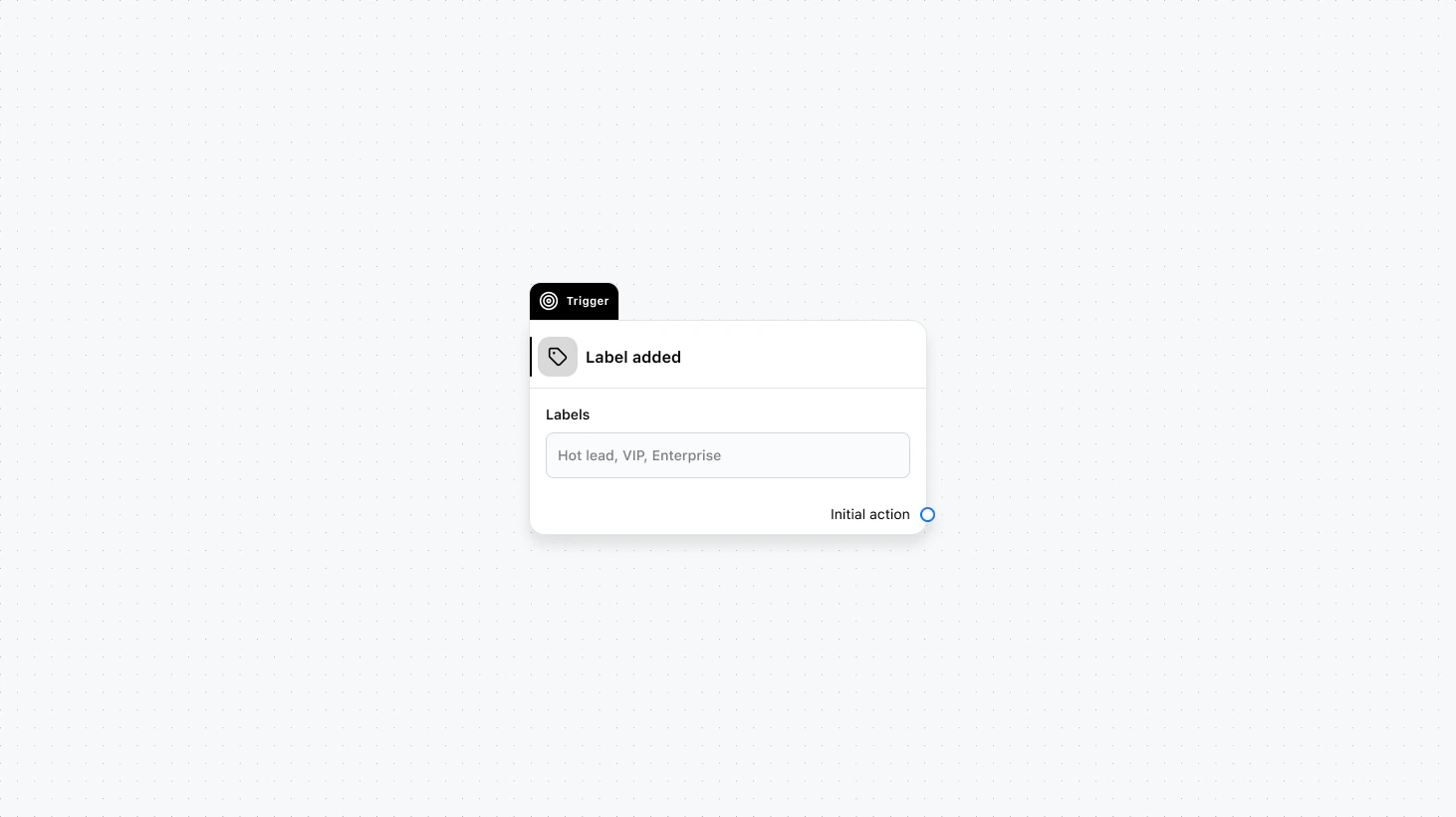 Runs when one or more selected labels are added to a contact. Use this to trigger workflows based on segmentation and tagging.
#### Fields
* **Labels** (required): Select the labels that should trigger this automation when added.
* **When to trigger** (optional): Add a condition group to narrow which labeled contacts should start the automation.
### Use cases
* **Start segmented flows:** When “VIP” is added, start a priority handling automation or notify a manager.
* **Ops handoff:** When “needs\_follow\_up” is added, assign a task, send a reminder, or add the contact to a follow-up campaign.
* **Qualification tags:** When “high\_intent” is added, start an AI or routing flow to get them to the right team faster.
***
## Label removed
Runs when one or more selected labels are added to a contact. Use this to trigger workflows based on segmentation and tagging.
#### Fields
* **Labels** (required): Select the labels that should trigger this automation when added.
* **When to trigger** (optional): Add a condition group to narrow which labeled contacts should start the automation.
### Use cases
* **Start segmented flows:** When “VIP” is added, start a priority handling automation or notify a manager.
* **Ops handoff:** When “needs\_follow\_up” is added, assign a task, send a reminder, or add the contact to a follow-up campaign.
* **Qualification tags:** When “high\_intent” is added, start an AI or routing flow to get them to the right team faster.
***
## Label removed
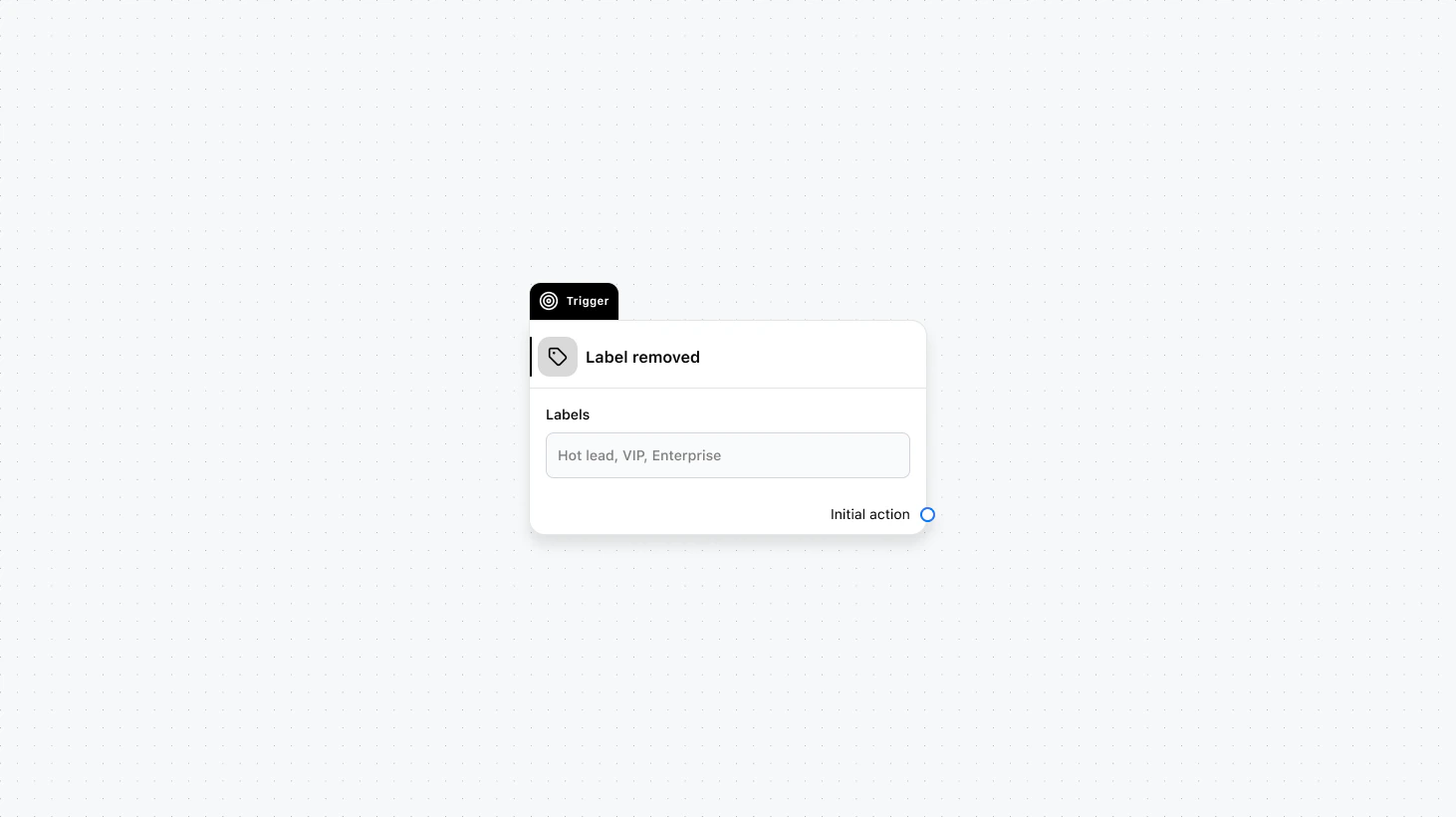 Runs when one or more selected labels are removed from a contact. Use this when removing a tag should end, change, or reverse part of a workflow.
#### Fields
* **Labels** (required): Select the labels that should trigger this automation when removed.
* **When to trigger** (optional): Add a condition group to narrow which contacts should start the automation.
### Use cases
* **End a lifecycle:** When “trial” is removed, subscribe to a post-trial journey or update the contact’s status in external systems.
* **Reverse segmentation:** When a label is removed (e.g. “needs\_follow\_up”), clear reminders, stop related automations, or update CRM flags.
* **Clean up attributes:** When a temporary label is removed, clear temporary automation variables or attributes tied to that segment.
***
## Webhook received
Runs when one or more selected labels are removed from a contact. Use this when removing a tag should end, change, or reverse part of a workflow.
#### Fields
* **Labels** (required): Select the labels that should trigger this automation when removed.
* **When to trigger** (optional): Add a condition group to narrow which contacts should start the automation.
### Use cases
* **End a lifecycle:** When “trial” is removed, subscribe to a post-trial journey or update the contact’s status in external systems.
* **Reverse segmentation:** When a label is removed (e.g. “needs\_follow\_up”), clear reminders, stop related automations, or update CRM flags.
* **Clean up attributes:** When a temporary label is removed, clear temporary automation variables or attributes tied to that segment.
***
## Webhook received
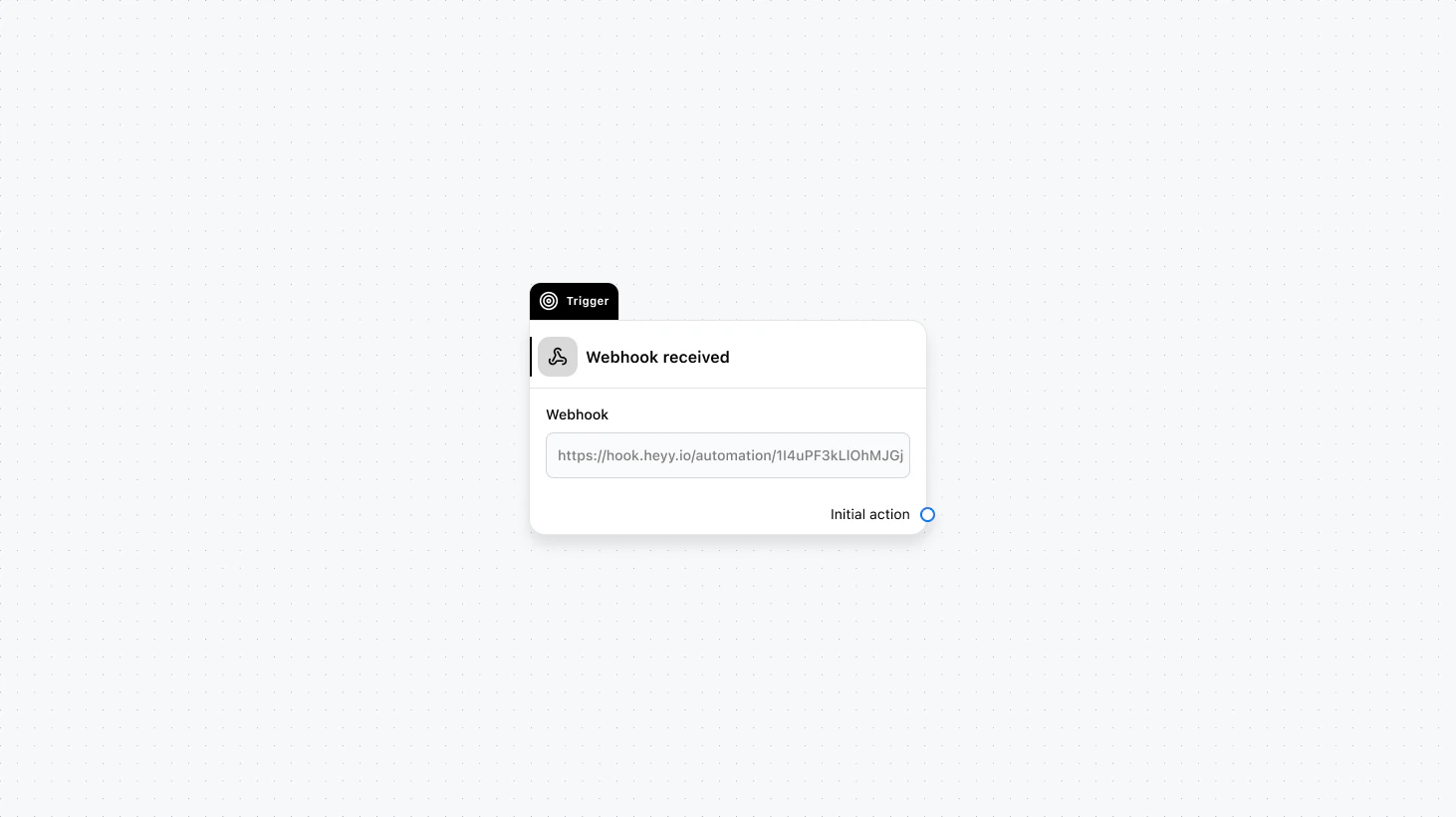 Runs when Heyy receives a webhook event from one of your webhook endpoints. Use this to start automations from external systems (e.g. Stripe, Shopify, internal tools), map payload data into attributes/variables, and optionally identify which contact the webhook belongs to.
#### Fields
* **Webhook endpoint** (required): Choose the webhook endpoint that should trigger this automation.
* **Search contact by** (optional): Configure how Heyy should find the contact in the webhook payload (e.g. by contact ID, email, or phone number).
* **Data mapping** (optional): Map values from the webhook JSON payload into contact attributes or automation variables.
### Use cases
* **External events → messaging:** When a payment succeeds or an order ships, start an automation that sends an update to the customer.
* **Sync enrichment data:** When your backend posts enrichment results, map fields into contact attributes and branch based on them.
* **Unified automation entry point:** Trigger the same automation from multiple systems by posting to the endpoint and mapping fields into variables.
***
## Manual trigger
Runs when Heyy receives a webhook event from one of your webhook endpoints. Use this to start automations from external systems (e.g. Stripe, Shopify, internal tools), map payload data into attributes/variables, and optionally identify which contact the webhook belongs to.
#### Fields
* **Webhook endpoint** (required): Choose the webhook endpoint that should trigger this automation.
* **Search contact by** (optional): Configure how Heyy should find the contact in the webhook payload (e.g. by contact ID, email, or phone number).
* **Data mapping** (optional): Map values from the webhook JSON payload into contact attributes or automation variables.
### Use cases
* **External events → messaging:** When a payment succeeds or an order ships, start an automation that sends an update to the customer.
* **Sync enrichment data:** When your backend posts enrichment results, map fields into contact attributes and branch based on them.
* **Unified automation entry point:** Trigger the same automation from multiple systems by posting to the endpoint and mapping fields into variables.
***
## Manual trigger
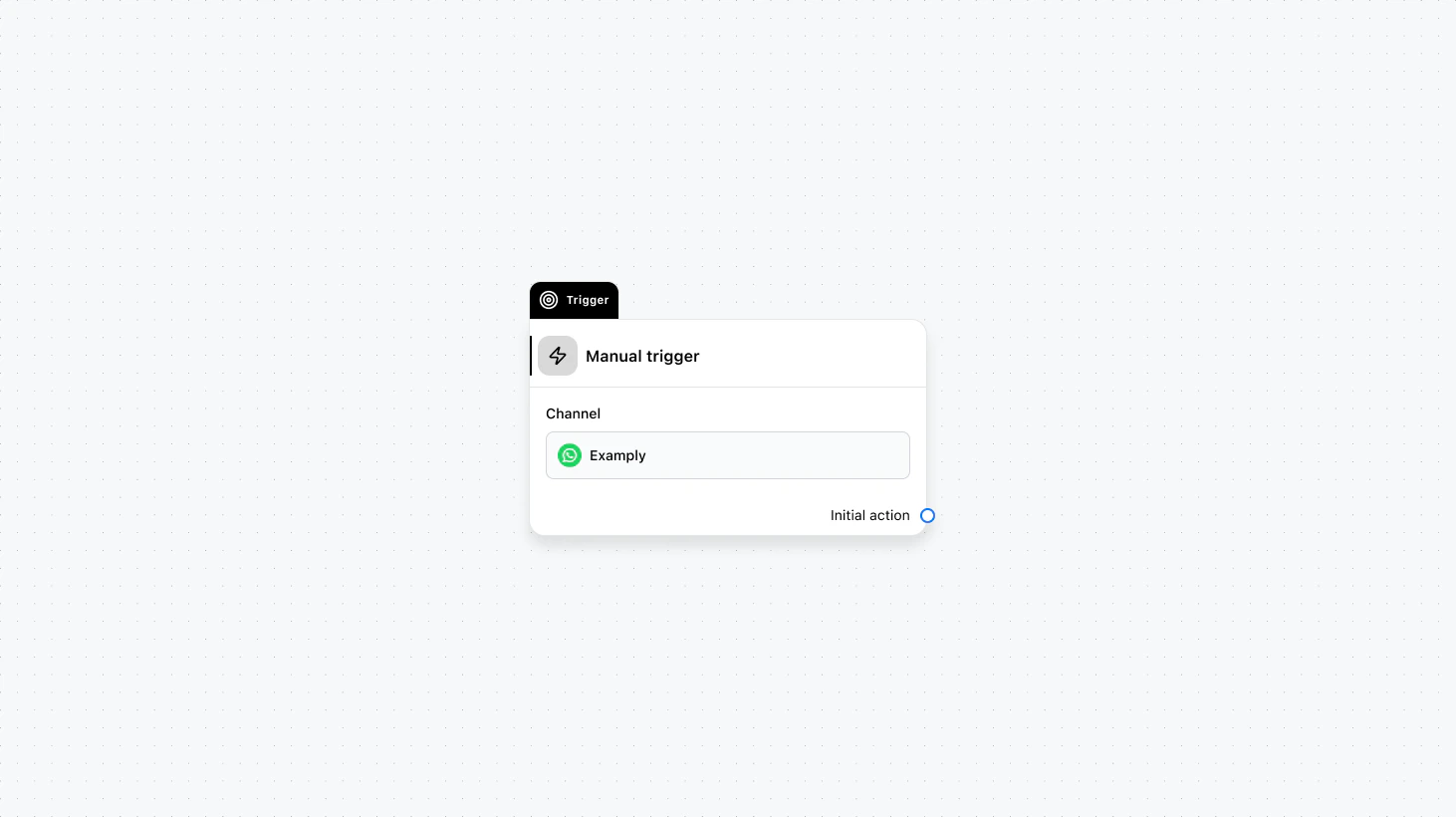 Runs only when started by you or by another automation—from the Inbox, a campaign, an API call, or a [Start Other Automation](/quick-start/automations/logic-actions#start-other-automation) action. Use this for flows that should not start from customer activity, such as scheduled follow-ups, bulk actions, or sub-flows called by other automations.
#### Fields
* **Channel** (required): Select the channel where this trigger will run.
### Use cases
* **Reusable sub-flows:** Build one automation (e.g. send survey, add to campaign) and start it from multiple places—other automations, campaigns, or the Inbox—using the [Start Other Automation](/quick-start/automations/logic-actions#start-other-automation) action and variable mapping.
* **API- or campaign-driven flows:** Start the automation via API or when a contact enters a campaign, so the flow runs only when you or an external system decides, not on every new message.
* **Scheduled or bulk actions:** Use manual trigger for flows that run on a schedule, from a bulk action, or when an agent clicks “Run automation” in the Inbox.
Runs only when started by you or by another automation—from the Inbox, a campaign, an API call, or a [Start Other Automation](/quick-start/automations/logic-actions#start-other-automation) action. Use this for flows that should not start from customer activity, such as scheduled follow-ups, bulk actions, or sub-flows called by other automations.
#### Fields
* **Channel** (required): Select the channel where this trigger will run.
### Use cases
* **Reusable sub-flows:** Build one automation (e.g. send survey, add to campaign) and start it from multiple places—other automations, campaigns, or the Inbox—using the [Start Other Automation](/quick-start/automations/logic-actions#start-other-automation) action and variable mapping.
* **API- or campaign-driven flows:** Start the automation via API or when a contact enters a campaign, so the flow runs only when you or an external system decides, not on every new message.
* **Scheduled or bulk actions:** Use manual trigger for flows that run on a schedule, from a bulk action, or when an agent clicks “Run automation” in the Inbox.