> ## Documentation Index
> Fetch the complete documentation index at: https://docs.heyy.io/llms.txt
> Use this file to discover all available pages before exploring further.
# Live Chat Actions
## Send Message
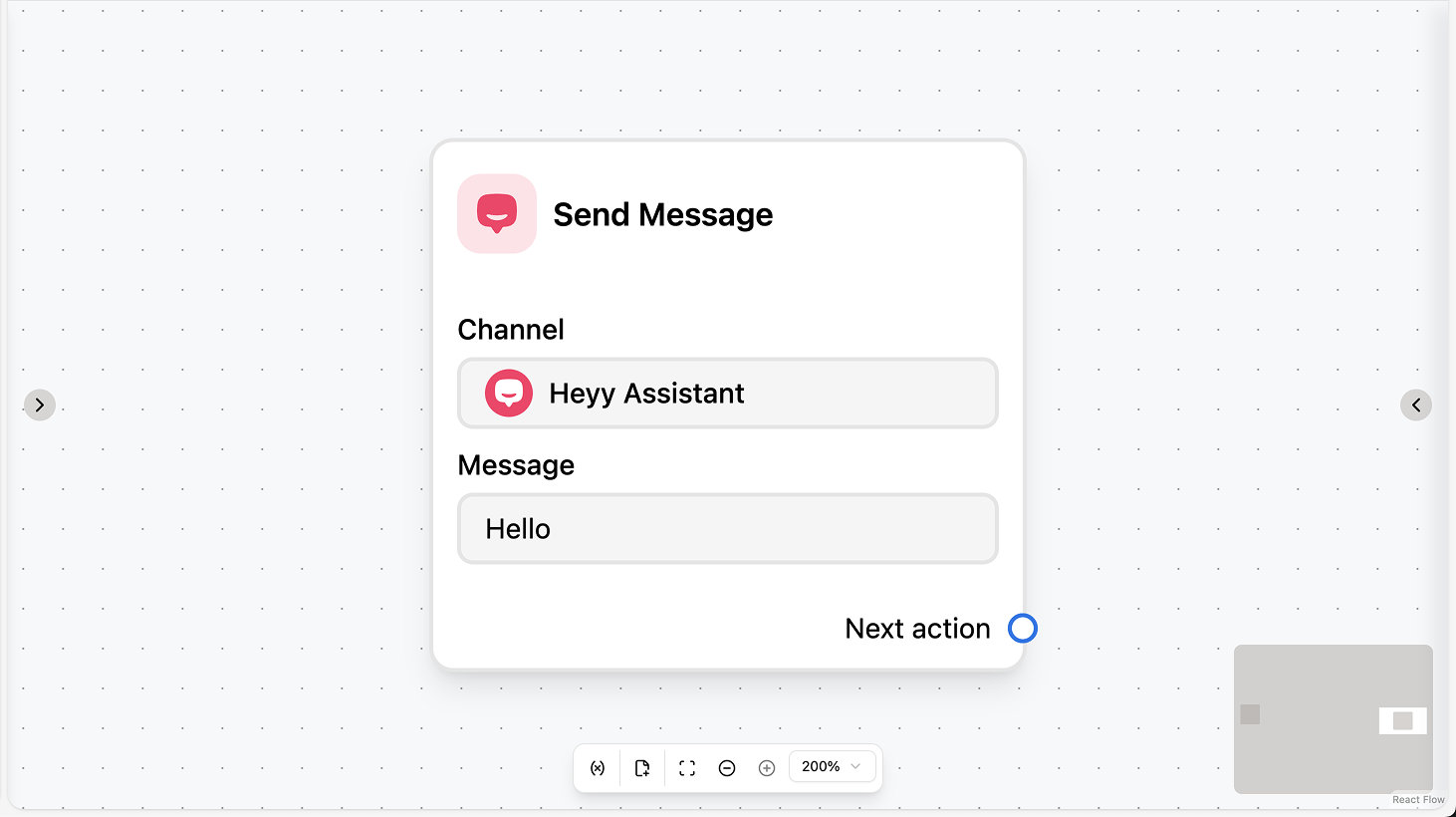 Sends a Live Chat message to the contact in the current chat. The body can include workflow variables and contact attributes. You can optionally wait for a reply, set a reply timeout, and save the contact’s text or file reply to a variable or attribute. Use this for replies and follow-ups in Live Chat from an automation.
#### Fields
* **Channel** (required): Select the Live Chat channel to send from.
* **Body** (required): The message text. You can use workflow variables and contact attributes.
* **Wait for reply** (optional): When enabled, the automation pauses until the contact replies.
* **Reply timeout** (optional): If “Wait for reply” is on, set a duration after which the automation continues without a reply.
* **Save text reply to** (optional): When waiting for reply, save the contact’s text reply to a variable or attribute.
* **Save file reply to** (optional): When waiting for reply, save the contact’s file reply to a variable.
### Use cases
* **Reply in the current chat:** Use the action to send a message in the Live Chat (e.g. after a trigger or another action). The body can include variables and attributes so the message is personalized.
* **Ask and branch on the reply:** Use “Wait for reply” and “Save text reply to”, then add a [Condition](/quick-start/automations/logic-actions#condition) or [AI Intention Recognition](/quick-start/automations/ai-actions#ai-intention-recognition) to branch the automation (e.g. route to sales vs. support) based on what the contact replied.
* **Confirm or follow up after another action:** After an [Assign Chat](/quick-start/automations/chats-actions#assign-chat), [Set Attribute](/quick-start/automations/contacts-actions#set-attribute), or other step, use Send Message to tell the contact what happens next (e.g. “We’ve assigned your chat to Sarah” or “Please share your order number”).
Sends a Live Chat message to the contact in the current chat. The body can include workflow variables and contact attributes. You can optionally wait for a reply, set a reply timeout, and save the contact’s text or file reply to a variable or attribute. Use this for replies and follow-ups in Live Chat from an automation.
#### Fields
* **Channel** (required): Select the Live Chat channel to send from.
* **Body** (required): The message text. You can use workflow variables and contact attributes.
* **Wait for reply** (optional): When enabled, the automation pauses until the contact replies.
* **Reply timeout** (optional): If “Wait for reply” is on, set a duration after which the automation continues without a reply.
* **Save text reply to** (optional): When waiting for reply, save the contact’s text reply to a variable or attribute.
* **Save file reply to** (optional): When waiting for reply, save the contact’s file reply to a variable.
### Use cases
* **Reply in the current chat:** Use the action to send a message in the Live Chat (e.g. after a trigger or another action). The body can include variables and attributes so the message is personalized.
* **Ask and branch on the reply:** Use “Wait for reply” and “Save text reply to”, then add a [Condition](/quick-start/automations/logic-actions#condition) or [AI Intention Recognition](/quick-start/automations/ai-actions#ai-intention-recognition) to branch the automation (e.g. route to sales vs. support) based on what the contact replied.
* **Confirm or follow up after another action:** After an [Assign Chat](/quick-start/automations/chats-actions#assign-chat), [Set Attribute](/quick-start/automations/contacts-actions#set-attribute), or other step, use Send Message to tell the contact what happens next (e.g. “We’ve assigned your chat to Sarah” or “Please share your order number”).