> ## Documentation Index
> Fetch the complete documentation index at: https://docs.heyy.io/llms.txt
> Use this file to discover all available pages before exploring further.
# Instagram Actions
## Send Message
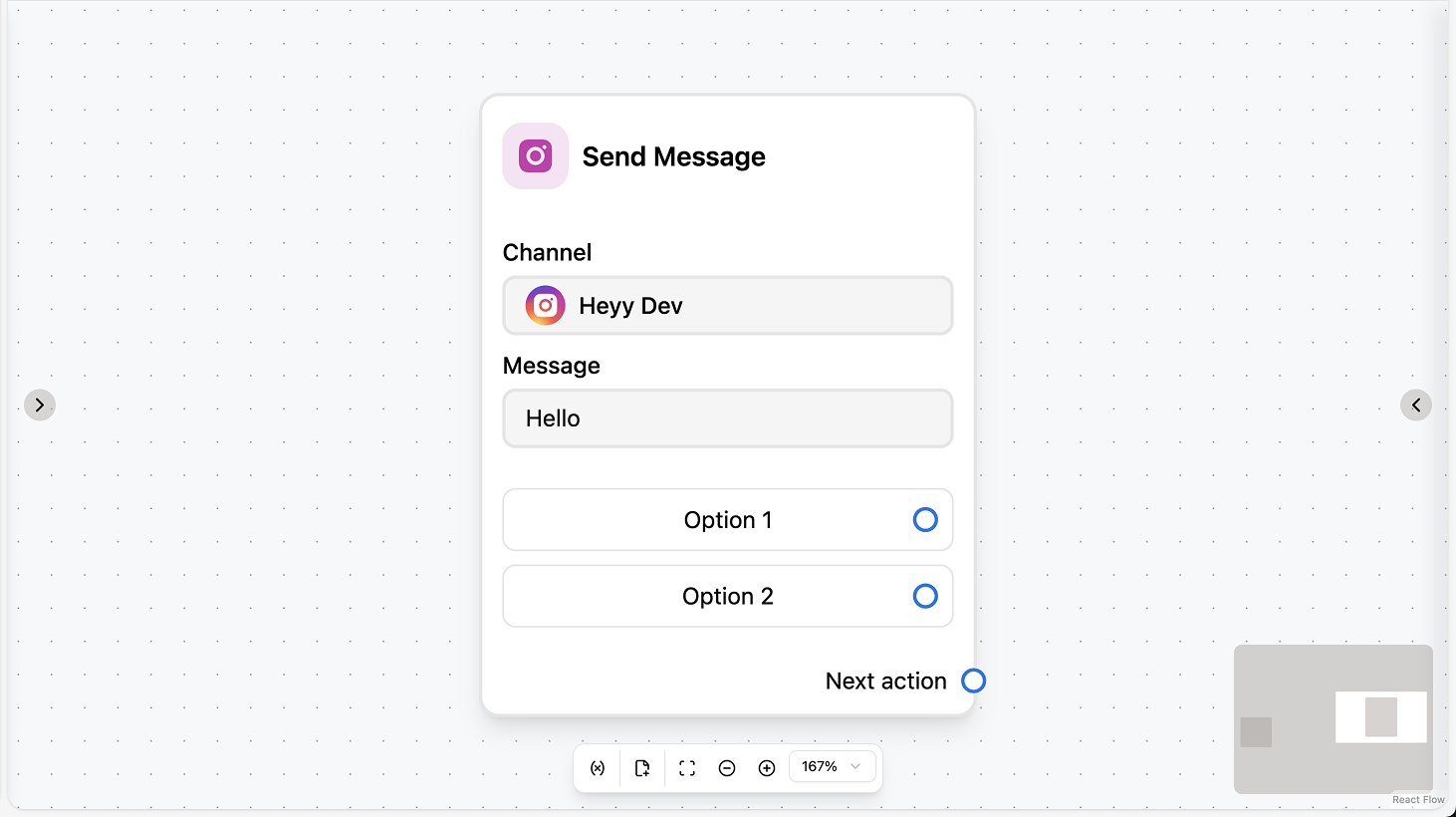 Sends an Instagram Direct message to the contact in the current chat. You can add optional quick-reply buttons and choose to wait for a reply, with optional timeout and saving the reply to a variable or attribute. Use this for replies in Instagram DMs, follow-ups after a comment, or guided choices.
### Fields
* **Channel** (required): Select the Instagram channel to send from.
* **Body** (required): The message text. You can use workflow variables and contact attributes.
* **Quick replies** (optional): Add quick-reply buttons the contact can tap.
* **Reply timeout** (optional): Duration after which the automation continues if the contact doesn’t reply.
* **Wait for reply** (optional): When enabled, the automation pauses until the contact replies.
* **Save text reply to** (optional): Save the contact’s text reply to a variable or attribute.
* **Save file reply to** (optional): Save the contact’s file reply to a variable.
### Use cases
* **Reply in the current chat:** Use the action to send a text message in the Instagram DM (e.g. after a trigger or another action). The body can use variables and attributes; add quick replies if you want the contact to tap a choice.
* **Ask and branch on the reply:** Use “Wait for reply” and “Save text reply to”, then add a Condition or AI action to branch the automation (e.g. qualification, routing) based on what the contact replied or tapped.
* **Confirm or follow up after another action:** After another step (e.g. New Instagram comment flow, Set attribute), use Send Message to confirm or ask a follow-up question in the DM.
***
## Send Media
Sends an Instagram Direct message to the contact in the current chat. You can add optional quick-reply buttons and choose to wait for a reply, with optional timeout and saving the reply to a variable or attribute. Use this for replies in Instagram DMs, follow-ups after a comment, or guided choices.
### Fields
* **Channel** (required): Select the Instagram channel to send from.
* **Body** (required): The message text. You can use workflow variables and contact attributes.
* **Quick replies** (optional): Add quick-reply buttons the contact can tap.
* **Reply timeout** (optional): Duration after which the automation continues if the contact doesn’t reply.
* **Wait for reply** (optional): When enabled, the automation pauses until the contact replies.
* **Save text reply to** (optional): Save the contact’s text reply to a variable or attribute.
* **Save file reply to** (optional): Save the contact’s file reply to a variable.
### Use cases
* **Reply in the current chat:** Use the action to send a text message in the Instagram DM (e.g. after a trigger or another action). The body can use variables and attributes; add quick replies if you want the contact to tap a choice.
* **Ask and branch on the reply:** Use “Wait for reply” and “Save text reply to”, then add a Condition or AI action to branch the automation (e.g. qualification, routing) based on what the contact replied or tapped.
* **Confirm or follow up after another action:** After another step (e.g. New Instagram comment flow, Set attribute), use Send Message to confirm or ask a follow-up question in the DM.
***
## Send Media
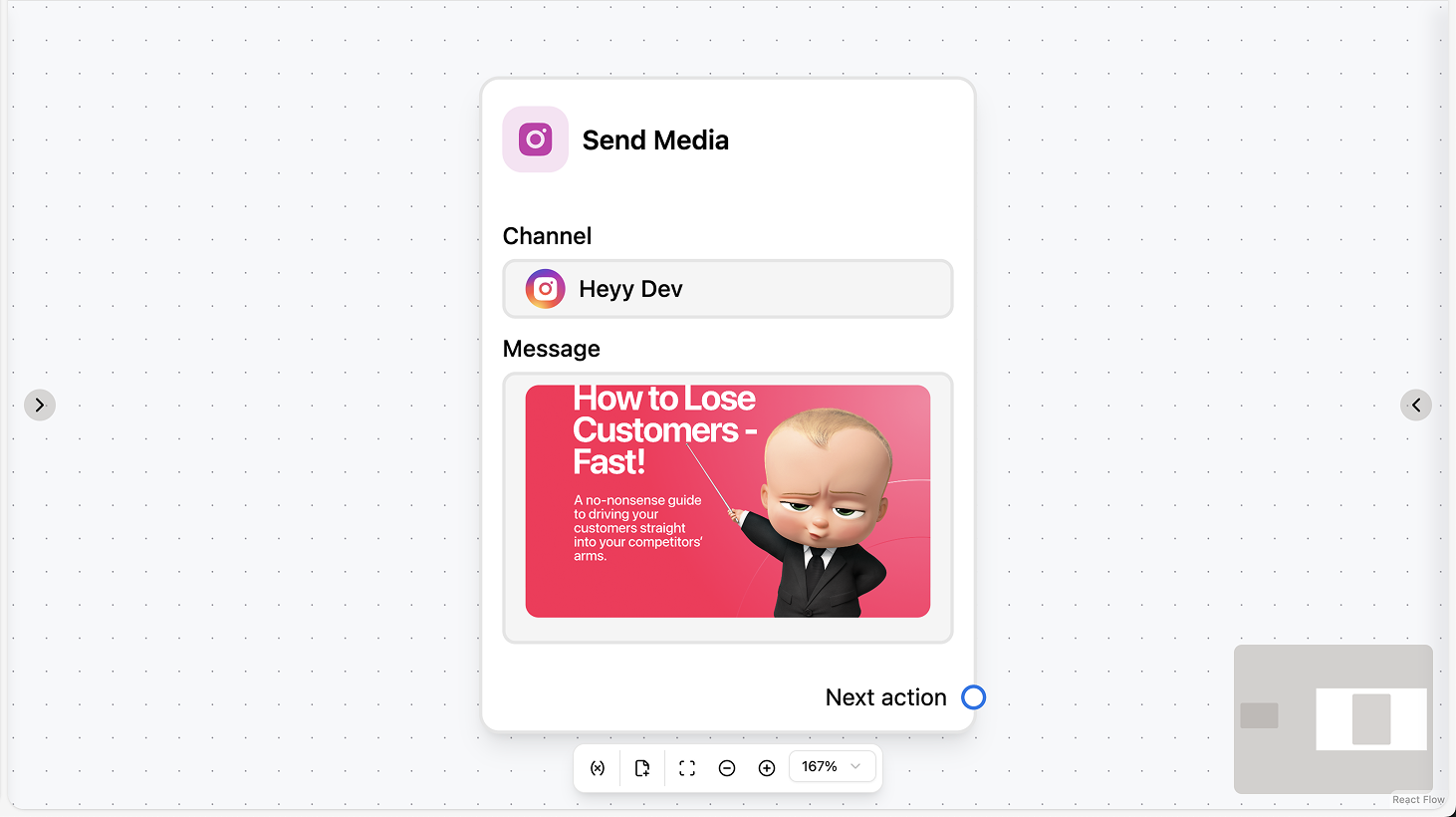 Sends an Instagram Direct message with a media attachment (image, video, or document). You upload a file or paste a URL. You can optionally wait for a reply, set a reply timeout, and save the contact’s reply to a variable or attribute. Use this to send images, videos, or documents in Instagram DMs from an automation.
### Fields
* **Channel** (required): Select the Instagram channel to send from.
* **Media** (required): Choose image, video, or document and upload a file or paste a URL.
* **Reply timeout** (optional): Duration after which the automation continues if the contact doesn’t reply.
* **Wait for reply** (optional): When enabled, the automation pauses until the contact replies.
* **Save text reply to** (optional): Save the contact’s text reply to a variable or attribute.
* **Save file reply to** (optional): Save the contact’s file reply to a variable.
### Use cases
* **Share a visual or file in the DM:** Use the action to send an image, video, or document in the Instagram chat (e.g. after inviting a commenter into DMs, or as part of a product or support flow).
* **Ask and branch after sending media:** Use “Wait for reply” and “Save text reply to” so the next steps (e.g. Condition, Assign) can use the contact’s response to the media you sent.
* **Follow up a comment with media:** In an automation triggered by “New Instagram comment”, use Send Media to deliver a visual or document in the DM (e.g. brochure, link to reel).
***
## Send Buttons
Sends an Instagram Direct message with a media attachment (image, video, or document). You upload a file or paste a URL. You can optionally wait for a reply, set a reply timeout, and save the contact’s reply to a variable or attribute. Use this to send images, videos, or documents in Instagram DMs from an automation.
### Fields
* **Channel** (required): Select the Instagram channel to send from.
* **Media** (required): Choose image, video, or document and upload a file or paste a URL.
* **Reply timeout** (optional): Duration after which the automation continues if the contact doesn’t reply.
* **Wait for reply** (optional): When enabled, the automation pauses until the contact replies.
* **Save text reply to** (optional): Save the contact’s text reply to a variable or attribute.
* **Save file reply to** (optional): Save the contact’s file reply to a variable.
### Use cases
* **Share a visual or file in the DM:** Use the action to send an image, video, or document in the Instagram chat (e.g. after inviting a commenter into DMs, or as part of a product or support flow).
* **Ask and branch after sending media:** Use “Wait for reply” and “Save text reply to” so the next steps (e.g. Condition, Assign) can use the contact’s response to the media you sent.
* **Follow up a comment with media:** In an automation triggered by “New Instagram comment”, use Send Media to deliver a visual or document in the DM (e.g. brochure, link to reel).
***
## Send Buttons
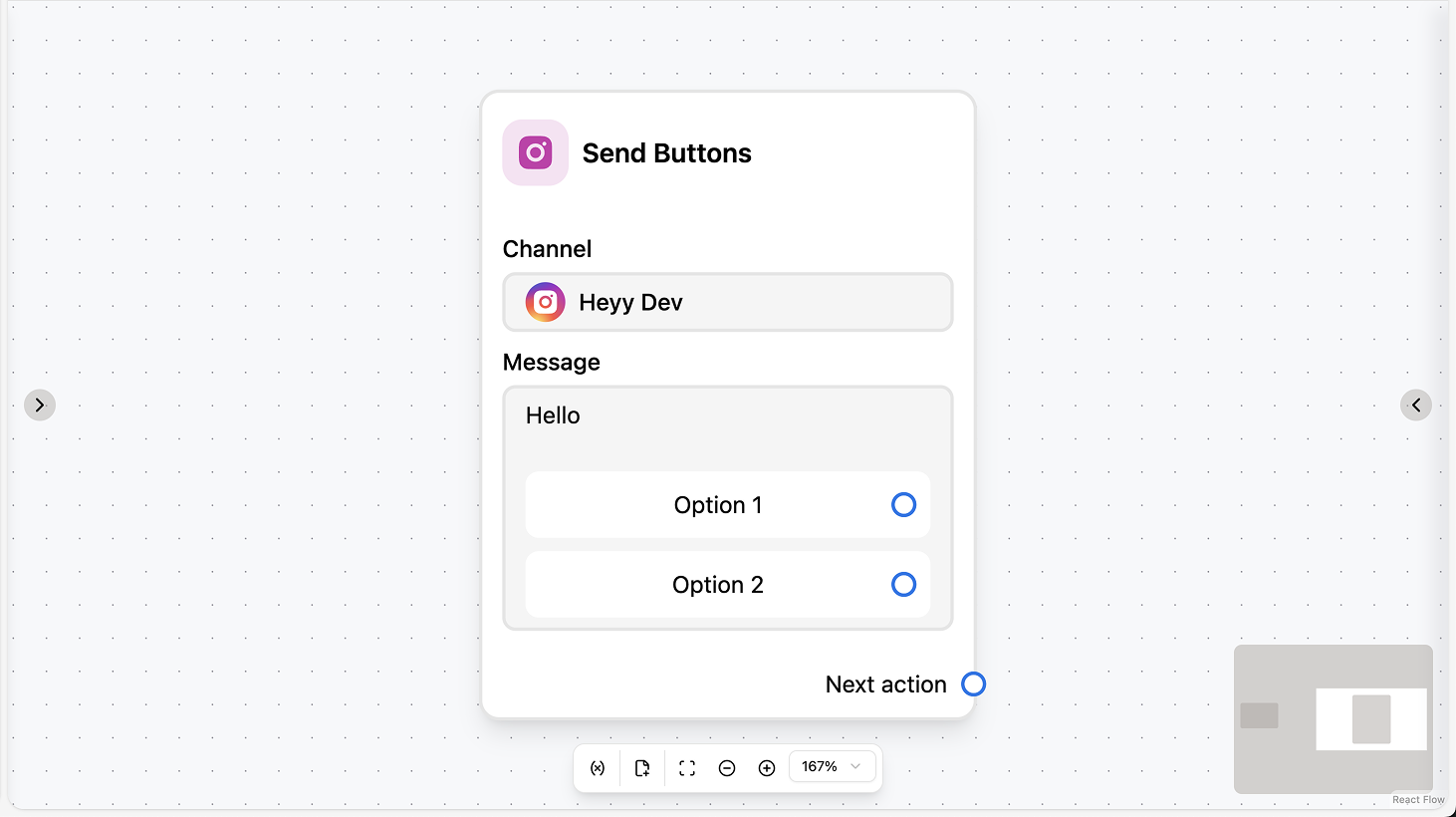 Sends an Instagram Direct message with interactive buttons. You set the body text and add one or more buttons; you can optionally wait for a reply, set a reply timeout, and save the contact’s reply to a variable or attribute. Use this to present clear choices (e.g. “Book now”, “More info”) in Instagram DMs.
### Fields
* **Channel** (required): Select the Instagram channel to send from.
* **Body** (required): The message text. You can use workflow variables and contact attributes.
* **Buttons** (required): Add one or more buttons. Each button has a label and type (e.g. postback, URL).
* **Reply timeout** (optional): Duration after which the automation continues if the contact doesn’t tap a button or reply.
* **Wait for reply** (optional): When enabled, the automation pauses until the contact taps a button or sends a message.
* **Save text reply to** (optional): Save the contact’s reply (button tap or text) to a variable or attribute.
* **Save file reply to** (optional): Save the contact’s file reply to a variable.
### Use cases
* **Present clear choices in the DM:** Use the action to send a message with buttons (e.g. “Book now”, “More info”, “Talk to sales”) so the contact can tap a choice; use “Save text reply to” to branch the automation on their selection.
* **Confirm or collect consent:** After another step (e.g. AI, Set attribute), send a message with “Confirm” and “Cancel” (or similar) and branch the flow based on which button the contact taps.
* **Store the choice on the contact:** Save the button label or reply to a contact attribute so you can use it later in the same automation or in campaigns and views.
Sends an Instagram Direct message with interactive buttons. You set the body text and add one or more buttons; you can optionally wait for a reply, set a reply timeout, and save the contact’s reply to a variable or attribute. Use this to present clear choices (e.g. “Book now”, “More info”) in Instagram DMs.
### Fields
* **Channel** (required): Select the Instagram channel to send from.
* **Body** (required): The message text. You can use workflow variables and contact attributes.
* **Buttons** (required): Add one or more buttons. Each button has a label and type (e.g. postback, URL).
* **Reply timeout** (optional): Duration after which the automation continues if the contact doesn’t tap a button or reply.
* **Wait for reply** (optional): When enabled, the automation pauses until the contact taps a button or sends a message.
* **Save text reply to** (optional): Save the contact’s reply (button tap or text) to a variable or attribute.
* **Save file reply to** (optional): Save the contact’s file reply to a variable.
### Use cases
* **Present clear choices in the DM:** Use the action to send a message with buttons (e.g. “Book now”, “More info”, “Talk to sales”) so the contact can tap a choice; use “Save text reply to” to branch the automation on their selection.
* **Confirm or collect consent:** After another step (e.g. AI, Set attribute), send a message with “Confirm” and “Cancel” (or similar) and branch the flow based on which button the contact taps.
* **Store the choice on the contact:** Save the button label or reply to a contact attribute so you can use it later in the same automation or in campaigns and views.