> ## Documentation Index
> Fetch the complete documentation index at: https://docs.heyy.io/llms.txt
> Use this file to discover all available pages before exploring further.
# Facebook Actions
## Send Message
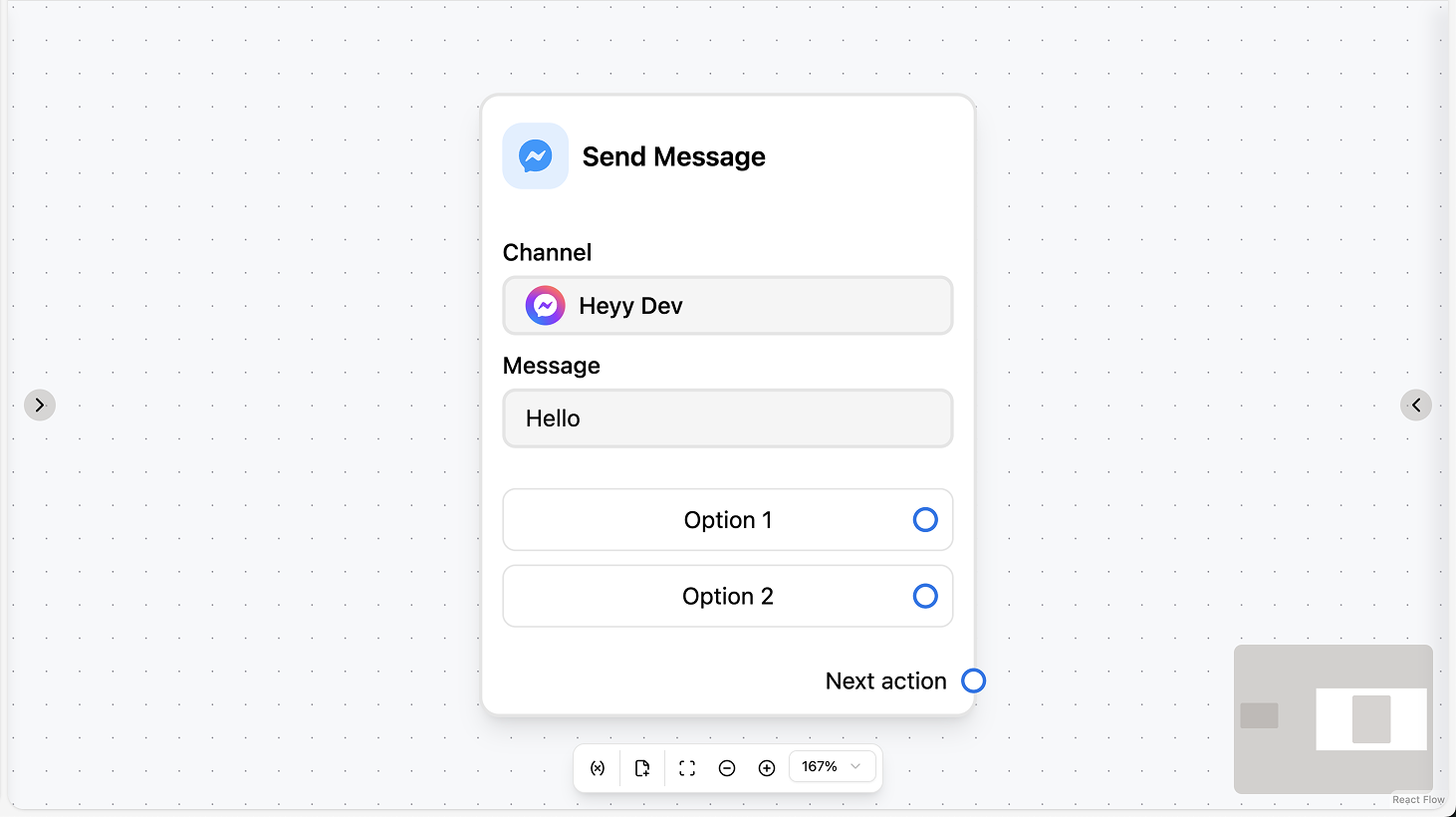 Sends a Facebook Messenger text message to the contact in the current chat. You can add optional quick-reply buttons and choose to wait for a reply, with optional timeout and saving the reply to a variable or attribute. Use this for simple replies, follow-ups, or guided choices in Messenger conversations.
### Fields
* **Channel** (required): Select the Facebook Messenger channel to send from.
* **Body** (required): The message text. You can use workflow variables and contact attributes.
* **Quick replies** (optional): Add quick-reply buttons the contact can tap. Optional labels and optional payloads.
* **Reply timeout** (optional): Duration after which the automation continues if the contact doesn’t reply.
* **Wait for reply** (optional): When enabled, the automation pauses until the contact replies.
* **Save text reply to** (optional): Save the contact’s text reply to a variable or attribute.
* **Save file reply to** (optional): Save the contact’s file reply to a variable.
### Use cases
* **Reply in the current chat:** Use the action to send a text message in the Messenger conversation (e.g. after a trigger or another action). The body can use variables and attributes; add quick replies if you want the contact to tap a choice.
* **Ask and branch on the reply:** Use “Wait for reply” and “Save text reply to”, then add a Condition or AI action to branch the automation (e.g. qualification, routing) based on what the contact replied or tapped.
* **Confirm or follow up after another action:** After another step (e.g. Assign chat, Set attribute), use Send Message to confirm or ask a follow-up question in Messenger.
***
## Send Media
Sends a Facebook Messenger text message to the contact in the current chat. You can add optional quick-reply buttons and choose to wait for a reply, with optional timeout and saving the reply to a variable or attribute. Use this for simple replies, follow-ups, or guided choices in Messenger conversations.
### Fields
* **Channel** (required): Select the Facebook Messenger channel to send from.
* **Body** (required): The message text. You can use workflow variables and contact attributes.
* **Quick replies** (optional): Add quick-reply buttons the contact can tap. Optional labels and optional payloads.
* **Reply timeout** (optional): Duration after which the automation continues if the contact doesn’t reply.
* **Wait for reply** (optional): When enabled, the automation pauses until the contact replies.
* **Save text reply to** (optional): Save the contact’s text reply to a variable or attribute.
* **Save file reply to** (optional): Save the contact’s file reply to a variable.
### Use cases
* **Reply in the current chat:** Use the action to send a text message in the Messenger conversation (e.g. after a trigger or another action). The body can use variables and attributes; add quick replies if you want the contact to tap a choice.
* **Ask and branch on the reply:** Use “Wait for reply” and “Save text reply to”, then add a Condition or AI action to branch the automation (e.g. qualification, routing) based on what the contact replied or tapped.
* **Confirm or follow up after another action:** After another step (e.g. Assign chat, Set attribute), use Send Message to confirm or ask a follow-up question in Messenger.
***
## Send Media
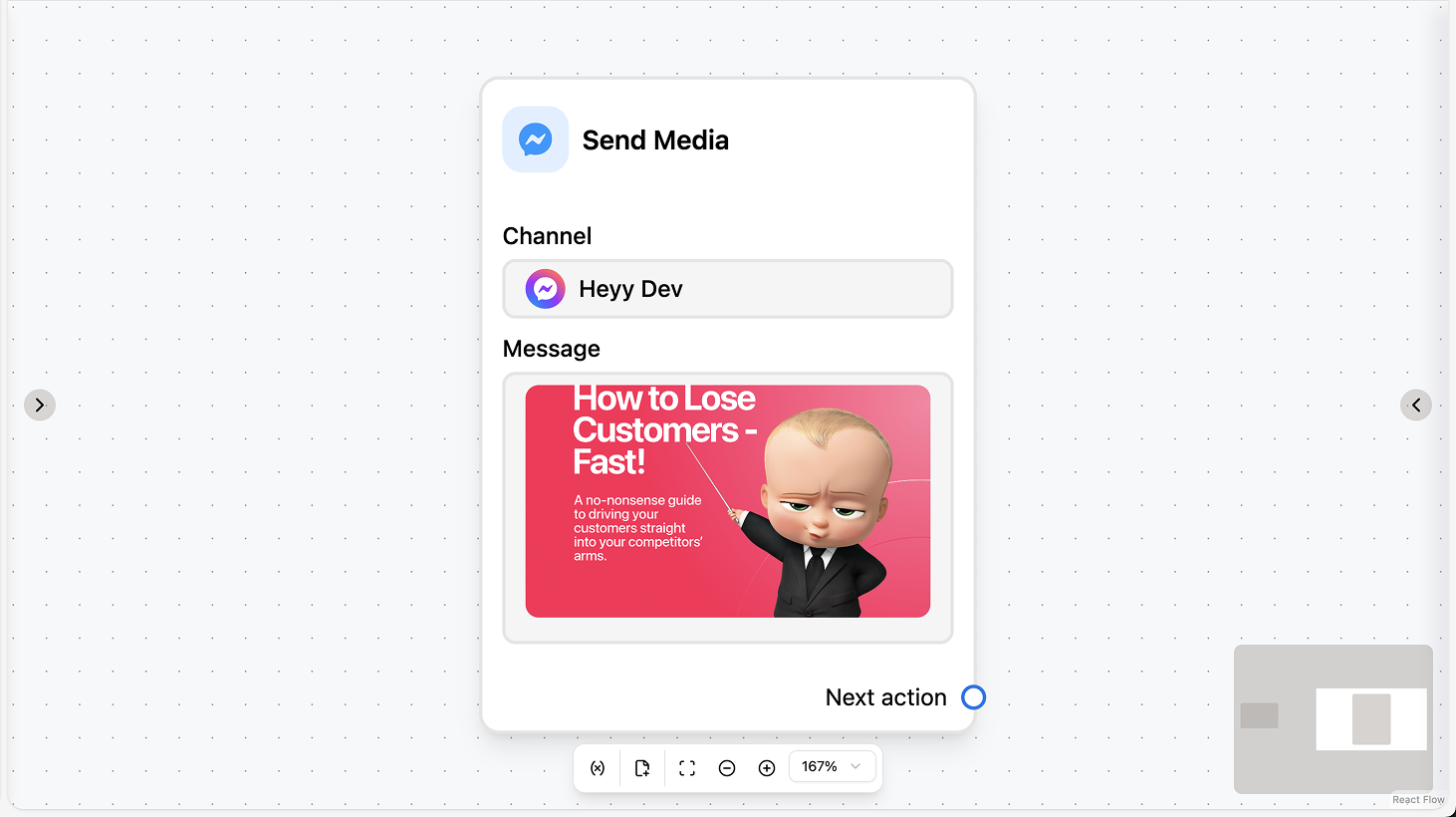 Sends a Facebook Messenger message with a media header (image, video, or document). You upload a file or paste a URL. You can optionally wait for a reply, set a reply timeout, and save the contact’s reply to a variable or attribute. Use this to send images, videos, or documents in Messenger from an automation.
### Fields
* **Channel** (required): Select the Facebook Messenger channel to send from.
* **Header** (required): Choose image, video, or document and upload a file or paste a URL.
* **Reply timeout** (optional): Duration after which the automation continues if the contact doesn’t reply.
* **Wait for reply** (optional): When enabled, the automation pauses until the contact replies.
* **Save text reply to** (optional): Save the contact’s text reply to a variable or attribute.
* **Save file reply to** (optional): Save the contact’s file reply to a variable.
### Use cases
* **Share a visual or file in Messenger:** Use the action to send an image, video, or document in the Facebook Messenger chat (e.g. brochure, how-to video, form) as part of a support or sales flow.
* **Ask and branch after sending media:** Use “Wait for reply” and “Save text reply to” so the next steps (e.g. Condition, Assign) can use the contact’s response to the media you sent.
* **Follow up with context:** After another action (e.g. AI employee, Set attribute), use Send Media to deliver a relevant document or visual and optionally wait for the contact’s reply.
***
## Send Buttons
Sends a Facebook Messenger message with a media header (image, video, or document). You upload a file or paste a URL. You can optionally wait for a reply, set a reply timeout, and save the contact’s reply to a variable or attribute. Use this to send images, videos, or documents in Messenger from an automation.
### Fields
* **Channel** (required): Select the Facebook Messenger channel to send from.
* **Header** (required): Choose image, video, or document and upload a file or paste a URL.
* **Reply timeout** (optional): Duration after which the automation continues if the contact doesn’t reply.
* **Wait for reply** (optional): When enabled, the automation pauses until the contact replies.
* **Save text reply to** (optional): Save the contact’s text reply to a variable or attribute.
* **Save file reply to** (optional): Save the contact’s file reply to a variable.
### Use cases
* **Share a visual or file in Messenger:** Use the action to send an image, video, or document in the Facebook Messenger chat (e.g. brochure, how-to video, form) as part of a support or sales flow.
* **Ask and branch after sending media:** Use “Wait for reply” and “Save text reply to” so the next steps (e.g. Condition, Assign) can use the contact’s response to the media you sent.
* **Follow up with context:** After another action (e.g. AI employee, Set attribute), use Send Media to deliver a relevant document or visual and optionally wait for the contact’s reply.
***
## Send Buttons
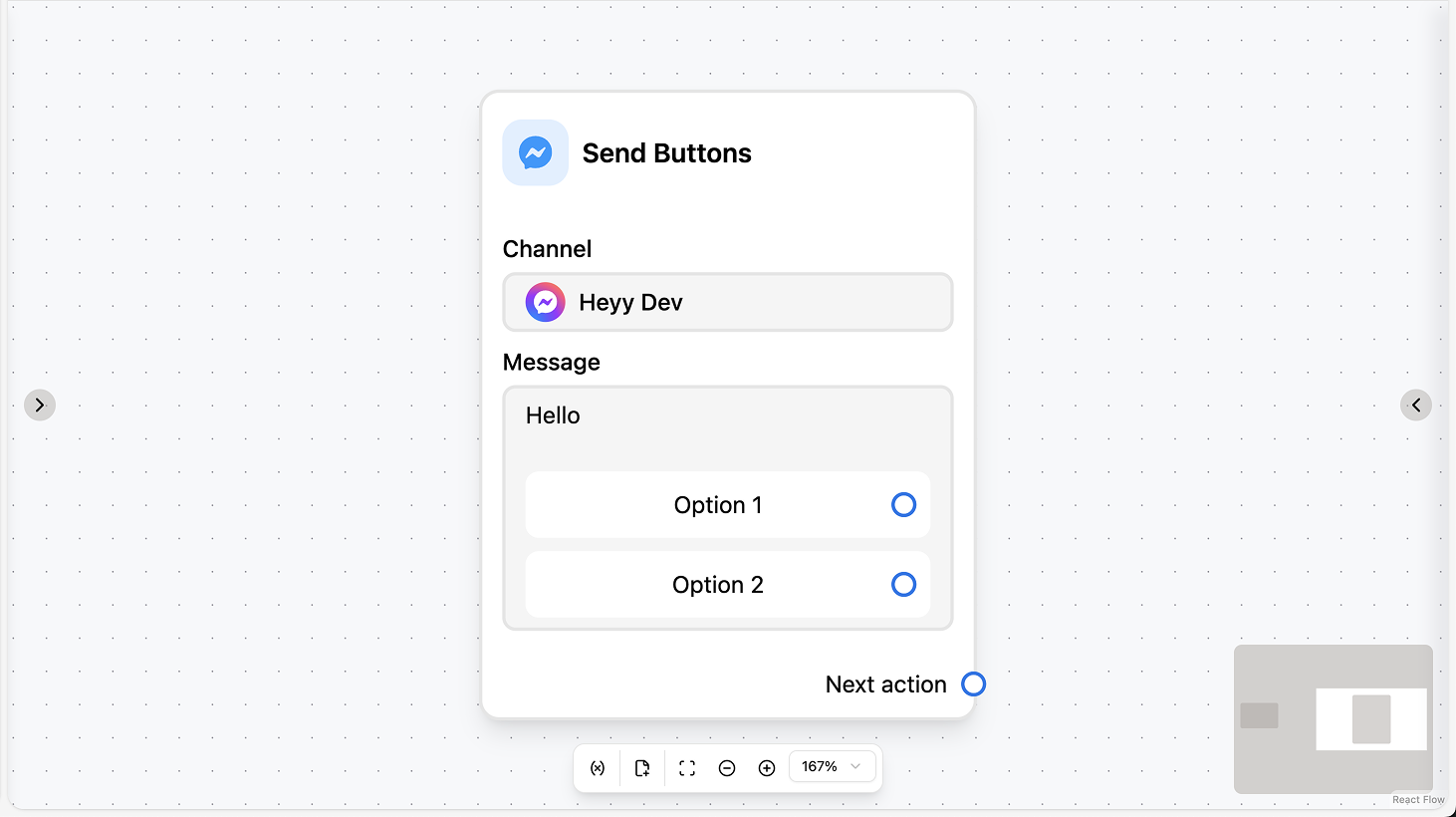 Sends a Facebook Messenger message with interactive buttons (e.g. postback or URL). You set the body text and add one or more buttons; you can optionally wait for a reply, set a reply timeout, and save the contact’s reply to a variable or attribute. Use this to present clear choices (e.g. “Book now”, “More info”) in Messenger.
### Fields
* **Channel** (required): Select the Facebook Messenger channel to send from.
* **Body** (required): The message text. You can use workflow variables and contact attributes.
* **Buttons** (required): Add one or more buttons. Each button has a label and type (e.g. postback, URL).
* **Reply timeout** (optional): Duration after which the automation continues if the contact doesn’t tap a button or reply.
* **Wait for reply** (optional): When enabled, the automation pauses until the contact taps a button or sends a message.
* **Save text reply to** (optional): Save the contact’s reply (button tap or text) to a variable or attribute.
* **Save file reply to** (optional): Save the contact’s file reply to a variable.
### Use cases
* **Present clear choices in Messenger:** Use the action to send a message with buttons (e.g. “Book now”, “More info”, “Talk to sales”) so the contact can tap a choice; use “Save text reply to” to branch the automation on their selection.
* **Confirm or collect consent:** After another step (e.g. AI, Set attribute), send a message with “Confirm” and “Cancel” (or similar) and branch the flow based on which button the contact taps.
* **Store the choice on the contact:** Save the button label or reply to a contact attribute so you can use it later in the same automation or in campaigns and views.
Sends a Facebook Messenger message with interactive buttons (e.g. postback or URL). You set the body text and add one or more buttons; you can optionally wait for a reply, set a reply timeout, and save the contact’s reply to a variable or attribute. Use this to present clear choices (e.g. “Book now”, “More info”) in Messenger.
### Fields
* **Channel** (required): Select the Facebook Messenger channel to send from.
* **Body** (required): The message text. You can use workflow variables and contact attributes.
* **Buttons** (required): Add one or more buttons. Each button has a label and type (e.g. postback, URL).
* **Reply timeout** (optional): Duration after which the automation continues if the contact doesn’t tap a button or reply.
* **Wait for reply** (optional): When enabled, the automation pauses until the contact taps a button or sends a message.
* **Save text reply to** (optional): Save the contact’s reply (button tap or text) to a variable or attribute.
* **Save file reply to** (optional): Save the contact’s file reply to a variable.
### Use cases
* **Present clear choices in Messenger:** Use the action to send a message with buttons (e.g. “Book now”, “More info”, “Talk to sales”) so the contact can tap a choice; use “Save text reply to” to branch the automation on their selection.
* **Confirm or collect consent:** After another step (e.g. AI, Set attribute), send a message with “Confirm” and “Cancel” (or similar) and branch the flow based on which button the contact taps.
* **Store the choice on the contact:** Save the button label or reply to a contact attribute so you can use it later in the same automation or in campaigns and views.