> ## Documentation Index
> Fetch the complete documentation index at: https://docs.heyy.io/llms.txt
> Use this file to discover all available pages before exploring further.
# Security
> Update your email and turn on two-factor authentication.
Security is where you control how you sign in and how well-protected your personal account is, separate from workspace-wide settings like billing or team members, which live under [**Settings**](https://app.heyy.io/settings) instead.
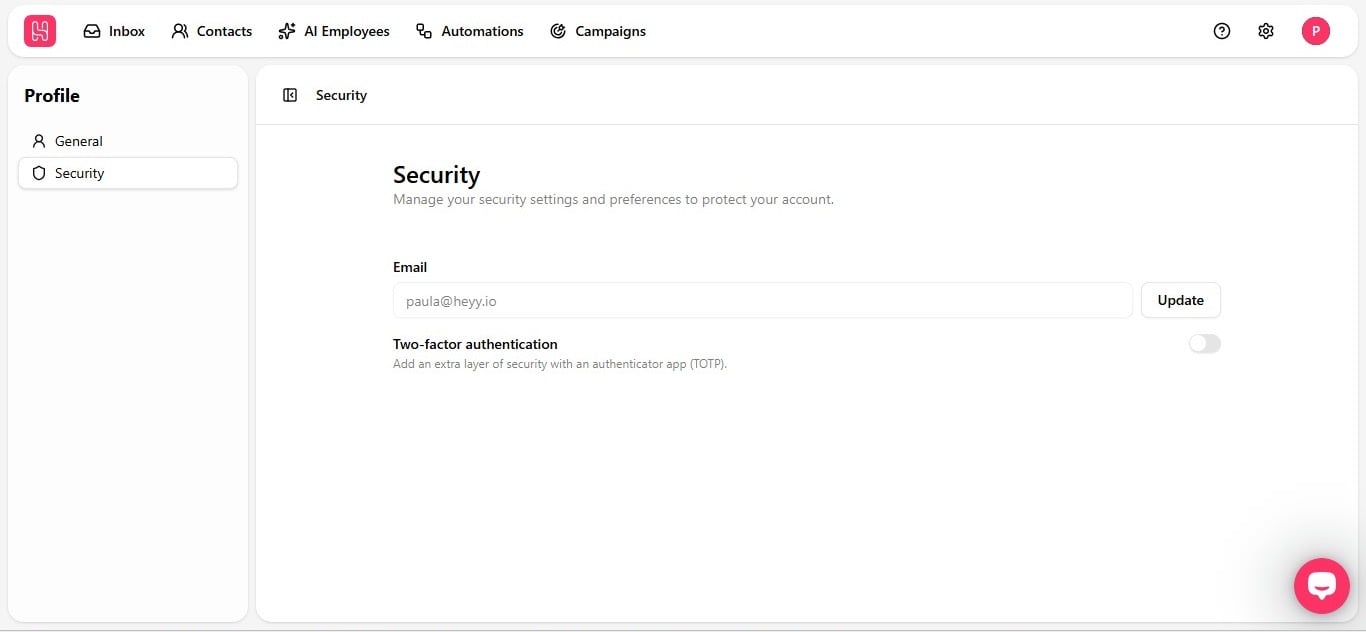
This is the page you land on when you click over to **Security** from the Profile menu. From here you can update your email and turn on two-factor authentication for an extra layer of protection.
 ## Update your email
Update your email in the **Email** field and hit **Update** to save the change.
## Turn on two-factor authentication
Two-factor authentication adds an extra layer of protection using an authenticator app (TOTP). Even if someone gets your password, they can't get into your account without that second code. Flip the toggle on and Heyy will walk you through connecting your authenticator app.
That's your account set up and secured, in under five minutes.
Workspace settings such as team members and billing live under [**Settings**](https://app.heyy.io/settings) — see [Workspace roles](/help/managing-your-workspace/workspace-roles) and [Invite teammates](/help/managing-your-workspace/workspace-members/how-to-invite-teammates).
## Update your email
Update your email in the **Email** field and hit **Update** to save the change.
## Turn on two-factor authentication
Two-factor authentication adds an extra layer of protection using an authenticator app (TOTP). Even if someone gets your password, they can't get into your account without that second code. Flip the toggle on and Heyy will walk you through connecting your authenticator app.
That's your account set up and secured, in under five minutes.
Workspace settings such as team members and billing live under [**Settings**](https://app.heyy.io/settings) — see [Workspace roles](/help/managing-your-workspace/workspace-roles) and [Invite teammates](/help/managing-your-workspace/workspace-members/how-to-invite-teammates).