> ## Documentation Index
> Fetch the complete documentation index at: https://docs.heyy.io/llms.txt
> Use this file to discover all available pages before exploring further.
# Profile
> Set your name, photo, phone number, and message notifications.
Setting up your profile takes a little less than five minutes.
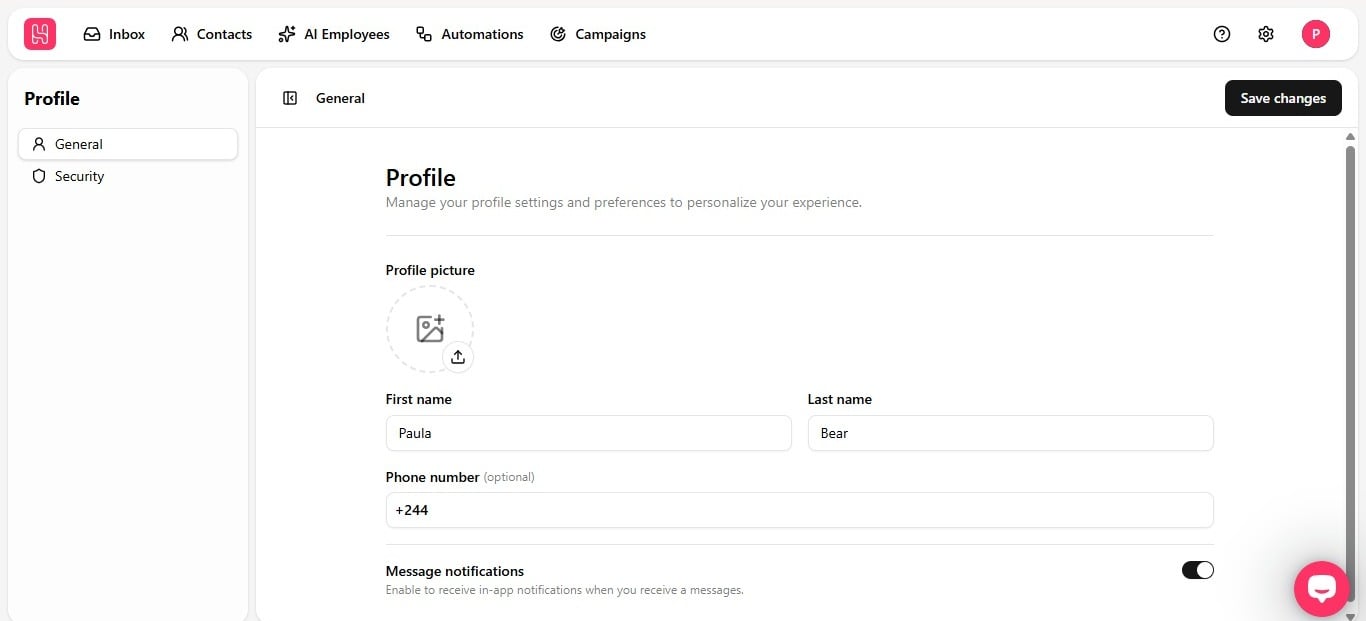
This is the page you land on when you click your profile icon in the top right corner and select **Profile**. From here you can update how you appear to teammates, add a way for them to reach you directly, and decide how Heyy notifies you when new messages come in.
 ## Set your name
Fill in your **First name** and **Last name**. This is what shows up across your workspace, so use whatever you'd want your team to see in chats, mentions, and notifications.
## Add a profile picture
Click the upload icon under **Profile picture** and pick a photo from your device. No need for a formal headshot, just something that helps you and your teammates in the same workspace recognize your account at a glance.
## Add your phone number (optional)
Add your number in the **Phone number** field. This is optional, and it's only visible to your workspace, never to your contacts.
## Turn on message notifications
Flip the **Message notifications** toggle on to get notified in-app the moment a new message comes in. Leave it off if you'd rather check messages on your own manually.
Once your profile is set up, head to [Security](/help/managing-your-profile/security) to update your email and turn on two-factor authentication.
## Set your name
Fill in your **First name** and **Last name**. This is what shows up across your workspace, so use whatever you'd want your team to see in chats, mentions, and notifications.
## Add a profile picture
Click the upload icon under **Profile picture** and pick a photo from your device. No need for a formal headshot, just something that helps you and your teammates in the same workspace recognize your account at a glance.
## Add your phone number (optional)
Add your number in the **Phone number** field. This is optional, and it's only visible to your workspace, never to your contacts.
## Turn on message notifications
Flip the **Message notifications** toggle on to get notified in-app the moment a new message comes in. Leave it off if you'd rather check messages on your own manually.
Once your profile is set up, head to [Security](/help/managing-your-profile/security) to update your email and turn on two-factor authentication.