> ## Documentation Index
> Fetch the complete documentation index at: https://docs.heyy.io/llms.txt
> Use this file to discover all available pages before exploring further.
# Send a message
> The composer: free-form text, media, emoji, and voice notes.
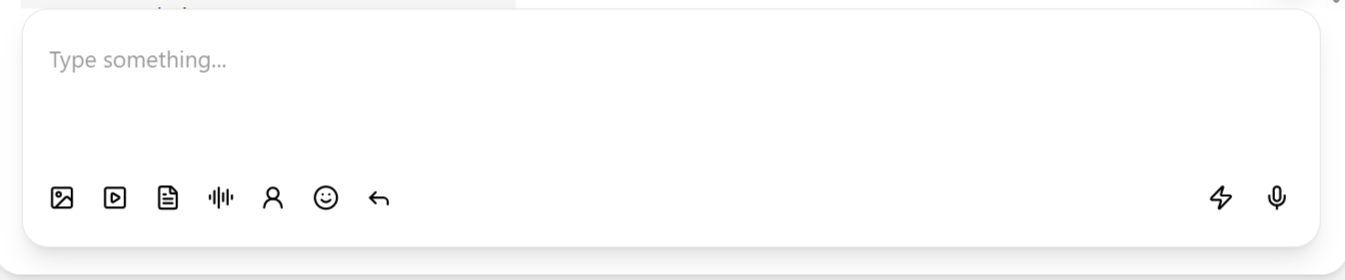
The composer sits below the open conversation and handles far more than plain text — between free-form messaging, four media types, emoji, and voice notes, you rarely need to leave the conversation panel to get a messaging task done. Hover over any icon in the toolbar for a tooltip describing what it does.
 ## Free-form text
Type into the text field and send, the same as any messaging app. This is only available while the [conversation window](/help/inbox/chat-fundamentals/conversation-window) is open — once it expires on WhatsApp, Messenger, or Instagram, the field is replaced with a prompt to send an approved template instead.
## Media attachments
Four dedicated icons sit beside the text field, each opening a file picker for its format:
| Icon | Sends |
| ------------ | ------------------------------------ |
| **Image** | Photos and graphics. |
| **Video** | Video files. |
| **Document** | PDFs, spreadsheets, and other files. |
| **Audio** | Pre-recorded audio files. |
You can also drag a file directly from your desktop onto the composer instead of using the file picker.
## Emoji
The emoji icon opens a picker to insert emoji into your message, the same as any modern chat app.
## Voice notes
Click the microphone icon to start recording, then click the send icon when you're done to deliver it as a voice message — supported on channels that accept voice, such as WhatsApp.
For messages you send often — the same explanation, promotion, or set of instructions — build a [quick reply](/help/inbox/use-quick-replies) instead of retyping it each time.
## If sending fails
If a message will not send, work through these in order:
1. **Check the conversation window.** On WhatsApp, Messenger, and Instagram, free-form messaging blocks once the customer's reply window has expired — see [Conversation window](/help/inbox/chat-fundamentals/conversation-window). The composer itself will tell you if this is the case, replacing the text field with a template prompt.
2. **Send an approved template instead.** Use **Choose a template** in the composer, or **Actions → Send a WhatsApp template** — see [Chat actions](/help/inbox/chat-actions). Sending a template and getting a reply reopens the window for normal messaging.
3. **Check the channel connection.** If templates also fail to send, the channel itself may be disconnected — see the relevant [messaging channel](/help/messaging-channels/whatsapp/common-issues) troubleshooting page.
## Free-form text
Type into the text field and send, the same as any messaging app. This is only available while the [conversation window](/help/inbox/chat-fundamentals/conversation-window) is open — once it expires on WhatsApp, Messenger, or Instagram, the field is replaced with a prompt to send an approved template instead.
## Media attachments
Four dedicated icons sit beside the text field, each opening a file picker for its format:
| Icon | Sends |
| ------------ | ------------------------------------ |
| **Image** | Photos and graphics. |
| **Video** | Video files. |
| **Document** | PDFs, spreadsheets, and other files. |
| **Audio** | Pre-recorded audio files. |
You can also drag a file directly from your desktop onto the composer instead of using the file picker.
## Emoji
The emoji icon opens a picker to insert emoji into your message, the same as any modern chat app.
## Voice notes
Click the microphone icon to start recording, then click the send icon when you're done to deliver it as a voice message — supported on channels that accept voice, such as WhatsApp.
For messages you send often — the same explanation, promotion, or set of instructions — build a [quick reply](/help/inbox/use-quick-replies) instead of retyping it each time.
## If sending fails
If a message will not send, work through these in order:
1. **Check the conversation window.** On WhatsApp, Messenger, and Instagram, free-form messaging blocks once the customer's reply window has expired — see [Conversation window](/help/inbox/chat-fundamentals/conversation-window). The composer itself will tell you if this is the case, replacing the text field with a template prompt.
2. **Send an approved template instead.** Use **Choose a template** in the composer, or **Actions → Send a WhatsApp template** — see [Chat actions](/help/inbox/chat-actions). Sending a template and getting a reply reopens the window for normal messaging.
3. **Check the channel connection.** If templates also fail to send, the channel itself may be disconnected — see the relevant [messaging channel](/help/messaging-channels/whatsapp/common-issues) troubleshooting page.