> ## Documentation Index
> Fetch the complete documentation index at: https://docs.heyy.io/llms.txt
> Use this file to discover all available pages before exploring further.
# Inbox tour
> The layout of the Inbox and what each part of the screen does.
The **Inbox** is where you view, triage, and respond to customer conversations across every connected channel — WhatsApp, Instagram, Facebook Messenger, Live Chat, and SMS. It works alongside [Contacts](/help/contacts/mini-crm/contacts-tour) and [Automations](/help/automations/index): Contacts holds who someone is, Automations decides what happens automatically, and Inbox is where a human reads and replies.
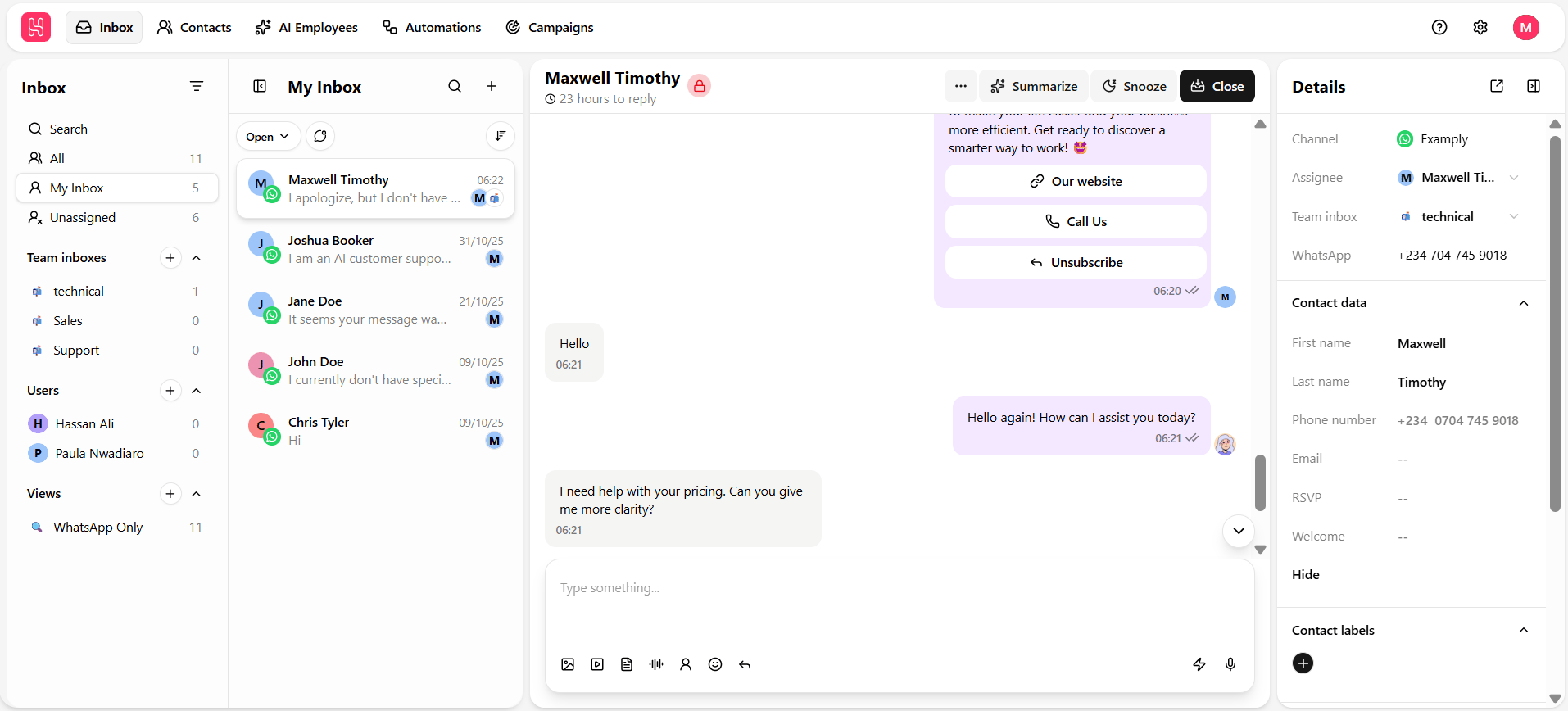 The page has three parts, left to right:
| Part | What it does |
| ------------------------------ | ---------------------------------------------------------------------------------------------------------- |
| **Sidebar** | Every way of slicing your conversations — by assignment, by team, by channel, or by a custom saved filter. |
| **Conversation list** | The chats matching whatever sidebar filter is selected, searchable and sortable. |
| **Chat panel + details panel** | The open conversation in the center, and everything about that contact on the right. |
## The sidebar
The sidebar stacks a set of filters top to bottom. Each one shows the same underlying conversations from a different angle — a chat you're not assigned to still exists in **All**, even while it's invisible in **My Inbox**.
The page has three parts, left to right:
| Part | What it does |
| ------------------------------ | ---------------------------------------------------------------------------------------------------------- |
| **Sidebar** | Every way of slicing your conversations — by assignment, by team, by channel, or by a custom saved filter. |
| **Conversation list** | The chats matching whatever sidebar filter is selected, searchable and sortable. |
| **Chat panel + details panel** | The open conversation in the center, and everything about that contact on the right. |
## The sidebar
The sidebar stacks a set of filters top to bottom. Each one shows the same underlying conversations from a different angle — a chat you're not assigned to still exists in **All**, even while it's invisible in **My Inbox**.
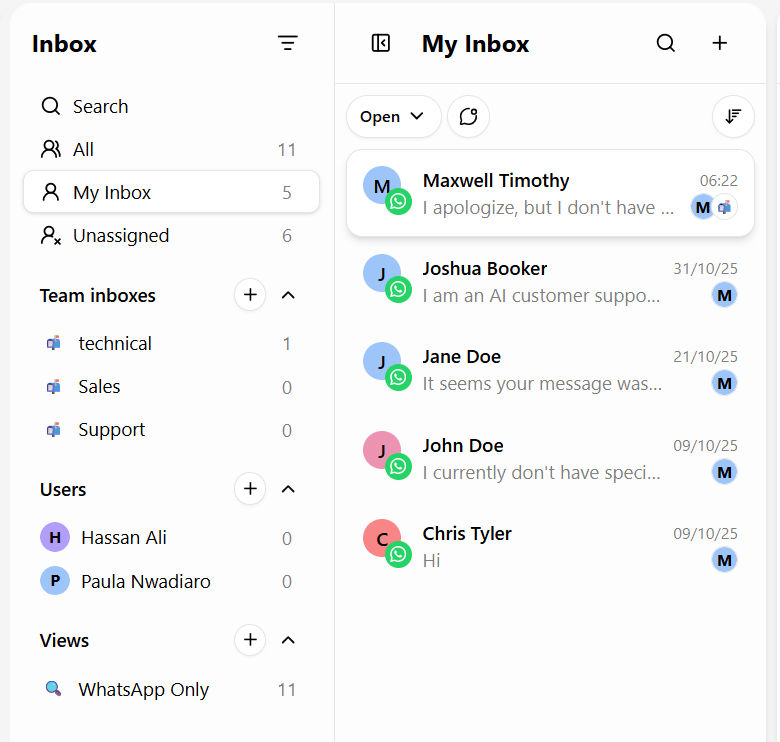 | Section | Shows |
| ---------------- | ----------------------------------------------------------------------------------------------------------------------------------------------------------------- |
| **All** | Every conversation you have permission to see, across every team and channel — the unfiltered ledger. |
| **My Inbox** | Conversations assigned specifically to you. |
| **Unassigned** | Chats with no assignee or team inbox yet — your triage queue. See [Bulk actions](/help/inbox/find-and-organize/bulk-actions) for clearing it quickly. |
| **Unread** | Conversations you have not opened yet. |
| **Team Inboxes** | Conversations grouped by department, with a conversation count next to each team. See [Team & user inboxes](/help/inbox/find-and-organize/team-and-user-inboxes). |
| **Users** | Every workspace member with a count of conversations assigned to them, useful for spotting load imbalance. |
| **Channels** | Every connected channel (WhatsApp, Instagram, Messenger, Live Chat) — switch the conversation list to a single channel. |
| **Views** | Your own saved, reusable filters. See [Saved inbox views](/help/inbox/find-and-organize/saved-inbox-views). |
A sidebar toggle (panel icon) collapses the sidebar for extra chat-viewing space on smaller screens — useful when you're focused on working through one queue.
Check **Unassigned** regularly — a growing queue there is usually the clearest sign that conversations are falling through the cracks before anyone claims them.
## The conversation list
Clicking a sidebar filter populates the middle panel with matching conversations. From here you can:
* Click the **search icon** to open [global search](/help/inbox/find-and-organize/global-search) across contacts, messages, and chats.
* Click **+** to [start a new chat](/help/inbox/start-a-new-chat).
* Filter by **status** — Open, Closed, or Snoozed — and **sort** by newest or oldest activity. See [Search & filter chats](/help/inbox/find-and-organize/search-and-filter-chats).
* Click the **Filter** (funnel) icon for field-level conditions on contact data, subscription status, labels, and custom attributes. See [Advanced filters](/help/inbox/find-and-organize/advanced-filters).
* Select multiple conversations for [bulk actions](/help/inbox/find-and-organize/bulk-actions) — assign, move, close, snooze, or mark read/unread all at once.
## The chat panel
Selecting a conversation opens its full history in the center panel — every message, threaded chronologically with date headers (*Today*, *Yesterday*, or the weekday), regardless of which channel each message came in on.
The header shows the contact's name (or phone number), a reply-window countdown when one applies — see [Conversation window](/help/inbox/chat-fundamentals/conversation-window) — plus **Refresh**, **Close**, and a **More (⋯)** menu for chat-level actions. See [Chat actions](/help/inbox/chat-actions) and [Send a message](/help/inbox/send-a-message) for the composer below it.
## The details panel
The right-hand panel is the case file for whoever you're talking to — everything you need without leaving the conversation. See [Contact card](/help/inbox/contact-card) for the full breakdown of channel, assignee, team inbox, contact fields, labels, notes, journeys, and other chats with the same contact.
## Getting started
If you're new to the Inbox, a sensible order to learn it in:
1. Start from **All** or **My Inbox** to get oriented, then check **Unassigned** to understand ownership.
2. Filter by **Team** or **User** in the sidebar once you know how conversations are routed in your workspace.
3. Combine the **Status** and **Filter** dropdowns with **Sort** when you need to prioritize a specific slice of conversations.
4. Review the [contact card](/help/inbox/contact-card) — especially **Notes** and **Other chats** — before replying to someone you haven't spoken with before.
| Section | Shows |
| ---------------- | ----------------------------------------------------------------------------------------------------------------------------------------------------------------- |
| **All** | Every conversation you have permission to see, across every team and channel — the unfiltered ledger. |
| **My Inbox** | Conversations assigned specifically to you. |
| **Unassigned** | Chats with no assignee or team inbox yet — your triage queue. See [Bulk actions](/help/inbox/find-and-organize/bulk-actions) for clearing it quickly. |
| **Unread** | Conversations you have not opened yet. |
| **Team Inboxes** | Conversations grouped by department, with a conversation count next to each team. See [Team & user inboxes](/help/inbox/find-and-organize/team-and-user-inboxes). |
| **Users** | Every workspace member with a count of conversations assigned to them, useful for spotting load imbalance. |
| **Channels** | Every connected channel (WhatsApp, Instagram, Messenger, Live Chat) — switch the conversation list to a single channel. |
| **Views** | Your own saved, reusable filters. See [Saved inbox views](/help/inbox/find-and-organize/saved-inbox-views). |
A sidebar toggle (panel icon) collapses the sidebar for extra chat-viewing space on smaller screens — useful when you're focused on working through one queue.
Check **Unassigned** regularly — a growing queue there is usually the clearest sign that conversations are falling through the cracks before anyone claims them.
## The conversation list
Clicking a sidebar filter populates the middle panel with matching conversations. From here you can:
* Click the **search icon** to open [global search](/help/inbox/find-and-organize/global-search) across contacts, messages, and chats.
* Click **+** to [start a new chat](/help/inbox/start-a-new-chat).
* Filter by **status** — Open, Closed, or Snoozed — and **sort** by newest or oldest activity. See [Search & filter chats](/help/inbox/find-and-organize/search-and-filter-chats).
* Click the **Filter** (funnel) icon for field-level conditions on contact data, subscription status, labels, and custom attributes. See [Advanced filters](/help/inbox/find-and-organize/advanced-filters).
* Select multiple conversations for [bulk actions](/help/inbox/find-and-organize/bulk-actions) — assign, move, close, snooze, or mark read/unread all at once.
## The chat panel
Selecting a conversation opens its full history in the center panel — every message, threaded chronologically with date headers (*Today*, *Yesterday*, or the weekday), regardless of which channel each message came in on.
The header shows the contact's name (or phone number), a reply-window countdown when one applies — see [Conversation window](/help/inbox/chat-fundamentals/conversation-window) — plus **Refresh**, **Close**, and a **More (⋯)** menu for chat-level actions. See [Chat actions](/help/inbox/chat-actions) and [Send a message](/help/inbox/send-a-message) for the composer below it.
## The details panel
The right-hand panel is the case file for whoever you're talking to — everything you need without leaving the conversation. See [Contact card](/help/inbox/contact-card) for the full breakdown of channel, assignee, team inbox, contact fields, labels, notes, journeys, and other chats with the same contact.
## Getting started
If you're new to the Inbox, a sensible order to learn it in:
1. Start from **All** or **My Inbox** to get oriented, then check **Unassigned** to understand ownership.
2. Filter by **Team** or **User** in the sidebar once you know how conversations are routed in your workspace.
3. Combine the **Status** and **Filter** dropdowns with **Sort** when you need to prioritize a specific slice of conversations.
4. Review the [contact card](/help/inbox/contact-card) — especially **Notes** and **Other chats** — before replying to someone you haven't spoken with before.