> ## Documentation Index
> Fetch the complete documentation index at: https://docs.heyy.io/llms.txt
> Use this file to discover all available pages before exploring further.
# Use exit points in automations
> Select and map exit points on the AI Employee action so a workflow actually branches on them.
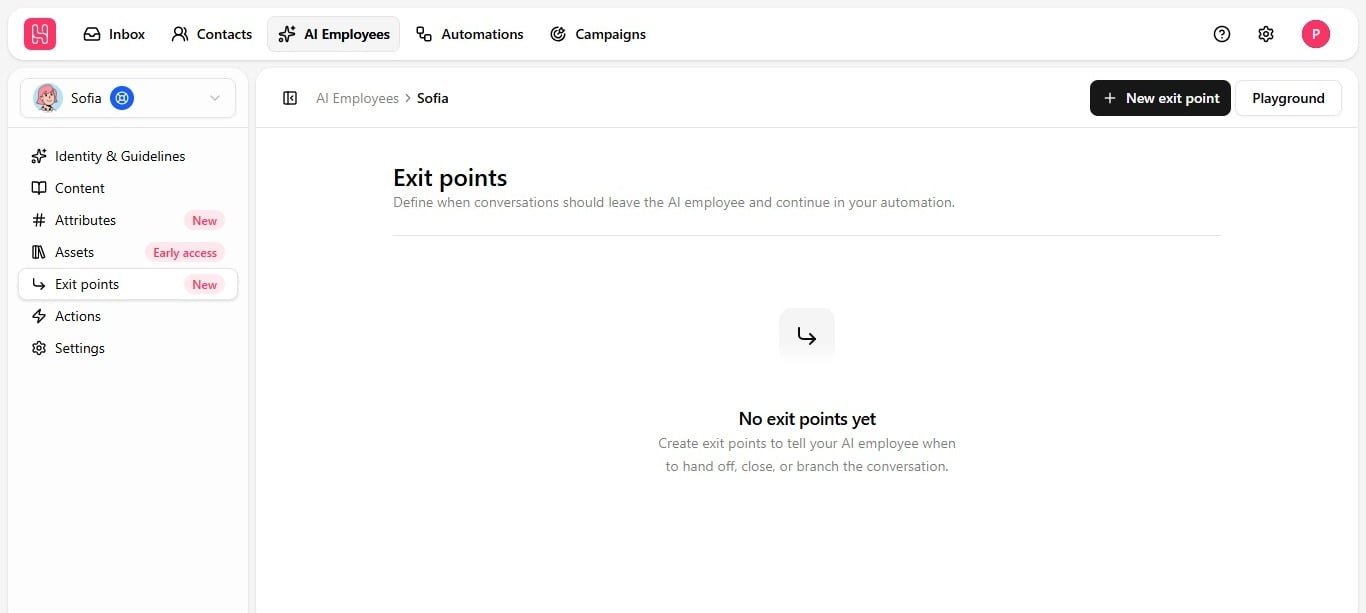
After you [create exit points](/help/ai-employees/capabilities/create-exit-points) on an employee, they still do nothing until you select and map them inside the specific automation the employee runs in.
## Map exit points
1. Open [**Automations**](https://app.heyy.io/automations) and edit the workflow.
2. Select the **AI Employee** node.
3. Choose which of the employee's exit points are active for this automation.
4. Connect each active exit point to the next step — assign chat, send a message, close the chat, or another action.
 Common mappings:
| Exit point | Typical next step |
| ------------------------------------- | ------------------------------------------------ |
| **Escalate to Human** | Assign to team or move to the human inbox. |
| **Resolved** | Close the chat or send a satisfaction follow-up. |
| **Warm Lead** / **Escalate to Sales** | Tag the contact and notify a teammate. |
You can also create a new exit point directly from inside the automation editor — it is added back to the employee's main configuration automatically, so it is available the next time you build an automation for this employee.
If an employee is not escalating the way you expect, check the automation first, not the employee. The exit point is often configured correctly on the employee but simply not selected for this specific automation.
See [Add an AI employee to an automation](/help/ai-employees/going-live/add-to-automation) for the full setup flow, and [Hand off to a human teammate](/help/ai-employees/going-live/hand-off-to-human) for routing escalation to the right inbox.
Common mappings:
| Exit point | Typical next step |
| ------------------------------------- | ------------------------------------------------ |
| **Escalate to Human** | Assign to team or move to the human inbox. |
| **Resolved** | Close the chat or send a satisfaction follow-up. |
| **Warm Lead** / **Escalate to Sales** | Tag the contact and notify a teammate. |
You can also create a new exit point directly from inside the automation editor — it is added back to the employee's main configuration automatically, so it is available the next time you build an automation for this employee.
If an employee is not escalating the way you expect, check the automation first, not the employee. The exit point is often configured correctly on the employee but simply not selected for this specific automation.
See [Add an AI employee to an automation](/help/ai-employees/going-live/add-to-automation) for the full setup flow, and [Hand off to a human teammate](/help/ai-employees/going-live/hand-off-to-human) for routing escalation to the right inbox.