> ## Documentation Index
> Fetch the complete documentation index at: https://docs.heyy.io/llms.txt
> Use this file to discover all available pages before exploring further.
# Add an AI employee to an automation
> Use the AI Employee action in the automation editor to put a tested employee to work.
A tested, live AI Employee can be added to any automation, regardless of how the automation is triggered. Once added, the automation determines when the AI Employee runs and what happens next.
## Add the action
1. Open [**Automations**](https://app.heyy.io/automations). If this is your first one, click **Create new automation** to open the editor.
2. **Set the trigger's channel.** The editor opens with a **Trigger** block already in place, set to *New incoming message*. Click into it and choose the channel this automation runs on.
3. **Add your AI Employee.** Open the **Channel Menu** on the right, search for the AI Employee option, and select which employee handles this automation. See [Channel and context](/help/ai-employees/going-live/channel-and-context).
4. **Optionally add extra guidelines.** These apply only inside this automation, not everywhere the employee is used — see [Automation guideline overrides](/help/ai-employees/going-live/automation-guideline-overrides).
5. **Select which exit points are active here.** An exit point configured on the employee does not apply automatically — see [Use exit points in automations](/help/ai-employees/going-live/use-exit-points-in-automations).
6. Configure a [reply timeout](/help/ai-employees/going-live/reply-timeouts) if the automation should act when the contact goes silent.
7. Publish the automation.
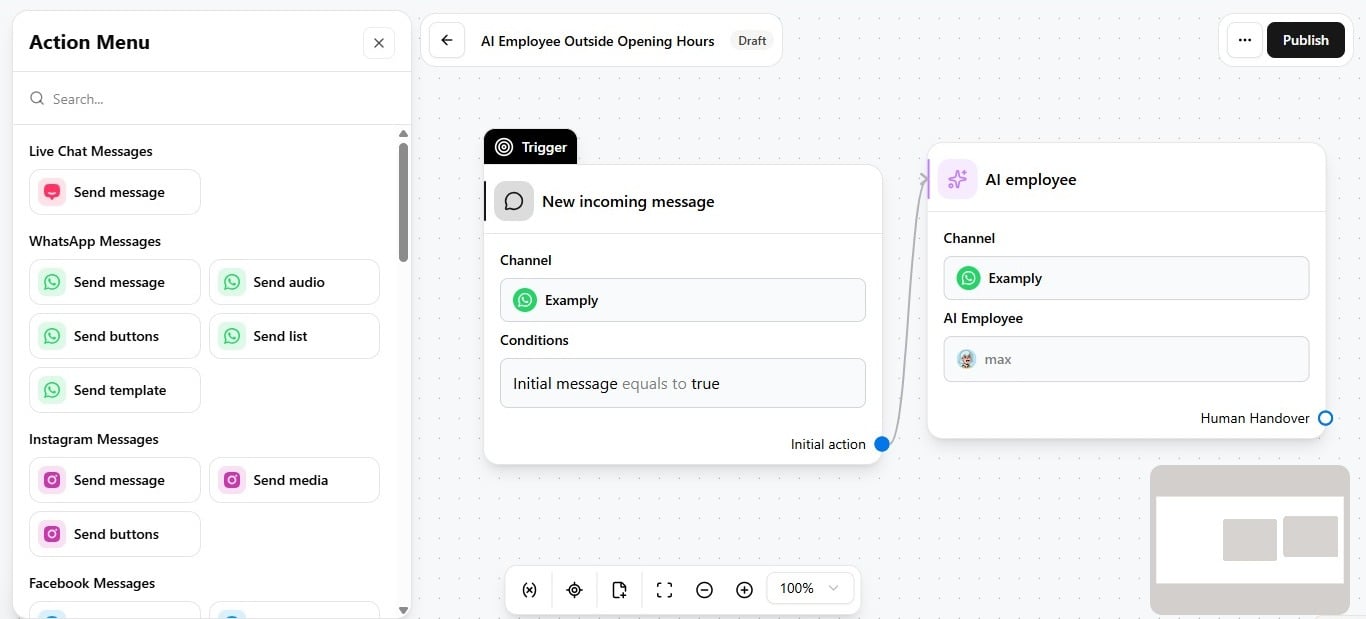 See [How AI employees work in automations](/help/ai-employees/going-live/how-ai-employees-work-in-automations) for the full mental model, and [AI actions](/help/automations/ai-actions) for how this action fits among other automation steps.