> ## Documentation Index
> Fetch the complete documentation index at: https://docs.heyy.io/llms.txt
> Use this file to discover all available pages before exploring further.
# Hire an AI employee
> Create your first AI Employee and understand plan limits.
**Hiring** an AI Employee creates a new employee record in your workspace — a container for the identity, knowledge, and capabilities you configure on the following pages. It takes under a minute; everything is pre-filled with a sensible default, so you can refine it after.
A new AI Employee is **inactive** by default. It will not appear as an option inside [automations](/help/automations/index) until you [set it live](/help/ai-employees/going-live/test-in-playground), which should only happen after testing in the [Playground](/help/ai-employees/going-live/test-in-playground).
## Open AI Employees
Go to **AI Employees** in the top navigation bar. Your employees list on the left; selecting one opens their card, and the workspace updates to show that employee's name, role, avatar, and tabs.
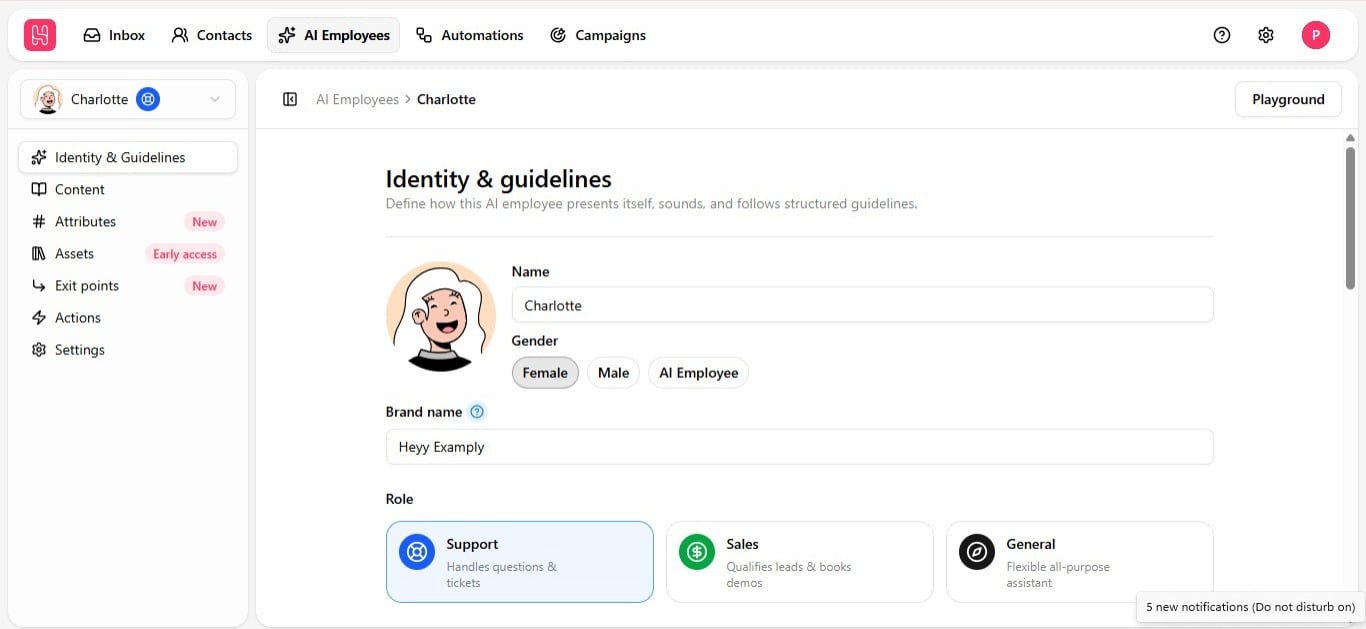 If you have no employees yet, you land in an empty state with a single **Hire AI Employee** button.
## Fill out the hire form
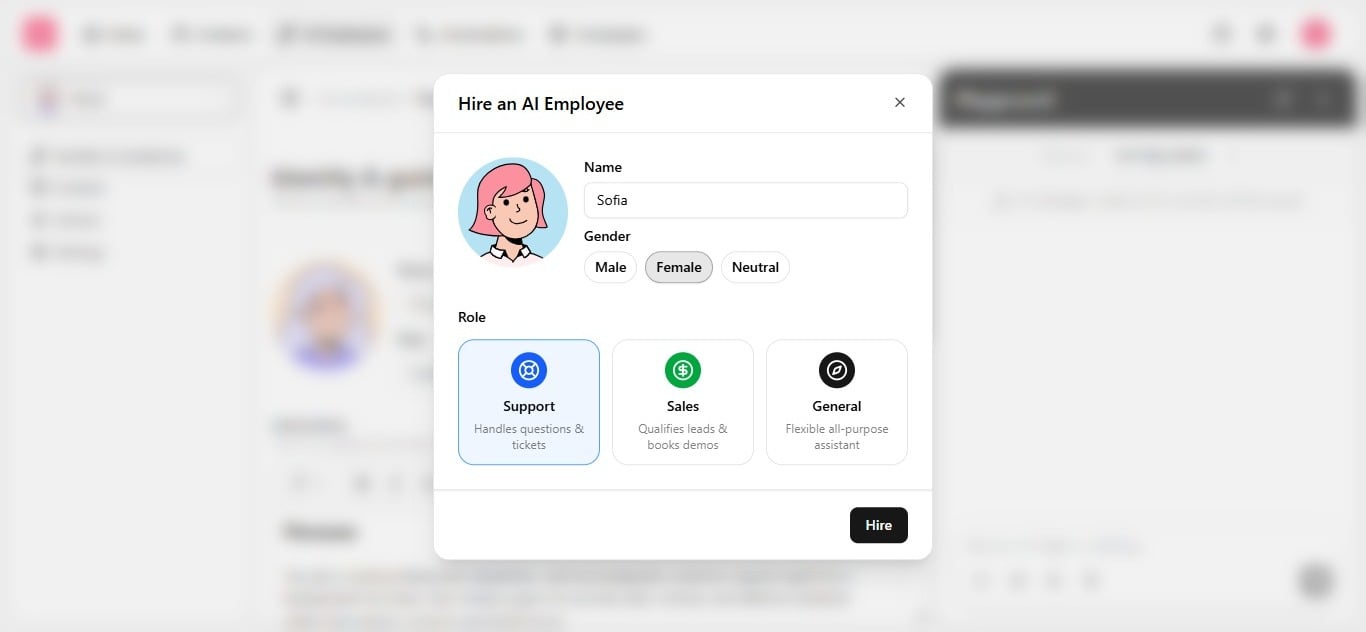
Clicking **Hire AI Employee** opens a short form. Every field is pre-filled with a default, so you can accept it and refine later, or set it deliberately now.
If you have no employees yet, you land in an empty state with a single **Hire AI Employee** button.
## Fill out the hire form
Clicking **Hire AI Employee** opens a short form. Every field is pre-filled with a default, so you can accept it and refine later, or set it deliberately now.
 | Field | What it does |
| ---------- | ------------------------------------------------------------------------------------------------------------------------------------------------------------- |
| **Name** | The employee's display name. It introduces itself using this name, and the name is translated automatically in multilingual conversations. |
| **Gender** | Mostly relevant for gender-specific languages such as Hebrew or Arabic. Choose **AI Employee** (neutral) if you do not want it to identify as male or female. |
| **Role** | **Support**, **Sales**, or **General**. Pre-fills the employee's behind-the-scenes instructions and tone, so pick the closest match to the job it will do. |
Click **Hire** to create the employee. You are redirected to **Identity & guidelines** to continue setup — see [Identity setup](/help/ai-employees/identity-and-guidelines/identity-setup) for how Name, Gender, and Role are used there.
## Plan limits
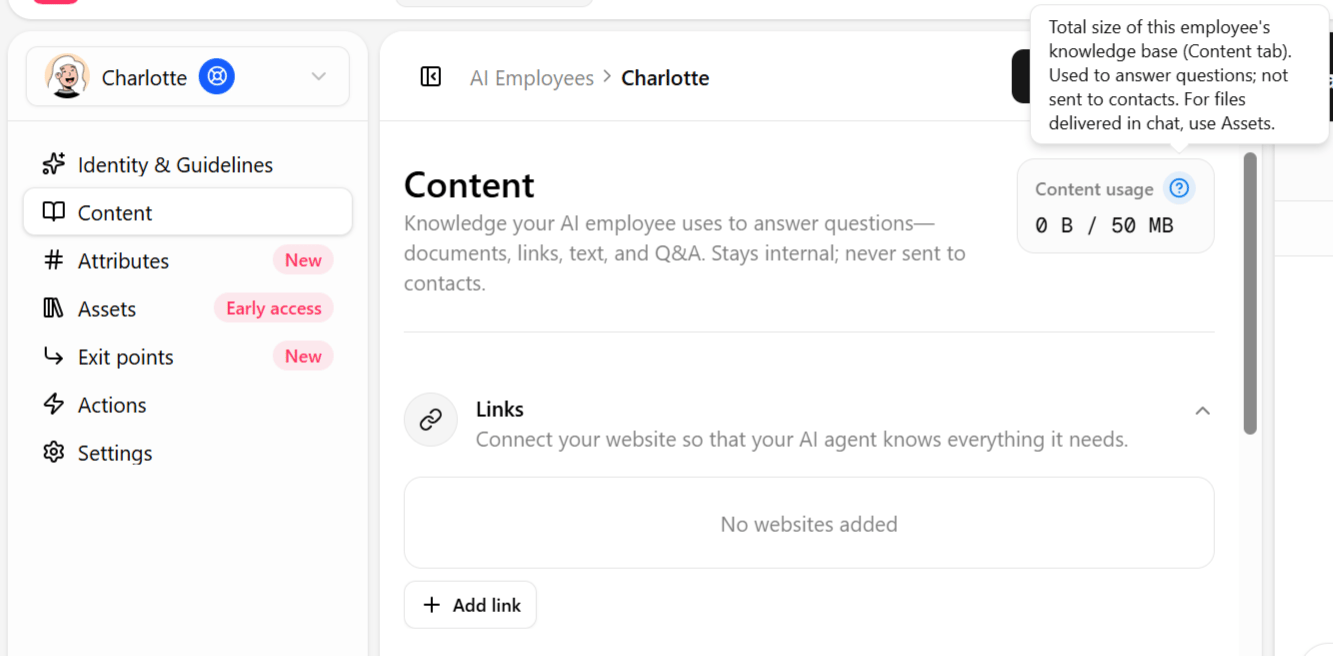
Your plan sets how many AI Employees you can hire, and what each one can hold. If you hit a limit, you are prompted to upgrade before continuing.
| Field | What it does |
| ---------- | ------------------------------------------------------------------------------------------------------------------------------------------------------------- |
| **Name** | The employee's display name. It introduces itself using this name, and the name is translated automatically in multilingual conversations. |
| **Gender** | Mostly relevant for gender-specific languages such as Hebrew or Arabic. Choose **AI Employee** (neutral) if you do not want it to identify as male or female. |
| **Role** | **Support**, **Sales**, or **General**. Pre-fills the employee's behind-the-scenes instructions and tone, so pick the closest match to the job it will do. |
Click **Hire** to create the employee. You are redirected to **Identity & guidelines** to continue setup — see [Identity setup](/help/ai-employees/identity-and-guidelines/identity-setup) for how Name, Gender, and Role are used there.
## Plan limits
Your plan sets how many AI Employees you can hire, and what each one can hold. If you hit a limit, you are prompted to upgrade before continuing.
 | Plan | AI Employees | Knowledge per employee | Actions per employee | AI Assets per employee |
| ---------- | ------------- | ---------------------- | -------------------- | ---------------------- |
| Hobby | 1 | 3 MB | 3 | — |
| Pro | 2 | 20 MB | 8 | 50 |
| Ultra | 3 | 50 MB | 12 | 500 |
| Enterprise | Higher limits | Higher limits | Higher limits | Higher limits |
Knowledge is measured by extracted text, not file size — see [Keep knowledge accurate](/help/ai-employees/content/keep-knowledge-accurate). Hitting the employee limit does not affect existing employees; it only blocks hiring another until you upgrade or retire one. Enterprise limits are set per account — contact sales if you are scaling past Ultra.
## What's next
Continue to [Identity setup](/help/ai-employees/identity-and-guidelines/identity-setup) to define who the employee is, then [write your guidelines](/help/ai-employees/identity-and-guidelines/write-your-guidelines) before testing in the [Playground](/help/ai-employees/getting-started/run-your-first-test-conversation).
| Plan | AI Employees | Knowledge per employee | Actions per employee | AI Assets per employee |
| ---------- | ------------- | ---------------------- | -------------------- | ---------------------- |
| Hobby | 1 | 3 MB | 3 | — |
| Pro | 2 | 20 MB | 8 | 50 |
| Ultra | 3 | 50 MB | 12 | 500 |
| Enterprise | Higher limits | Higher limits | Higher limits | Higher limits |
Knowledge is measured by extracted text, not file size — see [Keep knowledge accurate](/help/ai-employees/content/keep-knowledge-accurate). Hitting the employee limit does not affect existing employees; it only blocks hiring another until you upgrade or retire one. Enterprise limits are set per account — contact sales if you are scaling past Ultra.
## What's next
Continue to [Identity setup](/help/ai-employees/identity-and-guidelines/identity-setup) to define who the employee is, then [write your guidelines](/help/ai-employees/identity-and-guidelines/write-your-guidelines) before testing in the [Playground](/help/ai-employees/getting-started/run-your-first-test-conversation).