> ## Documentation Index
> Fetch the complete documentation index at: https://docs.heyy.io/llms.txt
> Use this file to discover all available pages before exploring further.
# Reference assets in guidelines
> Tell the employee exactly when to send a specific file.
Uploading a file to [Assets](/help/ai-employees/capabilities/share-files-in-chat) does not automatically make the employee send it — you tell it *when* through a [guideline](/help/ai-employees/identity-and-guidelines/write-your-guidelines), typically under [Conversation flow & objectives](/help/ai-employees/identity-and-guidelines/conversation-flow-and-objectives).
## Tag the asset in a guideline
Type `@` in the guideline editor and select **Assets** to reference a configured file directly in a sentence:
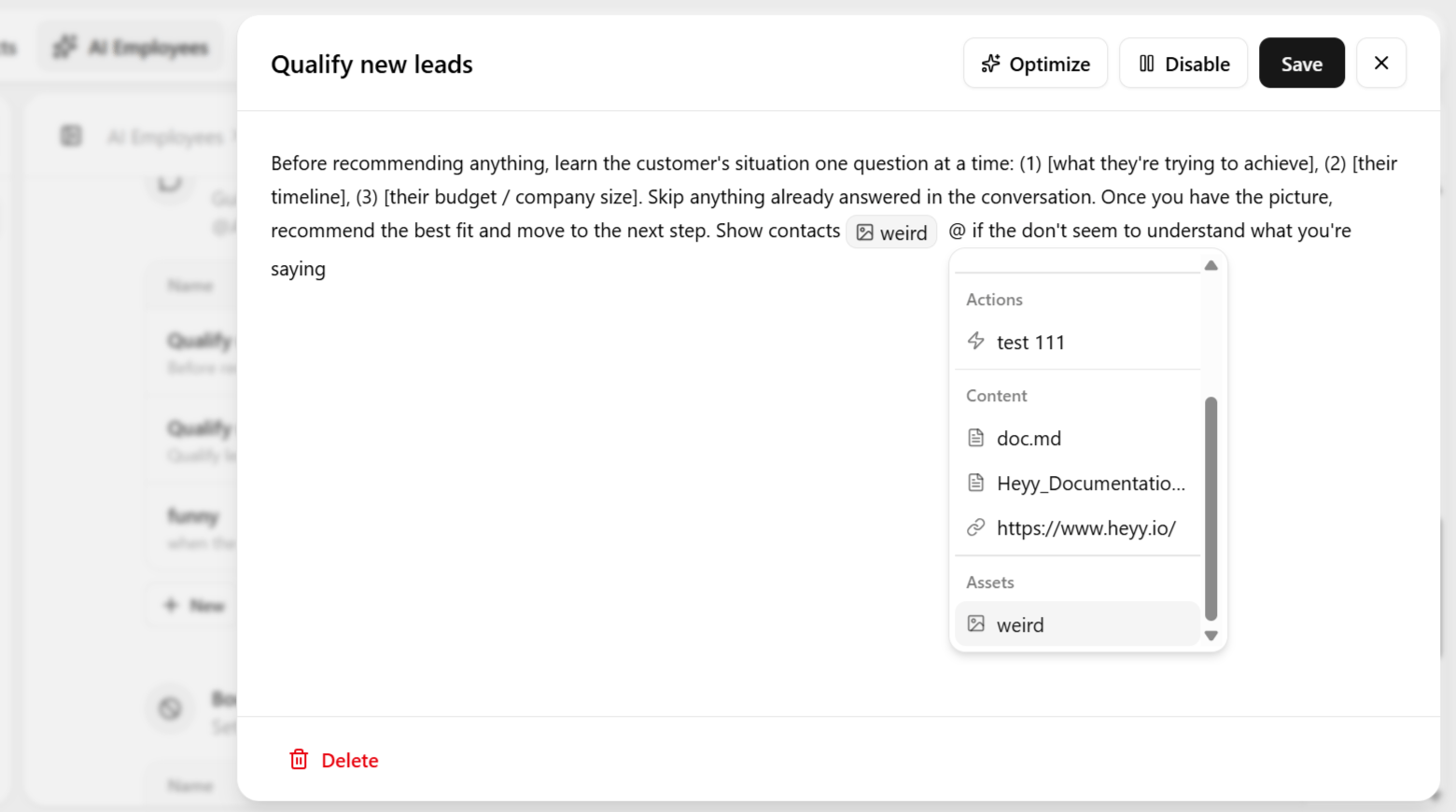 > Use this asset when the contact asks about sizing.
No extra automation is needed — the employee sends the file automatically when it judges the moment fits, the same way it decides when to answer from [Content](/help/ai-employees/content/add-your-website).
## Examples in practice
| Asset | Guideline logic |
| --------------------------- | --------------------------------------------------------------------------------------------------------------------------------------------- |
| Size guide PDF | When a customer asks about sizing, explain conversationally and attach the size guide directly. |
| Product image | When a customer asks about a specific product, send the image alongside the written description. |
| Feature walkthrough video | When a customer indicates confusion about a feature, send the video rather than only explaining in text. |
| A lighthearted GIF or image | When a conversation is dragging, or the tone is getting tense or repetitive, send something lighthearted to reset the mood before continuing. |
In each case, the pattern is the same: the file itself lives in [Assets](/help/ai-employees/capabilities/share-files-in-chat), while the judgment call — when is the right moment to use it — is defined here, in the guideline. The two work as a pair: Assets supplies the material, the guideline supplies the timing and reasoning.
## Be specific about when
| Instead of | Write |
| ------------------------------ | ---------------------------------------------------------------------- |
| "Send assets when helpful." | "Send the pricing PDF once the contact confirms budget and team size." |
| "Share the guide if relevant." | "Send the setup guide as soon as onboarding starts." |
A vague instruction to send assets "when helpful" leaves the employee guessing about which file and when. Reference each asset exactly where it is relevant to a specific step in the conversation.
Pair asset rules with [Boundaries](/help/ai-employees/identity-and-guidelines/boundaries) so the employee does not over-share files or send the wrong document to the wrong contact.
> Use this asset when the contact asks about sizing.
No extra automation is needed — the employee sends the file automatically when it judges the moment fits, the same way it decides when to answer from [Content](/help/ai-employees/content/add-your-website).
## Examples in practice
| Asset | Guideline logic |
| --------------------------- | --------------------------------------------------------------------------------------------------------------------------------------------- |
| Size guide PDF | When a customer asks about sizing, explain conversationally and attach the size guide directly. |
| Product image | When a customer asks about a specific product, send the image alongside the written description. |
| Feature walkthrough video | When a customer indicates confusion about a feature, send the video rather than only explaining in text. |
| A lighthearted GIF or image | When a conversation is dragging, or the tone is getting tense or repetitive, send something lighthearted to reset the mood before continuing. |
In each case, the pattern is the same: the file itself lives in [Assets](/help/ai-employees/capabilities/share-files-in-chat), while the judgment call — when is the right moment to use it — is defined here, in the guideline. The two work as a pair: Assets supplies the material, the guideline supplies the timing and reasoning.
## Be specific about when
| Instead of | Write |
| ------------------------------ | ---------------------------------------------------------------------- |
| "Send assets when helpful." | "Send the pricing PDF once the contact confirms budget and team size." |
| "Share the guide if relevant." | "Send the setup guide as soon as onboarding starts." |
A vague instruction to send assets "when helpful" leaves the employee guessing about which file and when. Reference each asset exactly where it is relevant to a specific step in the conversation.
Pair asset rules with [Boundaries](/help/ai-employees/identity-and-guidelines/boundaries) so the employee does not over-share files or send the wrong document to the wrong contact.