> ## Documentation Index
> Fetch the complete documentation index at: https://docs.heyy.io/llms.txt
> Use this file to discover all available pages before exploring further.
# Introduction
> What AI Employees are and how they fit into Heyy.
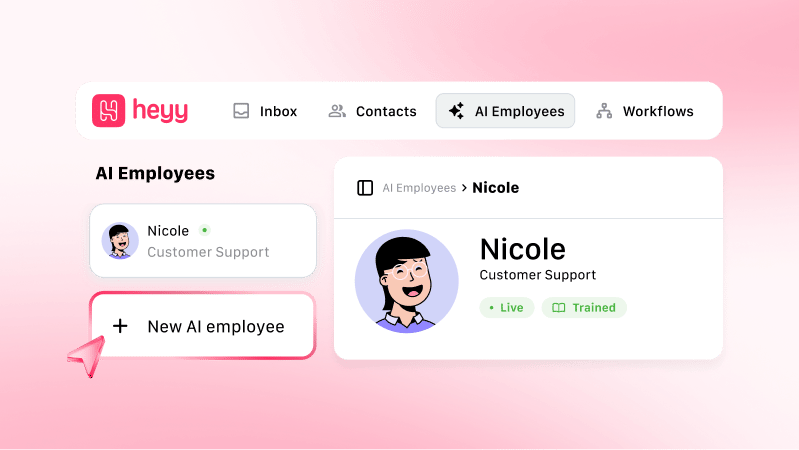
AI Employees are AI agents you configure in Heyy to handle customer conversations on your behalf. They combine identity, knowledge, and capabilities so you can automate support, sales, and other workflows without losing your brand voice.
 ## How AI Employees fit in Heyy
* **Configure** — Define how they sound, what they know, and what they can do.
* **Test** — Use the Playground before customers see them.
* **Deploy** — Add them to [automations](/help/automations/index) on all your channels like WhatsApp, Instagram, Live Chat, etc.
AI Employees are not a replacement for [automations](/help/automations/index) or your [inbox](/help/inbox/inbox-tour). Automations orchestrate *when* an employee runs; the inbox is where humans take over after handoff.
## The AI Employee page
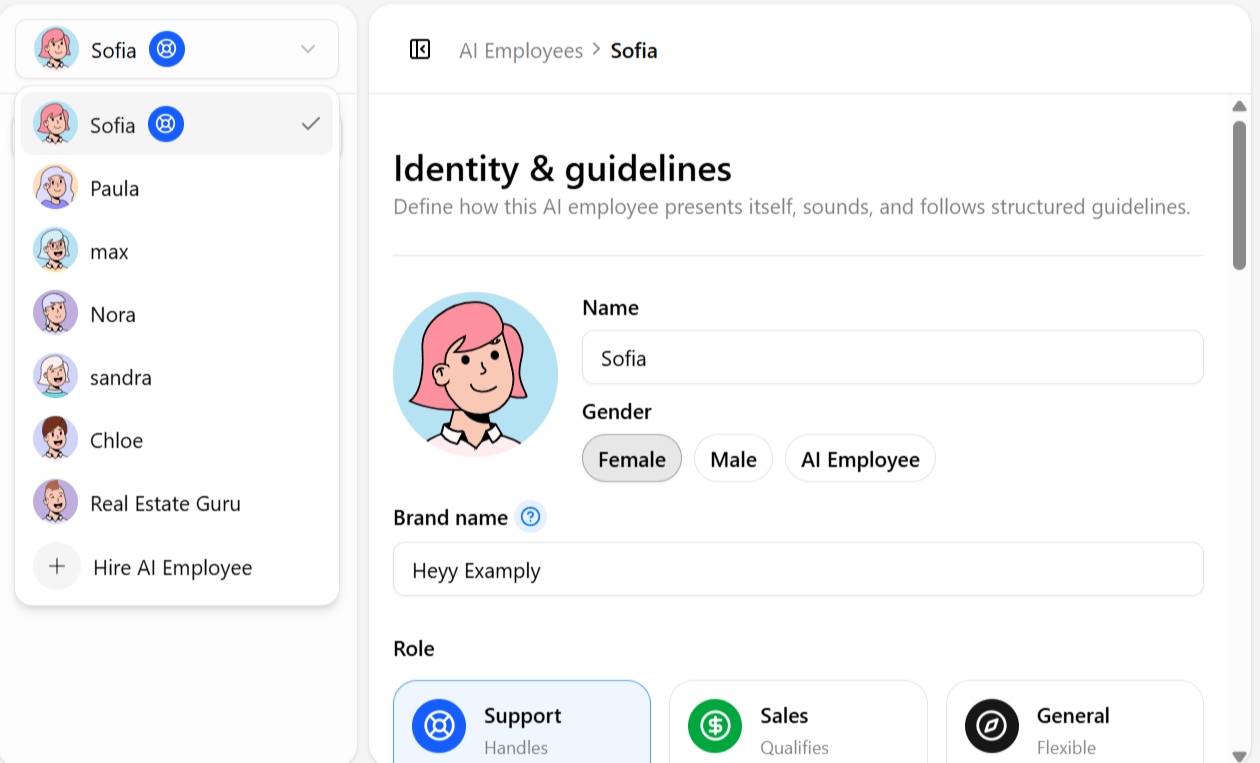
Every AI Employee you configure lives on the same page, in [**AI Employees**](https://app.heyy.io/ai-employees). A dropdown on the left lists every employee on your workspace — useful if you run more than one, for example a support employee and a sales employee, or separate employees per brand. Selecting an employee from the dropdown loads that employee's entire configuration; switching is instant, and each employee's settings are stored completely separately, so adjusting one employee's tone or boundaries has zero effect on any other employee in your workspace.
## How AI Employees fit in Heyy
* **Configure** — Define how they sound, what they know, and what they can do.
* **Test** — Use the Playground before customers see them.
* **Deploy** — Add them to [automations](/help/automations/index) on all your channels like WhatsApp, Instagram, Live Chat, etc.
AI Employees are not a replacement for [automations](/help/automations/index) or your [inbox](/help/inbox/inbox-tour). Automations orchestrate *when* an employee runs; the inbox is where humans take over after handoff.
## The AI Employee page
Every AI Employee you configure lives on the same page, in [**AI Employees**](https://app.heyy.io/ai-employees). A dropdown on the left lists every employee on your workspace — useful if you run more than one, for example a support employee and a sales employee, or separate employees per brand. Selecting an employee from the dropdown loads that employee's entire configuration; switching is instant, and each employee's settings are stored completely separately, so adjusting one employee's tone or boundaries has zero effect on any other employee in your workspace.
 Beneath the selector sits a vertical navigation bar with seven tabs. Each tab controls a distinct layer of how the employee thinks, speaks, and behaves — together they form the complete configuration surface for a single AI Employee.
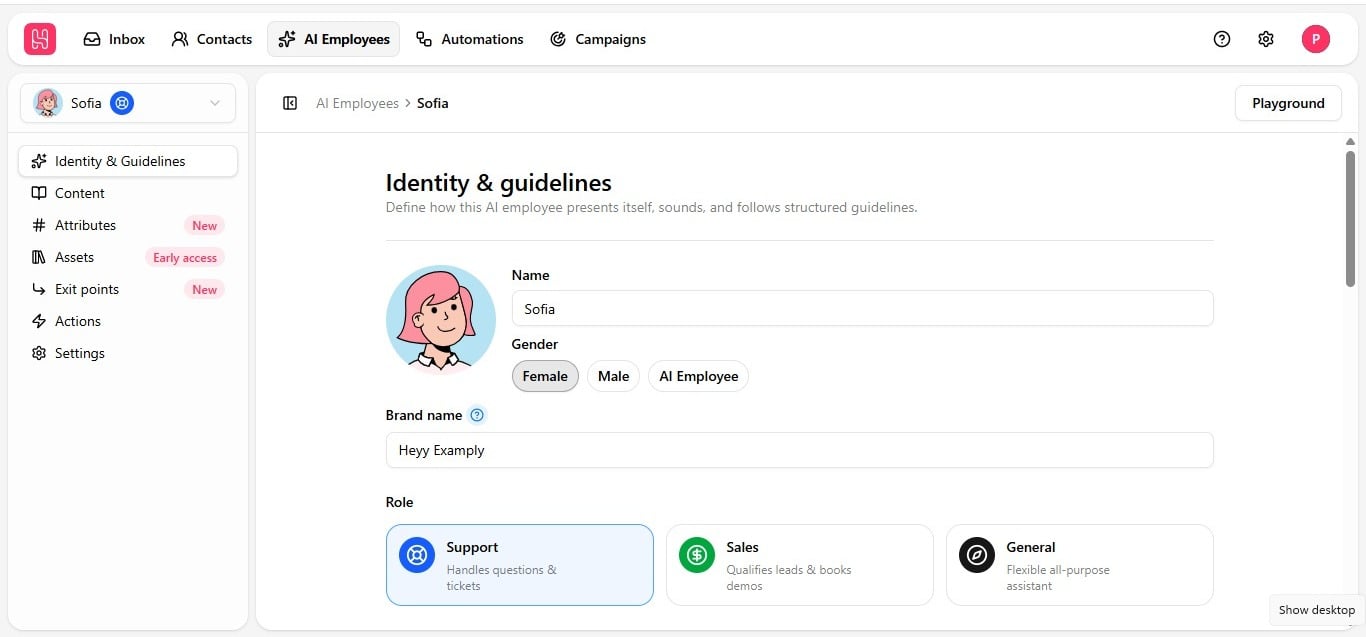 | Tab | What it controls |
| -------------------------------------------------------------------------------------- | -------------------------------------------------------------------------- |
| [**Identity & guidelines**](/help/ai-employees/identity-and-guidelines/identity-setup) | Name, brand, role, tone, answer length, and the guideline rulebook. |
| [**Content**](/help/ai-employees/content/add-your-website) | The internal knowledge base — links, documents, text, and Q\&A. |
| [**Attributes**](/help/ai-employees/capabilities/choose-attributes-to-expose) | Which contact fields the employee can read, share, or update. |
| [**Assets**](/help/ai-employees/capabilities/share-files-in-chat) | Shareable files the employee can send during a conversation. |
| [**Exit points**](/help/ai-employees/capabilities/create-exit-points) | When a conversation hands off to a human, resolves or any other condition. |
| [**Actions**](/help/ai-employees/capabilities/actions-overview) | Automations and API calls the employee can trigger. |
| [**Settings**](/help/ai-employees/capabilities/employee-settings) | Extra settings of the employee and retiring the employee. |
**Identity & guidelines** comes first in the tab order deliberately. Everything downstream — the content the employee is trained on, the assets it can share, the actions it can trigger, the points where it exits a conversation — gets filtered through the personality and rules established there first. An employee with no identity configured is a capable engine with no steering wheel; Identity & guidelines is where the steering wheel goes in, before anything else is worth configuring.
## Categories
Hire, test, and connect your first employee to customer traffic
Brand, role, tone, and structured conversation guidelines
Links, documents, text, and Q\&A knowledge for accurate answers
Contact context, shareable files, actions, exit points, and settings
Playground, automations, exit routing, and handoff to humans
## Popular articles
## How the tabs work together
No single tab does the whole job — the real behavior of an AI Employee emerges from all seven tabs plus the Playground working together. Consider one realistic conversation: a customer messages an employee configured for a fashion brand, asking about sizing for a jacket.
| Tab | Its role in this one exchange |
| ---------------------------------- | ------------------------------------------------------------------------------------------------------------------------------------------------- |
| **Identity & guidelines** | Has already established a friendly, standard-depth, Sales-role employee that speaks in the brand's name. |
| **Content** | Supplies the underlying sizing knowledge — fit notes, fabric behavior, a Q\&A entry addressing this exact question. |
| **Conversation flow & objectives** | Recognizes the sizing question and knows to pair the text answer with the size guide asset. |
| **Assets** | Is where that size guide PDF physically lives, ready to attach. |
| **Attributes** | May let the employee read the customer's prior purchase history to personalize the answer further. |
| **Exit points** | Hands the conversation to a human if it turns into a complex return case outside policy. |
| **Actions** | Fires a notification if the conversation reveals a high-value customer worth flagging internally. |
| **Settings** | Determines smaller behavioral details, like whether the customer sees a typing indicator while the reply is composed. |
| **Playground** | Is where you tested this exact scenario — sizing question, asset attachment, attribute read, exit point — before it ever reached a real customer. |
## Recommended configuration order
The platform allows configuring tabs in any sequence, but this order reflects how they naturally depend on one another:
1. **[Identity & guidelines](/help/ai-employees/identity-and-guidelines/identity-setup) first** — name, brand, role, tone, answer length, and all four guideline categories. Everything else builds on this foundation.
2. **[Content](/help/ai-employees/content/add-your-website) next** — populate the knowledge base so the employee has something substantive before you start testing.
3. **[Assets](/help/ai-employees/capabilities/share-files-in-chat) alongside Content** — upload the files [Conversation flow & objectives](/help/ai-employees/identity-and-guidelines/conversation-flow-and-objectives) guidelines will need to reference.
4. **[Attributes](/help/ai-employees/capabilities/choose-attributes-to-expose)** — decide what contact data the employee needs, based on how personalized its replies should be.
5. **[Exit points](/help/ai-employees/capabilities/create-exit-points)** — define handover conditions before going live, so a difficult conversation always has somewhere to go.
6. **[Actions](/help/ai-employees/capabilities/actions-overview)** — configure automations or API calls once the more foundational tabs are in place.
7. **[Settings](/help/ai-employees/capabilities/employee-settings)** — adjust smaller behavioral details like the typing indicator.
8. **[Playground](/help/ai-employees/going-live/test-in-playground), continuously** — test throughout the process above, not only once at the end. Verify each tab's changes before moving to the next.
Open [**AI Employees**](https://app.heyy.io/ai-employees) in the Heyy app to manage your team.
| Tab | What it controls |
| -------------------------------------------------------------------------------------- | -------------------------------------------------------------------------- |
| [**Identity & guidelines**](/help/ai-employees/identity-and-guidelines/identity-setup) | Name, brand, role, tone, answer length, and the guideline rulebook. |
| [**Content**](/help/ai-employees/content/add-your-website) | The internal knowledge base — links, documents, text, and Q\&A. |
| [**Attributes**](/help/ai-employees/capabilities/choose-attributes-to-expose) | Which contact fields the employee can read, share, or update. |
| [**Assets**](/help/ai-employees/capabilities/share-files-in-chat) | Shareable files the employee can send during a conversation. |
| [**Exit points**](/help/ai-employees/capabilities/create-exit-points) | When a conversation hands off to a human, resolves or any other condition. |
| [**Actions**](/help/ai-employees/capabilities/actions-overview) | Automations and API calls the employee can trigger. |
| [**Settings**](/help/ai-employees/capabilities/employee-settings) | Extra settings of the employee and retiring the employee. |
**Identity & guidelines** comes first in the tab order deliberately. Everything downstream — the content the employee is trained on, the assets it can share, the actions it can trigger, the points where it exits a conversation — gets filtered through the personality and rules established there first. An employee with no identity configured is a capable engine with no steering wheel; Identity & guidelines is where the steering wheel goes in, before anything else is worth configuring.
## Categories
Hire, test, and connect your first employee to customer traffic
Brand, role, tone, and structured conversation guidelines
Links, documents, text, and Q\&A knowledge for accurate answers
Contact context, shareable files, actions, exit points, and settings
Playground, automations, exit routing, and handoff to humans
## Popular articles
## How the tabs work together
No single tab does the whole job — the real behavior of an AI Employee emerges from all seven tabs plus the Playground working together. Consider one realistic conversation: a customer messages an employee configured for a fashion brand, asking about sizing for a jacket.
| Tab | Its role in this one exchange |
| ---------------------------------- | ------------------------------------------------------------------------------------------------------------------------------------------------- |
| **Identity & guidelines** | Has already established a friendly, standard-depth, Sales-role employee that speaks in the brand's name. |
| **Content** | Supplies the underlying sizing knowledge — fit notes, fabric behavior, a Q\&A entry addressing this exact question. |
| **Conversation flow & objectives** | Recognizes the sizing question and knows to pair the text answer with the size guide asset. |
| **Assets** | Is where that size guide PDF physically lives, ready to attach. |
| **Attributes** | May let the employee read the customer's prior purchase history to personalize the answer further. |
| **Exit points** | Hands the conversation to a human if it turns into a complex return case outside policy. |
| **Actions** | Fires a notification if the conversation reveals a high-value customer worth flagging internally. |
| **Settings** | Determines smaller behavioral details, like whether the customer sees a typing indicator while the reply is composed. |
| **Playground** | Is where you tested this exact scenario — sizing question, asset attachment, attribute read, exit point — before it ever reached a real customer. |
## Recommended configuration order
The platform allows configuring tabs in any sequence, but this order reflects how they naturally depend on one another:
1. **[Identity & guidelines](/help/ai-employees/identity-and-guidelines/identity-setup) first** — name, brand, role, tone, answer length, and all four guideline categories. Everything else builds on this foundation.
2. **[Content](/help/ai-employees/content/add-your-website) next** — populate the knowledge base so the employee has something substantive before you start testing.
3. **[Assets](/help/ai-employees/capabilities/share-files-in-chat) alongside Content** — upload the files [Conversation flow & objectives](/help/ai-employees/identity-and-guidelines/conversation-flow-and-objectives) guidelines will need to reference.
4. **[Attributes](/help/ai-employees/capabilities/choose-attributes-to-expose)** — decide what contact data the employee needs, based on how personalized its replies should be.
5. **[Exit points](/help/ai-employees/capabilities/create-exit-points)** — define handover conditions before going live, so a difficult conversation always has somewhere to go.
6. **[Actions](/help/ai-employees/capabilities/actions-overview)** — configure automations or API calls once the more foundational tabs are in place.
7. **[Settings](/help/ai-employees/capabilities/employee-settings)** — adjust smaller behavioral details like the typing indicator.
8. **[Playground](/help/ai-employees/going-live/test-in-playground), continuously** — test throughout the process above, not only once at the end. Verify each tab's changes before moving to the next.
Open [**AI Employees**](https://app.heyy.io/ai-employees) in the Heyy app to manage your team.