> ## Documentation Index
> Fetch the complete documentation index at: https://docs.heyy.io/llms.txt
> Use this file to discover all available pages before exploring further.
# SMS
> Connect a Twilio phone number to Heyy to send and receive SMS messages in your Inbox, automations, and campaigns.
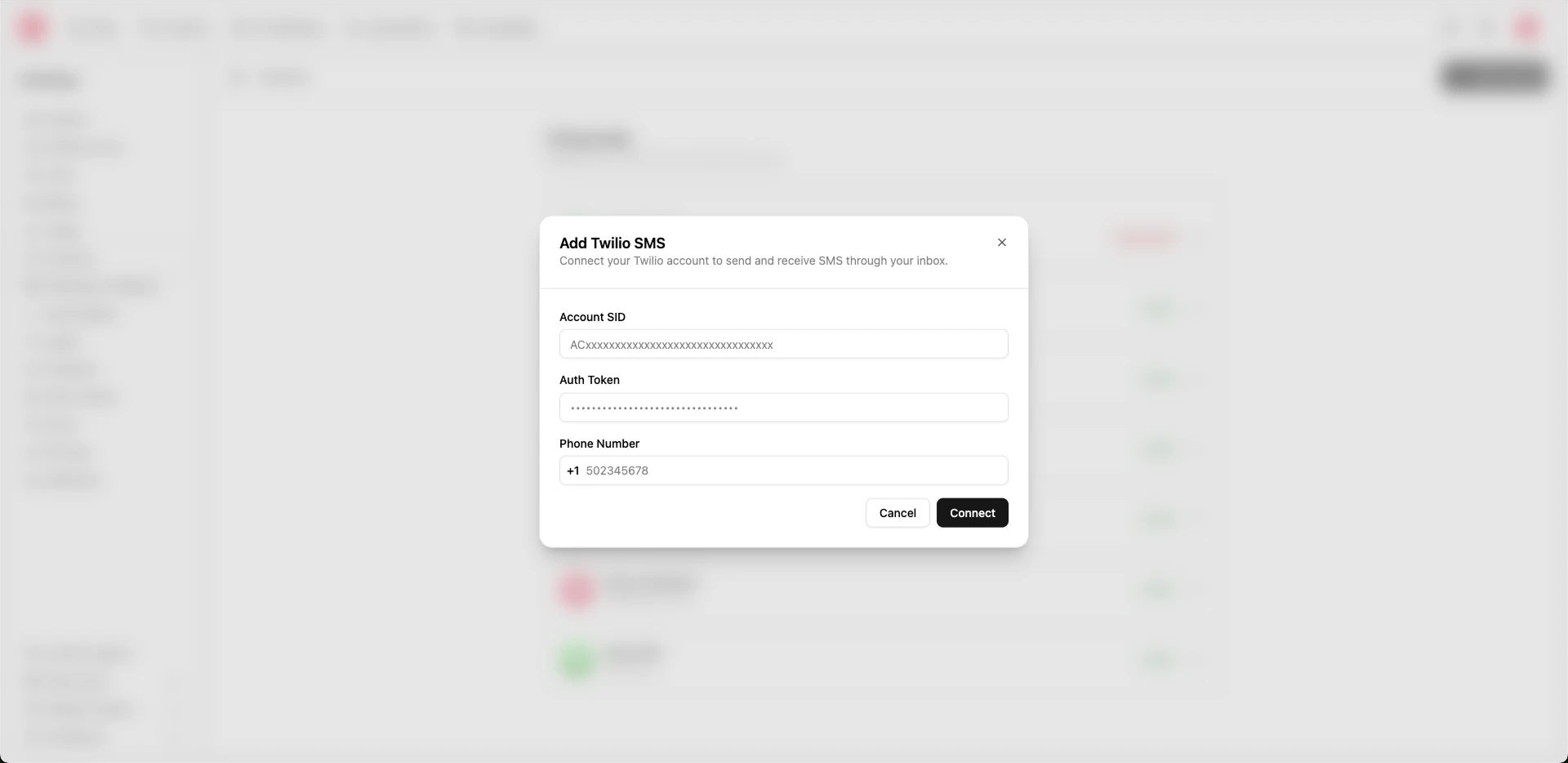 SMS lets you text with customers using a **Twilio** phone number, directly from your Heyy [Inbox](/quick-start/inbox). You can also use the same Heyy features you use on other channels, like [automations](/quick-start/automations/triggers), [AI Employees](/quick-start/ai-employees), [contacts](/quick-start/contacts), and [campaigns](/quick-start/campaigns).
## Before you connect (Twilio prerequisites)
To use SMS in Heyy, you’ll need:
1. A **Twilio account**
2. A **Twilio phone number** that can send/receive SMS (you buy this inside Twilio)
Twilio charges separately for phone numbers and SMS usage. Heyy connects to Twilio — your SMS costs are billed by Twilio.
## Connecting an SMS channel (Twilio)
1. Go to **Settings → Channels** in your Heyy dashboard.
2. Click **Add Channel**.
3. Select **SMS**.
4. In the dialog, fill in:
* **Name** (required): A label for this channel (e.g. "Support SMS").
* **Twilio phone number** (required): The number you purchased in Twilio.
* **Twilio credentials** (required): Your Twilio account credentials (as shown in the Heyy setup).
5. Click **Create** (or **Connect**) to finish.
Once connected, Heyy will start receiving inbound SMS and sending outbound SMS through your Twilio number.
## How SMS conversations work in Heyy
* **Inbound messages**: When someone texts your Twilio number, the conversation appears in your Heyy Inbox.
* **Outbound messages**: When you reply in Heyy, we send the SMS through Twilio.
* **Contacts**: Phone numbers are used to create/identify [contacts](/quick-start/contacts).
## Common setup notes
* **Use a fresh Twilio number**: If the number is already wired to another system, inbound messages may not reach Heyy.
* **Deliverability & compliance**: SMS rules vary by country and use case. If Twilio flags traffic or requires additional steps (like registration), complete that in Twilio.
## Automations, AI Employees, and campaigns
After the SMS channel is connected, you can:
* Use [automations](/quick-start/automations/triggers) to send replies, route conversations, tag contacts, and notify your team
* Assign an [AI Employee](/quick-start/ai-employees) to handle first-line SMS replies
* Send SMS via [campaigns](/quick-start/campaigns) (where available in your workspace)
## Removing an SMS channel
Deleting an SMS channel is **irreversible**. Inbound messages to that Twilio number will no longer appear in Heyy, and you won’t be able to send messages from Heyy using that channel. If you might need the data later, export or back up before deleting.
To remove an SMS channel, go to **Settings → Channels**, open the SMS channel, and use the delete or remove option.
## Use cases
* **Customer support**: Let customers text you and manage everything in your [Inbox](/quick-start/inbox).
* **Order updates**: Send status notifications or follow-ups using [automations](/quick-start/automations/triggers).
* **Re-engagement**: Reach out to existing customers using [campaigns](/quick-start/campaigns).
* **AI-first support**: Use an [AI Employee](/quick-start/ai-employees) to reply instantly, escalate to a human, or collect info before handoff.
If inbound SMS aren’t showing up, double-check that you purchased the number in Twilio and that the number is the same one connected in Heyy.
SMS lets you text with customers using a **Twilio** phone number, directly from your Heyy [Inbox](/quick-start/inbox). You can also use the same Heyy features you use on other channels, like [automations](/quick-start/automations/triggers), [AI Employees](/quick-start/ai-employees), [contacts](/quick-start/contacts), and [campaigns](/quick-start/campaigns).
## Before you connect (Twilio prerequisites)
To use SMS in Heyy, you’ll need:
1. A **Twilio account**
2. A **Twilio phone number** that can send/receive SMS (you buy this inside Twilio)
Twilio charges separately for phone numbers and SMS usage. Heyy connects to Twilio — your SMS costs are billed by Twilio.
## Connecting an SMS channel (Twilio)
1. Go to **Settings → Channels** in your Heyy dashboard.
2. Click **Add Channel**.
3. Select **SMS**.
4. In the dialog, fill in:
* **Name** (required): A label for this channel (e.g. "Support SMS").
* **Twilio phone number** (required): The number you purchased in Twilio.
* **Twilio credentials** (required): Your Twilio account credentials (as shown in the Heyy setup).
5. Click **Create** (or **Connect**) to finish.
Once connected, Heyy will start receiving inbound SMS and sending outbound SMS through your Twilio number.
## How SMS conversations work in Heyy
* **Inbound messages**: When someone texts your Twilio number, the conversation appears in your Heyy Inbox.
* **Outbound messages**: When you reply in Heyy, we send the SMS through Twilio.
* **Contacts**: Phone numbers are used to create/identify [contacts](/quick-start/contacts).
## Common setup notes
* **Use a fresh Twilio number**: If the number is already wired to another system, inbound messages may not reach Heyy.
* **Deliverability & compliance**: SMS rules vary by country and use case. If Twilio flags traffic or requires additional steps (like registration), complete that in Twilio.
## Automations, AI Employees, and campaigns
After the SMS channel is connected, you can:
* Use [automations](/quick-start/automations/triggers) to send replies, route conversations, tag contacts, and notify your team
* Assign an [AI Employee](/quick-start/ai-employees) to handle first-line SMS replies
* Send SMS via [campaigns](/quick-start/campaigns) (where available in your workspace)
## Removing an SMS channel
Deleting an SMS channel is **irreversible**. Inbound messages to that Twilio number will no longer appear in Heyy, and you won’t be able to send messages from Heyy using that channel. If you might need the data later, export or back up before deleting.
To remove an SMS channel, go to **Settings → Channels**, open the SMS channel, and use the delete or remove option.
## Use cases
* **Customer support**: Let customers text you and manage everything in your [Inbox](/quick-start/inbox).
* **Order updates**: Send status notifications or follow-ups using [automations](/quick-start/automations/triggers).
* **Re-engagement**: Reach out to existing customers using [campaigns](/quick-start/campaigns).
* **AI-first support**: Use an [AI Employee](/quick-start/ai-employees) to reply instantly, escalate to a human, or collect info before handoff.
If inbound SMS aren’t showing up, double-check that you purchased the number in Twilio and that the number is the same one connected in Heyy.